> For the complete documentation index, see [llms.txt](https://docs.os.uk/more-than-maps/llms.txt). Markdown versions of documentation pages are available by appending `.md` to page URLs; this page is available as [Markdown](https://docs.os.uk/more-than-maps/data-demonstrators/os-ngd-data/ordering-os-ngd-data.md).

# Ordering OS NGD data

## What is OS Select+ Build?

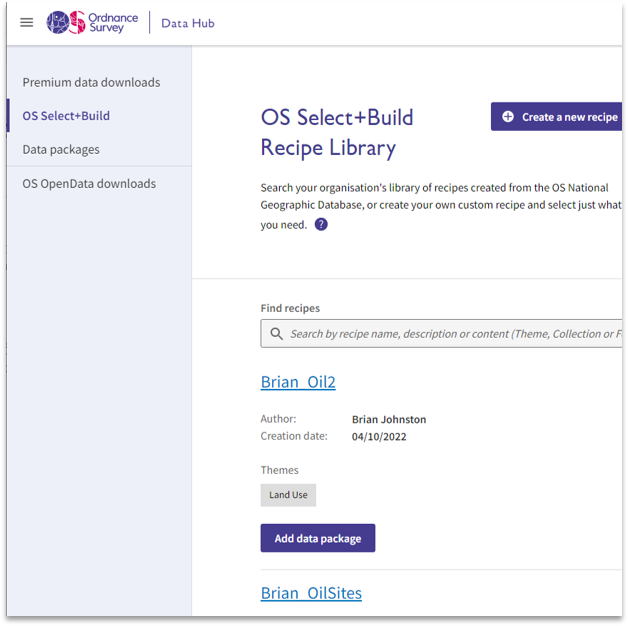
OS Select+Build is the portal to enable users to order OS NGD data. It is located on the existing [OS Data Hub](https://osdatahub.os.uk) in the **Downloads** section

<figure><img src="/files/mYNwWTjxgTmf6MrB2SRx" alt="screengrab od the OS Datahub showing the OS Select+Build screen" width="471"><figcaption></figcaption></figure>

Clicking on the OS Select+Build tab opens up the **Recipe Library**. ​

**Recipe** is the term that we use to describe the bespoke set of data choices that a user creates. A recipe can be for one **theme**, one **collection**, one **feature type** – or any combination of these.​

To create a recipe, simply select the **Create a new recipe** button

## How to create a new recipe​

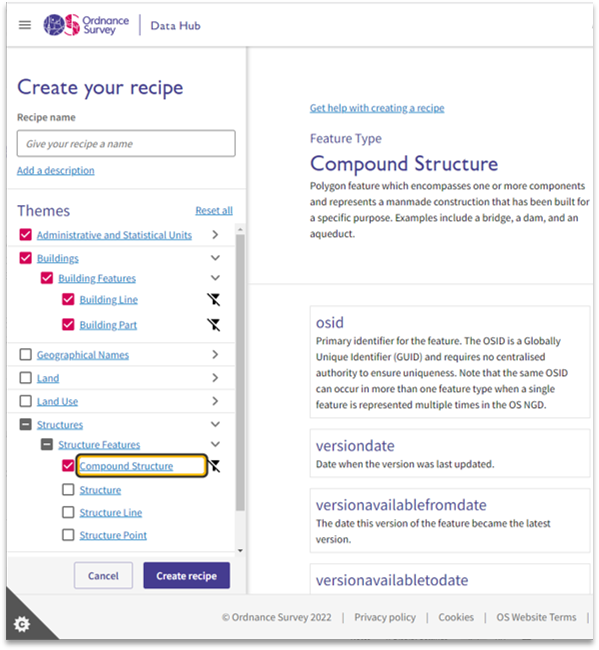
Once you have clicked the Create new recipe button you’ll have the option to select which layers of data you want to have as part of this recipe.​

<figure><img src="/files/Kh7JL3n6DsM1PeeKfsUZ" alt="Screengrab of the OS Datahub showing the recipe builder" width="449"><figcaption></figcaption></figure>

* **Themes**​: There are nine themes: Administrative and Statistical Units; Buildings; Geographical Names; Land; Land Use; Structures; Transport and Water​
* **Collections**: Under each theme is a series of Collections such as Building Features of Structure Features​
* **Feature Types**: Under each collection is a series of Feature Types such as Compound Structure; Structure; Structure Line and Structure Point.​

You can select data at the Theme, Collection or Feature Type level, give the recipe a name and select ‘**Create recipe**’​

## Filtering

Clicking on each of the themes, collections or feature types will bring up information on that set of data.​

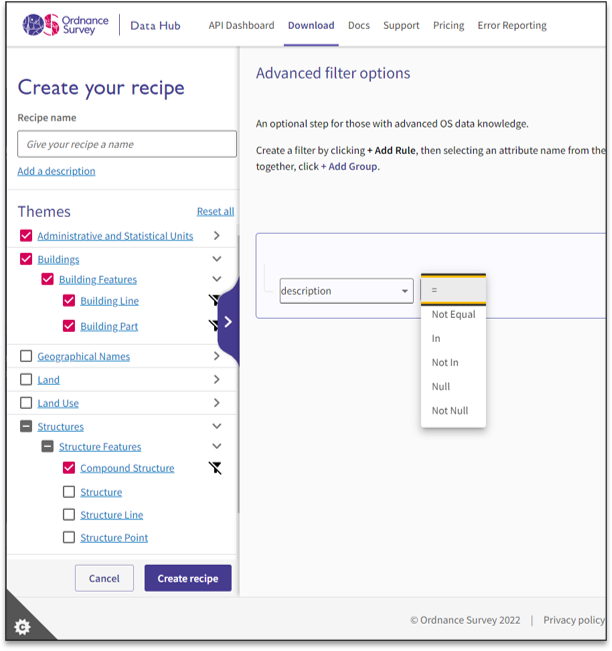
If you don’t want to take all of the data in a particular feature type it​ is possible to filter that layer. Once a feature type is selected a filter icon appears next to that row which enables filtering.​

How the data can be filtered depends on the type of attribute and this is what the next sections will cover in detail.​

<figure><img src="/files/lzg8G9vydJuoIWGDmdlZ" alt="a screengrab of the OS Data Hub showing filtering in a recipe" width="459"><figcaption></figcaption></figure>

## Which fields can be filtered?​

Different fields can be filtered for different feature types and not all fields appear as filterable for all feature types. ​

There are two main types of field: Text and Numerical.​

* Text fields include: catchmentName (water network), catchmentID (water network), description, descriptionGroup, extentDefinition, maintenanceAuthority (transport network), maintenanceResponsibility (transport network), name1\_text, operationalStatus, OSLandCoverTierA (land, structure), OSLandCoverTierB (land), OSLandUseTierA (land use, structure), restriction (transport network), stakeholder
* Numerical fields include: absoluteHeightMaximum, absoluteHeightMinimum ​ (buildings part & structures)

## Filtering text fields​

Filtering options will include two or more of the following:​

<table data-header-hidden><thead><tr><th width="162">Value</th><th>Description</th></tr></thead><tbody><tr><td>=​</td><td>Selects all features where the attribute equals the value selected​</td></tr><tr><td>Not Equal​</td><td>Selects all features where the attribute does not equal the ​<br>value selected​</td></tr><tr><td>In​</td><td>The same as = but allows the selection of multiple values​</td></tr><tr><td>Not in​</td><td>The same as Not Equal but allows the selection of ​<br>multiple values​</td></tr><tr><td>Null​</td><td>Selects all rows where the chosen attribute is Null​</td></tr><tr><td>Not Null​</td><td>Selects all rows where the chosen attribute is not Null​</td></tr><tr><td>Is Empty​</td><td>Selects all rows where the chosen attribute is empty​</td></tr><tr><td>Is not empty​</td><td>Selects all rows where the chosen attribute is not empty​</td></tr></tbody></table>

## Filtering numerical fields​

Filtering options will include two or more of the following:​

<table data-header-hidden><thead><tr><th width="163">Value</th><th>Description</th></tr></thead><tbody><tr><td>=​</td><td>Selects all features where the attribute equals the value selected​</td></tr><tr><td>Not Equal​</td><td>Selects all features where the attribute does not equal selected value​</td></tr><tr><td>&#x3C;​</td><td>Selects features where attribute value is less than the chosen value ​</td></tr><tr><td>&#x3C;=​</td><td>Selects features where the attribute value is less than or equal to the chosen value ​</td></tr><tr><td>>​</td><td>Selects features where attribute value is greater than value chosen​</td></tr><tr><td>>=​</td><td>Selects features where the attribute value is greater than or equal to the chosen value​</td></tr><tr><td>Between​</td><td>Selects features where attribute value is between two chosen values​</td></tr><tr><td>Not Between​</td><td>Selects features where the attribute value is outside of the two chosen values​</td></tr><tr><td>Null​</td><td>Selects all rows where the chosen attribute is Null​</td></tr><tr><td>Not Null​</td><td>Selects all rows where the chosen attribute is not Null​</td></tr></tbody></table>

## Using the Recipe Library​

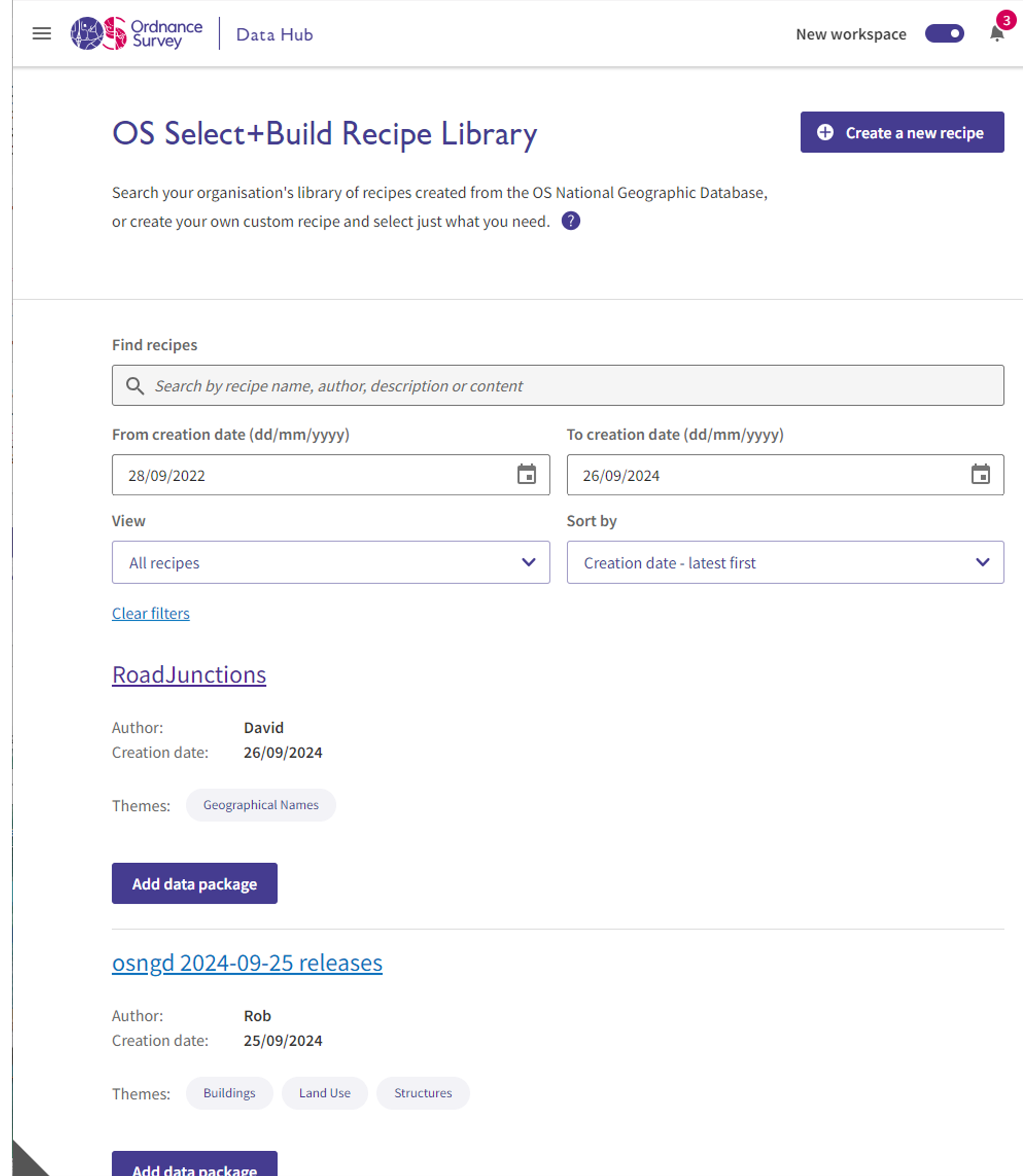
Once recipes have been created, they appear in the​ Recipe Library. ​

* Over time this will build up so the list can be filtered by name, description or content (theme, collection or feature type)​, as well as creation date and if the recipe is one you have shared or had shared to you
* Clicking on the hyperlinked name of the recipe will show the chosen data layers in that recipe​

  as well as 2 features:

  * Add data package button - this is the same as on the recipe list
  * Recipe actions - this allows you to share or delete this recipe
* Once the recipe you want to order has been chosen, you can order the data for your area of interest by clicking the blue Add data package button ​

<figure><img src="/files/IVENrcD8gAEUN0AGc1qL" alt="screengrab of the OS Data Hub showing searching for recipes" width="563"><figcaption></figcaption></figure>

## Adding a data package​

Creating a data package is similar to the existing part of the OS Data Hub where customers order products such as OS MasterMap Topography Layer. In this case, however, ​you are ordering the data selected in a particular recipe.​

There are options to order all of GB, select a predefined polygon or draw a custom one. Further options are:​

* File format (CSV or GPKG)​
* Whether updates are required​
* Date of the data (from the first day of OS NGD to today’s date)​

<figure><img src="/files/g0TJt6hl8MfwrR6PmzNQ" alt="screengrab of the OS Data Hub showing the Adding a Data Package screen" width="425"><figcaption></figcaption></figure>

NOTE: There is currently no way to see the data that has been ordered ​until the data package is downloaded. If the area that is selected to be ordered does not contain any of the features selected in the recipe, the data file will be empty. For example, a recipe for Transporter Bridges that does not include Newport (Wales), Middlesbrough or Warrington, will result in ​an empty data file.​

***

Links that may be useful:

{% embed url="<https://osngd.gitbook.io/osngd/>" %}

{% embed url="<https://osdatahub.os.uk/>" %}

{% embed url="<https://www.ordnancesurvey.co.uk/business-government/products/os-select-build>" %}

This content has been developed from what was originally a Lightning Talk PowerPoint slide set. These slides are available to PSGA members to view and download from the [PSGA members area of the OS website](https://auth.ordnancesurvey.co.uk/my.policy)


---

# Agent Instructions
This documentation is published with GitBook. GitBook is the documentation platform designed so that both humans and AI agents can read, navigate, and reason over technical content effectively. Learn more at gitbook.com.

## Querying This Documentation
If you need additional information that is not directly available in this page, you can query the documentation dynamically by asking a question.

Perform an HTTP GET request on the current page URL with the `ask` query parameter:

```
GET https://docs.os.uk/more-than-maps/data-demonstrators/os-ngd-data/ordering-os-ngd-data.md?ask=<question>
```

The question should be specific, self-contained, and written in natural language.
The response will contain a direct answer to the question and relevant excerpts and sources from the documentation.

Use this mechanism when the answer is not explicitly present in the current page, you need clarification or additional context, or you want to retrieve related documentation sections.