# Basic routing with OS Open Data and QGIS

## Drivetime analysis

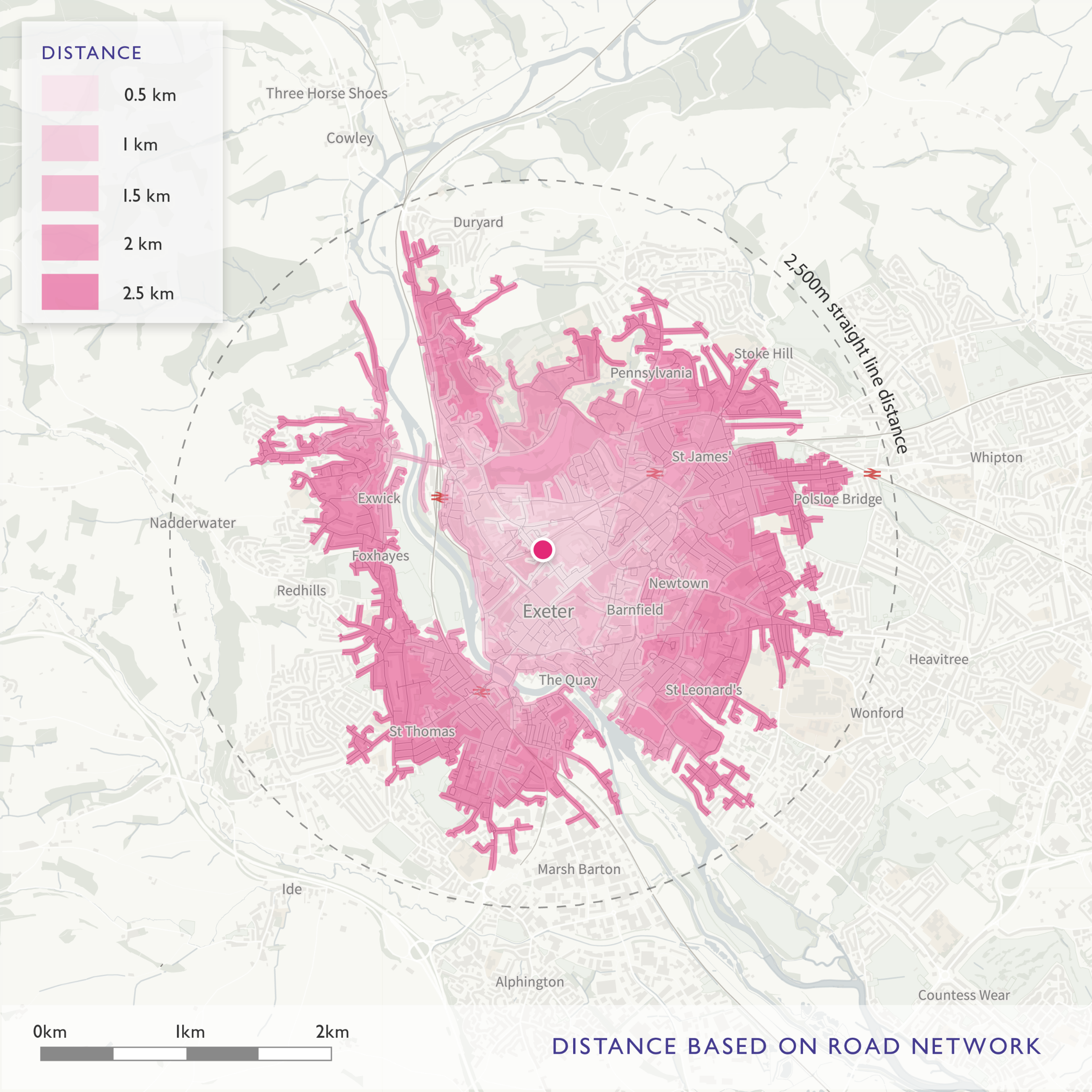
Drivetime analysis is a tool used to determine which locations are accessible from a point within a certain time or distance based on a road network.

<div><figure><img src="https://3774974716-files.gitbook.io/~/files/v0/b/gitbook-x-prod.appspot.com/o/spaces%2FzIfdYInJITdcxaLLMhlD%2Fuploads%2Fgit-blob-193c8b627cf4900497e12fd988e89be736633004%2Fopen-routing-radial-drivetime.png?alt=media" alt="Image of straight line distance routing from a point"><figcaption></figcaption></figure> <figure><img src="https://3774974716-files.gitbook.io/~/files/v0/b/gitbook-x-prod.appspot.com/o/spaces%2FzIfdYInJITdcxaLLMhlD%2Fuploads%2Fgit-blob-9eae0265ac5f619dc30d1d49f29cff3d279560fc%2Fopen-routing-road-drivetime.png?alt=media" alt="Image of routing from a point along a network"><figcaption></figcaption></figure></div>

## Road Networks

Ordnance Survey has a number of road network products of different levels of detail:

<table><thead><tr><th>Product</th><th width="155">Complexity</th><th width="121">Availability</th><th>Description</th></tr></thead><tbody><tr><td>OS MasterMap Highways Network – Roads</td><td>High Complexity</td><td>Premium</td><td>A topologically structured link and node representation of GB's road network</td></tr><tr><td>OS MasterMap Highways Network – Routing and Asset Management (RAMI)</td><td>Most Complex</td><td>Premium</td><td>The content of Roads with additional information on the management of roads as an asset and routing information</td></tr><tr><td>OS Open Roads</td><td>Lower Complexity</td><td>Open</td><td>An open high-level view of GB's road network</td></tr><tr><td>OS NGD Transport Network</td><td>High Complexity</td><td>Available under the PSGA</td><td>The OS NGD equivalent of our topological road network</td></tr><tr><td>OS NGD Routing and Asset Management</td><td>High Complexity</td><td>Available under the PSGA</td><td>The OS NGD equivalent of our additional RAMI data</td></tr><tr><td>Multi-modal Routing Network</td><td>Most Complex</td><td>Available under the PSGA</td><td>New data for integrated routing between road, rail, pedestrian, etc.</td></tr></tbody></table>

### OS Open Roads

We will use [OS Open Roads ](https://www.ordnancesurvey.co.uk/products/os-open-roads)for the road network drive time analysis.

OS Open Roads is our free, high-level road network dataset and is our simplest representation of Great Britain’s roads.

**Processing**

* Download OS Open Roads from the OS Data Hub.
* Select the GeoPackage file format for this analysis
* Extract the GPKG file and load into QGIS.
* Open Roads contains three feature types: Motorway Junction, RoadLink and RoadNode

Optional - To reduce the processing time of the next steps consider either clipping the road\_link layer to your area of interest (AOI) once you have downloaded the data or selecting the links for the area you want and then right-click on the layer -> Export -> Save Selected Features As and then you will have a dataset for just the area you need.

## Adding Simple Road Speeds

* In QGIS, right click on the road\_link layer and select 'Toggle Editing'
* Right click on the road\_link layer and click to open the Attribute Table (This may take a while to open)​
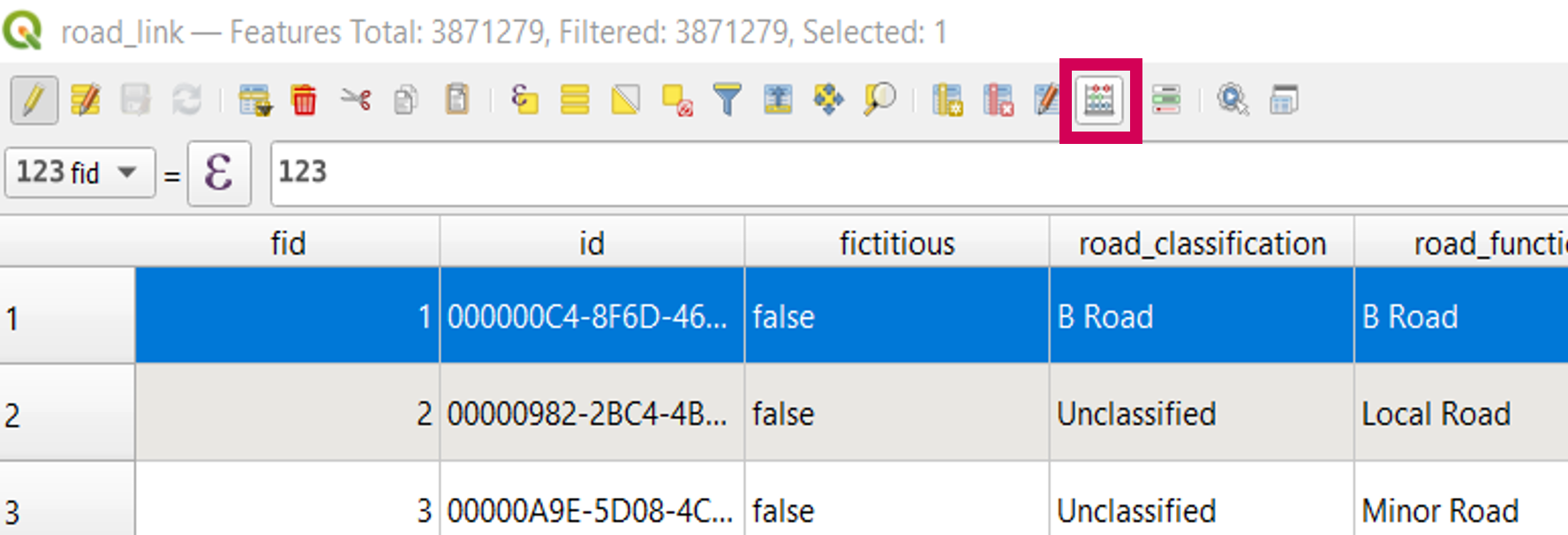
* Click on Open Field Calculator to add a column for the speed data​

<figure><img src="https://3774974716-files.gitbook.io/~/files/v0/b/gitbook-x-prod.appspot.com/o/spaces%2FzIfdYInJITdcxaLLMhlD%2Fuploads%2Fgit-blob-277dec9a14dbd9aa1616b372e2ac41b6896ea3a8%2Fbasic-routing-field-calculator.png?alt=media" alt="Image highlighting the Field Calculator button" width="563"><figcaption></figcaption></figure>

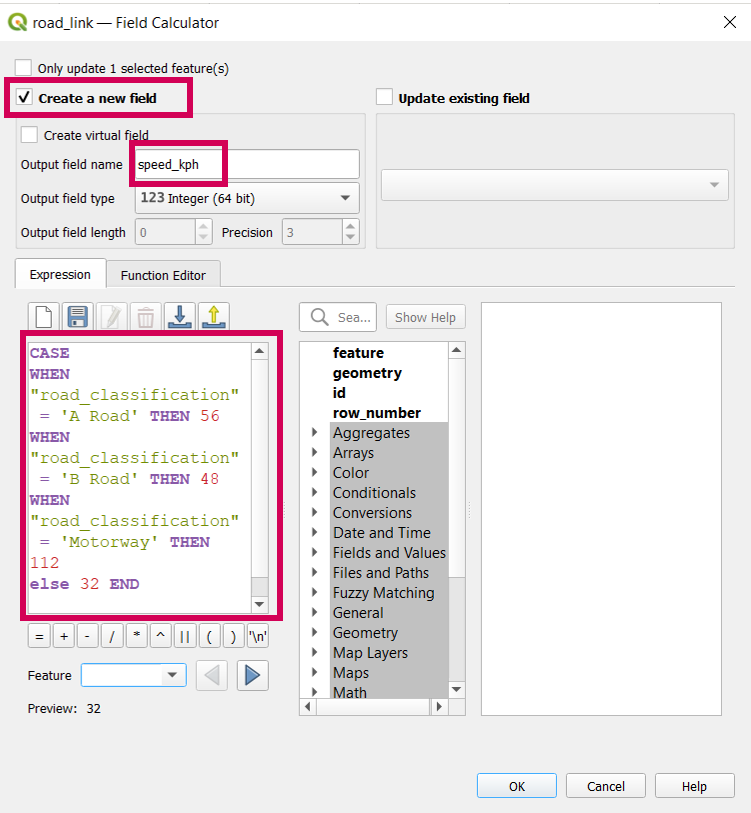
* Check Create a new field
* Input speed\_kph to name new field
* Copy and paste the below code into the expression tab

```sql
CASE 
WHEN "road_classification" = 'A Road' THEN 56
WHEN "road_classification" = 'B Road' THEN 48
WHEN "road_classification" = 'Motorway' THEN 112
else 32 END

```

<figure><img src="https://3774974716-files.gitbook.io/~/files/v0/b/gitbook-x-prod.appspot.com/o/spaces%2FzIfdYInJITdcxaLLMhlD%2Fuploads%2Fgit-blob-13bf6f2f944d1b64c260286315d2bcf6618613ac%2Fopen-routing-field-calculator.png?alt=media" alt="Image of the Field Calculator dialogue box" width="563"><figcaption></figcaption></figure>

## **Routing**

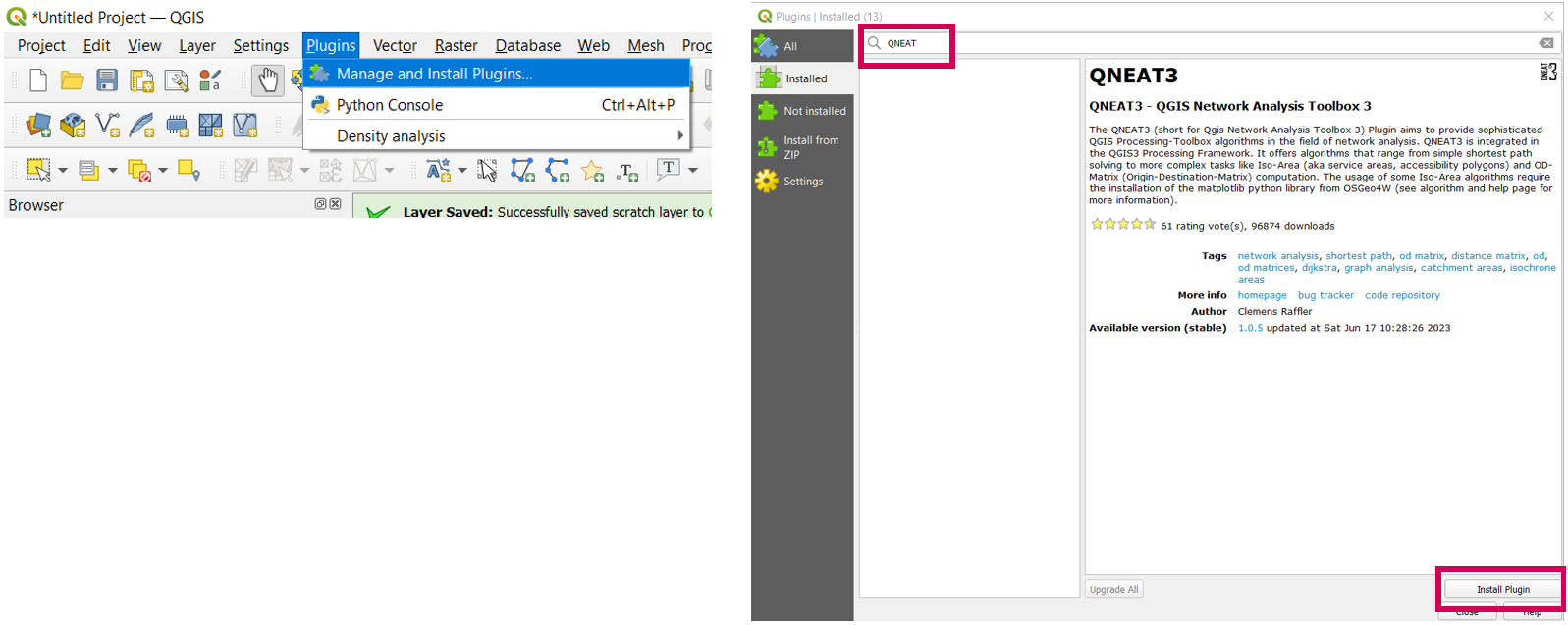
QGIS has a built in Network Analysis tools such as service area and shortest path. However, for a visually clearer output we will be using a plugin called QNEAT3

<figure><img src="https://3774974716-files.gitbook.io/~/files/v0/b/gitbook-x-prod.appspot.com/o/spaces%2FzIfdYInJITdcxaLLMhlD%2Fuploads%2Fgit-blob-a538c770c21a59276d7709a2f65956da914efd8b%2Fopen-routing-qgis-plugin.png?alt=media" alt="Image of the QNEAT3 Toolbox in QGIS"><figcaption></figcaption></figure>

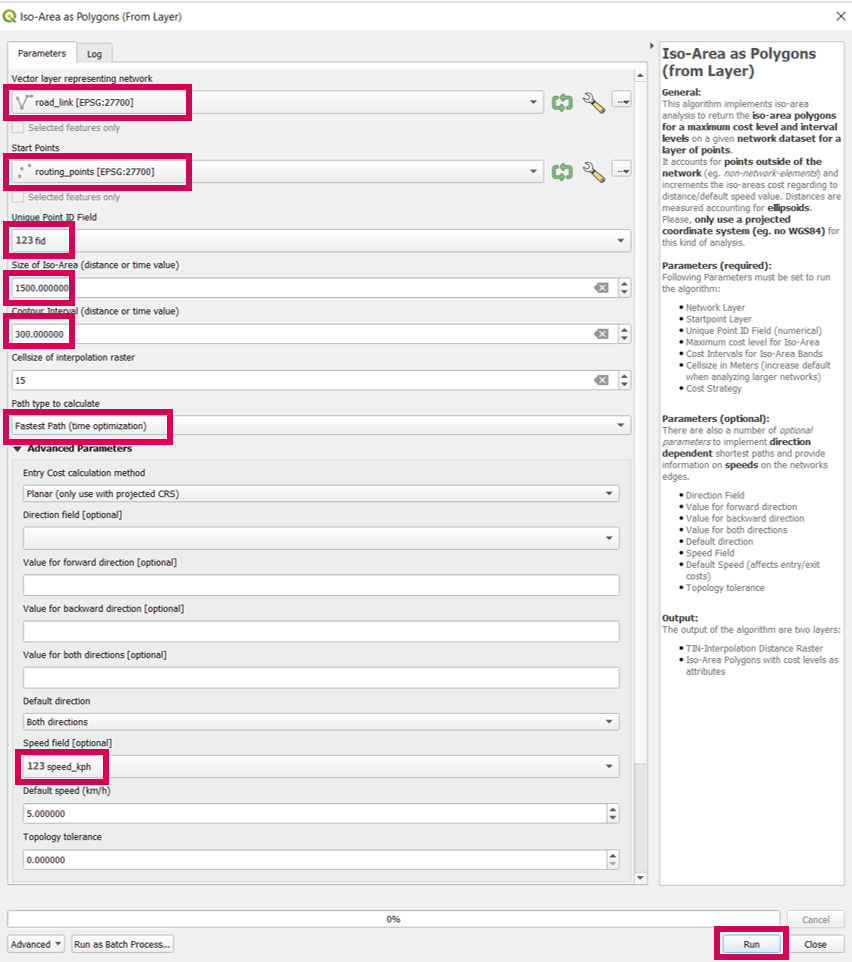
Select the QNEAT3 Toolbox from the toolbox panel and select Iso-Area as Polygons

Fill in the pop up box as shown here:

<figure><img src="https://3774974716-files.gitbook.io/~/files/v0/b/gitbook-x-prod.appspot.com/o/spaces%2FzIfdYInJITdcxaLLMhlD%2Fuploads%2Fgit-blob-3485f1f59fae8e41a8cd6e45e67ca26e90d88d1e%2Fopen-routing-iso-areas.png?alt=media" alt="Image of the QNEAT 3 dialogue box" width="563"><figcaption></figcaption></figure>

**Visualising the output**

In the Layer Properties window under the Symbology tab:

* Select 'Categorized'
* In the value field select '1.2 cost\_level
* Select a suitable Color ramp
* Change the fill for '*all other values*' to transparent

Add a base map of your choice, we have used the OS Maps API Light style here:

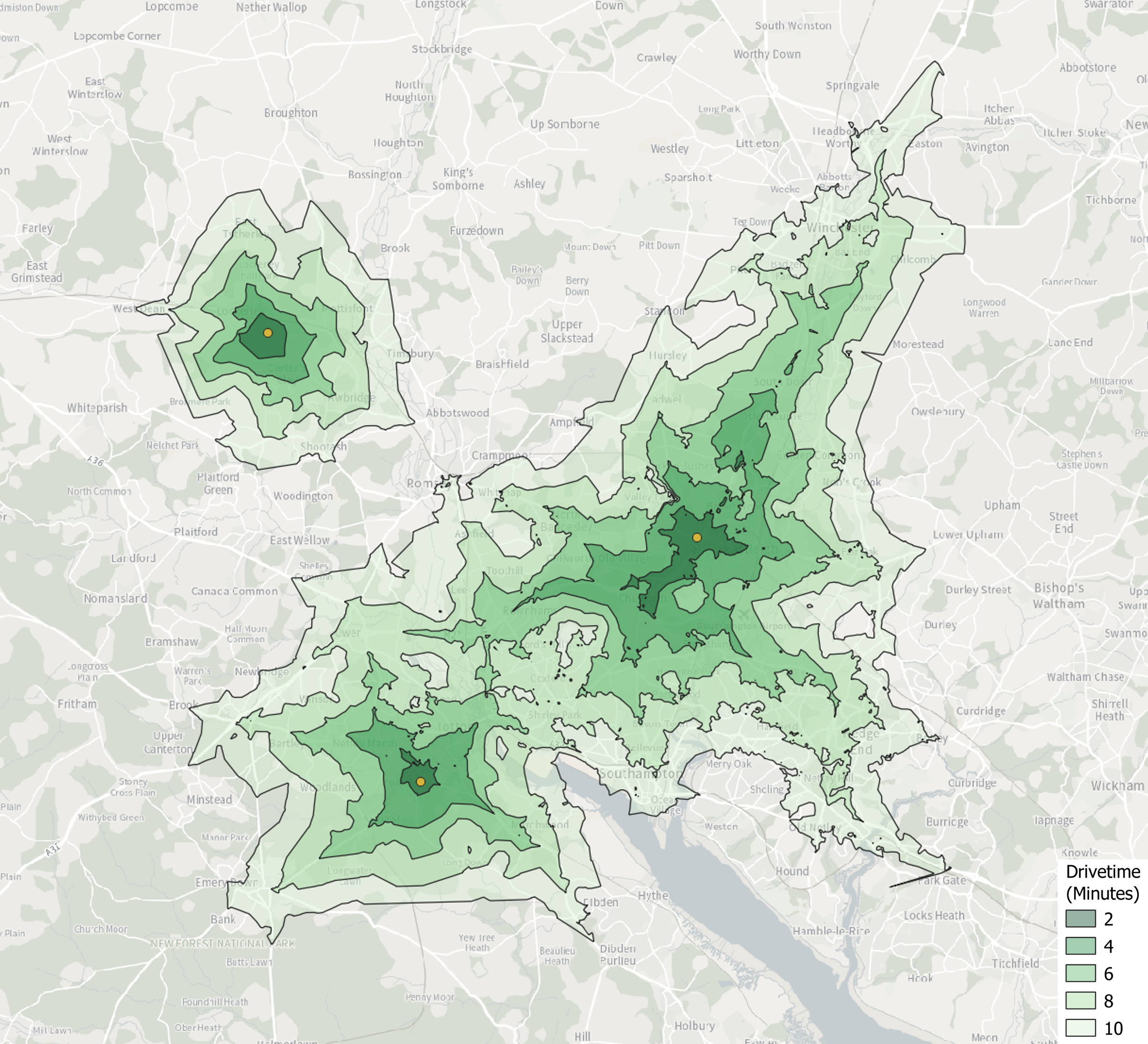
<figure><img src="https://3774974716-files.gitbook.io/~/files/v0/b/gitbook-x-prod.appspot.com/o/spaces%2FzIfdYInJITdcxaLLMhlD%2Fuploads%2Fgit-blob-c1f1d5e69c066e15f2e0f988c9ea78dcd1b1ce66%2Fopen-routing-drivetime-results.png?alt=media" alt="Image of drive time polygons" width="563"><figcaption><p>Drive times shown over the OS Maps API Light style</p></figcaption></figure>

## Determining shortest routes to an end point

Using the road\_link data that we have already prepared we can do some different routing analysis.\
Now we need some start points to represent our addresses and an end point to be our school or store.\
If you already have these great, or we can create the points ourselves in QGIS.\
For a tutorial in how to create a vector layer in QGIS please follow this link:

<https://docs.qgis.org/3.40/en/docs/training_manual/create_vector_data/create_new_vector.html>

Create about 15 start points and 1 end point and situate these near to the road\_link network.\
Once you have saved these add the start and end points to your map:

<figure><img src="https://3774974716-files.gitbook.io/~/files/v0/b/gitbook-x-prod.appspot.com/o/spaces%2FzIfdYInJITdcxaLLMhlD%2Fuploads%2Fgit-blob-f787fa5a4f135ed2e7ed738853df1b87614c4c3c%2FQGIS%20route%20analysis%20start%20end%20points.png?alt=media" alt="Image of a GIS interface with 15 points on a backdrop map"><figcaption><p>Start and end points depicted in QGIS</p></figcaption></figure>

Now we can start to do our analysis in determining the shortest routes. Again, we will use QNEAT3 for a clearer output.

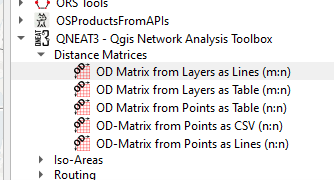
Open the Processing toolbox > open QNEAT3 > click on the arrow next to Distance Matrices and select OD Matrix from Layers as Lines (m:n):

<figure><img src="https://3774974716-files.gitbook.io/~/files/v0/b/gitbook-x-prod.appspot.com/o/spaces%2FzIfdYInJITdcxaLLMhlD%2Fuploads%2Fgit-blob-9f80c2704986cb1229c0d838daa1f80c72e47312%2FOD%20matrix%20from%20layers.png?alt=media" alt="Screengrab from the QNEAT 3 Toolbox"><figcaption></figcaption></figure>

As we have a column that contains speed in km/h we can calculate the routes to our end point in terms of either distance or time.

### Calculating routes based on distance

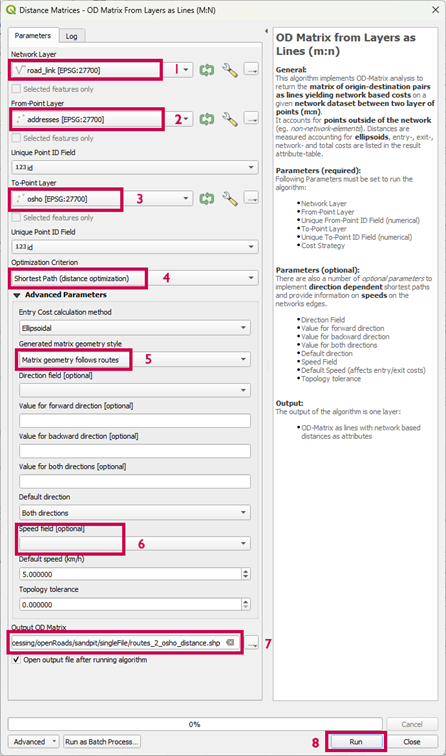
To calculate the shortest routes based on distance to our OSHO endpoint, double click on OD Matrix from Layers as Lines (m:n). This pop-up window will appear, fill it in as suggested:

1. Select the road\_link data as our Network Layer
2. Select our multiple addresses as our start point as the From-Point Layer
3. Select our destination end point (in this case OSHO) as our To-Point Layer
4. Choose Shortest Path (distance optimization) from Optimization Criterion
5. Choose Matrix Geometry follows routes (otherwise we will just have straight lines from the addresses to the OSHO end point)
6. Leave the Speed Field \[optional] blank
7. Select an output folder destination
8. Click Run!

<figure><img src="https://3774974716-files.gitbook.io/~/files/v0/b/gitbook-x-prod.appspot.com/o/spaces%2FzIfdYInJITdcxaLLMhlD%2Fuploads%2Fgit-blob-28ecff6c827d940a4494cc377b1e46208df9f03c%2FOD%20matrix%20from%20layers%20options.png?alt=media" alt="Screen grab of the QNEAT3 dialogue box with the eights points highlighted"><figcaption></figcaption></figure>

This will take a minute or so to run but you will end up with routes from your addresses to your end point.

<figure><img src="https://3774974716-files.gitbook.io/~/files/v0/b/gitbook-x-prod.appspot.com/o/spaces%2FzIfdYInJITdcxaLLMhlD%2Fuploads%2Fgit-blob-39a646ba0b52a6e12593146375cb05cc911c64b1%2FOD%20matrix%20from%20layers%20output.png?alt=media" alt="Image of a GIS interface with a route between the 15 points seen earlier"><figcaption><p>Routes depicted from start to end points in QGIS</p></figcaption></figure>

**Visualising the output**

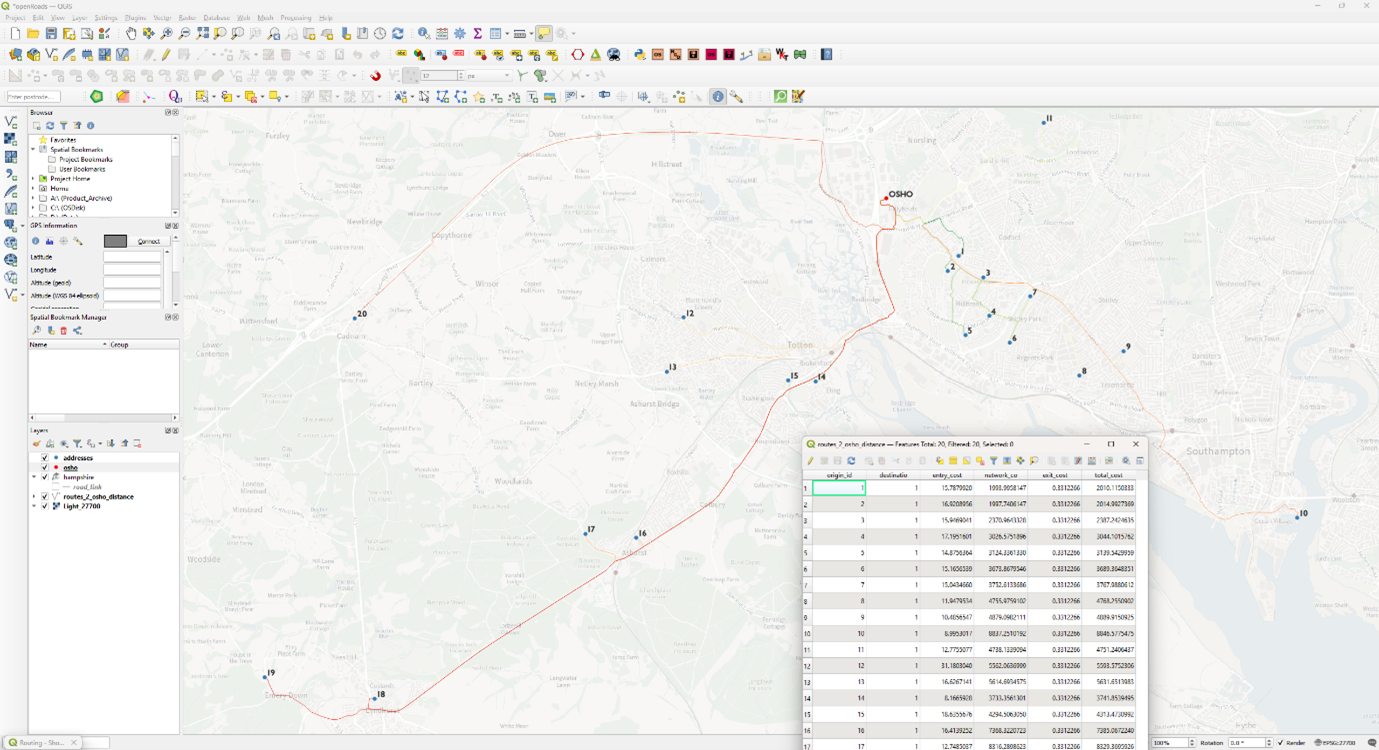
The routes can be styled according to their distance to OSHO, in this case using a green (shortest) to red (longest) style.

In the Layer Properties window under the Symbology tab:

1. Select 'Categorized'
2. In the value field select ‘total\_cost’
3. Select a suitable Color ramp
4. Change the fill for '*all other values*' to transparent

\
The address point routes in the image above have also been labelled according to their id so that they can be visually cross referenced to the attribute table.

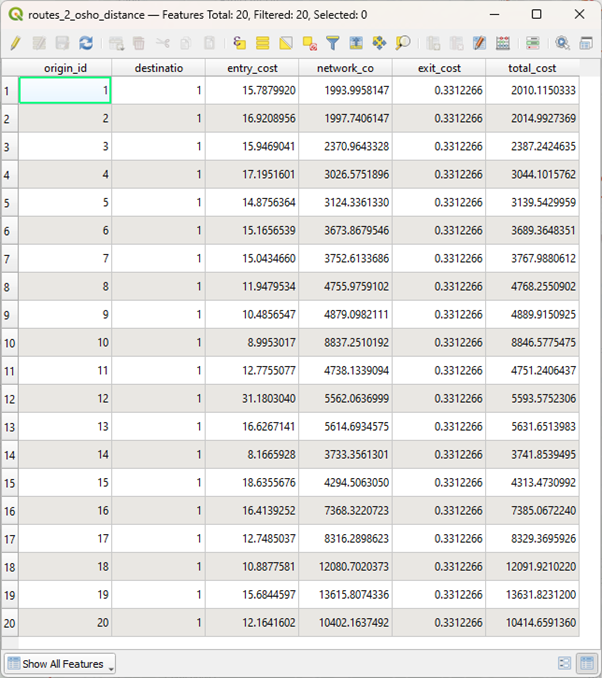
The attribute table shows the total\_cost column which in this case is the distance in metres from the address point to the end point.

For information, the entry\_cost is an estimated calculation which considers distance to get to a car, distance to the road etc.\
\
The exit\_cost is distance from road to destination; disembarkation time if you will.

<figure><img src="https://3774974716-files.gitbook.io/~/files/v0/b/gitbook-x-prod.appspot.com/o/spaces%2FzIfdYInJITdcxaLLMhlD%2Fuploads%2Fgit-blob-bf590eccf0c9ea3d8dbadfded34602b056c3b828%2Froutes%202%20OSHQ%20distance%20attribute%20table.png?alt=media" alt="Table in a GIS showing the distance in metres from the address point to the end point"><figcaption></figcaption></figure>

### Calculating routes based on time

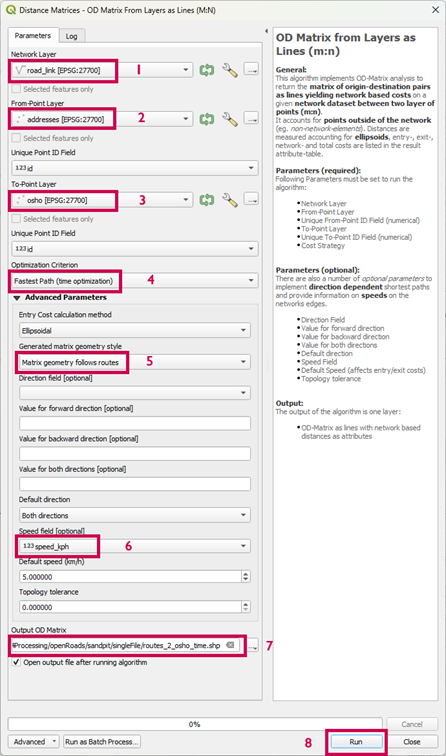
To calculate the shortest routes based on time to our OSHO endpoint, double click on OD Matrix from Layers as Lines (m:n) again. This time fill in the pop-up window as below:

1. Select the road\_link data as our Network Layer
2. Select our multiple addresses as our start point as the From-Point Layer
3. Select our destination end point (in this case OSHO) as our To-Point Layer
4. Choose Fastest Path (time optimization) from Optimization Criterion
5. Choose Matrix Geometry follows routes (otherwise we will just have straight lines from the addresses to the OSHO end point)
6. Select speed\_kmh from the Speed field \[optional] drop down
7. Select an output folder destination
8. Click Run!

<figure><img src="https://3774974716-files.gitbook.io/~/files/v0/b/gitbook-x-prod.appspot.com/o/spaces%2FzIfdYInJITdcxaLLMhlD%2Fuploads%2Fgit-blob-be6c979ebf869cb9835484daecc98b24dbb27b4a%2FOD%20matrix%20from%20layers%20as%20lines%20options.png?alt=media" alt="Image of the OD Matrix from Layers dialogue box highlighting the 8 points in the text"><figcaption></figcaption></figure>

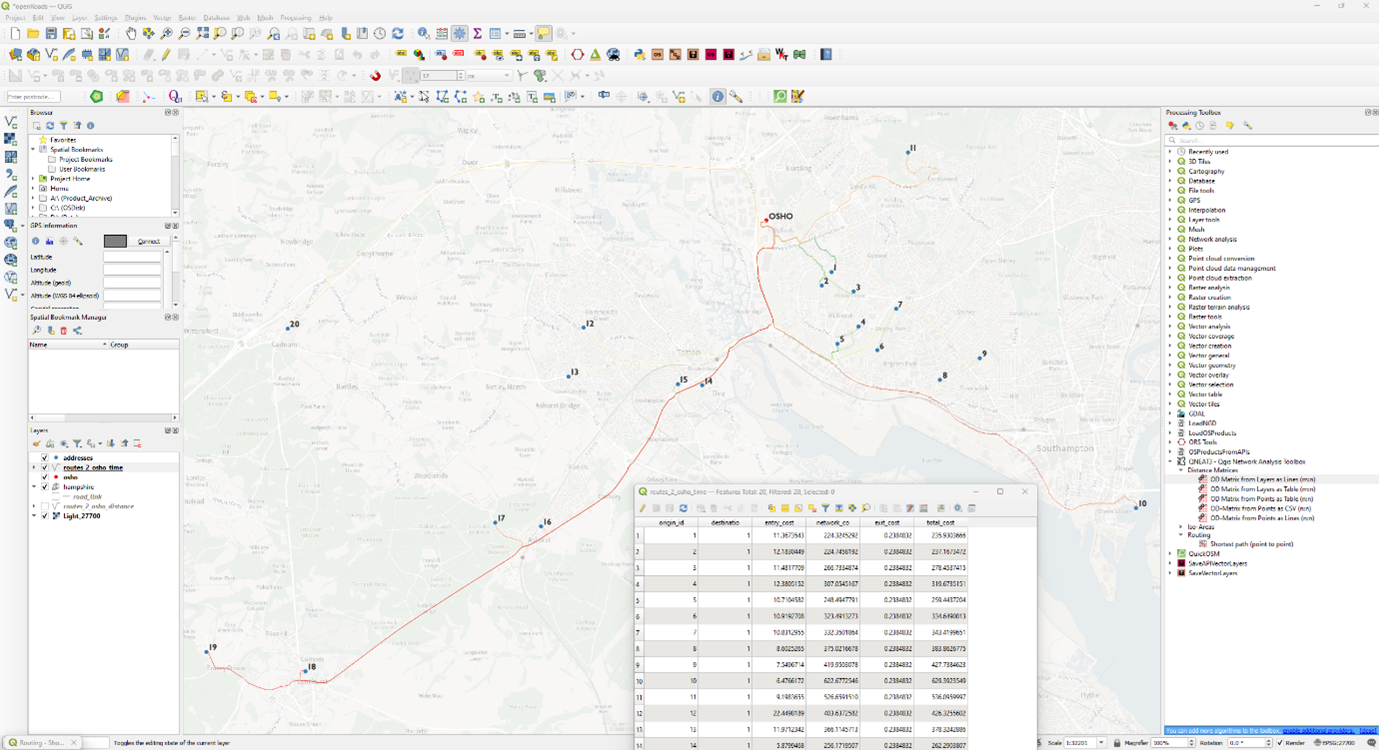
Again, this will take a minute or so to run and this time the routes will have a total cost that represents travel time, not distance.

QNEAT3 calculates the time by analysing each link and the speed in km/h associated with and applies this equation to calculate that time taken in seconds to travel a particular route:

((length/1000)/speed\_kph)\*3600

<figure><img src="https://3774974716-files.gitbook.io/~/files/v0/b/gitbook-x-prod.appspot.com/o/spaces%2FzIfdYInJITdcxaLLMhlD%2Fuploads%2Fgit-blob-e1e5518e9b3d41971827b3aab35d0afc7ba68ff0%2FOD%20matrix%20from%20layers%20output%202.png?alt=media" alt="Image of routes connecting the 15 points on the map"><figcaption></figcaption></figure>

Again, the routes can be styled depending on their time; green being the quickest through to red being the slowest.

The address point routes have again been labelled according to their id so that they can be cross referenced to the attribute table.

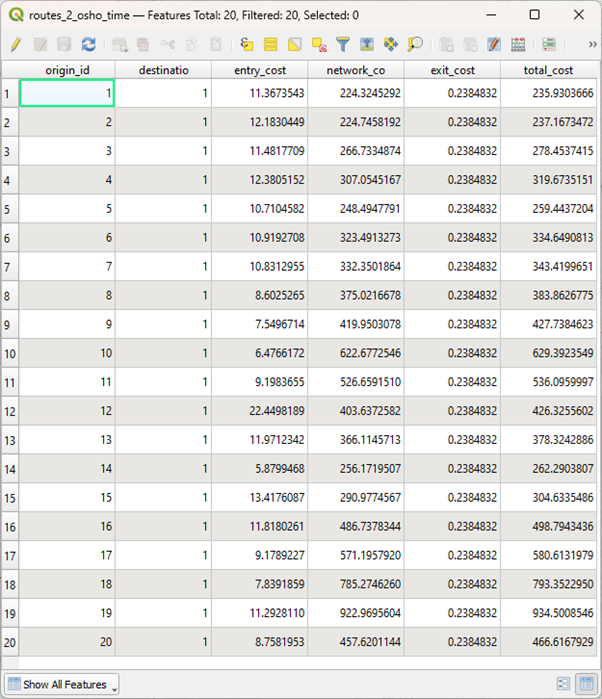
The attribute table this time shows the total\_cost column which in this case is the time taken in seconds to get from each address point to the OSHO end point. The entry\_cost and exit\_cost will also be in seconds.

<figure><img src="https://3774974716-files.gitbook.io/~/files/v0/b/gitbook-x-prod.appspot.com/o/spaces%2FzIfdYInJITdcxaLLMhlD%2Fuploads%2Fgit-blob-0016ebaf86c5d841d8a8e63ecfbf03ab2ee49d6e%2FOD%20matrix%20from%20layers%20as%20lines%20options%202.png?alt=media" alt="Table in a GIS showing the distance in metres from the address point to the end point"><figcaption></figcaption></figure>

In this exercise we have only used one end point and multiple start points but this QNEAT3 algorithm can process multiple start and end points. The m:n in brackets after the OD Matrix from Layers as Lines (m:n) indicates that this is the case and refers to the relationship between the start (origin) and end (destination) points.

m = the number of origin points; and

n = the number of destination points.

So, m:n means that the OD Matrix from Layers as Lines (m:n) function will calculate routes from every origin point to every destination point, in other words a full origin-destination matrix.

Therefore, if you have:\
\
5 origin points (m =5); and

3 destination points (n=5)

OD Matrix from Layers as Lines (m:n) will calculate 15 routes, one for each origin-destination pair.

## Benefits

* Simple drivetime analysis
* All open-source data and software
* Visualisation of distribution and hard to access areas
* Overview of how accessible your services are
* Identify areas for more detailed study