> For the complete documentation index, see [llms.txt](https://docs.os.uk/more-than-maps/llms.txt). Markdown versions of documentation pages are available by appending `.md` to page URLs; this page is available as [Markdown](https://docs.os.uk/more-than-maps/routing/safe-routes-to-schools/creating-a-safe-route-to-school-map-with-os-ngd-transport-network.md).
# Creating a Safe Route to School Map with OS NGD Transport Network
### Introduction
This article follows on from [Safer routes to Schools recipe guide on the OS Docs platform](https://docs.os.uk/osngd/getting-started/downloading-with-os-select+build/getting-started-with-os-recommended-recipes/safer-routes-to-schools-recipe-guide) that will guide you through accessing the data needed for the article below.
### Software Requirements
QGIS 3.24 or later
### Data Requirements
* Import your `roadlink`, `pathlink`, `connectinglink`, and `averageindicativespeed` data into QGIS
* Filter `roadlink`, `pathlink`, and `averageindicativespeed` further if needed, e.g. if only interested in roads under 30mph
* Import your residential and educational addresses into QGIS
* Select a school of interest from educational addresses and create this as a new layer
## Building the network
QGIS has built in tools for network analytics such as service area and shortest path. However, for a visually clearer output, we will be using a plugin called QNEAT3.
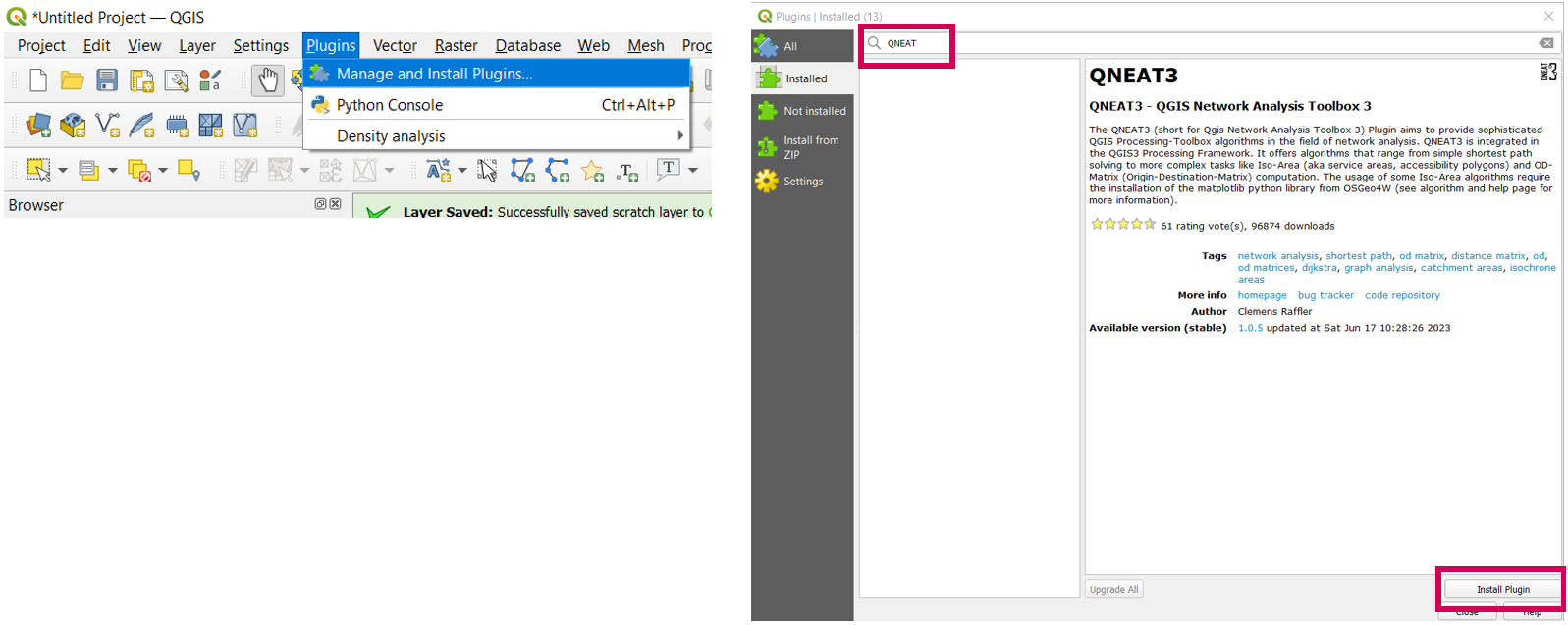
Select ‘*Plugins’ > ‘Manage and Install Plugins’* and search for ‘*QNEAT3’.* Select ‘*Install Plugin’*.
Once the plugin is installed, it will appear in the processing toolbox. The tool offers various analysis options, but for now select *QNEAT3 – Qgis Network Analysis Toolbox* > *Distance Matrices* > *OD Matrix from Layers as Lines (m:n).*
This will create a network output of the shortest paths between two sets of points.
### Creating the initial network
Using the Merge Vector Layers function, merge `roadlink`, `pathlink` and `connectinglink` layers together to make one layer, which will act as the base for your cost network
### Creating the shortest distance network
* Use your merged `roadlink`, `pathlink` and `connectinglink` layer as your Network Layer
* Set From-Point Layer as residential addresses
* Set To-Point Layer as the example school address
* Set Generated matrix geometry style to be *Matrix geometry follows routes*
### Joining attributes to the output network
Use **Join attributes by location (summary)** with `averageindicativespeed`, joining to your new network and calculating mean `indicativespeedlimit_mph` along the routes
Again use **Join attributes by location (summary)** with the merged `roadlink`, `pathlink` and `connectinglink` layer, joining to your new network and calculating mean `presenceofstreetlight_coverage` and `presenceofpavement_overallpercentage`
### Adding a Score attribute
Open the *Field Calculator* in QGIS.
Add new attributes called `streetlightrating`, `20mphzone` and `presenceofpavementrating`, to OD Matrix layer and calculate a numerical value to these according to requirements.
Multiply these scorings together to get one overall rating for each route to school and style accordingly to highlight hotspots of safe and less safe routes
### Example Output – RAG Map
Each potential route from an address to the school is classified into Red, Amber and Green, which can help to highlight areas which may be less safe for school transport.
Routes can either be isolated if interested in a specific area or combined to give a clearer picture of walkability over a wider area.
Note that these are example ratings to demonstrate output and should not be taken verbatim.
### Possibilities to Enhance Results
* Filtering by Bus to look at bus routes to schools, and including bus stop data (e.g. NAPTAN)
* Look at crime statistics which may also affect route safety (e.g. ONS)
* Look at additional pavement attribution such as width of pavement for accessibility for buggies (in OS Data)
## Creating the RAG Map - step by step process
* Import your `roadlink`, `pathlink`, `connectinglink` and `averageindicativespeed` data into QGIS
* Use Merge Vector Layers to combine `roadlink`, `pathlink` and `connectinglink` into one layer to create a combined network layer
* Import your residential and educational addresses into QGIS
* Select school of interest and create this as a new layer
* Use *OD Matrix from Layers as Lines (M:N)* from *QNEAT3* Plugin, using your combined network as your Network Layer, From-Point Layer as being residential addresses, To-Point Layer being the school address and setting cost strategy to be along network features
* Use *Join attributes by location (summary)* with RAMI, joining to your new network and calculating mean `indicativespeedlimit_mph` along routes
* Use Join attributes by location (summary) with your combined network, joining to your new OD Network and calculating mean `presenceofpavement_overallpercentage` along routes
* Use Join attributes by location with your combined network, joining to your OD Network, setting the join type to ‘largest overlap (one-to-one)’ and taking the `presenceofstreetlight_coverage` attribute
* Add new attributes called ‘`streetlightrating`’, ’`20mphzone`’ and ‘`presenceofpavementrating`’, to OD Matrix layer and calculate a numerical value to these according to requirements
* Multiply these scorings together to get one overall rating for each route to school
* Style accordingly to highlight hotspots of safe and less safe routes
---
# Agent Instructions
This documentation is published with GitBook. GitBook is the documentation platform designed so that both humans and AI agents can read, navigate, and reason over technical content effectively. Learn more at gitbook.com.
## Querying This Documentation
If you need additional information that is not directly available in this page, you can query the documentation by asking a question.
Perform an HTTP GET request on the following URL with the `ask` and `goal` query parameters:
```
GET https://docs.os.uk/more-than-maps/routing/safe-routes-to-schools/creating-a-safe-route-to-school-map-with-os-ngd-transport-network.md?ask=&goal=
```
`ask` is the immediate question: it should be specific, self-contained, and written in natural language.
`goal` is what the user is ultimately trying to achieve, the reason they need the answer. Sharing it helps GitBook give you a better, more relevant answer. A goal is most helpful when it describes the outcome the user wants rather than restating the question. For example, with `ask=how do I create an API token`, a goal like `automate deployments from our CI pipeline` lets GitBook tailor the answer to that use case.
The response will contain a direct answer to the question and relevant excerpts and sources from the documentation.
Use this mechanism when the answer is not explicitly present in the current page, you need clarification or additional context, or you want to retrieve related documentation sections.