> For the complete documentation index, see [llms.txt](https://docs.os.uk/os-downloads/llms.txt). Markdown versions of documentation pages are available by appending `.md` to page URLs; this page is available as [Markdown](https://docs.os.uk/os-downloads/products/addresses-and-names-portfolio/addressbase-premium/addressbase-premium-getting-started-guide/working-with-csv-data.md).
# Working with CSV data
## Preparing the CSV data
The AddressBase Premium CSV and AddressBase Premium Islands CSV are provided with records for various tables incorporated into a single CSV. Depending on the size of the area of interest (AOI) or if you require a full supply of GB or Islands data, there may be multiple CSV files supplied. These CSV files need to be split into individual records and tables.
There are multiple methods for splitting AddressBase Premium CSV files by the record identifiers. The following sub-sections step you through using either Gawk or Python for splitting the data and appending the header file.
{% hint style="info" %}
Both methods require the [AddressBase Premium Header files](/os-downloads/products/addresses-and-names-portfolio/addressbase-premium/addressbase-premium-downloads.md#addressbase-premium-header-files) that are available on the [AddressBase Premium downloads](/os-downloads/products/addresses-and-names-portfolio/addressbase-premium/addressbase-premium-downloads.md) page.
{% endhint %}
Gawk
The following instructions show you how to use Gawk to split the AddressBase Premium CSV files and append the Header files.
1. Group all the AddressBase Premium CSV files into an empty folder. It is very important to ensure that the folder does not contain other CSV files. The folder must contain no spaces in its file directory path name, for example, `C:\AddressBaseData\AddressBase_Premium`.
2. Download AddressBase Premium header files (zip) in the [Header files zip](#header-files-zip) section below.
3. Extract the downloaded zip and you should have the following CSV files:\
`Record_10_HEADER_Header.csv`\
`Record_11_STREET_Header.csv`\
`Record_15_STREETDESCRIPTOR_Header.csv`\
`Record_21_BLPU_Header.csv`\
`Record_23_XREF_Header.csv`\
`Record_24_LPI_Header.csv`\
`Record_28_DELIVERYPOINTADDRESS_Header.csv`\
`Record_29_METADATA_Header.csv`\
`Record_30_SUCCESSOR_Header.csv`\
`Record_31_ORGANISATION_Header.csv`\
`Record_32_CLASSIFICATION_Header.csv`\
`Record_99_TRAILER_Header.csv`
4. Place the extracted AddressBase Premium Header files into the folder with the CSV files (step 1).
5. Go to the [AddressBase repository on GitHub](https://github.com/OrdnanceSurvey/AddressBase/tree/master/Loading_Scripts/Gawk).
6. Open the `AddressBasePremium_GawkSplitScript.bat` file and copy the contents to a text editor such as TextPad or NotePad++. Save this text file as a `.bat` file in the same folder as your AddressBase Premium data and Header files.
7. In the same link in Step 5, download and extract the zip file called *`gawk-4.0.2-bin.zip`*.
8. This will extract a file called `Gawk.exe`. Place this file in the same folder as your AddressBase Premium data and Header files.
9. Double-click `AddressBasePremium_GawkSplitScript.bat` file and an MS-DOS window will appear. Once the process is complete, the window will close automatically, or you will have to press any key to continue.
Running the .bat file creates temporary files and requires extra space in the location you are creating your files. These files can be much larger than the original CSV files. They are deleted once the process has finished, but the space is still required.
10. Running this should create additional files which will have a similar naming convention to that of the Header files. These new files should have generated in the same location as the data and headers. For example, looking in the location there should now be an `ID24_LPI_RECORDS` as well as a *`Record_24_LPI_Header.csv`*.
Python
The following instructions show you how to use Python instead of Gawk to split the AddressBase Premium CSV files and append the Header files. These instructions are based on Python 2.7.
1. Group the AddressBase Premium CSV files into an empty folder. It is very important to ensure that the folder does not contain other CSV files. The folder must contain no spaces in its file directory path name, for example, `C:\AddressBaseData\AddressBase_Premium`.
You do not need to download the Header files if you are using Python to split the AddressBase Premium data.
2. Go to the [AddressBase repository on GitHub](https://github.com/OrdnanceSurvey/AddressBase/tree/master/Loading_Scripts/Python).
3. Open the `AddressBasePremium_RecordSplitter_v2_7.py` file and copy the contents to a text editor such as TextPad or NotePad++. Save that text file as a `.py` file to the same folder as your AddressBase Premium data.
4. Open a Command Prompt window by going to *Windows Start* > *CMD prompt*.
5. Within the Command Prompt, type *`cd`* and the directory path where you just placed the `AddressBasePremium_RecordSplitter_v2_7.py` file, then hit *Enter* on your keyboard.
6. Type the name `AddressBasePremium_RecordSplitter_v2_7.py` into the Command Prompt or select it using the Tab key, which will display each file within the file directory in turn. Once selected, hit the *Enter* key.
Windows Command Prompt window
7. The following message should be displayed:\
\
`This program will split OS AddressBase Premium Zip CSV or extracted CSV files by record identifier into new CSV files. Please type in the full path to the directory of OS AddressBase zip files: Directory Path:`
8. Enter the full directory path to where you stored the AddressBase Premium data (for example, `C:\AddressBaseData\AddressBase_Premium`). Hit *Enter* on your keyboard. The process of splitting the files will then begin.
9. When the file splitting process is complete, the following message will be displayed:\
\
`The program will close in 10 seconds.`\
\
You may still need to close the Command Prompt window afterwards by typing *Exit* and hitting *Enter*.
10. If you navigate to the folder which contained the `.py` file and the AddressBase Premium CSV files, you should find new files which will have a similar naming convention to that of the Header files. These new files will contain all of your AddressBase Premium data split out by record type.
## Loading CSV into GIS software
This section provides step-by-step instructions on how to load the CSV format of AddressBase Premium products into commonly used GIS software, including ArcGIS Pro, ArcGIS Desktop, MapInfo, QGIS and CadCorp SIS Desktop.
It is assumed that you will have followed the steps in [Preparing the CSV data](#id-4._preparing_the_csv_data) before you attempt to load the data. If this pre-processing is not carried out, there may be errors with loading.
ArcGIS Pro
There are two methods for loading AddressBase Premium CSV data into ArcGIS Pro. We will only step through the first method in this guide. If you need guidance on the second method, please refer to the [Loading CSV into ArcGIS Pro](/os-downloads/products/addresses-and-names-portfolio/addressbase/addressbase-getting-started-guide.md#loading-csv-into-arcgis-pro) instructions in [Getting Started Guide with AddressBase products](/os-downloads/products/addresses-and-names-portfolio/addressbase/addressbase-getting-started-guide.md):
* The first method uses the UK Data Loader published by ESRI, which loads the data into a File Geodatabase and automatically *relates* between the different tables. At the end of the process, you have a fully working dataset ready for use. The step-by-step instructions in this section use this method.
* The second method must have the CSV data prepared as described in [Preparing the CSV data](#id-4._preparing_the_csv_data). These files are imported into a project File Geodatabase within ArcGIS Pro (see the instructions in [Getting Started with AddressBase products > Loading CSV into ArcGIS Pro](/os-downloads/products/addresses-and-names-portfolio/addressbase/addressbase-getting-started-guide.md#loading-csv-into-arcgis-pro). Only the Basic Land and Property Unit (BLPU) table and Streets table will contain geometry which can be mapped by adding XY data. All the other tables will have no geometry, but these tables can be linked together using the Relates function within ArcGIS Pro. Please refer to the AddressBase Premium structure and AddressBase Premium Islands structure \ in the technical specifications for information on which table fields should be linked together.
*Note - The following instructions are based on ArcGIS Pro version 2.3.3.*
*Note - These instructions assume that you have the full data Interoperability Extension installed and that it matches your ArcGIS Pro version.*
1. Launch ArcGIS Pro and create a new project.
2. Select a location to save the project to, name the project and click *OK*.\
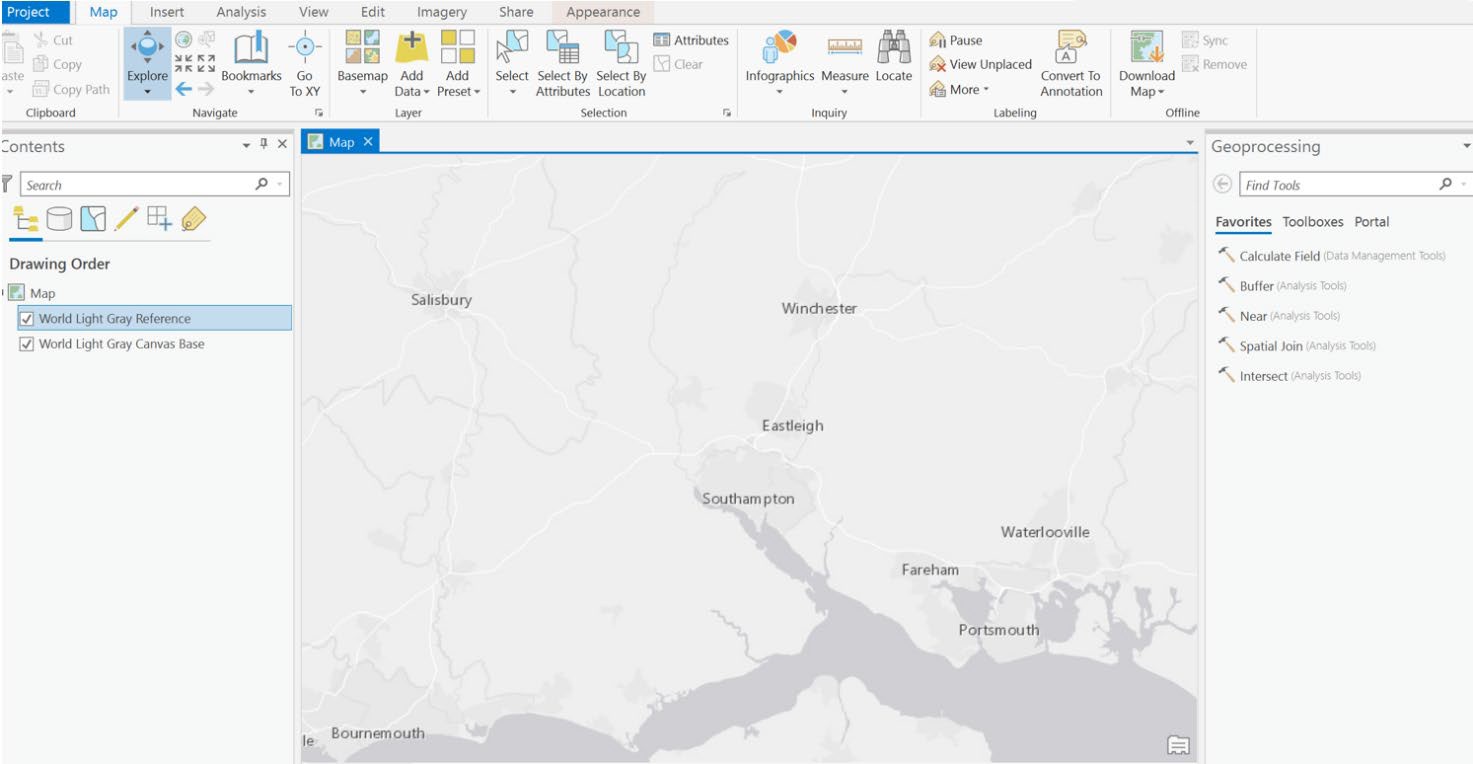
\A new map project will launch with a default map backdrop supplied by ESRI. You can change this backdrop to another ESRI backdrop or use your own.\_
ArcGIS Pro UI showing default background map
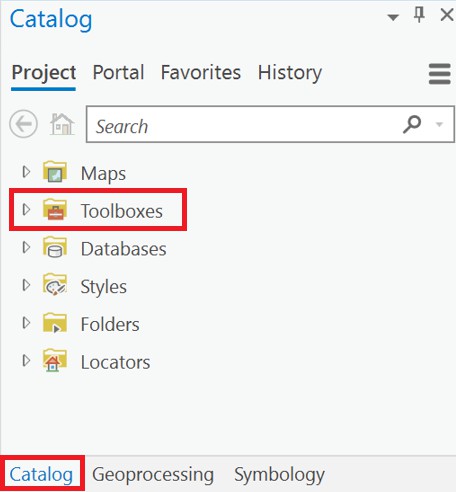
3. Select the *Catalog pane* on the right-hand-side of the screen.
4. Under the Project list, right-click *Toolboxes* and select *Add Toolbox*.
ArcGIS Pro UI Catalog pane in showing Project >Toolboxes navigation item
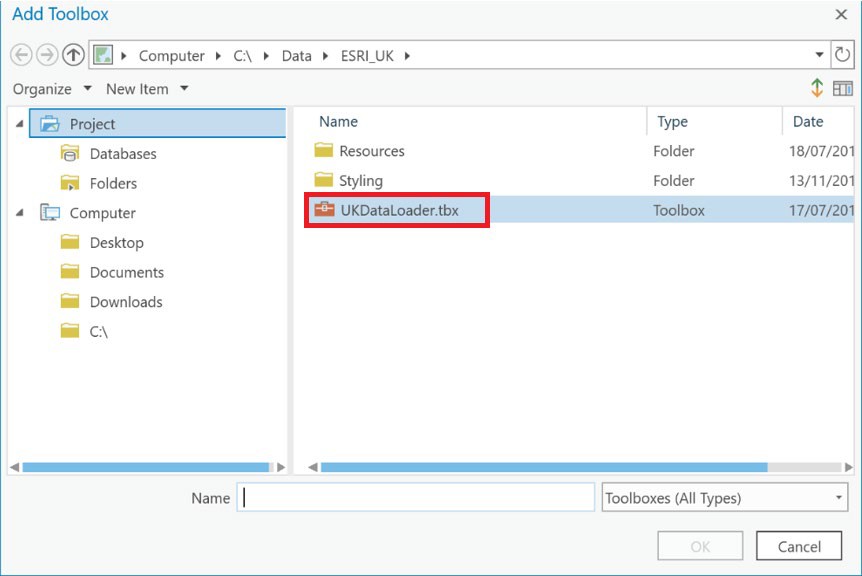
5. Navigate to where the UK Data Loader toolbox is held on your system, for example, `C:\Data\ESRI_UK`.\
\You should obtain the latest version of the UK Data Loader toolbox from ESRI.\_
6. Select the UK Data Loader toolbox (`.tbx`) and click *OK*.
ArcGIS Pro Add Toolbox dialog
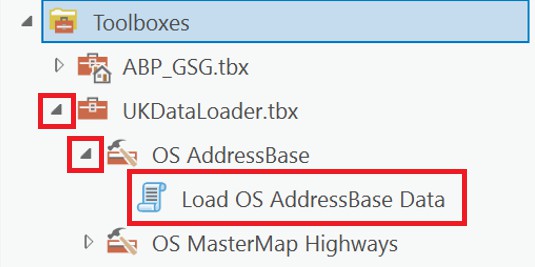
7. The UK Data Loader Toolbox (`UKDataLoader.tbx`) will now appear in the Catalog list of available toolboxes. Expand it by clicking on the arrow to the left of the entry, then click the arrow again for the *OS AddressBase* entry.
8. Double-click *Load OS AddressBase Data* script that should be listed.
ArcGIS Pro Catalog pane in showing Toolboxes navigation item
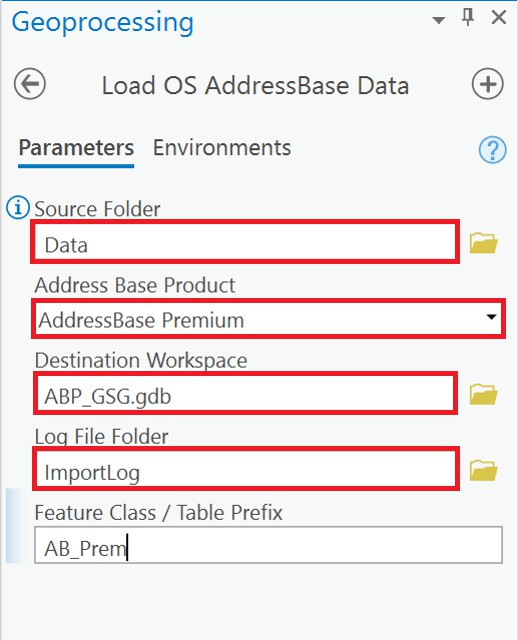
9. A new Geoprocessing window will appear. There are some mandatory blank fields which you need to complete before the script can be run. For the *Source Folder*, enter the directory path where AddressBase Premium data is located. Select your *Address Base Product* from the dropdown menu, then enter a location for the *Destination Workspace* and *Log File Folder*. Other fields are optional.
ArcGIS Pro Geoprocessing window
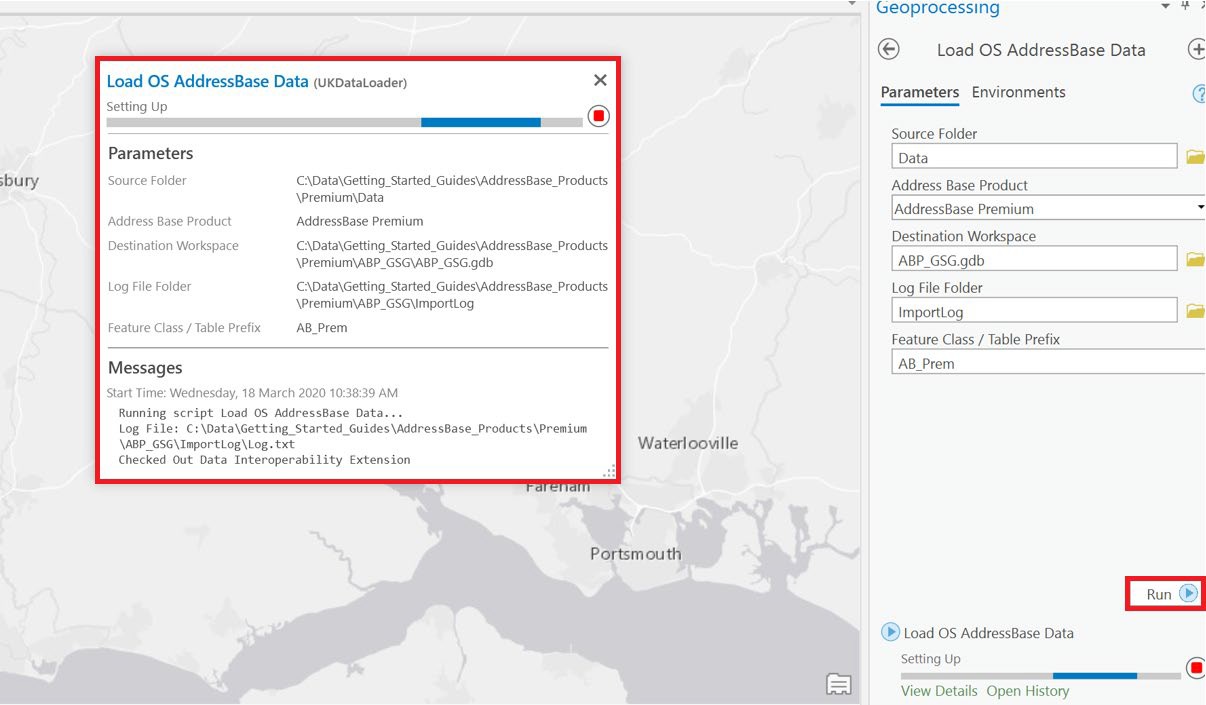
10. When the required fields are completed, click the *Run* button at the bottom of the Geoprocessing window.
ArcGIS Pro UI showing loading OS AddressBase Data
11. This can run for some time, depending upon the amount of data being processed. Wait until a message appears saying the files have been imported successfully.
12. When the import has completed, click *Add Data* in the main menu, then navigate to the project File Geodatabase.
ArcGIS Pro Add Data navigation button
13. You will see that some of the feature classes have no geometry, whilst others do. Select those required and click *OK*.\
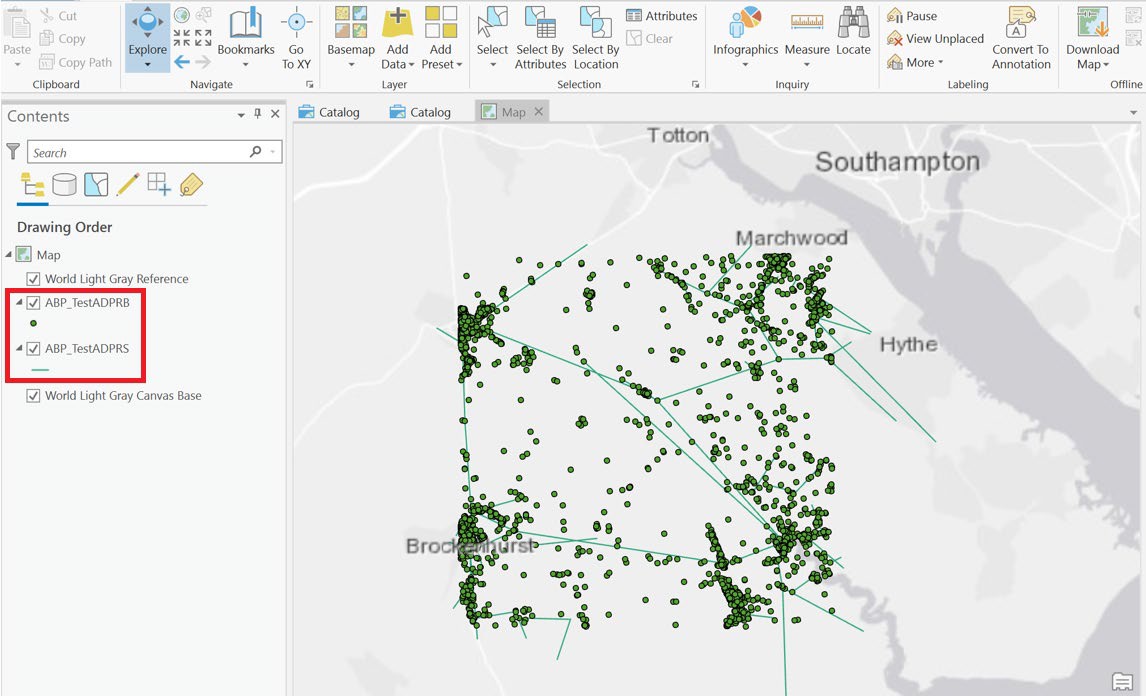
\In the example below, `ABP_TestADPRB` refers to geometry created from the BLPU table and `ABP_TestADPRS` refers to geometry created from the Street table.\_
ArcGIS Pro Add Data dialog
14. The data will be added as new features classes in the Contents window. The feature classes containing geometry will be displayed against the map backdrop in the Map window.
ArcGIS Pro UI showing feature classes containing geometry
You have now successfully loaded AddressBase Premium data into ArcGIS Pro.
ArcGIS Desktop
*Note - The following instructions are based on ArcGIS Desktop version 10.*
*Note - When using CSV data in ArcGIS Desktop, it is necessary to split out the individual record types from the original single CSV file and to append column headings. Before following these instructions, ensure the splitting and headings have already been prepared as described in* [*Preparing the CSV data*](#id-4._preparing_the_csv_data)*.*
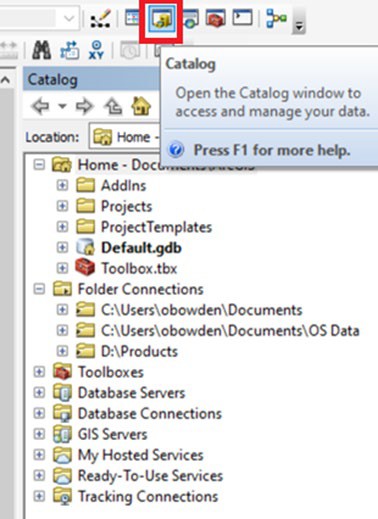
1. Start ArcCatalog as a separate program, or within ArcMap if you are using version 10.
ArcGIS Desktop UI highlighting Catalog button
2. Connect to the folder where the AddressBase Premium data is located (for example, `C:\AddressBasePremium_Data`):
* Click *File*, or in version 10, select *Folder Connections*.
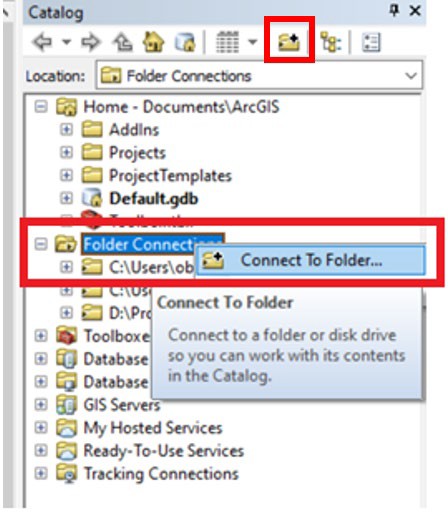
* Click *Connect Folder* in the top ribbon or right-click on *Folder Connections* > *Connect To Folder*, then navigate to the folder containing the data.\
ArcGIS Desktop Catalog showing Connect To Folder action
* From the main window, select the folder to connect to and click *OK*.
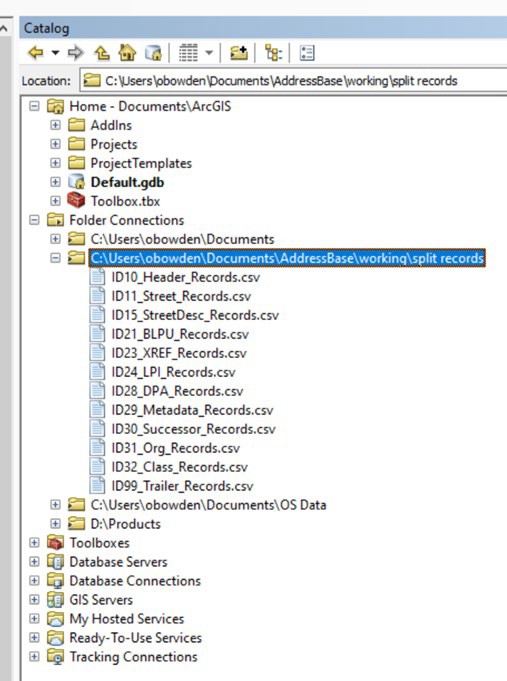
3. The folder should now appear in the navigation window to the left of the screen, or within your Catalog window if you have opened it within ArcGIS Map.
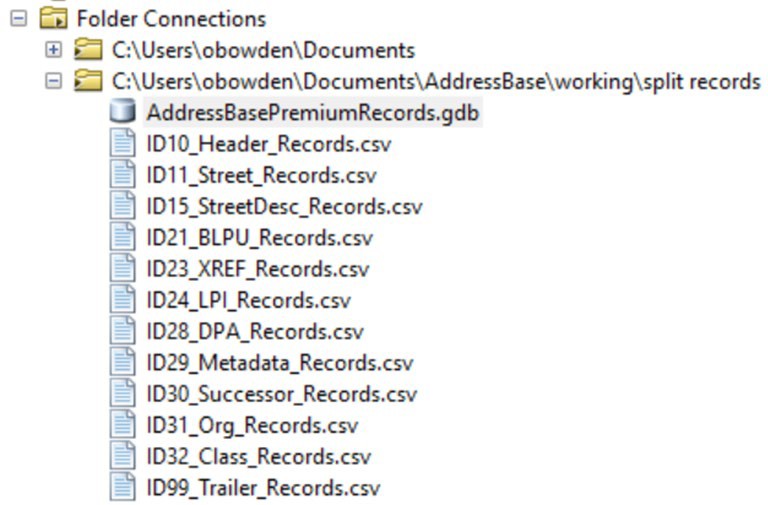
ArcGIS Desktop Catalog showing AddressBase split record files
4. Create a File Geodatabase (`.gdb`) to store the address data. Using the file tree, go to *Folder Connections* and navigate to the directory where you wish to create the File Geodatabase, for example, `C:\AddressBase_Geodatabase\AddressBase_Premium`. This may need to be set up as a new connection.
5. Right-click on the folder where you wish to store the File Geodatabase and select *New* > *File Geodatabase*.
6. It will be created and named by default as `New File Geodatabase`. Rename it to a name of your choice.
ArcGIS Desktop Catalog showing new File Geodatabase and split record files
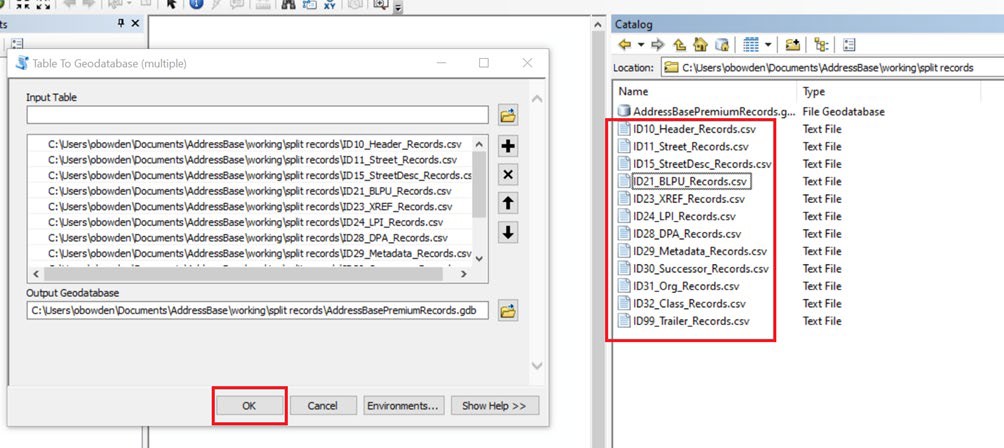
7. Right-click on your new File Geodatabase and select *Import* > *Table (multiple)…*
8. For *Input Table*, navigate to the location of the CSV files that you wish to open, that is, the folder that contains the AddressBase Premium data split into individual files by record type.
9. Select the files that you wish to add. Make sure you add the data files (which have the following naming convention: `ID21_BLPU_Records.csv`) and not the Header files (which have the following naming convention: `Record_21_BLPU_Header.csv`).
10. Click *Add*.
11. The *Output Geodatabase* option should automatically be populated by the location of the File Geodatabase that is to be updated; this should be the File Geodatabase you created in steps 4 to 6.
12. Click *OK*, and once the process is complete click *Close*.\
\Note: The process may take some time, depending on the number of files and the amount of data being added. The window may close before the operation is complete, so if you cannot see all of your expected files under your File Geodatabase, this may mean that the data is still being loaded.\_
ArcGIS Desktop Catalog showing how to import AddressBase Premium records into the output Geodatabase
13. To create a map of the locations of the AddressBase Premium records, they need to be geocoded. To do this, double-click on the Geodatabase that the data was just imported into. The BLPU table and the Streets table are the only tables in AddressBase Premium that carry geocoded information.
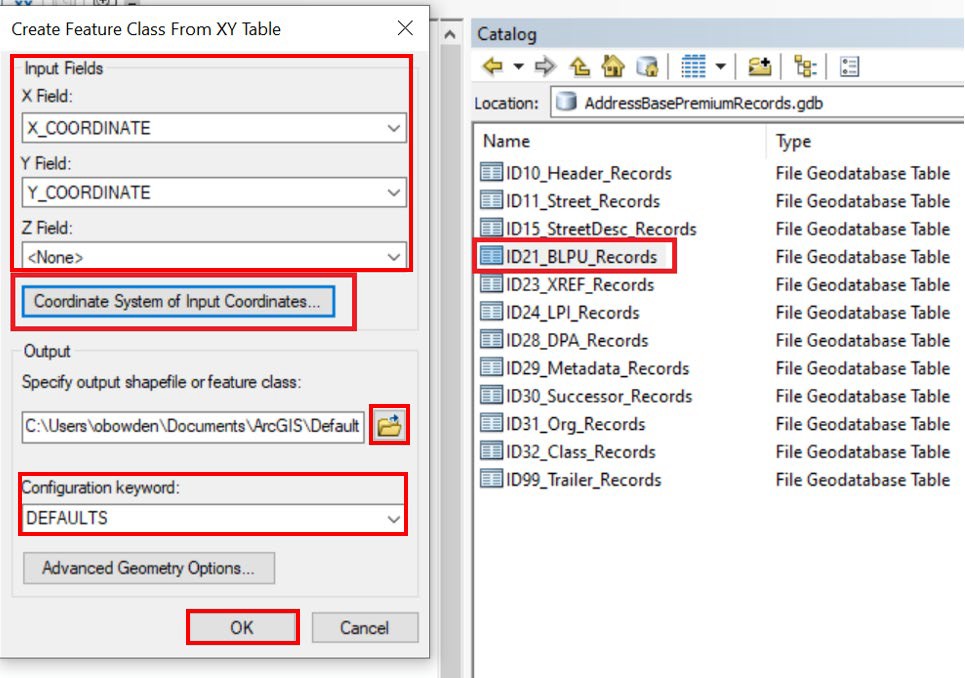
14. Right-click on the Geodatabase table that was created from AddressBase Premium records with a record type of 21 or 15 (for example, `ID21_BLPU_Records.csv` or `ID15_StreetDesc_Records.csv`) and select *Create Feature Class*.
15. In the *Create Feature Class From XY Table* dialog box, you can use the dropdowns to change the X Field to either *X\_COORDINATE* or *Longitude*, and the Y Field to *Y\_COORDINATE* or *Latitude*. Leave the Z Field as *\*.
ArcGIS Desktop Catalog showing Create Feature Class From XY Table dialog
16. For *Input Coordinates*, click on *Coordinate System of Input Coordinates* > *Select* and then navigate to *Projected Co-ordinate Systems* > *National Grids* > *Europe* > *British National Grid*.\
\Note - If you selected X and Y as 'Longitude' and 'Latitude' in the step before, then you need to select 'ETRS89 \[EPSG: 4258]' for the coordinate system instead.\_
17. Double-click on the selected coordinate system, then click *Apply* and *OK*.
18. Click on the folder icon alongside the Output field and navigate to the location where you wish to save the output shapefile or feature class (we recommend that this be within the Geodatabase you created in steps 4 to 6).\
\Note - If you can’t see your Geodatabase, ensure the 'Save as type' box at the bottom of the dialog box is set to 'File and Personal Geodatabase feature classes'.\_
19. Give the file a suitable name (for example, `XYID21_BLPU_Records`).
20. Click *Save*, then leave the Configuration keyword as *DEFAULTS* and click *OK*.\
\Note: You may need to right-click on the Personal Geodatabase where it was saved and select 'Refresh' in order to see your new feature class.\_
ArcGIS Desktop Catalog showing BLPU File Geodatabase Feature Class
\
Now the processing has been done, the data needs to be loaded into ArcMap so that the individual tables can be *related*.
21. Start ArcMap if you have not been working within ArcMap version 10 already.
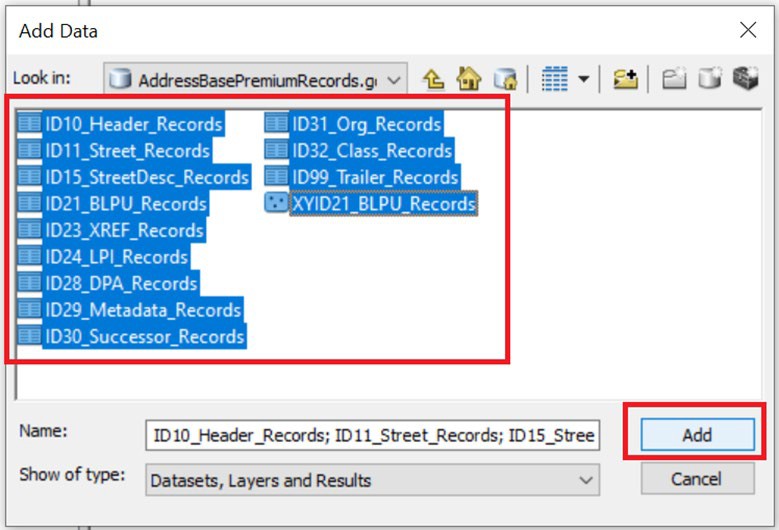
22. Select *File* > *Add Data…*
23. Navigate to the folder where the Geodatabase was created.
24. Double-click on the Geodatabase and select all the files inside.
25. Click *Add*.
ArcGIS Desktop Add Data dialog
26. You need to create the following *joins / relates* between the tables, as stated in the[ AddressBase Premium technical specification](/os-downloads/products/addresses-and-names-portfolio/addressbase-premium/addressbase-premium-technical-specification.md):
* **BLPU (ID21\_BLPU\_Records):**
* UPRN – Application Cross Reference (ID23\_XREF\_Records) UPRN
* UPRN – LPI (ID24\_LPI\_Records) UPRN
* UPRN – Delivery Point Address (ID28\_DPA\_Records) UPRN
* UPRN – Organisation (ID31\_Org\_Records) UPRN
* UPRN – Classification (ID32\_Class\_Records) UPRN
* **LPI (ID24\_LPI\_Records):**
* USRN – Street (ID11\_Street\_Records) USRN
* **Street (ID11\_Street\_Records):**
* USRN – Street Descriptor (ID15\_StreetDesc\_Records) USRN
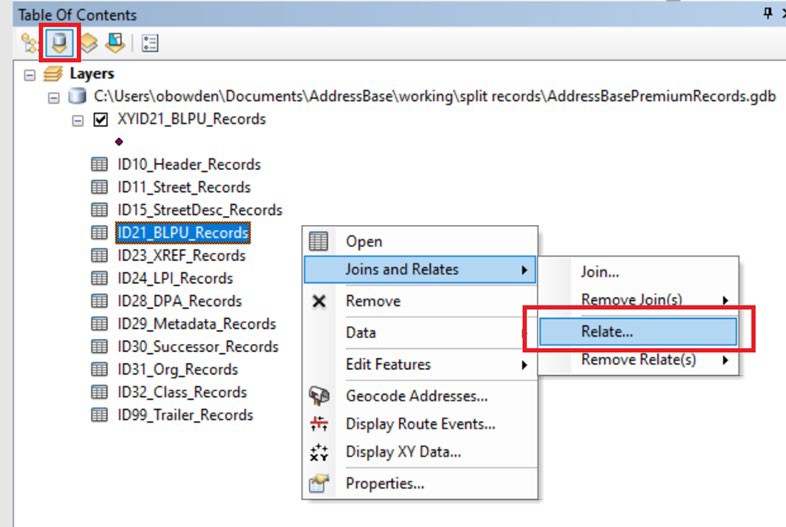
27. To do this, select the *Source* tab in the left-hand navigation window and right-click on the first table that you wish to relate to another. To create the relevant *relates*, use the following instructions:
* Click *Joins and Relates* > *Relate..*.
ArcGIS Desktop Table Of Contents showing Relate action
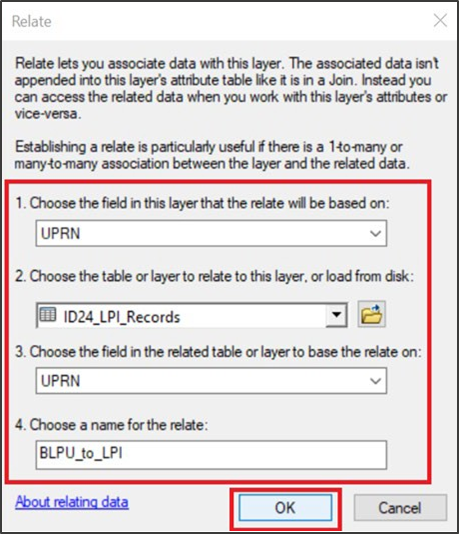
* From the first dropdown menu, select the attribute from the first table that will be used to create the *relate* between the two tables. (Apply the relationships as listed in step 26.)
* From the second dropdown, select the table that is going to be related to. (Apply the relationships as listed in step 26.)
* From the third dropdown, select the attribute from the table that is being related to. (Apply the relationships as listed in step 26.)
* In the fourth dropdown, input a relevant name for the relate (for example, `BLPU_to_LPI`).
ArcGIS Desktop Relate dialog
* Click *OK*.
* Repeat this process for all of the *joins / relates* listed in step 26.
28. Once the data has been loaded into ArcMap, you may wish to display more relevant information in the *Info* tool than the Esri-defined *Object ID*. To change this, use the following instructions:
* Double-click on the spatial dataset that you wish to change the *Display Expression* of.
* Select the *Display* tab.
* Change the *Field* to the desired field (for example, UPRN).
* Click *OK*.
ArcGIS Desktop Layer Properties dialog
MapInfo
*Note - The following instructions are based on MapInfo Professional version 16.0.*
*Note - MapInfo has a size limit of 2 Gb on each table. This equates to a maximum number of approximately 4 million AddressBase Premium records.*
*Note - When using CSV data in MapInfo, it is not a critical requirement to have column headings. However, for ease of use, we recommend using the headings supplied by Ordnance Survey. Instructions on how to append the Header files can be found in* [*Preparing the CSV data*](#id-4._preparing_the_csv_data)*.*
1. Launch MapInfo.
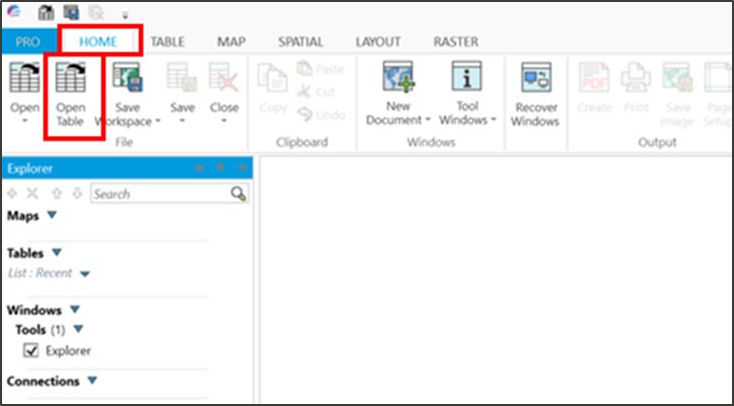
2. Click *Home* > *Open Table* and navigate to the folder that contains the AddressBase Premium data.
MapInfo UI highlighting Home > Open Table navigation item
3. In the *Files of Type* dropdown menu, select *Comma delimited CSV (\*.csv)*, then click on the AddressBase Premium data to be loaded. Click *Open*.
MapInfo Open dialog
4. In the next window, tick the box *Use First Line for Column Titles* and select *Windows US & W. Europe (“ANSI”)* from the dropdown menu for File Character Set. Click *OK*.
MapInfo Comma Delimited CSV Information dialog
\
\Note: When adding data this way, the field type classifications and field sizes of each column automatically try to fit the type of data that MapInfo believes is contained within the column and the largest value of that classification found within that column. This means the classifications and field sizes of some attributes may not match the field types and sizes stated in the Technical Specification. The following six instructions detail how to change these columns to match those values.\_
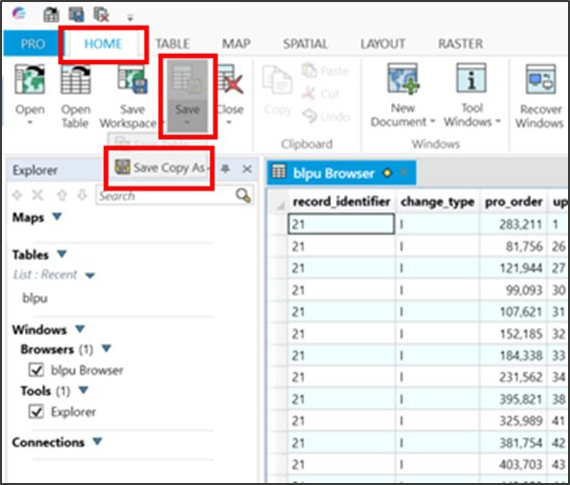
5. Select *Home* > *Save* > *Save Copy As* and select the AddressBase table that was loaded in. Click *Save As…* and name the table to be created, then click *Save*.
MapInfo UI highlighting Home > Save > Save Copy As navigation item
6. Open the table that was just created via *Home* > *Open*. Navigate to and select the copy of the table you just named. Click *Open*.
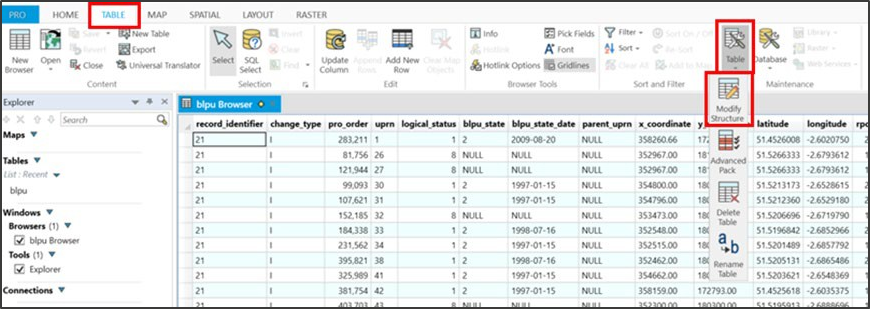
7. Navigate to *Table* > *Maintenance* > *Table* > *Modify Structure* and select the table to be edited. Click *OK*.
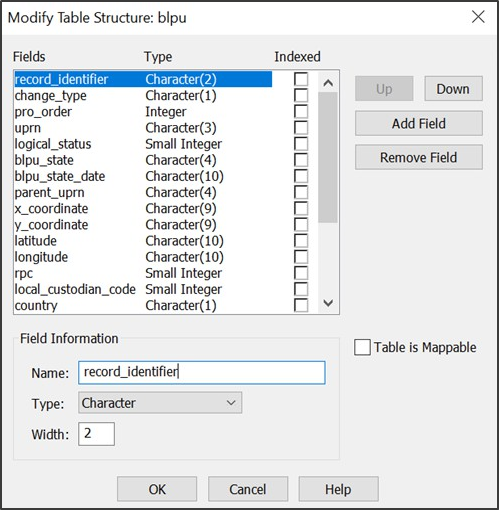
8. Here, you can change the *Type* and *Width* of each attribute to match the ones stated in the [AddressBase Premium technical specification](/os-downloads/products/addresses-and-names-portfolio/addressbase-premium/addressbase-premium-technical-specification.md).
9. Type and Width should be changed for all attributes, apart from the following due to software-specific dependencies:
* *UPRN*, which should be classified as *Float*
* All attributes that have a Field Type of *Date* in the Technical Specification, which should be classified as *Character* with a length of *10*
MapInfo Modify Table Structure: blpu dialog
10. After all changes have been made, click *OK*.
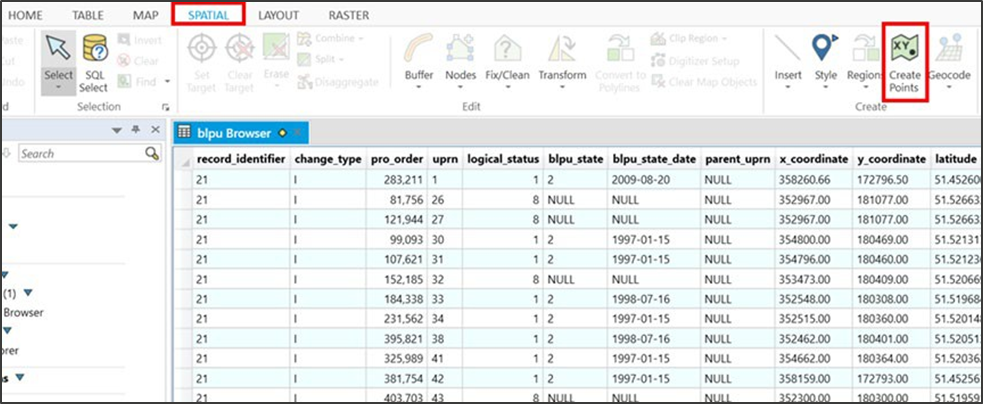
11. To create a map of the location of the AddressBase Premium records, they need to be geocoded. Ensure the table of records that you wish to geocode is open, then navigate to *Spatial* > *Create Points*.
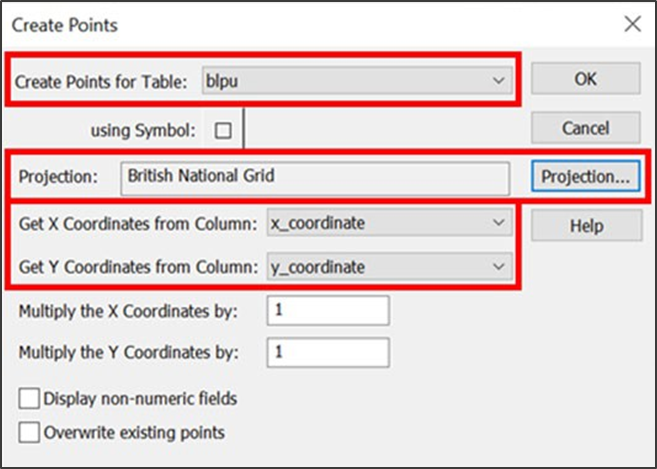
12. Select the table you wish to geocode from the *Create Points for Table* dropdown menu.
13. Expand the *Get X Coordinates from Column* dropdown menu and select either *X\_Coordinate* or *Longitude*.
14. Expand the *Get Y Coordinates from Column* dropdown menu and select either *Y\_Coordinate* or *Latitude*.
15. Click on the *Projection* button, then select the *British Coordinate Systems* option from the *Category* dropdown menu. Select *British National Grid \[EPSG: 27700]*, or if you selected Longitude and Latitude in the steps above, then you should select *ETRS89 \[EPSG: 4258]*.
MapInfo Create Points dialog
16. Click *OK* to close that window and *OK* again to close the next window.
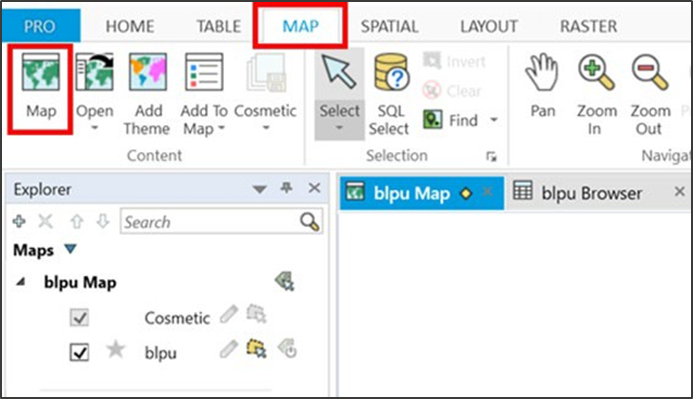
17. Finally, click *Map* > *Map (New Map Window)* to view the loaded geocoded points.
MapInfo UI highlighting Map > Map navigation item
QGIS
*Note - The following instructions are based on QGIS version 3.1.*
1. Launch QGIS and click *Settings* > *Options*.
2. Select *CRS* from the left-hand menu and check the coordinate reference system (CRS) is set to *British National Grid* within the *Default CRS for new projects* section and the *CRS for new layers* section.
QGIS Options | CRS dialog
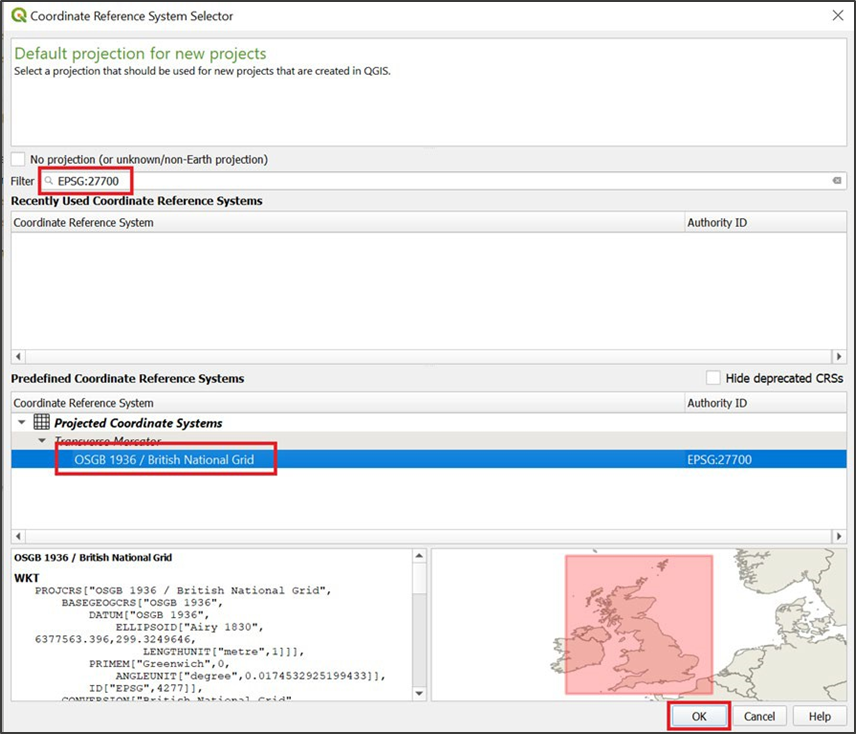
If the coordinate reference system is not already set, click the *Select…* button in the bottom right-hand corner of each section. A new dialog box will appear. In the Coordinate Reference System Selector dialog box, type *27700* into the *Filter* box to find and select *British National Grid*. Alternatively, if you intend to use Latitude and Longitude columns, select *ETRS89 \[EPSG: 4258].* Click *OK* to close the Coordinate Reference System Selector dialog box.
QGIS Coordinate Reference System Selector
3. Click *OK* to close the Options CRS dialog box.
4. As AddressBase Premium is made up of many record types, we need to make *joins* to view all the available data. The *joins* you need to make are given in the [AddressBase Premium technical specification](/os-downloads/products/addresses-and-names-portfolio/addressbase-premium/addressbase-premium-technical-specification.md), but for reference:
* **BLPU (ID21\_BLPU\_Records):**
* UPRN – Application Cross Reference (ID23\_XREF\_Records) UPRN
* UPRN – LPI (ID24\_LPI\_Records) UPRN
* UPRN – Delivery Point Address (ID28\_DPA\_Records) UPRN
* UPRN – Organisation (ID31\_Org\_Records) UPRN
* UPRN – Classification (ID32\_Class\_Records) UPRN
* **LPI (ID24\_LPI\_Records):**
* USRN – Street (ID11\_Street\_Records) USRN
* **Street (ID11\_Street\_Records):**
* USRN – Street Descriptor (ID15\_StreetDesc\_Records) USRN
5. Back in the QGIS window, in the top ribbon, select *Layer* > Add Layer > *Add Delimited Text Layer*. The Data Source Manager – Delimited Text dialog box will appear.
QGIS Data Source Manager | Delimited Text
\
\Note - The following steps explain how the joins are made for the first relationship given in the list above, that is, between the BLPU (ID21\_BLPU\_Records) and the Application Cross Reference (ID23\_XREF\_Records). This process will need to be repeated for all subsequent joins you make.\_
6. Click the *three dots* button next to the *file name* box and locate the CSV file that was created in [Preparing the CSV data](#id-4._preparing_the_csv_data), named `ID21_BLPU_Records`. Do not select any files with `Record` at the start of their name. Select the CSV file and click *Open*.
7. In the Layer name box, you can keep the default layer name or change it to a new one.
8. Ensure the *First record has field names* option is ticked.
9. Ensure the *Detect field types* option is ticked.
10. For Geometry Definition, select *Point coordinates*.
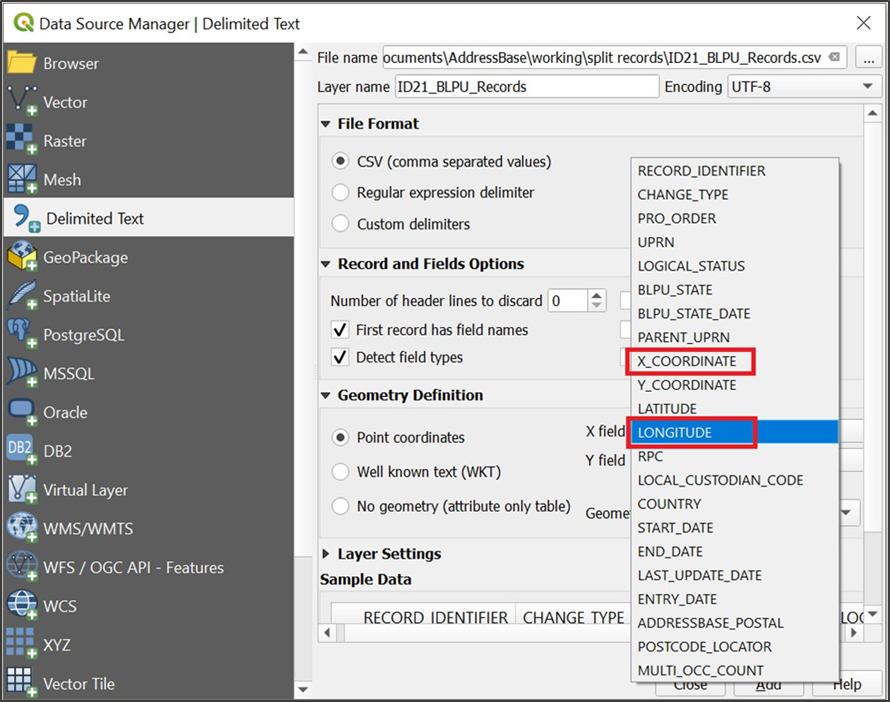
11. You should now be able to select the *X\_Coordinate* field for the X Field dropdown and the *Y\_Coordinate* for the Y Field dropdown if this was not done automatically. Alternatively, if you wish to use the Latitude and Longitude columns, *Longitude* needs to be inserted into X field dropdown, and *Latitude* needs to be inserted into the Y field dropdown.
QGIS Data Source Manager | Delimited Text
12. Click *Add*.\
\So far, you have loaded the BLPU record information.\_
13. In the QGIS window, in the top ribbon, select *Layer* > Add Layer > *Add Delimited Text Layer*. The Data Source Manager – Delimited Text dialog box will appear.
QGIS Data Source Manager | Delimited Text
14. Click the *three dots* button next to the *file name* box and locate the CSV file that was created in [Preparing the CSV data](#id-4._preparing_the_csv_data) named `ID23_ XREF_Records`. Do not select any files with *Record* at the start of their name. Select the CSV file and click *Open*.
15. In the Layer name box, you can keep the default layer name or change it to a new one.
16. Ensure the *First record has field names* option is ticked.
17. Ensure the *Detect field types* option is ticked.
18. For Geometry definition, choose *No Geometry (attribute only table)*.
19. Click *Add*.\
\This table will now be added to QGIS, but it will not be viewable as we have added it as an attribute table only.\_
20. Next, right-click on your BLPU layer and select *Properties*.
21. Go to the *Joins* tab found on the left-hand side.
22. Click the *green plus button* in the bottom left-hand corner.
23. Select your *Join layer*. For this example, it is: *Application Cross reference (ID23\_XREF\_RECORDS*).
24. Select the *Join field*. For all BLPU links, this will be the *UPRN* (see the joins listed in step 4).
25. The *Target field* will also be the *UPRN* for this example.
26. Click *OK*.\
\You should now have a join listed in your Joins window.\_
27. Click *OK* to return to your main QGIS mapping screen.
28. If you now select one of your BLPU records in the main mapping window, you will see the BLPU attributes and the relevant Application Cross References for that record.
QGIS Identify Results dialog
29. You can now repeat steps 4 to 28 for all the additional *joins* (listed in step 4) you wish to make.
CadCorp
#### Loading CSV using CadCorp Address Loader
These instructions show you how to load AddressBase Premium CSV into a database using the CadCorp Address Loader.\
\
\Note - The CadCorp Address Loader requires a separate license to the CadCorp SIS Desktop version.\_
1. Open CadCorp Address Loader. A dialog box will appear:
Cadcorp Address Loader > Select AddressBase data folder dialog
2. Click the *Browse* button and navigate to the location of the AddressBase Premium CSV file (zipped or unzipped) that you want to load into CadCorp.
3. In the Workspace Folder section, select a folder in which to store the log file and unzipped data. This can be a folder of your choosing or the application data folder.
4. Click *Next*.
5. Another dialog box will appear where you can select which address files to load. You can choose to load all or selected files.
Cadcorp Address Loader > CSV files to load dialog
6. Click *Next*.
7. The next dialog box to appear will allow you to select a database into which you can save the AddressBase Premium data. Select your database of choice, then click *Next*.
Cadcorp Address Loader > Select database dialog
\
\Note - The following instructions will relate to a PostGIS database\_.
8. In the next dialog box, connect to an existing database by entering information into the following fields:
* Host
* Port Number
* Database
* User name
* Password\
\
\Note - These details can be found within the parameters of your database. It is not possible to create a database via this method, and one will have had to have been created prior to this stage.\_
Cadcorp Address Loader > Connect to QGIS dialog
9. Click *Next*.
10. A schema dialog box will appear showing the tables that the data will be loaded into:
11. At this stage, it is possible to create a gazetteer view or an interface table where a concatenated LPI address field can be built.
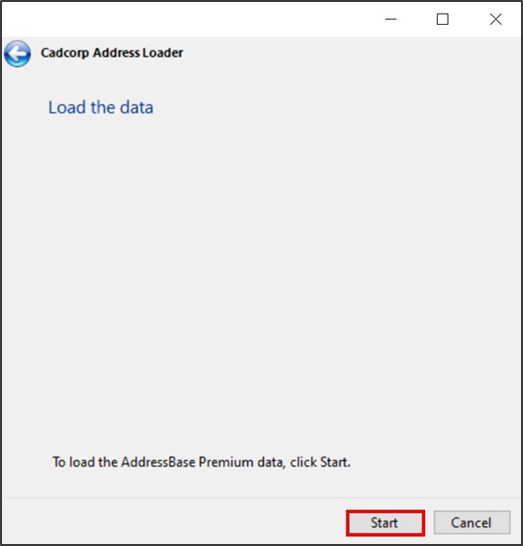
12. Click *Next* in that dialog box, then *Start* in the following dialog box to begin loading the data:
Cadcorp Address Loader > Load the data dialog
13. Once finished, the tables will be loaded into the database.
At this stage, it is possible to load the spatial tables (BLPU and Streets) into CadCorp. You can join these tables together within your chosen database to then add all data into CadCorp. Please refer to the [AddressBase Premium technical specification](/os-downloads/products/addresses-and-names-portfolio/addressbase-premium/addressbase-premium-technical-specification.md) to gain a better understanding of the relationships between AddressBase Premium tables.
#### Loading CSV into CadCorp SIS Desktop via a database
Following on from the instructions in [Loading CSV using CadCorp Address Loader](#id-5.5.1_loading_csv_into_cadcorp_sis_deskt), use the following instructions to load AddressBase Premium into CadCorp SIS Desktop via a database:
1. Open a new or existing CadCorp SIS Desktop project.
2. In the top ribbon, select *Add Overlay*.
CadCorp SIS Desktop Add Overlay button
3. On the left, select *Databases*, then select your database of choice from the list on the right (*Note: A PostGIS database will be referred to in the instructions from this point on*).
CadCorp SIS Desktop Overlay Types dialog
4. Click *Next*.
5. Connect to your existing database. To connect to a saved database, select a database under *Saved connections*. Alternatively, you can manually enter the database details. Click *Next*.
CadCorp SIS Desktop PostgreSQL Connection dialog
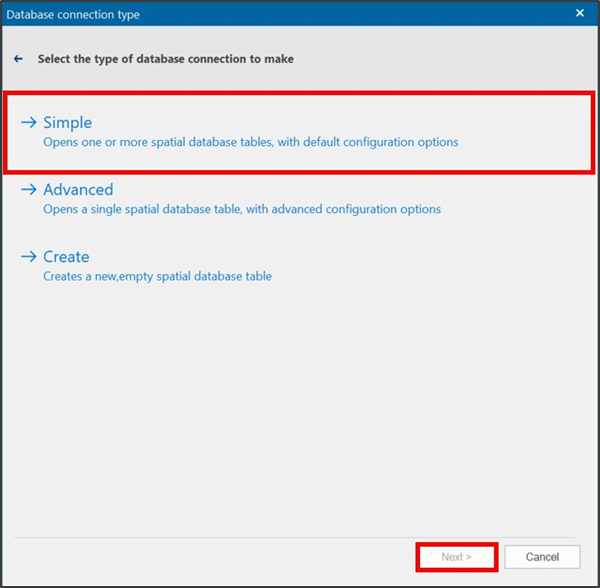
6. In the next dialog box, select the type of database connection you want to make. The *Simple* connection option is effective in this instance. Click *Next*.
CadCorp SIS Desktop Database connection type dialog
7. Select the tables to load into CadCorp, then click *Finish*.
## Loading CSV into a database
This section provides step-by-step instructions on how to load the CSV format of AddressBase Premium products into some commonly used databases, including PostgreSQL, Oracle and Microsoft SQL Server databases.
### Considerations
#### Software dependencies
It should be noted that ArcMap, ArcGIS Desktop and ArcGIS Server software do not support the BIGINT/NUMBER data type as an Object ID. Bear this in mind if the expectation is to use this data type directly with these ESRI products. An alternative method to facilitate using ESRI software is to store this data as a string and add a new Serial ID to act as the Object ID.
If you are loading AddressBase data directly into a database, you may need to increase the column length to accommodate language characters such as '^'. Some databases treat this as an additional character and, therefore, if you define the column length according to our specification, there is a chance the load may fail. Please bear in mind such adjustments may be required depending on the database you use to load the data.
#### UPRN deletions
It is important to note that Primary Keys on all tables (for example, UPRN on the BLPU table) are valid upon a data load. If a Delete is issued for a Primary Key, this doesn’t mean that Primary Key will not reappear in subsequent supplies.
There are a number of reasons this may happen:
* The record has moved in location more than once, moving it out of your AOI (therefore, the record is deleted) but then back into your AOI in the future. This would also occur if you altered your AOI.
* A record has failed data validation upon a change being made. This can result dependent on the change being made in the record being deleted and then reintroduced when the error is fixed by the data supplier.
If a unique property reference number (UPRN) is deleted, it will not be reallocated to a different property, and it therefore remains the unique identifier for a property.
### Loading CSV data instructions
PostgreSQL
The following instructions describe how to load AddressBase Premium into a PostgreSQL database using the text files created using the CSV file merge utility. The instructions are based on PostgreSQL version 1.12.3 and assume that you have set-up your database with the PostGIS spatial extension. It is recommended that you have a basic understanding of database terminology before following these instructions.
1. Prepare the text files as described in [Preparing the CSV data](#id-4._preparing_the_csv_data).
2. Check that there are no carriage returns (extra rows) at the end of the CSV output file as this will result in errors. To check this, open the CSV file and hit *End* on your keyboard. Your cursor should now be at the end of the last line, and not on any extra line below. If it is on the line below, hit *Delete* to remove the extra empty row.
3. Open the *PGAdmin* tool (this can be found on the *Windows Start Menu* > *pgAdmin*).
4. On the left-hand side, under *Browser*, you have the option to connect to either your existing databases or a new one. To connect to a new database, right-click on *Databases*, then select *Create* > *Database…*. It is recommended that the encoding is set to *UTF-8*.
5. Open the public schema (although in a production environment, it is advised to use a different schema) and create the tables using the following steps:
* Open the SQL query tool.
* Download the SQL file in the [GitHub AddressBase\_Premium\_and\_Islands folder](https://github.com/OrdnanceSurvey/AddressBase/tree/master/Loading_Scripts/PostgreSQL).
* This SQL file can be opened in a text editor, and the SQL scripts within can be copied and pasted into the SQL query tool within PostgreSQL. To open a new SQL file, select *Tools* in the ribbon, then select *Query Tool* from the dropdown.
6. Copy and paste the SQL code from the GitHub link given in step 5 into the SQL Query Tool (as shown in the following screenshot).
pgAdmin 4 showing PostgreSQL script in the Query Tool
7. The following tables should be created (you can alter table names as you wish):
* BLPU
* Classification
* Cross reference
* Delivery Point Address
* LPI
* Organisation
* Streets
* Street Descriptor
* Successor Records
8. Once the table has been created, the data can be loaded into each table using SQL `COPY`. Adding the CSV option as the first line contains a header record for each table.\
\Note - The path and file name may need to be changed to reflect your data:\_
COPY abp_blpu FROM 'C:/Address/ID21_BLPU_Records.csv' DELIMITER ',' CSV HEADER;
   COPY abp_delivery_point FROM 'C:/Address/ID28_DPA_Records.csv' DELIMITER ',' CSV HEADER;
   COPY abp_lpi FROM 'C:/Address/ID24_LPI_Records.csv' DELIMITER ',' CSV HEADER;
   COPY abp_crossref FROM 'C:/Address/ID23_XREF_Records.csv' DELIMITER ',' CSV HEADER;
   COPY abp_classification FROM 'C:/Address/ID32_Class_Records.csv' DELIMITER ',' CSV HEADER;
   COPY abp_street FROM 'C:/Address/ID11_Street_Records.csv' DELIMITER ',' CSV HEADER;
   COPY abp_street_descriptor FROM 'C:/Address/ID15_StreetDesc_Records.csv' DELIMITER ',' CSV HEADER;
   COPY abp_organisation FROM 'C:/Address/ID31_Org_Records.csv' DELIMITER ',' CSV HEADER;
   COPY abp_successor FROM 'C:/Address/ID30_Successor_Records.csv' DELIMITER ',' CSV HEADER;
9. Once loaded, you may want to add Primary and Foreign Keys to the data. These can only be added on columns where the data values are unique. Where there are no unique data values, an index may be added which will aid searching. For the BLPU table, the UPRN provides a unique value. Primary Keys are added using the following steps:
* Right-click on the table name and select *Properties*.
* Select the *Constraints* tab.
* Click the *+ symbol* to add a new Primary Key.
* Click the *edit button* .
* Enter a name to call the key under the General tab (for example, `Key1`).
* Under the Definition tab, select *UPRN* or any other unique value from the dropdown under *columns*.
* Click *Save*.
10. Repeat the procedure for the Streets table and USRN.\
\
However, in the other tables these columns may contain duplicate values. In this case, use the table key (for example, `LPI_Key` as the primary identifier). Alternative Object Identifiers (OID) can be added to each table (these are also required to use the data in some GIS, including QGIS and MapInfo.) The following SQL can be used for this:
ALTER TABLE insert_table_name SET WITH OIDS
11. To help performance when querying across multiple tables, a Foreign Key may be added. A list of the Foreign Keys with AddressBase Premium can be found in the [Model overview for GML](/os-downloads/products/addresses-and-names-portfolio/addressbase-premium/addressbase-premium-technical-specification.md#bookmark12) section of the [AddressBase Premium technical specification](/os-downloads/products/addresses-and-names-portfolio/addressbase-premium/addressbase-premium-technical-specification.md). However, as with a Primary Key, only unique data columns can be used.
* Right-click on the table name and select *Properties*.
* Select the *Constraints* tab.
* Click the *+ symbol* to add a new Foreign Key.
* Click the *edit button* .
* Enter a name to call the key under the General tab (for example, `Key1`).
* Under the Definition tab, select *UPRN* or any other unique value from the dropdown under *columns*.
* Click *Save.*
12. You can also index the data by using the following steps:
* Right-click on the table name and select *Create* > *Index*.
* Under the General tab, enter a name (for example, *`Idx1`*).
* Under *Definition tab* > *Columns*, click the *+ symbol*.
* Select the *UPRN* for example, or any other unique value.
* Click *Save*.
#### Converting coordinates to geometry
A PostGIS extension is required to create geometries. The AddressBase Premium products contain both British National Grid (BNG) and ETRS89 coordinates. The SQL below shows how to create a column for BNG, but it can be altered to utilise the ETRS89 data.
1. Add a geometry column to make the data usable in a GIS:
\
\This sets the `geom` column in the BLPU table to equal the values from the `X_coordinate` and `Y_coordinate` columns, with the spatial reference defined as `27700`.\_
3. Create a spatial index on the data using:
CREATE INDEX idx_abp_geom ON public.abp_blpu USING gist(geom)
\
\This adds the index name `idx_abp_geom` to the same table on the `geom` column.\_
Oracle
*Note - The following instructions assume a basic knowledge of Oracle databases and SQLLDR (the package used to load CSV files into the database). Other options are available for loading data into Oracle databases.*
*Note - When using SQLLDR, it is not necessary to merge all the AddressBase files into a single file as it can load the data directly from the provided file as long as it has been unzipped first.*
Note - The following steps describe one method for loading a full supply of the data. Sections of text within <…> (a pair of less than and greater than symbols) denote where changes will need to be made to accommodate local file naming.
1. Copy the data files from the disk to an appropriate location. It is worth noting that the files will need to be unzipped; therefore, you will need in the region of 40 Gb of free space to load AddressBase Premium and 1 Gb of free space to load AddressBase Premium Islands.
2. Once the data is copied, the next stage is to unzip the \*.zip files to extract the \*.csv files. This can be done using a package such as Winzip or 7Zip. Please see the Data supply page for more information.
3. Now that all the files are unzipped, the latter stages will be easier if you create a file listing all the CSV files to be loaded. This can be done using a batch file that writes all the files out to a text file. Copy the following into a text editor and save it as a `.bat` file in the same directory as the AddressBase Premium data:
dir *.csv /b/s >filelisting.txt pause
\
\This file will form the basis for loading the control file in a later step.\_
4. Go to the [OS GitHub repository](https://github.com/OrdnanceSurvey/AddressBase/tree/master/Loading_Scripts/Oracle).
5. Open the `AddressBase_Premium_and_Islands` folder. Open the file ending `CreateTables.sql` in a text editor.
6. Within that SQL there are references to ``*,* which need to be changed to the tablespace name that you are working in. When these are changed, copy and paste the SQL into Oracle to create the tables.
7. Next, a SQLLDR control file needs to be created. An example of one of these files is `Oracle_AddressBasePremium_Control.ctl`*,* provided in the `AddressBase_Premium_and_Islands` folder in the OS GitHub repository linked in step 4. Open this file in a text editor.
8. Populate the `INFILE` lines with the file listing that was created in step 3; use one `INFILE` command for each file. This tells the process to open each of the files and carry out the other tasks listed below it.
9. The rest of the file tells the tool how to interpret the files that it is reading in. The `INTO` statement at the top of each of the tables tests the first column (`01`) of the row in the file that it is looking at. If it meets the criteria, the structure of the table that the line is to be loaded into is described below it. Save the completed file with the extension `*.ctl`.
10. Once this file is created, it can be called from a `.bat` file to run it on the box that holds the database rather than a remote machine.\
\If you wish to run it from a remote machine, contact your Oracle Administrator who will be able to advise on the best way to do this within your environment.\_\
\
The contents of the .bat file should be similar to the following:
@sqlldr /@ control= Pause
11. When the `.bat` file has been run, the data is loaded. Errors with the load and/or any records that do not meet the expected structure are recorded in the and `*.log` and `*.bad` files, respectively. These are written out to the same drive location as the control file that is being used to load the data.\
\It is strongly recommended that the log file is checked once the load is completed to verify that all of the data has loaded correctly before continuing.\_
12. After loading, the indexes need to be built in order to be able to carry out spatial queries and other queries where the relationship between the tables need to be built.\
\For example, in order to return all the Delivery Point Addresses within a county, there needs to be a spatial index on the BLPU table which contains the geometry, as well as the UPRN in both the BLPU and Delivery Point Address tables. The SQL statements to create the indexes can be found in the GitHub repository link that was referenced in step 4.\_
13. Again, you can copy and paste the SQL statements from a text editor into Oracle in order to create the rest of the indexes.\
\The table name provided may be different to yours and therefore might need changing before use.\_
14. Once the indexes are complete, the data loading process is complete and the data is ready to use.
Microsoft SQL Server
*Note - The following instructions assume that you have basic knowledge of Microsoft SQL Server, and that the CSV data is already prepared as described in* [*Preparing the CSV data*](#id-4._preparing_the_csv_data)*.*
*Note - There are many ways to load AddressBase products into Microsoft SQL Server; this is just one suggested method for guidance.*
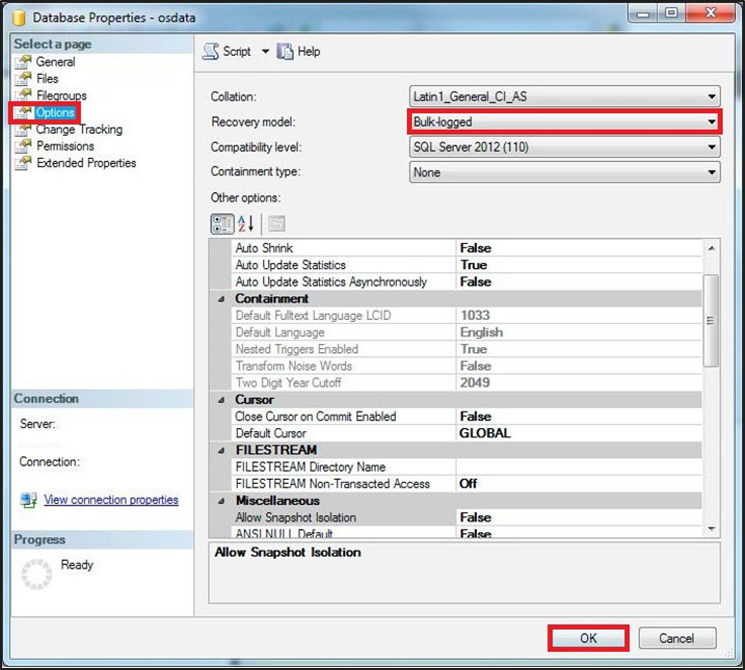
1. Open the *SQL Server Management Studio (SSMS)*.
2. Right-click on the database you are loading into and select *Properties*.
3. Select *Options* on the left-hand side menu.
4. Expand the dropdown box for Recovery model and select *Bulk-logged*. This minimises the logfile size, otherwise the default logging for Microsoft SQL Server can cause logfiles to grow over 20 Gb which, in turn, can cause issues with loading. Click *OK*.
SQL Server Management Studio Database Properties dialog
5. Open the *SQL Server Management Studio (SSMS*) and right-click your database from the left-hand panel.
6. Navigate to *Tasks* and click *Import Data*. This will open the *SQL Server Import and Export Wizard*.
7. Click *Next*.
8. On the next screen, change your *Data Source* to *Flat File Source*.
9. Use the *Browse* button to select your CSV file. Each table needs to be added separately (for example, `ID21_BLPU_Records.csv`).\
\If you cannot see your files, ensure that the bottom right dropdown box has 'CSV files (\*.csv)' selected.\_
10. Click *Open*.
11. Your CSV file should already have a header row from [Preparing the CSV data](#id-4._preparing_the_csv_data). Ensure that *Column names in the first data row* is ticked.
12. Check that the *Text Qualifier* is set to a double quote (“).\
\This ensures the quotations in the raw data supply are removed upon loading, but that the data remains intact.\_
13. On the left-hand side of this screen, select *Columns* and check that the *Column delimiter* is set to *Comma*.
14. On the left-hand side of the screen, select *Advanced*.
15. For each column of data that you are loading, you will need to specify a *DataType*. The Microsoft SQL Server loader defaults each column to a *String*. The correct Data Types for each column are given in [AddressBase Premium structure](/os-downloads/products/addresses-and-names-portfolio/addressbase-premium/addressbase-premium-technical-specification.md#bookmark9) section of the [technical specification](/os-downloads/products/addresses-and-names-portfolio/addressbase-premium/addressbase-premium-technical-specification.md).
16. Once you have changed the column types to match the technical specification, click *Next*.
17. Check that your table is going to be imported into the correct database and click *Next*.
18. On this screen, you can edit the default table name that Microsoft SQL Server has chosen by clicking in the destination box. For example, for AddressBase Premium, renaming to *\[dbo].\[BLPU\_TABLE]*.
19. Select *Edit Mappings* in the bottom right-hand corner.
20. In the new window, you must remove the tick in the checkbox against the column which needs to be the Primary Key of the table. The Primary Keys for each table can be found in the in [AddressBase Premium structure](/os-downloads/products/addresses-and-names-portfolio/addressbase-premium/addressbase-premium-technical-specification.md#bookmark9) section of the [technical specification](/os-downloads/products/addresses-and-names-portfolio/addressbase-premium/addressbase-premium-technical-specification.md).
21. Click *Next*. On this screen, you can check that the *Source column* and *Destination column* are correct.
22. Click *Next*. A summary of your import will appear. If you want to continue, click *Finish*.
23. A report will be generated as your data is imported. *Success* should appear at the top once complete.
24. You may need to right-click on your database and click *Refresh* to see your new table listed.
#### Setting Primary and Foreign Keys
To create a Primary Key field you can run an SQL statement, such as the following example.
*Note - the columns you are creating these constraints on cannot be null or allowed to be null.*
**Primary Key**
{% code overflow="wrap" %}
```sql
alter table dbo.ID21_BLPU_Records add primary key (UPRN);
```
{% endcode %}
**Foreign Key**
{% code overflow="wrap" %}
```sql
alter table dbo.ID32_Class_Records add foreign key (UPRN);
```
{% endcode %}
#### Creating the point geometry
You can also create point geometry using the X and Y coordinates or the Latitude and Longitude coordinate values. This is achieved by running the following SQL statement:
{% code overflow="wrap" %}
```sql
alter table dbo.ID21_BLPU_Records
add geometry_column as geometry::Point([X_Coordinate],[Y_Coordinate], 27700);
```
{% endcode %}
*Note - This is using British National Grid coordinates, with 27700 representing the spatial reference of the data. To use the Latitude and Longitude coordinate, the spatial reference should be set to 4258 for ETRS89.*
---
# Agent Instructions
This documentation is published with GitBook. GitBook is the documentation platform designed so that both humans and AI agents can read, navigate, and reason over technical content effectively. Learn more at gitbook.com.
## Querying This Documentation
If you need additional information that is not directly available in this page, you can query the documentation by asking a question.
Perform an HTTP GET request on the following URL with the `ask` and `goal` query parameters:
```
GET https://docs.os.uk/os-downloads/products/addresses-and-names-portfolio/addressbase-premium/addressbase-premium-getting-started-guide/working-with-csv-data.md?ask=&goal=
```
`ask` is the immediate question: it should be specific, self-contained, and written in natural language.
`goal` is what the user is ultimately trying to achieve, the reason they need the answer. Sharing it helps GitBook give you a better, more relevant answer. A goal is most helpful when it describes the outcome the user wants rather than restating the question. For example, with `ask=how do I create an API token`, a goal like `automate deployments from our CI pipeline` lets GitBook tailor the answer to that use case.
The response will contain a direct answer to the question and relevant excerpts and sources from the documentation.
Use this mechanism when the answer is not explicitly present in the current page, you need clarification or additional context, or you want to retrieve related documentation sections.














 .
* Enter a name to call the key under the General tab (for example, `Key1`).
* Under the Definition tab, select *UPRN* or any other unique value from the dropdown under *columns*.
* Click *Save*.
10. Repeat the procedure for the Streets table and USRN.\
\
However, in the other tables these columns may contain duplicate values. In this case, use the table key (for example, `LPI_Key` as the primary identifier). Alternative Object Identifiers (OID) can be added to each table (these are also required to use the data in some GIS, including QGIS and MapInfo.) The following SQL can be used for this:
.
* Enter a name to call the key under the General tab (for example, `Key1`).
* Under the Definition tab, select *UPRN* or any other unique value from the dropdown under *columns*.
* Click *Save*.
10. Repeat the procedure for the Streets table and USRN.\
\
However, in the other tables these columns may contain duplicate values. In this case, use the table key (for example, `LPI_Key` as the primary identifier). Alternative Object Identifiers (OID) can be added to each table (these are also required to use the data in some GIS, including QGIS and MapInfo.) The following SQL can be used for this: