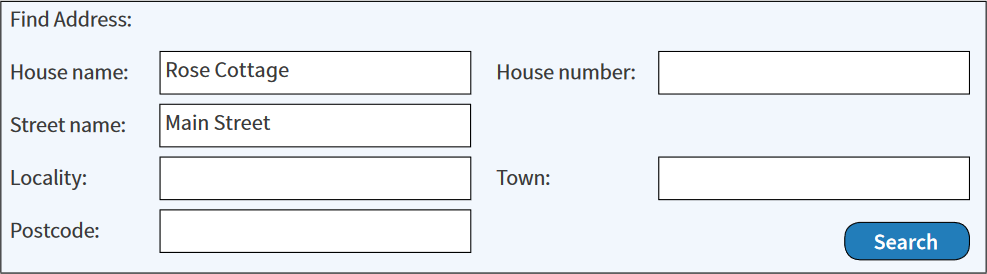
Example Search UI with text boxes for each address component
1, Clover Avenue, Fieldtown, Addressville, SW99 9ZZ
2, Clover Avenue, Fieldtown, Addressville, SW99 9ZZ
3, Clover Avenue, Fieldtown, Addressville, SW99 9ZZ
4, Clover Avenue, Fieldtown, Addressville, SW99 9ZZ
5, Clover Avenue, Fieldtown, Addressville, SW99 9ZZ
6, Clover Avenue, Fieldtown, Addressville, SW99 9ZZ
7, Clover Avenue, Fieldtown, Addressville, SW99 9ZZ
| In this scenario, the user can choose to type anything in *Find address*, which may be just one component of an address (for example, a postcode, street name or building name), several parts of an address (for example, street name + town name, house name + postcode, etc.) or even (rarely) a complete address. There may or may not be commas between search items, or address components can be entered with or without capitalised letters, etc. In short, with this search method, there is no structure to the user input and the search methodology must be designed with this in mind. ### Structured component search The other common type of implementation for address searches involves entering search criteria in a structured way (for example, with a different text box for each major address component).Example Search UI with text boxes for each address component
Rose Cottage, Main Street, Fieldtown, Addressville, SW99 9ZZ
Rose Cottage, Main Street, Ashford, AS45 9PP
Rose Cottage, Main Street, Buxtew, Monley, MO88 4TY
And so on...
| This method guides the user to enter known components of an address and creates a predictable user input structure around which to build a search function. While generally simpler to use and implement, it can be less user-friendly, particularly in cases where it is not obvious which box to type an address component into, for example, is *Richmond Terrace* a building name or a street? ## The search operation This guide suggests how to implement the two search methods described above. Both should be used alongside the instructions on formatting single address labels. {% hint style="info" %} The methods described here may be adapted to work with both AddressBase Plus, AddressBase Plus Islands and AddressBase; however, in the case of AddressBase, only Delivery Point Addresses are searchable, so the geographic guidance will not apply to this product. {% endhint %} An address search operation typically requires two stages of interaction from a user and several processing steps from the underlying IT system. These steps can be summarised in the following diagram: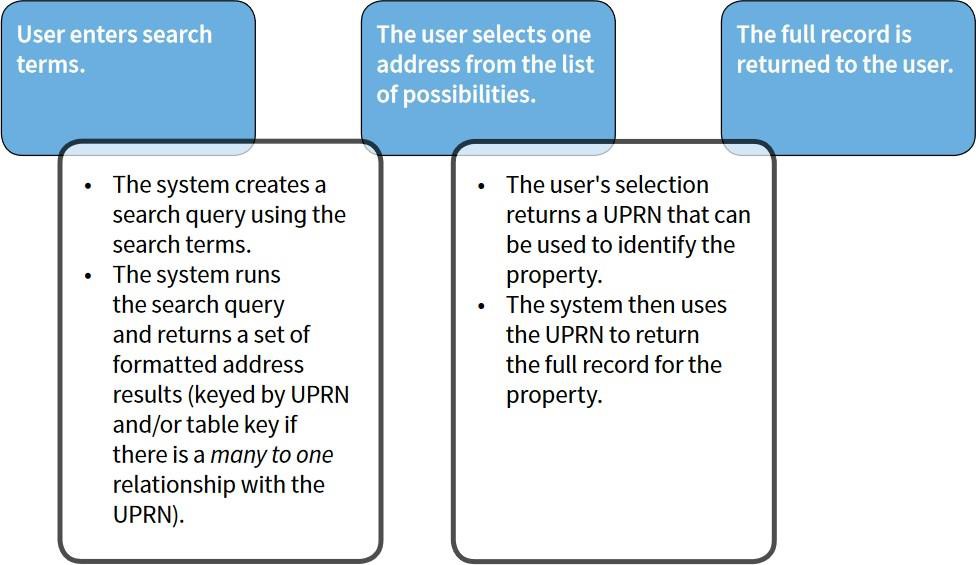
Diagram showing typical processing steps when search for an address
Organisation
PAO\_Text
SAO\_Text
| | **Flat/Subdivision Name** | Sub\_Building\_Name Department\_Name | SAO\_Text | | **Flat/Subdivision Number** | Sub\_Building\_Name |SAO\_StartNumber SAO\_StartSuffix SAO\_EndNumber
SAO\_EndSuffix
| | **Building Name** | Building\_Name | PAO\_Text | | **Building Number** |Building\_Number
Building\_Name (in cases where a suffix or range is present)
|PAO\_StartNumber PAO\_StartSuffix PAO\_EndNumber
PAO\_EndSuffix
| | **Street** | Thoroughfare Dependent\_Thoroughfare | Street PAO\_Text | | **Locality** | Dependent\_Locality Double\_Dependent\_Locality | Locality Town Street | | **Town** | Dependent\_Locality Post\_Town | Town Locality | | **Postcode** | Postcode | Postcode\_Locator | The above mapping is an example only, and it is possible to breakdown the search fields differently, in which case, a different mapping would be required. The important thing is to consider all possibilities for how data might be recorded. For example, a business name can sometimes appear as an organisation name or a building/PAO name depending on circumstances, so both must be checked when creating a search query. Numbers need to be handled very carefully due to the presence of suffixes and ranges. There are two options for structuring the search input in these cases: 1. A single ‘number’ box can be used (as shown above in Flat/Subdivision Number and Building Number), which will then require some string manipulation to split the input into the appropriate numeric range and suffix components in order to search the geographic addresses; or 2. Four boxes can be provided for each number (start number, start suffix, end number and end suffix), which would then need to be combined into an appropriate string to search the Delivery Point Addresses. ## Structuring the query for a structured address search The basic rules to adhere to when generating a search query from structured input are as follows: 1. Ignore any search boxes that are not filled in with values. 2. Where a value is entered, assume that a match on at least one of the mapped fields is essential. In SQL query terms, this means that each search term should generate a sub-query that searches each of the mapped fields (using OR), and that these sub-queries should then be combined together (using AND) into a single search query. The following SQL code illustrates this (for the Delivery Point Address search only) for an example where a street, locality and town name have been entered by the user: {% code overflow="wrap" %} ```sql SELECT dp.UPRN, GetFormattedAddress(dp.*) FROM abp dp WHERE (dp.thoroughfare = streetsearchtext OR dp.dependent_thoroughfare = streetsearchtext) AND (dp.dependent_locality = localitysearchtext OR dp.double_dependent_locality = localitysearchtext) AND (dp.dependent_locality = townsearchtext OR dp.post_town = townsearchtext) ``` {% endcode %} In the above example, `streetsearchtext`, `localitysearchtext`, and `townsearchtext` represent user- entered search terms (which could be parameters within an SQL function) and the `GetFormattedAddress(*)` function is a hypothetical user-defined function that returns the formatted address as a single string (suitable for display in the user interface). For more information on formatting addresses, please see [Creating a single-line or multi-line address](#bookmark43). On top of this, for a complete query, the two different types of addresses should be queried separately (Geographic and Delivery Point Addresses), and the two result sets should be amalgamated into a single set using a UNION. The following example builds upon the previous example to include Geographic Addresses as well as Delivery Point Addresses. {% code overflow="wrap" %} ```sql SELECT UPRN, GetFormattedAddress(*) FROM abp WHERE (thoroughfare = streetsearchtext OR dependent_thoroughfare = streetsearchtext) AND (dependent_locality = localitysearchtext OR double_dependent_locality = localitysearchtext) AND (dependent_locality = townsearchtext OR post_town = townsearchtext) UNION SELECT uprn, GetFormattedAddress(*) FROM abp WHERE (.street_name = streetsearchtext OR .pao_text = streetsearchtext) AND (.locality = localitysearchtext OR .town = localitysearchtext OR .street_name = localitysearchtext) AND (.town = townsearchtext OR .locality = townsearchtext) ``` {% endcode %} The SQL `UNION` operator will combine the two result sets, discarding any exact duplicates. (Retaining the exact duplicates requires the use of `UNION ALL`, but that is not desirable in this example.) The resulting output from this query will be a set of search results as formatted addresses along with their UPRN. Exact duplicates will be omitted, but all ‘variations’ of the same address will be output (one row for each variation, with the same UPRN repeated more than once potentially). It may be wise to return the *Postal Address Flag* values against each to enable further filtering, for example, to restrict the results to postal addresses only. Note that the *Postal Address Flag* is only available in AddressBase Plus. All records in AddressBase are deemed postal as they are from Royal Mail’s PAF data. ## Supporting case-insensitive queries and partial matches A flaw in the above examples is the use of equality operators. In practice, because people do not tend to be consistent with capitalisation of letters, the SQL ‘LIKE’ operator might work better, and depending on the nature of the application, a ‘%’ wildcard could be appended to the end of each search term to allow only the first few letters of an address component to be entered. For example: {% code overflow="wrap" %} ```sql post_town LIKE townsearchtext -- Case insensitive search in some databases ; post_town LIKE (townsearchtext || ‘%’) -- Matches post towns that start with the search text ; post_town LIKE (‘%’ || townsearchtext || ‘%’) -- Matches post towns that contain the search text; ``` {% endcode %} Alternatively, if exact matches are required but case sensitivity is not, then the UPPER() or LOWER() SQL functions can be used on each side of the equals sign in comparisons (a solution that should work in all databases): {% code overflow="wrap" %} ```sql UPPER(post_town) = UPPER(townsearchtext) -- Case insensitive equality; ``` {% endcode %} Finally, to combine all of the approaches, the following would work for maximum flexibility: ```sql UPPER(post_town) LIKE (‘%’ || UPPER(townsearchtext) || ‘%’) ``` ## Generating a search query from unstructured user input When offering a ‘search engine’ style search feature with just a single text box to enter search terms, a wholly different approach is required. No assumptions can be made about the order, format or style of the user input, and the data will need to be ‘indexed’ in a way that facilitates searches of this type. ### Creating a search index for addresses Search engine style searches are likely to require the creation of an additional index/lookup table for addresses. Such a table is likely to consist of just two main columns: a key value (UPRN) and a formatted address string. Additional columns may be required to allow filtering of results (such as the *AddressBase Postal flag* values from AddressBase Plus, which would allow the results to be filtered by *different address statuses*). The following table shows a possible address index table structure: | UPRN | Address Text | Statuses (multiple fields) | | ------------ | ------------------------------------------------------------- | -------------------------- | | 123456789012 | 4 THE MEADOWS HIGH STREET WALTHAMSDALE BURRIDGE BU27 9UB | Local Authority | | 123456789012 | FLAT 4 THE MEADOWS HIGH STREET WALTHAMSDALE BURRIDGE BU27 9UB | PAF | | 123456789013 | 4 HIGH STREET WALTHAMSDALE BURRIDGE BU27 9UB | Non-postal | Note how the addresses have been formatted as a single text string with a single space between each word (although leaving commas in would do no harm). All forms of each address (both PAF and geographic) have been added to the index, so there can be several rows with the same UPRN. To speed up complex searching, an appropriate index could be added to the Address Text field, such as a full text search index. ### Structuring the query for an unstructured address search Once a suitable search index is in place, the query itself can be put together. The basic idea is to split the user input into search terms by removing commas, double spaces, and other unnecessary whitespace and then splitting it at each single space, as follows: * User input: 4, High Street, westville, wv17 Capitalised, with commas and double-spaces removed: * 4 HIGH STREET WESTVILLE WV17 Split into separate search terms: * 4 * HIGH * STREET * WESTVILLE * WV17 Once the user input has been pre-processed into separate search terms, a query can be generated. The key assumption in this example will be that ALL search terms must be matched against the index table to be considered as a result. This implies a query where each value is matched using an ‘AND’ operator. In order to search the whole index, the ‘LIKE’ operator will need to be used along with a ‘%’ wildcard on either side of the search text. A suitable search query for the above example would be as follows: {% code overflow="wrap" %} ```sql SELECT UPRN, AddressText FROM AddressSearchIndex WHERE AddressText LIKE ‘%4%’ AND AddressText LIKE ‘%HIGH%’ AND AddressText LIKE ‘%STREET%’ AND AddressText LIKE ‘%WESTVILLE%’ AND AddressText LIKE ‘%WV17%’; ``` {% endcode %} This query would return all rows from the index table that contain all of the search terms, along with the appropriate UPRNs. The following table shows how the index table would be used in the above example to return relevant results:| Address text | Statuses (multiple fields) | |
|---|---|---|
| 894756389092 | 4 HIGH STREET WESTVILLE SUNNYTOWN WV17 7HL | Geographic + PAF |
| 894756389132 | ROSE COTTAGE 4 HIGH STREET WESTVILLE SUNNYTOWN WV17 7HL | Geographic |
| 274859037849 | FLAT 4 HIGHBURY COURT HIGH STREET WESTVILLE SUNNYTOWN WV17 7HL | Geographic + PAF |
| 482974769830 | MAPS4U LTD HIGH STREET WESTVILLE SUNNYTOWN WV17 7HL | Geographic + PAF |