# Loading the data in a GIS

### Loading the data in a GIS <a href="#id-4.-loading-the-data-in-a-gis" id="id-4.-loading-the-data-in-a-gis"></a>

This section describes how to load the combined CSV output file into five commonly-used GIS applications:

* [QGIS](#qgis)
* [ArcGIS Pro](#arcgis-pro)
* [ArcMap](#arcmap)
* [MapInfo Pro](#mapinfo-pro)
* [Cadcorp SIS Desktop](#cadcorp-sis-desktop)

<details>

<summary>QGIS</summary>

The following step-by-step instructions show you how to load OS Open Names CSV files into QGIS. They were prepared using QGIS Desktop version 3.

QGIS is an open-source GIS in which you can create, edit, visualise and publish geographic information. You can download it for free from the [Download QGIS for your platform page of the QGIS website](http://www.qgis.org/en/site/forusers/download.html).

## Loading and displaying the CSV supply <a href="#id-4.1.1-loading-and-displaying-the-csv-sup" id="id-4.1.1-loading-and-displaying-the-csv-sup"></a>

To load and display CSV data in QGIS:

1. Open an existing project in QGIS or create a new one.

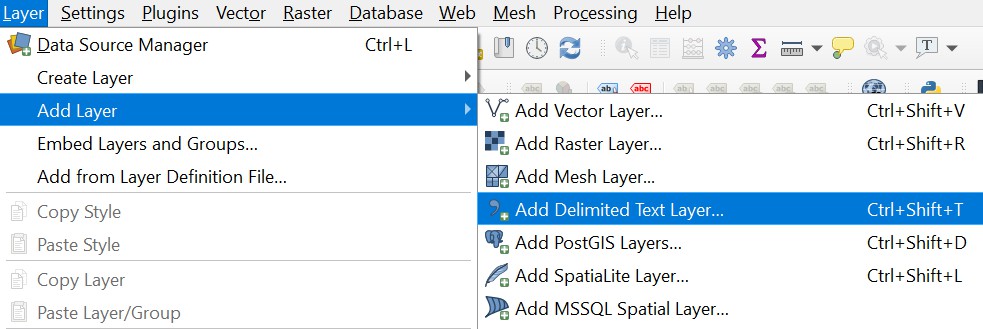
2. From the *Layer* tab, click *Add Layer* > *Add Delimited Text Layer…* or click ![Add Delimited Text Layer icon image](https://1897589978-files.gitbook.io/~/files/v0/b/gitbook-x-prod.appspot.com/o/spaces%2FcNpJpLP8RROUaWVQo5ea%2Fuploads%2FcO2ej7HLE1ll6RsOi2hD%2F4.png?alt=media) in the Manage Layers toolbar.<br>

   <figure><img src="https://1897589978-files.gitbook.io/~/files/v0/b/gitbook-x-prod.appspot.com/o/spaces%2FcNpJpLP8RROUaWVQo5ea%2Fuploads%2FhVJLU2hpQBcpWYjnVKK4%2F5.jpeg?alt=media" alt="QGIS UI showing the Layer > Add Layer > Add Delimited Text Layer menu option."><figcaption><p>QGIS UI showing the <em>Layer > Add Layer > Add Delimited Text Layer</em> menu option.</p></figcaption></figure>

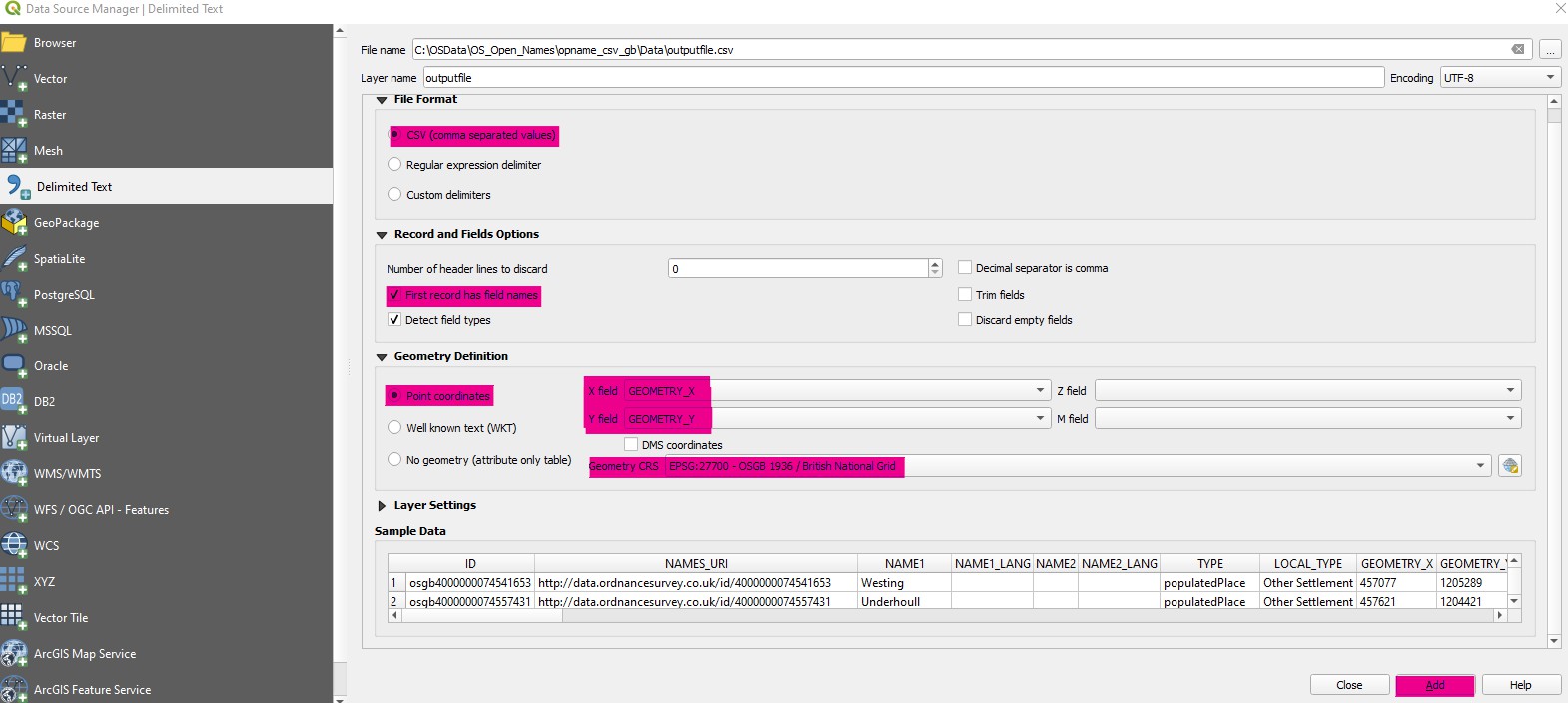
3. In the Data Source Manager | Delimited Text dialog:
   * File name: Click the ellipsis button (*…*), then navigate to and select the saved *outputfile.csv*.
   * File Format: Select *CSV (comma separated values)*.
   * Record and Fields Options: Select *First Record has field names*.
   * Geometry Definition:
     * Point coordinates: Select this option.
       1. X field: Choose *Eastings* (or *EA* if the abbreviated column header was selected).
       2. Y field: Choose *Northings* (or *NO* if the abbreviated column header was selected).
       3. Geometry CRS: Select *EPSG:27700 – OSGB 1936 / British National Grid*.

4. Click *Add*.<br>

   <figure><img src="https://1897589978-files.gitbook.io/~/files/v0/b/gitbook-x-prod.appspot.com/o/spaces%2FcNpJpLP8RROUaWVQo5ea%2Fuploads%2F1MXMpgCa16jHY1sxo2NV%2F6.jpeg?alt=media" alt="QGIS Data Source Manager | Delimiter Text dialog."><figcaption><p>QGIS Data Source Manager | Delimiter Text dialog.</p></figcaption></figure>

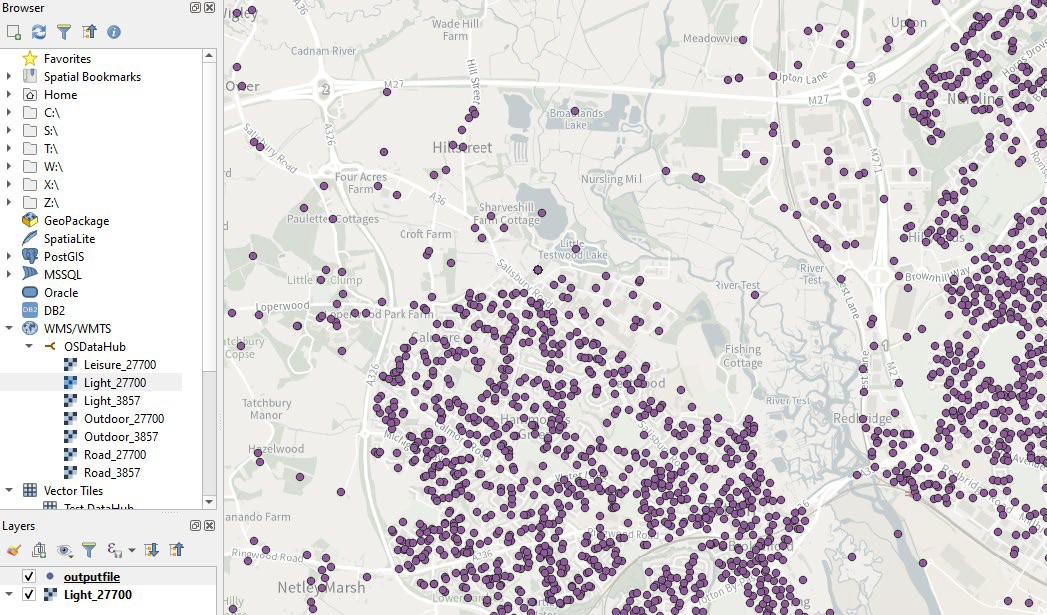
   *It may take a while for the data to load into the map pane. The result will look similar to the example below. OS Maps API Light 27700 was used as the background map for this example.*<br>

   <figure><img src="https://1897589978-files.gitbook.io/~/files/v0/b/gitbook-x-prod.appspot.com/o/spaces%2FcNpJpLP8RROUaWVQo5ea%2Fuploads%2FqIwPhwkzC0LQ6cOYiHN9%2F7.jpeg?alt=media" alt="QGIS UI showing loaded OS Open Names data in the map pane."><figcaption><p>QGIS UI showing loaded OS Open Names data in the map pane.</p></figcaption></figure>

5. Save *outputfile* in the format of your choosing.

   *This will avoid having to repeat the process of geoprocessing outputfile.csv every time you need to use it.*

</details>

<details>

<summary>ArcGIS Pro</summary>

The following step-by-step instructions show you how to load OS Open Names CSV files into ArcGIS Pro. They were prepared using version 3.0.

## Loading and displaying the CSV supply <a href="#id-4.2.1-loading-and-displaying-the-csv-sup" id="id-4.2.1-loading-and-displaying-the-csv-sup"></a>

To load and display CSV data in ArcGIS Pro:

1. Open ArcGIS Pro and create a new project.

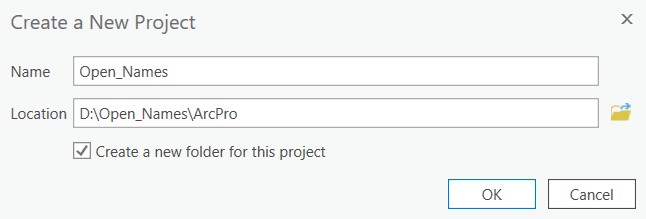
2. In the Create a New Project dialog:

   * Name: Enter a project name. *Open\_Names in this example.*
   * Location: Browse to and select the location to which you want to save the project.
   * Create a new folder for this project: Leave this option selected (default setting).
   * Click *OK*.

   <br>

   <figure><img src="https://1897589978-files.gitbook.io/~/files/v0/b/gitbook-x-prod.appspot.com/o/spaces%2FcNpJpLP8RROUaWVQo5ea%2Fuploads%2FTAfSyU2i9OtvqX1ALDPR%2F8.jpeg?alt=media" alt="ArcGIS Pro Create a New Project dialog"><figcaption><p>ArcGIS Pro Create a New Project dialog.</p></figcaption></figure>

3. When the project opens, add a background map for geographic context.\
   \&#xNAN;*OS Maps API Light 27700 was added as the background map in this example.*

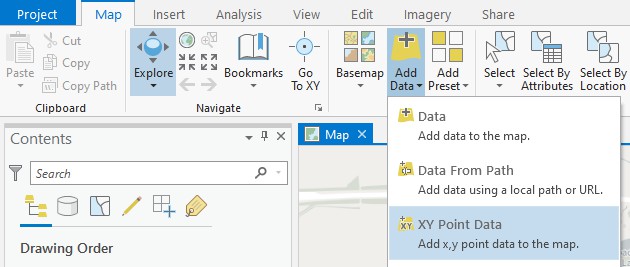
4. From the *Map* tab, click *Add Data* > *XY Point Data.*\ <br>

   <figure><img src="https://1897589978-files.gitbook.io/~/files/v0/b/gitbook-x-prod.appspot.com/o/spaces%2FcNpJpLP8RROUaWVQo5ea%2Fuploads%2FtJIvy8FUHr9l04XhehTl%2F9.jpeg?alt=media" alt="ArcGIS Pro UI showing the Map > Add Data > XY Point Data menu option."><figcaption><p>ArcGIS Pro UI showing the <em>Map > Add Data > XY Point Data</em> menu option.</p></figcaption></figure>

   *A Geoprocessing pane will open to the right side of the map pane.*

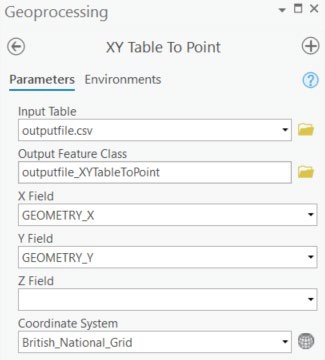
5. In the Geoprocessing pane:

   * Input Table: Click ![ArcGIS Pro folder icon image](https://1897589978-files.gitbook.io/~/files/v0/b/gitbook-x-prod.appspot.com/o/spaces%2FcNpJpLP8RROUaWVQo5ea%2Fuploads%2F3i6x7uj1mDfDV8GruUCe%2F10.png?alt=media) to navigate to and select *outputfile.csv*.
   * Output Feature Class: This will auto-populate.
   * X Field: Select *GEOMETRY\_X*
   * Y Field: Select *GEOMETRY\_Y*
   * Coordinate System: Select *Current Map \[Map]*.

   \
   \&#xNAN;*This will populate as British National Grid as OS Maps API Light 27700 map was added as a background map (step 3. above).*<br>

   <figure><img src="https://1897589978-files.gitbook.io/~/files/v0/b/gitbook-x-prod.appspot.com/o/spaces%2FcNpJpLP8RROUaWVQo5ea%2Fuploads%2FUeccVoTOpzr85qt4Frll%2F11.jpeg?alt=media" alt="ArcMap Pro Geoprocessing pane showing Parameters field options."><figcaption><p>ArcMap Pro Geoprocessing pane showing Parameters field options.</p></figcaption></figure>

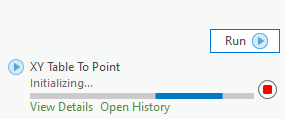
   Click *Run* at the bottom right of the Geoprocessing pane.<br>

   <figure><img src="https://1897589978-files.gitbook.io/~/files/v0/b/gitbook-x-prod.appspot.com/o/spaces%2FcNpJpLP8RROUaWVQo5ea%2Fuploads%2FBi6J3Snqy9jYBXo83Mjw%2F12.png?alt=media" alt="ArcMap Pro Geoprocessing pane showing Run button and initialization progress."><figcaption><p>ArcMap Pro Geoprocessing pane showing <em>Run</em> button and initialization progress.</p></figcaption></figure>

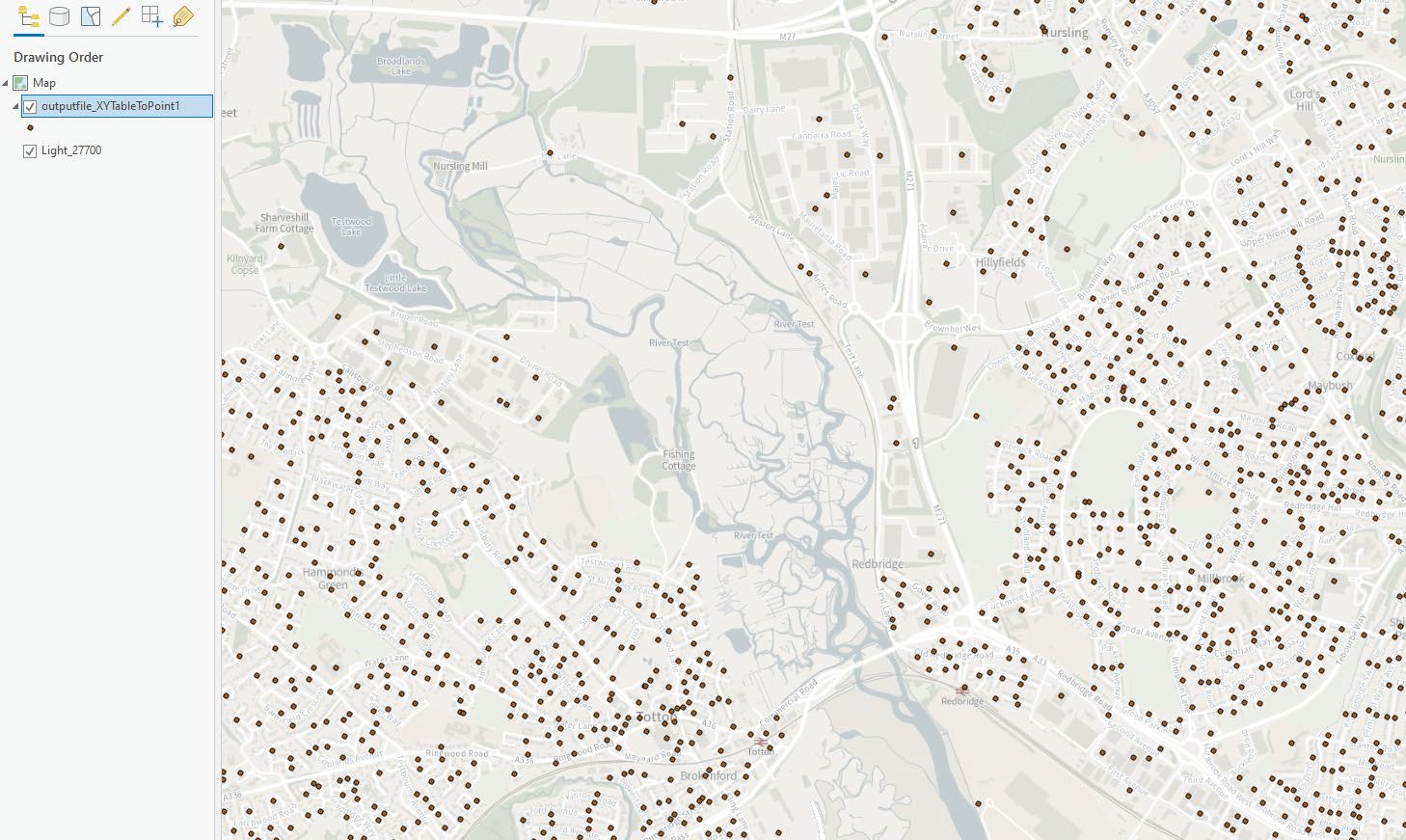
   It may take a while for the data to load into the map pane. The result will look similar to the example below.<br>

   <figure><img src="https://1897589978-files.gitbook.io/~/files/v0/b/gitbook-x-prod.appspot.com/o/spaces%2FcNpJpLP8RROUaWVQo5ea%2Fuploads%2F4cUmwfJ97XOoTgcDM1f2%2F13.jpeg?alt=media" alt="ArcGIS Pro UI showing loaded OS Open Names data in the map pane."><figcaption><p>ArcGIS Pro UI showing loaded OS Open Names dat in the map pane.</p></figcaption></figure>

   *This process results in the creation of a new file geodatabase in the new folder that was selected when the project was created (step 2. above).*

</details>

<details>

<summary>ArcMap</summary>

The following step-by-step instructions show you how to load OS Open Names CSV files into ArcMap. They were prepared using version 10.7.1.

## Loading and displaying the CSV supply <a href="#id-4.3.1-loading-and-displaying-the-csv-sup" id="id-4.3.1-loading-and-displaying-the-csv-sup"></a>

To load and display CSV data in ArcMap:

1. Open ArcMap.

2. Click ![ArcMap Add Data button icon](https://1897589978-files.gitbook.io/~/files/v0/b/gitbook-x-prod.appspot.com/o/spaces%2FcNpJpLP8RROUaWVQo5ea%2Fuploads%2F7bWFH3FfSdKqAAMnOQEp%2F14.png?alt=media) (Add Data button) in the toolbar.<br>

   <figure><img src="https://1897589978-files.gitbook.io/~/files/v0/b/gitbook-x-prod.appspot.com/o/spaces%2FcNpJpLP8RROUaWVQo5ea%2Fuploads%2FIp6SBfbRKW9EwcQCmC1R%2F15.jpeg?alt=media" alt="ArcMap toolbar."><figcaption><p>ArcMap toolbar.</p></figcaption></figure>

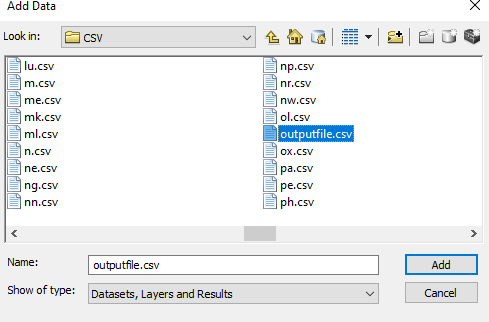
3. In the Add Data dialog, navigate to and select *outputfile.csv*, and then click *Add*.<br>

   <figure><img src="https://1897589978-files.gitbook.io/~/files/v0/b/gitbook-x-prod.appspot.com/o/spaces%2FcNpJpLP8RROUaWVQo5ea%2Fuploads%2Funa5YEJgvZ0JZTIlbJMW%2F16.png?alt=media" alt="ArcMap Add Data dialog."><figcaption><p>ArcMap Add Data dialog.</p></figcaption></figure>

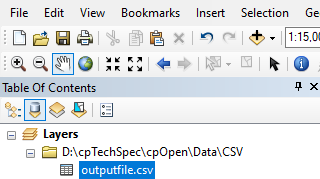
4. The file will now display in the Table Of Contents.<br>

   <figure><img src="https://1897589978-files.gitbook.io/~/files/v0/b/gitbook-x-prod.appspot.com/o/spaces%2FcNpJpLP8RROUaWVQo5ea%2Fuploads%2FQr6t5tmsaf14EgKdgyF2%2F17.png?alt=media" alt="ArcMap Table Of Contents."><figcaption><p>ArcMap Table Of Contents.</p></figcaption></figure>

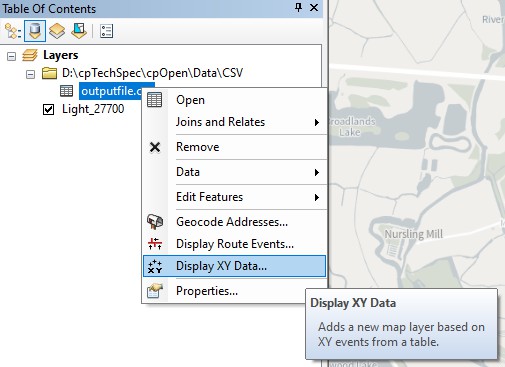
5. Right-click *outputfile.csv* in the Table of Contents and select *Display XY data…*&#x69;n the context menu.<br>

   <figure><img src="https://1897589978-files.gitbook.io/~/files/v0/b/gitbook-x-prod.appspot.com/o/spaces%2FcNpJpLP8RROUaWVQo5ea%2Fuploads%2FSIWwItv9LPu6F3Wd83Qz%2F18.jpeg?alt=media" alt="ArcMap Table Of Contents showing the Display XY Data… action selected in the context menu."><figcaption><p>ArcMap Table Of Contents showing the <em>Display XY Data…</em> action selected in the context menu.</p></figcaption></figure>

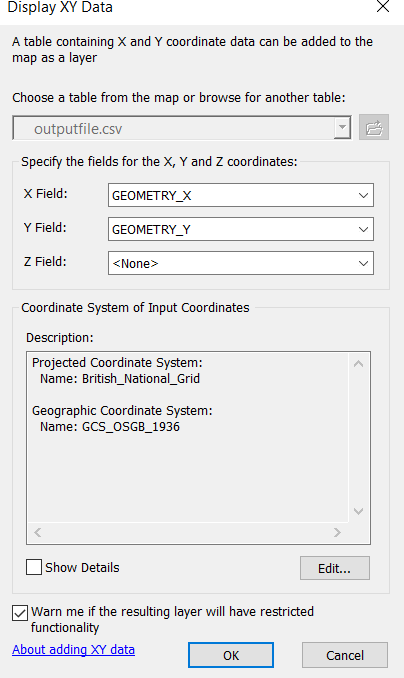
6. In the Display XY Data dialog:

   * X Field: Select *GEOMETRY\_X*

   * Y Field: Select *GEOMETRY\_Y*

   * Coordinate System of the Input Coordinates: Select *British National Grid*.

   * Click *OK*.<br>

     <figure><img src="https://1897589978-files.gitbook.io/~/files/v0/b/gitbook-x-prod.appspot.com/o/spaces%2FcNpJpLP8RROUaWVQo5ea%2Fuploads%2F7U9JqlvT10r1dO1zvZnL%2F19.png?alt=media" alt="ArcMap Display XY Data dialog."><figcaption><p>ArcMap Display XY Data dialog.</p></figcaption></figure>

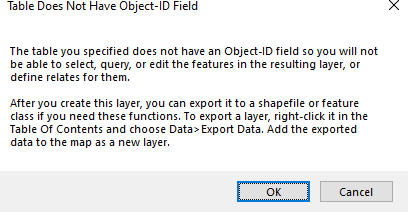
   * Click OK to close the warning dialog.\
     \&#xNAN;*The Table Does Not Have Object-ID Field warning dialog alerts you to the fact that the resulting layer file is only a temporary table and needs to be saved (see step 7. below).*<br>

     <figure><img src="https://1897589978-files.gitbook.io/~/files/v0/b/gitbook-x-prod.appspot.com/o/spaces%2FcNpJpLP8RROUaWVQo5ea%2Fuploads%2FEfCdkGw4GlYNr4YKlNF0%2F20.png?alt=media" alt="ArcMap Table Does Not Have Object-ID Field warning dialog."><figcaption><p>ArcMap Table Does Not Have Object-ID Field warning dialog.</p></figcaption></figure>

     \
     *It may take a while for the data to load into the map pane. The result will look similar to the example below. OS Maps API Light 27700 was used as the background map for geographic context.*

     <figure><img src="https://1897589978-files.gitbook.io/~/files/v0/b/gitbook-x-prod.appspot.com/o/spaces%2FcNpJpLP8RROUaWVQo5ea%2Fuploads%2FFDAyz6fG7T5bUjsABKh5%2Fimage.png?alt=media&#x26;token=a0d7a8b9-d007-4e46-a56e-075334b4a1e4" alt="Figure 18:	ArcMap UI showing loaded OS Open Names data in the map pane."><figcaption><p>ArcMap UI showing loaded OS Open Names data in the map pane.</p></figcaption></figure>

   *To use the points in a meaningful way, you need to save the layer as a shapefile.*

7. To save the layer as a shapefile:
   1. Right-click *outputfile.csv Events* in the Layers panel and then click *Export* in the context menu.
   2. In the Export Data dialog, browse to and select a filename for the data, and then click *OK*.<br>

      <figure><img src="https://1897589978-files.gitbook.io/~/files/v0/b/gitbook-x-prod.appspot.com/o/spaces%2FcNpJpLP8RROUaWVQo5ea%2Fuploads%2Fl2aOEQuwJHzHBAOzgq0p%2Fimage.png?alt=media&#x26;token=0905aa70-f186-4cf9-b6ef-21814e914de4" alt="ArcMap Export Data dialog showing selected shapefile." width="431"><figcaption><p>ArcMap Export Data dialog showing selected shapefile.</p></figcaption></figure>

      \
      \&#xNAN;*The shapefile may take a while to create. You can monitor the progress in the Export Progress window that opens automatically. This window will close when the export is complete.*

8. You will be given the option to add the newly created data to the workspace. Click Yes, to create a shapefile (and associated files) at the chosen location.<br>

   <figure><img src="https://1897589978-files.gitbook.io/~/files/v0/b/gitbook-x-prod.appspot.com/o/spaces%2FcNpJpLP8RROUaWVQo5ea%2Fuploads%2F12uWGT69rdC3DBvLTYF5%2Fimage.png?alt=media&#x26;token=65196bc6-47d4-46e0-99a1-6376422118a6" alt="ArcMap alert dialog providing the option to add exported shapefile to the map as a layer."><figcaption><p>ArcMap alert dialog providing the option to add exported shapefile to the map as a layer.</p></figcaption></figure>

</details>

<details>

<summary>MapInfo Pro</summary>

The following step-by-step instructions show you how to load OS Open Names CSV files into MapInfo. They were prepared using version MapInfo Pro 2019 (release build 58).

## Loading and displaying the CSV supply <a href="#id-4.4.1-loading-and-displaying-the-csv-sup" id="id-4.4.1-loading-and-displaying-the-csv-sup"></a>

To load and display CSV data in MapInfo Pro:

1. Open MapInfo Pro.

2. Select *Open* > *Blank Workspace*.\ <br>

   <figure><img src="https://1897589978-files.gitbook.io/~/files/v0/b/gitbook-x-prod.appspot.com/o/spaces%2FcNpJpLP8RROUaWVQo5ea%2Fuploads%2Ff8sTzrQeydC9pVGjUIxJ%2Fimage.png?alt=media&#x26;token=2dcd9eff-430b-4f1c-a480-a2eb8067424d" alt="MapInfo Pro Open > Blank Workspace action."><figcaption><p>MapInfo Pro <em>Open > Blank Workspace</em> action.</p></figcaption></figure>

3. Add a background map for geographic context.\
   \&#xNAN;*OS Maps API Light 27700 was added as the background map in this example.*

4. From the *HOME tab*, click *Open Table*.\ <br>

   <figure><img src="https://1897589978-files.gitbook.io/~/files/v0/b/gitbook-x-prod.appspot.com/o/spaces%2FcNpJpLP8RROUaWVQo5ea%2Fuploads%2FAsUIcCFEamiX4BVdiQfT%2Fimage.png?alt=media&#x26;token=0678cc16-d8d3-4d29-9199-513a720c44f3" alt="MapInfo Pro Home > Open Table action."><figcaption><p>MapInfo Pro <em>Home > Open Table</em> action.</p></figcaption></figure>

5. In the Open dialog:
   * Files of type: Change *MapInfo.tab* to *Comma delimited CSV (\*.csv)*.
   * Browse to and select *outputfile.csv*.
   * Click *Open*.\ <br>

     <figure><img src="https://1897589978-files.gitbook.io/~/files/v0/b/gitbook-x-prod.appspot.com/o/spaces%2FcNpJpLP8RROUaWVQo5ea%2Fuploads%2FHpmWNJthJWbZmSNauj5N%2Fimage.png?alt=media&#x26;token=74f5f2a7-6d78-4e19-839b-aba719f47ee1" alt="MapInfo Pro Open dialog showing outputfile.csv selected."><figcaption><p>MapInfo Pro Open dialog showing <em>outputfile.csv</em> selected.</p></figcaption></figure>

6. In the Comma Delimited CSV Information dialog:
   * Delimiter: Ensure that *Other* is checked and that a comma is visible in the box next to it.
   * Check the *Use First Line for Column Titles* option.
   * Click *OK*.\ <br>

     <figure><img src="https://1897589978-files.gitbook.io/~/files/v0/b/gitbook-x-prod.appspot.com/o/spaces%2FcNpJpLP8RROUaWVQo5ea%2Fuploads%2FY2JrGuAXeUFbV0peFLZW%2Fimage.png?alt=media&#x26;token=e5018afa-94ff-4222-80f0-df5e9314f201" alt="MapInfo Pro Comma Delimited CSV Information dialog."><figcaption><p>MapInfo Pro Comma Delimited CSV Information dialog.</p></figcaption></figure>

     \
     \&#xNAN;*When the table has loaded, the outputfile Browser window will open. This may take a while*<br>

     <figure><img src="https://1897589978-files.gitbook.io/~/files/v0/b/gitbook-x-prod.appspot.com/o/spaces%2FcNpJpLP8RROUaWVQo5ea%2Fuploads%2Fd810AAzgZ0vMEKf5ZQqG%2Fimage.png?alt=media&#x26;token=0ecc5045-6532-4cdc-996c-ccea6705a5ae" alt="MapInfo Pro outputfile Browser window"><figcaption><p>MapInfo Pro <em>outputfile Browser</em> window</p></figcaption></figure>

7. To create the points from the table, from the *SPATIAL tab* click *Create* > *Create Points*.\ <br>

   <figure><img src="https://1897589978-files.gitbook.io/~/files/v0/b/gitbook-x-prod.appspot.com/o/spaces%2FcNpJpLP8RROUaWVQo5ea%2Fuploads%2FiYb7wA3p5c6i8k1XtGNM%2Fimage.png?alt=media&#x26;token=e0fe61e6-72ff-4eae-b314-21a597f473ef" alt="MapInfo Pro UI showing the Spatial > Create > Create Points action and the outputfile Browser window."><figcaption><p>MapInfo Pro UI showing the <em>Spatial > Create > Create Points</em> action and the <em>outputfile Browser</em> window.</p></figcaption></figure>

8. In the Create Points dialog:

   * Projection: Change this from Longitude / Latitude (WGS 84) to British National Grid \[EPSG:27700].
   * *The easiest way to do this is to click the ellipsis button (to the right of the Projection field), press B on your keyboard 6 times, highlight British National Grid \[EPSG:27700] in the results, and then click OK.*
   * using Symbol: Optionally, change the symbol from a square (default style) by clicking the symbol button and following the instructions.\
     \&#xNAN;*This example uses a red star that is more visible than the default square.*
   * Leave the other settings as they are (including Get X Coordinates from: *GEOMETRY\_X* and Get Y Coordinates from: *GEOMETRY\_Y*).
   * Click *OK*.\ <br>

     <figure><img src="https://1897589978-files.gitbook.io/~/files/v0/b/gitbook-x-prod.appspot.com/o/spaces%2FcNpJpLP8RROUaWVQo5ea%2Fuploads%2FaiW5eAEkdd5zehUdAt0h%2Fimage.png?alt=media&#x26;token=4c697233-dec3-4544-a209-f83f0fe04b26" alt="MapInfo Pro Create Points dialog."><figcaption><p>MapInfo Pro Create Points dialog.</p></figcaption></figure>

     *A progress bar will display and then close automatically when the geoprocessing is complete.*<br>

     <figure><img src="https://1897589978-files.gitbook.io/~/files/v0/b/gitbook-x-prod.appspot.com/o/spaces%2FcNpJpLP8RROUaWVQo5ea%2Fuploads%2FGqusD0R6ZZPfFdb4xm3L%2Fimage.png?alt=media&#x26;token=8884492c-1589-442b-b7d9-0b939589f8bb" alt="MapInfo Pro geoprocessing Status dialog."><figcaption><p>MapInfo Pro geoprocessing Status dialog.</p></figcaption></figure>

     \
     \&#xNAN;*When the process is complete, the points will display in the map pane in your chosen point style. The result will look similar to the example below:*<br>

     <figure><img src="https://1897589978-files.gitbook.io/~/files/v0/b/gitbook-x-prod.appspot.com/o/spaces%2FcNpJpLP8RROUaWVQo5ea%2Fuploads%2FL8BxCufAk15MjJUlS8zO%2Fimage.png?alt=media&#x26;token=6d48b958-7006-43c7-bb9d-2496082b4255" alt=""><figcaption><p>MapInfo Pro UI showing loaded OS Open Names data in the map pane.</p></figcaption></figure>

     \
     \&#xNAN;*A .tab file (and associated .MAP and .ID files) is automatically created in the same folder as outputfile.csv. However, these are temporary files created as part of the point creation process and are difficult to query.*

9. To save the *outputfile* layer as a true .tab file:

   * From the *HOME* tab, click *Save* > *Save Copy As*.

   * In the Save Copy As dialog, select *outputfile* and click *Save As…*<br>

     <figure><img src="https://1897589978-files.gitbook.io/~/files/v0/b/gitbook-x-prod.appspot.com/o/spaces%2FcNpJpLP8RROUaWVQo5ea%2Fuploads%2F6dKtrHYR7B1Nocy1or3U%2Fimage.png?alt=media&#x26;token=28f3e545-e5ff-48f9-827c-ddc20e262fe6" alt="MapInfo Pro Save Copy As dialog with outputfile selected."><figcaption><p> MapInfo Pro Save Copy As dialog with <em>outputfile</em> selected.</p></figcaption></figure>

   * In the Save Copy of Table As dialog, navigate to the location where you would like to save the .tab file, name the file, select *MapInfo Extended (\*.tab)* in the Save as type field, and then click *Save*.<br>

     <figure><img src="https://1897589978-files.gitbook.io/~/files/v0/b/gitbook-x-prod.appspot.com/o/spaces%2FcNpJpLP8RROUaWVQo5ea%2Fuploads%2F70pOzSsVKA1yQ2vdn5Mp%2Fimage.png?alt=media&#x26;token=f4e6eaea-4998-449a-ad9f-53b73cc92f83" alt="MapInfo Pro Save Copy of Table As dialog showing how to save outputfile as a true .tab file."><figcaption><p>MapInfo Pro Save Copy of Table As dialog showing how to save <em>outputfile</em> as a true .tab file.</p></figcaption></figure>

   *A progress bar will once again appear and then disappear when the save has completed. The new .tab file, which is far easier to query, will now be available to use in MapInfo.*

</details>

<details>

<summary>Cadcorp SIS Desktop</summary>

The following step-by-step instructions show you how to load OS Open Names CSV files into Cadcorp SIS. They were prepared using version 9.0.2275.64 9 (build date July 17, 2020).

## Loading and displaying the CSV supply <a href="#id-4.5.1-loading-and-displaying-the-csv-sup" id="id-4.5.1-loading-and-displaying-the-csv-sup"></a>

To load and display CSV data in Cadcorp SIS:

1. Open Cadcorp

2. From the File tab, click *New > Blank Map*.<br>

   <figure><img src="https://1897589978-files.gitbook.io/~/files/v0/b/gitbook-x-prod.appspot.com/o/spaces%2FcNpJpLP8RROUaWVQo5ea%2Fuploads%2FpXkVdsaCgplI6kfHnAOw%2Fimage.png?alt=media&#x26;token=31978c9d-44df-4343-afa8-f9f1b2f0f508" alt="Cadcorp UI showing the File > New > Blank Map action." width="439"><figcaption><p>Cadcorp UI showing the <em>File > New > Blank Map</em> action.</p></figcaption></figure>

3. Add a background map for geographic context:\
   \&#xNAN;*Cadcorp has incorporated the OS Data Hub Web Map Tile Service into their Overlays*.<br>
   * Click *Add Overlay* > *Ordnance Survey (GB)* > *OS (GB) Data Hub* > *OS Maps API*.
   * In the OS (GB) Data Hub confirmation dialog, select:
     * *Yes,* to use the default Cadcorp AKI key.

     * *No,* to enter your own API key.

     * Click *Next.*<br>

       <figure><img src="https://1897589978-files.gitbook.io/~/files/v0/b/gitbook-x-prod.appspot.com/o/spaces%2FcNpJpLP8RROUaWVQo5ea%2Fuploads%2FqCkyCNtCBzYbxRfgAvvl%2Fimage.png?alt=media&#x26;token=c429383a-77ab-441f-a832-d0c9bfe8c34d" alt="Cadcorp OS (GB) Data Hub dialog with the OS Maps API option selected." width="464"><figcaption><p>Cadcorp OS (GB) Data Hub dialog with the <em>OS Maps API</em> option selected.</p></figcaption></figure>

     * Select your layer style and then click *Finish*.\
       \&#xNAN;*There are four styles in two projections to choose from.*<br>

       <figure><img src="https://1897589978-files.gitbook.io/~/files/v0/b/gitbook-x-prod.appspot.com/o/spaces%2FcNpJpLP8RROUaWVQo5ea%2Fuploads%2Fz0zMtGjVq19nRHLr3JKM%2Fimage.png?alt=media&#x26;token=72a94143-da0b-4429-8873-ceef9a72b658" alt="Cadcorp OS Data Hub Maps API Layers dialog." width="460"><figcaption><p>Cadcorp OS Data Hub Maps API Layers dialog.</p></figcaption></figure>

       \
       *You should now see the OS Maps API in your SIS Workspace Definitions.*<br>

       <figure><img src="https://1897589978-files.gitbook.io/~/files/v0/b/gitbook-x-prod.appspot.com/o/spaces%2FcNpJpLP8RROUaWVQo5ea%2Fuploads%2Fw1W2qngrEaxMmvXD3yVA%2Fimage.png?alt=media&#x26;token=5076e100-a7d5-48fe-8d52-39af269146c1" alt="Cadcorp OS Data Hub Maps API Layers dialog."><figcaption><p>Cadcorp OS Data Hub Maps API Layers dialog.</p></figcaption></figure>

4. From the *Create* tab, click *Insert* > *Insert Points from CSV File.*<br>

   <figure><img src="https://1897589978-files.gitbook.io/~/files/v0/b/gitbook-x-prod.appspot.com/o/spaces%2FcNpJpLP8RROUaWVQo5ea%2Fuploads%2F2zcg9SC3213H7UVmWEIo%2Fimage.png?alt=media&#x26;token=407c875c-a30b-41c7-8a91-4c63ff2c74c3" alt="Cadcorp UI showing Create > Insert > Insert Points from a CSV File action."><figcaption><p>Cadcorp UI showing <em>Create > Insert > Insert Points from a CSV File</em> action.</p></figcaption></figure>

5. Browse to and select *outputfile.csv*, and then click *Next>*.

6. In the Database file dialog:

   * File Type: Select *Delimited.*
   * Click *Next*.<br>

   <figure><img src="https://1897589978-files.gitbook.io/~/files/v0/b/gitbook-x-prod.appspot.com/o/spaces%2FcNpJpLP8RROUaWVQo5ea%2Fuploads%2FsdlF3ylMlLfm1fsVbEpG%2Fimage.png?alt=media&#x26;token=60ae473e-b268-4d94-a382-cf323013a41a" alt="Cadcorp Database file dialog showing Delimited option selected." width="454"><figcaption><p>Cadcorp Database file dialog showing <em>Delimited</em> option selected.</p></figcaption></figure>

7. In the File format dialog:
   * Field Delimiter: Select *Comma*.
   * Select *First Row Contains Field Names*.
   * Click *Next*.<br>

     <figure><img src="https://1897589978-files.gitbook.io/~/files/v0/b/gitbook-x-prod.appspot.com/o/spaces%2FcNpJpLP8RROUaWVQo5ea%2Fuploads%2FRyY9UjHc2EQNegL5WNJw%2Fimage.png?alt=media&#x26;token=46412455-789a-4c32-a7c9-d86de1fb3582" alt="Cadcorp File format dialog showing Comma and First Row Contains Field Names options selected." width="454"><figcaption><p>Cadcorp File format dialog showing <em>Comma</em> and <em>First Row Contains Field Names</em> options selected.</p></figcaption></figure>

8. In the Database columns dialog, click *Next>*.

9. In the Recordset dialog, select which columns can be queried:
   * To select all columns, click *outputfile* in the Database Tables/Columns field and then click  (forward icon).\
     \&#xNAN;*This adds all columns to the Selected columns field on the right.*
   * Click *Next*.<br>

     <figure><img src="https://1897589978-files.gitbook.io/~/files/v0/b/gitbook-x-prod.appspot.com/o/spaces%2FcNpJpLP8RROUaWVQo5ea%2Fuploads%2FtJQqlYR0F0TcTDuDNmQ5%2Fimage.png?alt=media&#x26;token=70fe0601-81dc-4d5d-98e1-9beb42a54d37" alt="Cadcorp Recordset dialog showing all output file columns in the Selected columns field." width="454"><figcaption><p>Cadcorp Recordset dialog showing all output file columns in the Selected columns field.</p></figcaption></figure>

10. In the View Points dialog:

    * X Field: Select *Geometry\_X*.
    * Y Field: Select *Geometry\_Y*.

    *The above settings determine which fields have your Easting and Northing.*

    * Click *Finish*.

    *You can view the points created counter on the bottom left of the dialog.*<br>

    <figure><img src="https://1897589978-files.gitbook.io/~/files/v0/b/gitbook-x-prod.appspot.com/o/spaces%2FcNpJpLP8RROUaWVQo5ea%2Fuploads%2FqrdyUepuRfafy8ewg16d%2Fimage.png?alt=media&#x26;token=950f9b72-e7c3-4dbc-9dd8-5acced348dc7" alt="Cadcorp View Points dialog showing Point Configuration field options."><figcaption><p>Cadcorp View Points dialog showing Point Configuration field options.</p></figcaption></figure>

    \
    \&#xNAN;*It may take a while for the table to load in the map pane. The result will look similar to the example below.*<br>

    <figure><img src="https://1897589978-files.gitbook.io/~/files/v0/b/gitbook-x-prod.appspot.com/o/spaces%2FcNpJpLP8RROUaWVQo5ea%2Fuploads%2FQLoQrBekwAGmWimMi2Y5%2Fimage.png?alt=media&#x26;token=047aba53-bafe-4450-9402-122988d1db6b" alt="Cadcorp UI showing loaded OS Open Names data in the map pane."><figcaption><p>Cadcorp UI showing loaded OS Open Names data in the map pane.</p></figcaption></figure>

11. To make the points more visible:
    * Right-click *Imported outputfile* in SIS Workspace Definitions and then click *Properties* in the context menu.
    * In Geometry, select the *Override* checkbox next to the Pen, Brush and Symbol fields.
    * In Scale Overrides, change the entry in the Point field to *-0.1*.<br>

      <figure><img src="https://1897589978-files.gitbook.io/~/files/v0/b/gitbook-x-prod.appspot.com/o/spaces%2FcNpJpLP8RROUaWVQo5ea%2Fuploads%2FUbgzyWYCaUlvx8z9clk3%2Fimage.png?alt=media&#x26;token=62496c48-e217-4144-bf33-63480169f7ac" alt="Cadcorp Overlays dialog showing Styles tab options." width="563"><figcaption><p>Cadcorp Overlays dialog showing <em>Styles</em> tab options.</p></figcaption></figure>

      \
      \&#xNAN;*The points will now be visible and will look similar to the example below.*<br>

      <figure><img src="https://1897589978-files.gitbook.io/~/files/v0/b/gitbook-x-prod.appspot.com/o/spaces%2FcNpJpLP8RROUaWVQo5ea%2Fuploads%2F4SIljm7Hj8AxeH1cIt8o%2Fimage.png?alt=media&#x26;token=ba0dceac-0f77-4395-96c6-784eadd8d0f0" alt="Cadcorp UI showing loaded OS Open Names data with visible points in the map pane."><figcaption><p>Cadcorp UI showing loaded OS Open Names data with visible points in the map pane.</p></figcaption></figure>

</details>