> For the complete documentation index, see [llms.txt](https://docs.os.uk/os-downloads/llms.txt). Markdown versions of documentation pages are available by appending `.md` to page URLs; this page is available as [Markdown](https://docs.os.uk/os-downloads/products/areas-and-zones-portfolio/code-point-with-polygons/code-point-with-polygons-getting-started-guide/using-the-vertical-street-lookup.md).

# Using the vertical street lookup

<details>

<summary>MapInfo</summary>

MapInfo software enables a separate browser to be viewed that contains all the postcodes related to a vertical street.

To view the vertical street lookup in MapInfo, open the file in a browser.

**To join the Code\_Point Polygons table and the vstreet\_lookup table follow these instructions:**

1. Save copies of the main Code-Point Polygons and Vertical Street Lookup tables to work on; for example, CP\_Polys.TAB and vstreet\_lookup.TAB. Open the new copies of the datasets in MapInfo.<br>
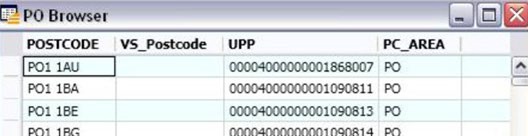
   <figure><img src="/files/EmE158mYNG2USyn5gPMO" alt="A screenshot of the PO Browser table with the following columns: Postcode, VS_postcode, UPP, PC_Area. Postcode, PO1 1AU is selected."><figcaption><p>PO Browser table with the following columns: Postcode, VS_postcode, UPP, PC_Area. Postcode, PO1 1AU is selected.</p></figcaption></figure>
2. Create a new column, of Character (8) type, in the Code-Point Polygons table (CP\_Polys.TAB) as column 2. Give it a meaningful name; for example.
3. VS\_Postcode (go to *Table > Maintenance > Table Structure*).
4. Save the table.

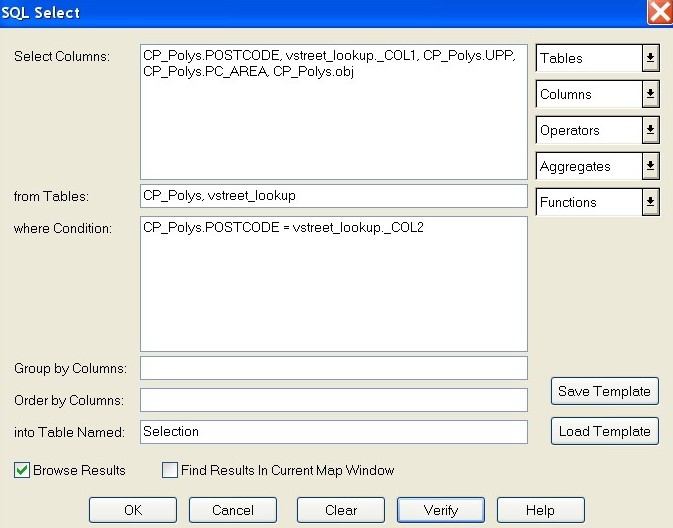
**Create geometry for the Vertical Street Lookup table (vstreet\_lookup.TAB) by joining it to the main Code-Point Polygons table using the following SQL Select query:**

* SELECT CP\_Polys.POSTCODE, vstreet\_lookup.COL1, CP\_Polys.UPRN, CP\_Polys.AREA\_CP, CP\_Polys.obj FROM CP\_Polys INNER JOIN vstreet\_lookup ON CP\_Polys.POSTCODE = vstreet\_lookup.COL2;<br>

  <figure><img src="/files/ihOGFgY6tQg14FjgHVWU" alt="An image of the SQL select screen showing the selection query above" width="505"><figcaption><p>SQL select screen showing the selection query above</p></figcaption></figure>

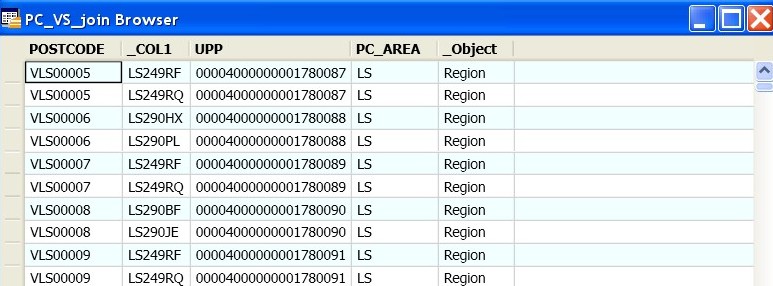
1. Save a copy of the results of the selection as PC\_VS\_join.TAB.
2. Open the table.<br>

   <figure><img src="/files/zetPGaPE0MzUZadKHlwq" alt="A screenshot of PC_VS_join Browser table with the following columns: Postcode, _COL1, UPP, PC_Area, _Object. Postcode, VLS00005 is selected." width="563"><figcaption><p>PC_VS_join Browser table with the following columns: Postcode, _COL1, UPP, PC_Area, _Object. Postcode, VLS00005 is selected.</p></figcaption></figure>
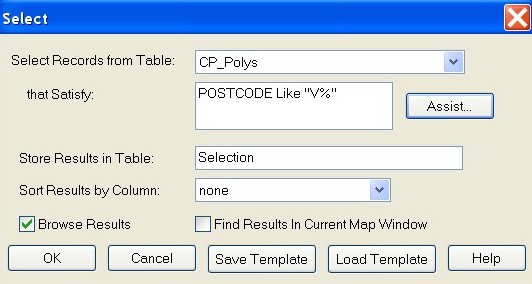
3. Delete the vertical streets from the main Code-Point Polygons table, CP\_Polys.TAB – use Query > Select… to search for postcode 'Like “v%” and delete:<br>

   <figure><img src="/files/wPAPxno3ibhqti3vYQqp" alt="An image of the database select window showing selection of POSTCODE data from the CP_Polys table" width="399"><figcaption><p>Database select window showing selection of POSTCODE data from the CP_Polys table</p></figcaption></figure>
4. Save, then pack the Code-Point Polygons table.
5. Go into *Table > Maintenance > Pack Table* and select *Pack Both Types of Data*.
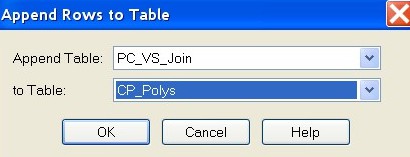
6. Append the Postcode – Vertical Street join table, PC\_VS\_join, to the main Code-Point Polygons table, CP\_Polys, to create a list of all postcodes including vertical streets (*Table > Append Rows to Table*).<br>

   <figure><img src="/files/xLTIGte3LDPhhgWeENsF" alt="An image of the Append Rows to Table screen."><figcaption><p>Append Rows to Table dialog box</p></figcaption></figure>
7. Save the CP\_Polys table.

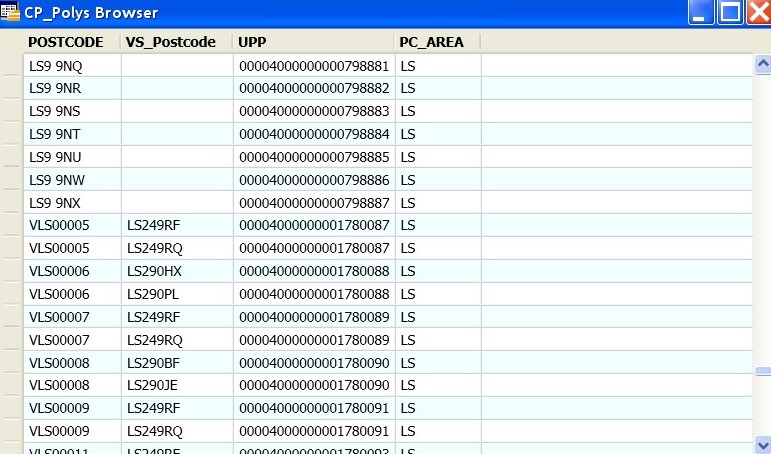
* If you browse the CP\_Polys table now, the rows with a ‘standard’ postcode will have a blank in the second field (VS\_Postcode), but the rows that have a vertical street postcode in the Postcode (first) column should have a ‘standard’ postcode in the second field.<br>

  <figure><img src="/files/YyF68lXEvcrzaMmHuzF7" alt="A screenshot of CP_Polys Browser table with the following columns: Postcode, VS_Postcode, UPP, PC_Area." width="563"><figcaption><p>CP_Polys Browser table with the following columns: Postcode, VS_Postcode, UPP, PC_Area.</p></figcaption></figure>

</details>

<details>

<summary>ESRI</summary>

ESRI software enables a relationship to be created between two tables. By relating the postcode area and vertical street lookup, it is possible to identify the postcodes related to a vertical street by using the *Identify* tool.

1. Load the postcode area Shapefile and relevant vertical street lookup file into ESRI ArcMap.

*NOTE: it may be necessary to remove the underscores in the vertical street file name for it to load successfully into ArcMap.*

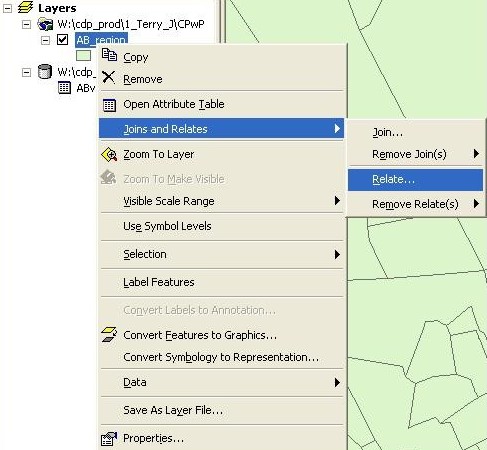
2. Right-click on the postcode area Shapefile, go to *Joins and Relates* and click on *Relate*.<br>

   <figure><img src="/files/oZ0jskQ9glMeza5CcwWO" alt="An image of a screen showing Layers with popups with &#x27;Join and Relates&#x27;, and &#x27;Relate...&#x27; selected." width="365"><figcaption><p>Layers context menu with with 'Join and Relates', and 'Relate...' selected.</p></figcaption></figure>

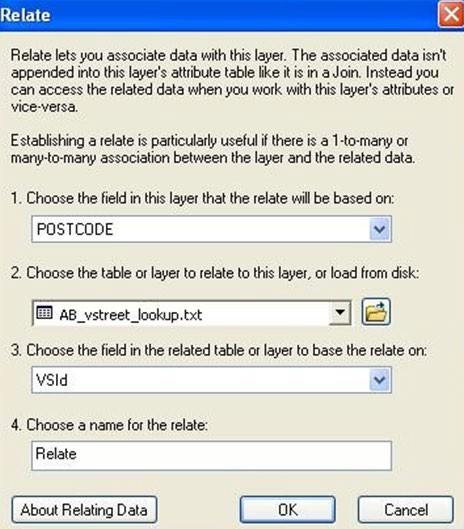
* The *Relate* window will open.<br>

  <figure><img src="/files/xe8WcVRQR4Z88SFSVtIo" alt="An image of the Relate screen showing the four options that are required: the field the relate will be based on, the table or layer to relate to this layer, the filed in the related table/layer to base the relate on, and the name for the relate." width="348"><figcaption><p>Relate dialog window</p></figcaption></figure>

3. In option 1, click on the drop-down arrow and select ‘POSTCODE’.
4. In option 2, select the vertical street lookup file.
5. In option 3, select Col2 or the vertical street ID column (this depends how you have named your columns).
6. In option 4, choose a suitable name for the relate.
7. Click *OK*.
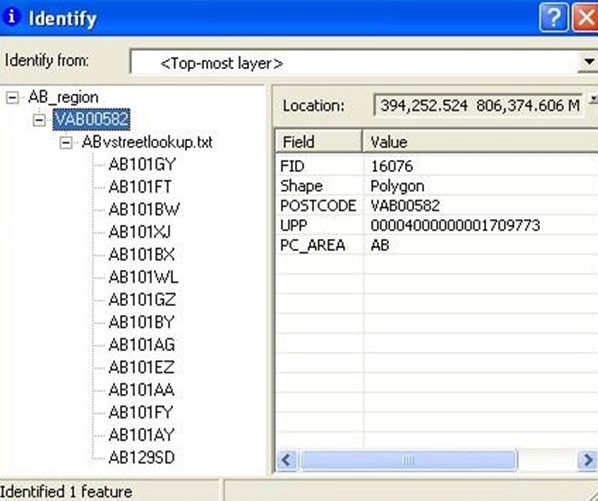
8. When using the *Identify* tool in ESRI ArcMap, click on a vertical street polygon and expand the + signs on the left to see all the postcodes related to that vertical street polygon.<br>

   <figure><img src="/files/EpnhGXAViQAan1LmTXxH" alt="An image of the Identify screen showing details of the polygon VAB00582" width="449"><figcaption><p>The Identify screen showing details of the polygon VAB00582entify</p></figcaption></figure>

</details>

<details>

<summary>PostGIS and QGIS</summary>

PostGIS and QGIS can be used in conjunction with each other to create a vertical street lookup table, which can be visualised and interrogated within the QGIS GIS environment alongside the spatially enabled Code-Point postcode area polygons.

#### PostGIS steps <a href="#id-2.3.1-postgis-steps" id="id-2.3.1-postgis-steps"></a>

1. Load both the postcode area polygons and vertical street text file into PostGIS in their own separate tables within the same schema.
2. You will now create a new vertical street lookup table within PostGIS that contains the geometry of the vertical streets, obtained from the postcode area polygons table. Because you will be using the postcode columns from both the postcode area polygons table and the vertical street table you must ensure the postcode columns are named differently. The following SQL can be used to alter the name of the postcode column within the vertical street table:

*alter table verticalstreets rename column postcode to vs\_postcode;*

3. Once you have ensured that all the columns in the two tables are named differently you can run the following script, which will create a new table which will contain all the vertical streets and their associated geometry:

*create table vertical\_street\_lookup as select \* from codepoint c, verticalstreets v where c.postcode=v.v\_id;*

4. This SQL creates a table by joining the vertical street IDs in the vertical street table with those IDs held in the postcode column of the postcode area polygons. The resulting table will effectively hold two columns of identical vertical street IDs, one from the vertical street table itself and one from the postcode column of the postcode area polygons table. The following script can be used to drop one of these columns, removing this duplicated information:

*alter table vertical\_street\_lookup drop column postcode;*

5. The postcode area polygons table can be altered to create a flag that alerts you to which postcodes form part of a vertical street. If you do not wish to create this flag, move onto the QGIS steps.
6. First you need to create a Boolean column within the postcode area polygons table to hold this information. Execute the following SQL to achieve this:

*alter table codepoint add column vs boolean;*

7. This column then can be updated with a value of ‘true’ where a postcode in the postcode area polygons table forms part of a vertical street. The following SQL can be used to do this:

*update codepoint*

*set vs = 'True' where postcode in (select c.postcode from vertical\_street\_lookup v, codepoint c where v.vs\_postcode=c.postcode or c.postcode=v.v\_id);*

</details>

<details>

<summary>QGIS steps</summary>

Once you have created a new vertical street lookup table with a geometry column as outlined in the steps above, this can be visualised within QGIS using the following steps:

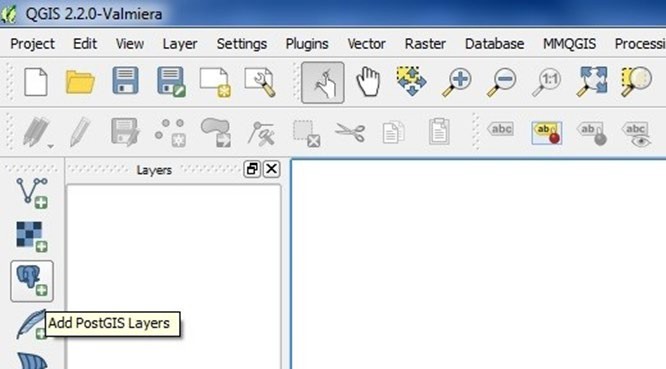
1. Connect to PostGIS by selecting the Add PostGIS Layers button.<br>

   <figure><img src="/files/Gm2wIBvKAXzN3E1hH2Jc" alt="An image of QGIS 2.2.0 showing the menu structure" width="500"><figcaption><p>QGIS 2.2.0 showing the menu structure.</p></figcaption></figure>
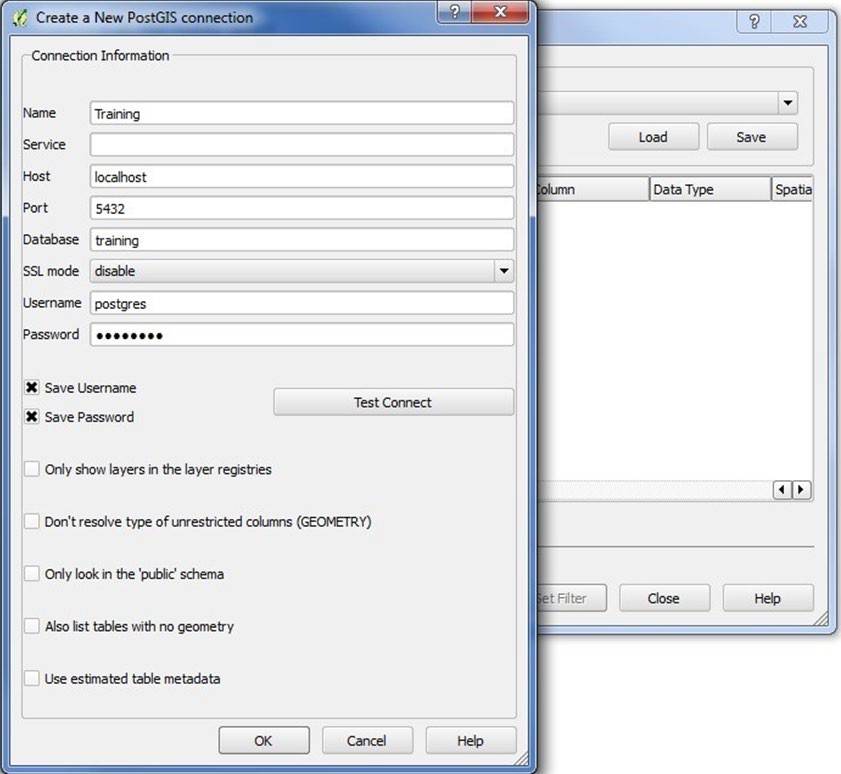
2. This will bring up an Add PostGIS Table(s) dialogue box. If you have not already connected to your PostGIS database select the New option and fill in the Create New PostGIS Connection dialogue box.<br>

   <figure><img src="/files/mPdO0BzL2pyLLOvjubdn" alt="An image of two windows, showing the Create a New PostGIS connection screen in front of the Add PostGIS Table dialog." width="563"><figcaption><p>Create a New PostGIS connection screen in front of the Add PostGIS Table dialog.</p></figcaption></figure>
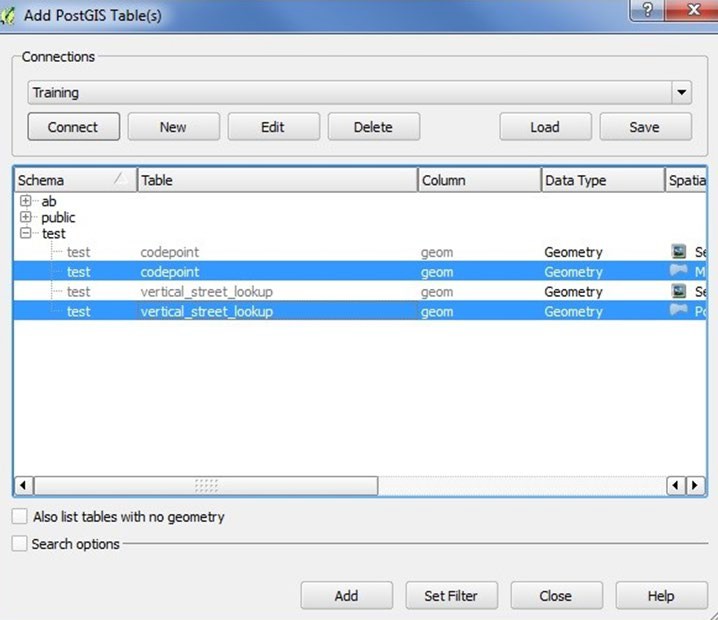
3. Once you have added your connection details, select the *Test Connect* option to ensure the details are correct. When your connection is successful, click OK to save the connection, it should then appear in the connections drop-down. Select Connect and the schemas within your database will be populated. Expand the schema you are using and select both the postcode area polygons table and the vertical street lookup table you have created. Add them to QGIS by selecting Add at the bottom of the dialogue box. You will be prompted to select a coordinate reference system to use from a list which can be filtered by SRID.<br>

   <figure><img src="/files/xyfdRmEQ428ue5eDLTzS" alt="An image showing the Add PostGIS Tables screen with two test schema&#x27;s highlighted." width="539"><figcaption><p>Add PostGIS Tables screen with two test schema's highlighted.</p></figcaption></figure>
4. Once your coordinate system has been selected the two tables should be displayed spatially in QGIS. If you have chosen to add the extra Boolean column to the postcode area polygons table this flag will alert you to when a postcode is part of a vertical street. The vertical street lookup table can then be used to display all the postcodes contained within the vertical street.

</details>


---

# Agent Instructions
This documentation is published with GitBook. GitBook is the documentation platform designed so that both humans and AI agents can read, navigate, and reason over technical content effectively. Learn more at gitbook.com.

## Querying This Documentation
If you need additional information that is not directly available in this page, you can query the documentation dynamically by asking a question.

Perform an HTTP GET request on the current page URL with the `ask` query parameter, and the optional `goal` query parameter:

```
GET https://docs.os.uk/os-downloads/products/areas-and-zones-portfolio/code-point-with-polygons/code-point-with-polygons-getting-started-guide/using-the-vertical-street-lookup.md?ask=<question>&goal=<endgoal>
```

`ask` is the immediate question: it should be specific, self-contained, and written in natural language.
`goal` is optional and describes the broader end goal you are ultimately trying to accomplish on behalf of the user. GitBook uses it to tailor the answer towards what is most useful for that goal.

The response will contain a direct answer to the question and relevant excerpts and sources from the documentation.

Use this mechanism when the answer is not explicitly present in the current page, you need clarification or additional context, or you want to retrieve related documentation sections.