Joining Building Height Attribute data to a OS MasterMap Topography Layer
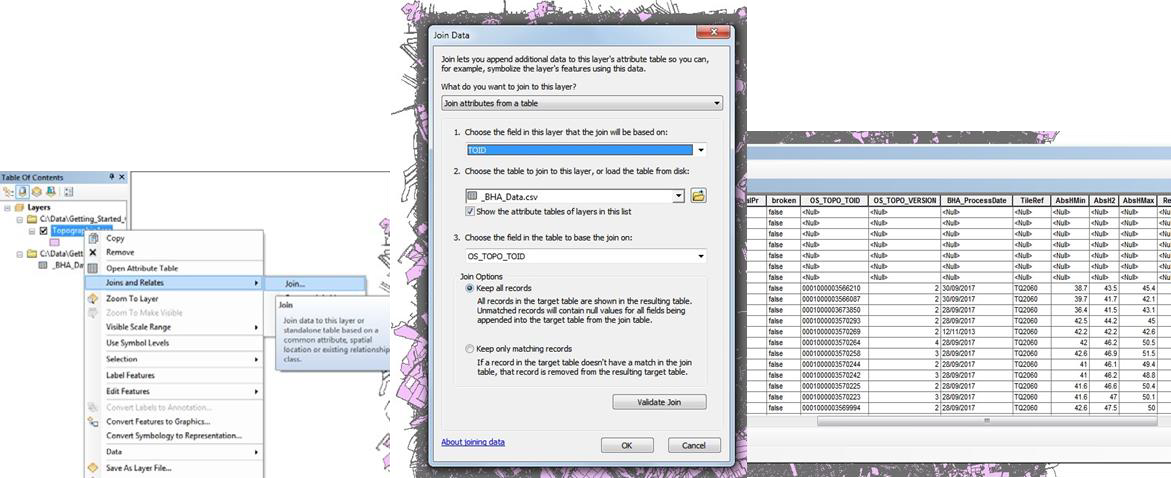
In order to use the Building Height Attribute data within GIS it must first be joined to OS MasterMap Topography Layer. This page describes this process for some commonly used GIS.
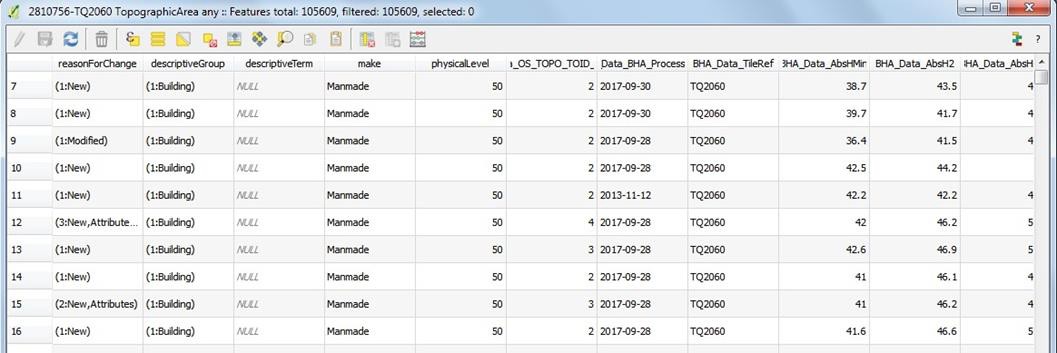
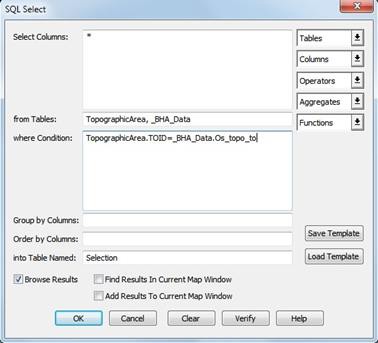
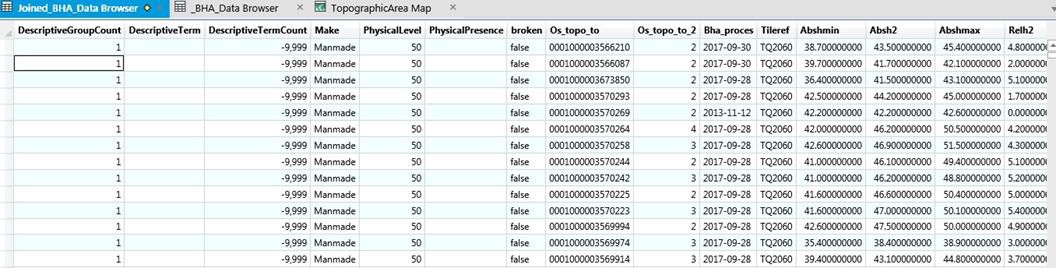
The .csv data should be loaded into your GIS with the TOID column formatted as it is in your OS MasterMap Topography Layer data holdings (see the managing .csv data and loading data into a GIS pages for more details).
A join between these two datasets will link them together based on the unique identifier between the two datasets: the TOID. This will result in the buildings in your OS MasterMap Topography Layer data holdings being associated with a set of building heights.
Dealing with duplicate records
Users should be aware that in Building Height Attribute data, features are not broken at tile edges. Therefore, once the .csv files have been merged and then joined with features in the OS MasterMap Topography Layer Topo_Area table, duplicate records will exist in the data. Depending upon which GI application is being used, tools are available within the application to remove duplicate features.
ESRI ArcGIS: In ArcGIS, use the option Geoprocessing > Dissolve to remove the duplicate features within the merged data. The output can be saved into file geodatabase, created as described earlier in this section.
QGIS: In QGIS, use the option Vector > Geoprocessing > Dissolve to remove the duplicate features within the merged data. The output will be a shapefile containing the de-duplicated data.
MapInfo Professional: There are several ways to remove duplicate features in MapInfo Professional. The following article from precisely.com details how to use the Delete Duplicates tool in MapInfo Professional to remove duplicate records but retain map objects: Precisely.com article on 'Deleting duplicate records and retaining map objects in MapInfo Pro'.
Last updated
Was this helpful?