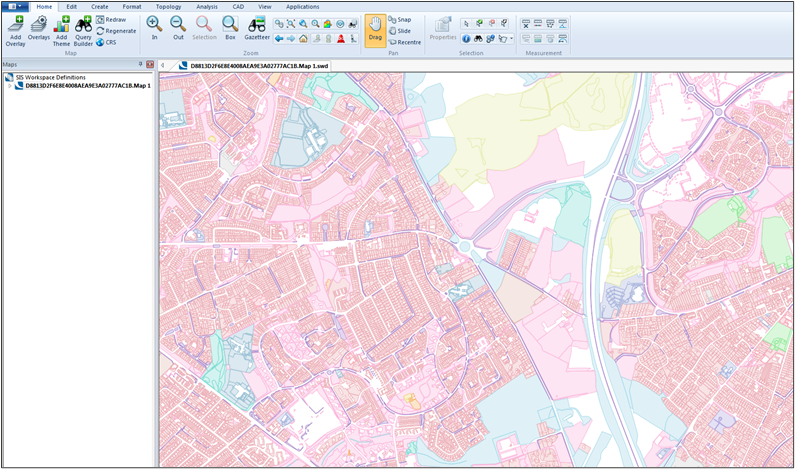
# CadCorp Map Modeller

CadCorp Map Modeller is a commercial GI application which can load a wide variety of data formats. It also comes with a free software viewer application called CadCorp Map Express.

<details>

<summary>Loading ESRI Shapefile supply</summary>

* To load the ESRI shapefile data, open a file explorer window in Windows and simply drag and drop the .shp files into the Map Modeller window.

  <figure><img src="https://1897589978-files.gitbook.io/~/files/v0/b/gitbook-x-prod.appspot.com/o/spaces%2FcNpJpLP8RROUaWVQo5ea%2Fuploads%2FMGElUcy7eiLWXI23IAeM%2Fimage.png?alt=media&#x26;token=ff40ad91-c4b0-4781-8c5a-d0c1925cabc6" alt="CadCorp window with the file explorer in the foreground to drg and drop files into the software"><figcaption><p>CadCorp window with the file explorer in the foreground to drg and drop files into the software</p></figcaption></figure>

CadCorp applies a random style to the data as it is loaded. The styles are applied to the borders and fills of the polygons within OS MasterMap Greenspace Layer data. As of March 2018, in their build of Map Modeller version 8.0\_2549, CadCorp have added support for loading the GML supply format of OS MasterMap Greenspace Layer data (see below).

</details>

<details>

<summary>Loading GML supply</summary>

Users of CadCorp Map Modeller SIS version 8.0 can obtain an update of the software to version 8.0\_2549 from CadCorp. This version of Map Modeller will now load the .GML version of OS MasterMap Greenspace Layer data. To load the data, open CadCorp Map Modeller and click ‘Add Overlay’.

<img src="https://1897589978-files.gitbook.io/~/files/v0/b/gitbook-x-prod.appspot.com/o/spaces%2FcNpJpLP8RROUaWVQo5ea%2Fuploads%2FOqXgQ5g0Eepr5B8a8ZL6%2Fimage.png?alt=media&#x26;token=9497b744-9e3b-4d9c-bf00-f44715433a2c" alt="Map Modeller Add Overlay button." data-size="original">

1. Navigate to the Ordnance Survey (GB) option in the left-hand side of the window. Once selected, it will be seen that 'MasterMap Greenspace Layer' has been added as an option to load the data. Select this icon and click ‘Finish’.

   <figure><img src="https://1897589978-files.gitbook.io/~/files/v0/b/gitbook-x-prod.appspot.com/o/spaces%2FcNpJpLP8RROUaWVQo5ea%2Fuploads%2Fi6nzSklDw6ZGMq08SxjQ%2Fimage.png?alt=media&#x26;token=7ac3eb0e-0ca0-4ea9-8247-3af3a4e86b9a" alt="Ordnance Survey (GB) option in the Overlay Types window for loading data" width="446"><figcaption><p>Ordnance Survey (GB) option in the Overlay Types window for loading data</p></figcaption></figure>
2. Navigate to the folder where the OS MasterMap Greenspace Layer data is located. Click ‘OK’ when selected.<br>

   <figure><img src="https://1897589978-files.gitbook.io/~/files/v0/b/gitbook-x-prod.appspot.com/o/spaces%2FcNpJpLP8RROUaWVQo5ea%2Fuploads%2Fmv22JPNWCOft1ssOxvst%2Fimage.png?alt=media&#x26;token=f4b4855c-9ed1-480a-9557-25779b89e95c" alt=""><figcaption><p>Map Modeller Browse dialog box<br></p></figcaption></figure>

   Map Modeller will read the .GML files and load in the OS MasterMap Greenspace Layer data using the predefined correct styling for the product. If required, the overlay can be exported to a spatial database and the theme re-applied to the database. The expression used by the theme may need to be altered, depending on the database used for the export.<br>

   <figure><img src="https://1897589978-files.gitbook.io/~/files/v0/b/gitbook-x-prod.appspot.com/o/spaces%2FcNpJpLP8RROUaWVQo5ea%2Fuploads%2FCgacrN8OMINbnI981VZm%2Fimage.png?alt=media&#x26;token=0cf9168e-59e8-4524-a08c-f17e631dafa1" alt="" width="563"><figcaption><p>Map Modeller window with Greenspace Layer loaded and displayed.</p></figcaption></figure>

</details>