> For the complete documentation index, see [llms.txt](https://docs.os.uk/os-downloads/llms.txt). Markdown versions of documentation pages are available by appending `.md` to page URLs; this page is available as [Markdown](https://docs.os.uk/os-downloads/products/land-and-terrain-portfolio/os-mastermap-sites-layer/os-mastermap-sites-layer-getting-started-guide/arcgis-and-arcmap.md).

# ArcGIS and ArcMap

These instructions are based on ArcMap version 10.8.1 and assume you have set the default coordinate reference system in ArcMap to British National Grid (EPSG 27700).

{% hint style="info" %}
*If your ArcMap is older than version 10.0, or if you do not have access to the Quick Import (Data Interoperability) extension, use the translation tools available in FME or QGIS (see previous sections for instructions) to convert the GML data to shapefiles before loading them into ArcMap.*
{% endhint %}

{% hint style="info" %}
Certain versions of ArcGIS Pro (for example, version 2.5) and ArcMap (for example, version 10.8.1) require GeoPackages to have a spatial index added before the data can be viewed on the map. This can be done in the Catalog by opening the Feature Class Properties window within the 'Indexes' page.

<img src="/files/NegvdymXMwLBD2HWvvhT" alt="ArcMap Feature Class Properties window showing Attribute Indexes" data-size="original">
{% endhint %}

## Loading and displaying the GML supply using the Quick Import tool <a href="#id-5.1-loading-and-displaying-the-gml-suppl" id="id-5.1-loading-and-displaying-the-gml-suppl"></a>

You can import GML data into ArcMap using the Quick Import tool. The imported data will be un-styled.

{% hint style="info" %}
*Due to the large file size, some 5 km2 grid tile imports (especially within larger cities) may take time to process.*
{% endhint %}

To load GML data in ArcMap:

1. In the top bar, click the *ArcToolbox* icon.
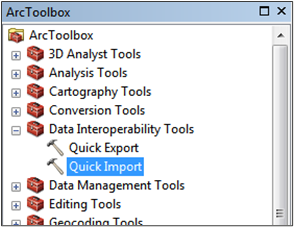
2. Expand *Data Interoperability Tools* and double-click *Quick Import*.<br>

   <figure><img src="/files/QA0t7cDYX6nKY3HgUP6b" alt="ArcMap ArcToolbox menu showing the Data Interoperability Tools > Quick Import menu option." width="221"><figcaption><p>ArcMap ArcToolbox menu showing the Data Interoperability Tools > Quick Import menu option.</p></figcaption></figure>
3. In the Quick Import dialog:
   * Input Dataset: Click … to open the Specify Data Source dialog:
     * Format: Select *GML SF-0 (Geography Markup Language Simple Features Level SF-0 Profile)*.
     * Dataset: Click …, then navigate to and select the GML file on your computer.
     * Click *OK*.<br>

       <figure><img src="/files/uxDsYGSZEHSUD9FxaFQJ" alt="ArcMap Quick Import > Specify Data Source dialog." width="320"><figcaption><p>ArcMap Quick Import > Specify Data Source dialog.</p></figcaption></figure>
   * Output Staging Geodatabase: Click the folder icon, navigate to and select the output folder on your computer.
   * Click *OK*.

<figure><img src="/files/0NmPZePOCXCDLZvVDNWz" alt="ArcMap Quick Import dialog." width="486"><figcaption><p>ArcMap Quick Import dialog.</p></figcaption></figure>

*The Quick Import tool creates a new geodatabase and imports the data into it.*

To display the GML data in ArcMap:

4. Click *Add Data* in the tool bar.

<figure><img src="/files/ibRTUR6wB2KnQ73SgJ5l" alt="ArcMap UI Showing Add Data action" width="487"><figcaption><p>ArcMap UI Showing Add Data action</p></figcaption></figure>

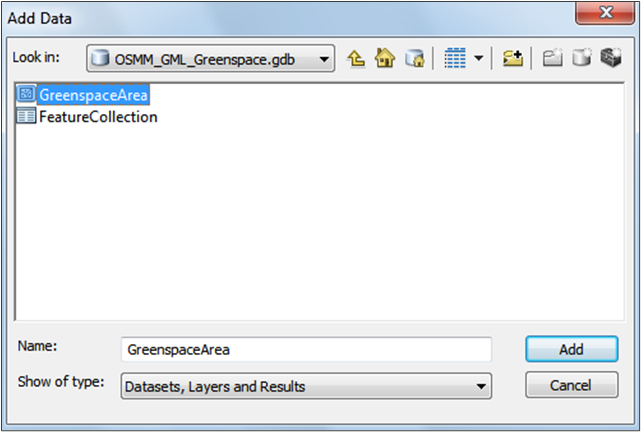
5. In the Add Data dialog, select the file geodatabase (created in the previous procedure) on your computer and click *Add*.

<figure><img src="/files/tlyVlZMfaRE95pI7Z6zk" alt="ArcMap Add Data dialog." width="481"><figcaption><p>ArcMap Add Data dialog.</p></figcaption></figure>

*Your GML data now displays in the Layers panel and map area. The data is un-styled and will look similar to the following example:*

<figure><img src="/files/fvLEtDNHlXwqSDlBjCvQ" alt="ArcMap UI showing Layers panel and map area." width="563"><figcaption><p>ArcMap UI showing Layers panel and map area.</p></figcaption></figure>

## Loading and displaying shapefiles <a href="#id-5.2-loading-and-displaying-shapefiles" id="id-5.2-loading-and-displaying-shapefiles"></a>

As an alternative to using ArcMap’s Quick Import tool (previous section), you can convert your GML data to shapefile using QGIS or FME, and then add it directly to ArcMap. There are instructions on how to do this in previous sections of this guide.

To load and display shapefiles in ArcMap:

1. Open an existing project or create a new one.
2. In the top bar, click *Add Data*.

<figure><img src="/files/dzz5CJ86hdZlnkte75M6" alt="ArcMap UI Showing Add Data action" width="445"><figcaption><p>ArcMap UI Showing Add Data action</p></figcaption></figure>

3. In the Add Data dialog, select the shapefile you want to load, and click *Add*.

{% hint style="info" %}
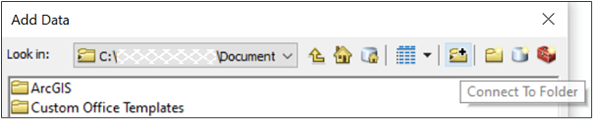
*If the required folder does not display in the tree, click the Connect To Folder icon and navigate to the folder from there.*
{% endhint %}

<figure><img src="/files/SBiYxoIHlIYF0z42gB1p" alt="ArcMap Add Data dialog."><figcaption><p>ArcMap Add Data dialog.</p></figcaption></figure>

4. Repeat steps 2 and 3 to load the additional shapefiles (*AccessPoint* and *RoutingPoint*) that make up each 5 km2 tile of OS MasterMap Sites Layer.

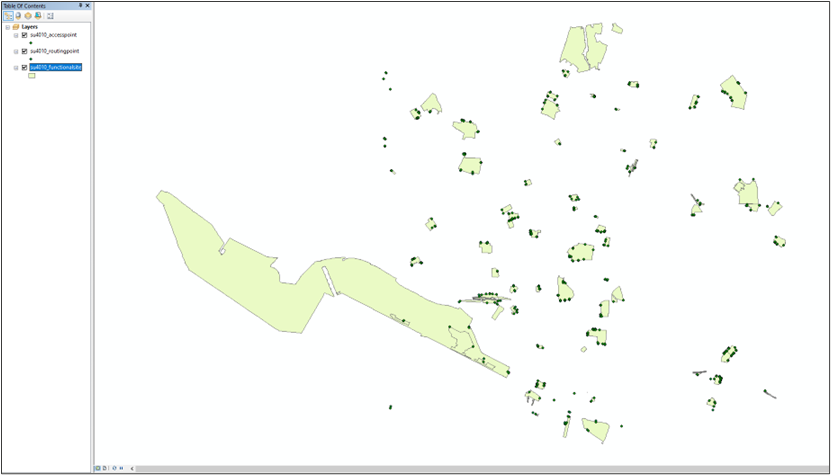
*Your data now displays in the Layers panel and map area. The data is un-styled and will look similar to the following example:*

<figure><img src="/files/3hzsddxPvPagDMMcak5g" alt="ArcMap UI showing Layers panel and map area." width="563"><figcaption><p>ArcMap UI showing Layers panel and map area.</p></figcaption></figure>


---

# Agent Instructions
This documentation is published with GitBook. GitBook is the documentation platform designed so that both humans and AI agents can read, navigate, and reason over technical content effectively. Learn more at gitbook.com.

## Querying This Documentation
If you need additional information that is not directly available in this page, you can query the documentation dynamically by asking a question.

Perform an HTTP GET request on the current page URL with the `ask` query parameter:

```
GET https://docs.os.uk/os-downloads/products/land-and-terrain-portfolio/os-mastermap-sites-layer/os-mastermap-sites-layer-getting-started-guide/arcgis-and-arcmap.md?ask=<question>
```

The question should be specific, self-contained, and written in natural language.
The response will contain a direct answer to the question and relevant excerpts and sources from the documentation.

Use this mechanism when the answer is not explicitly present in the current page, you need clarification or additional context, or you want to retrieve related documentation sections.