# ArcGIS Pro

The following instructions are based on ArcGIS Pro version 2.8.1 and assume that you have access to and knowledge of the UK Data Loader and the Data Interoperability Extension to convert the supplied GML into a suitable ArcGIS Pro format.

{% hint style="info" %}
&#x20;*if you do not have access to the UK Data Loader and the Quick Import (Data Interoperability) extension, use the translation tools available in FME or QGIS to convert the GML data to shapefiles, or import it into an ESRI Geodatabase before loading them into ArcGIS Pro.*
{% endhint %}

{% hint style="info" %}
Certain versions of ArcPro (for example, version 2.5) require GeoPackages to have a spatial index added before the data can be viewed on the map. This can be done in the Catalog by opening the Feature Class Properties window within the 'Indexes' page.

![ArcGIS Pro feature class properties window showing the attribute index and spatial index options](/files/mvZ0LsnvAnBgc47lBCt9)
{% endhint %}

## Loading and displaying the GML supply using UK Data Loader <a href="#id-3.1-loading-and-displaying-the-gml-suppl" id="id-3.1-loading-and-displaying-the-gml-suppl"></a>

The UK Data Loader is an ArcGIS toolbox. It contains a set of tools that primarily allow loading of Ordnance Survey data into an ArcGIS workspace.

If the UK Data Loader is not already installed, we recommend you add the folder containing the toolbox into your documents. More information on installing the UK Data Loader is available in ESRI’s [UK Data Loader User Guide](https://www.arcgis.com/home/item.html?id=7ae5c49bf3ab4c55a31f85fd935aa1a4). This guide also provides instructions for processing Change Only Updates (COU) for OSMM Topography Layer.

Using the UK Data Loader involves two steps: Converting the GML supply and loading the converted file geodatabase into ArcGIS Pro.

### Converting the GML supply to file geodatabase <a href="#id-3.1.1-converting-the-gml-supply-to-file" id="id-3.1.1-converting-the-gml-supply-to-file"></a>

{% hint style="info" %}
*Before you start, you need either an existing file geodatabase (.gdb) or a database connection to load the files into.*
{% endhint %}

To load the GML data into ArcGIS Pro using the UK Data Loader:

1. Open an existing project or create a new one.

*You may want to select a basemap for backdrop context.*

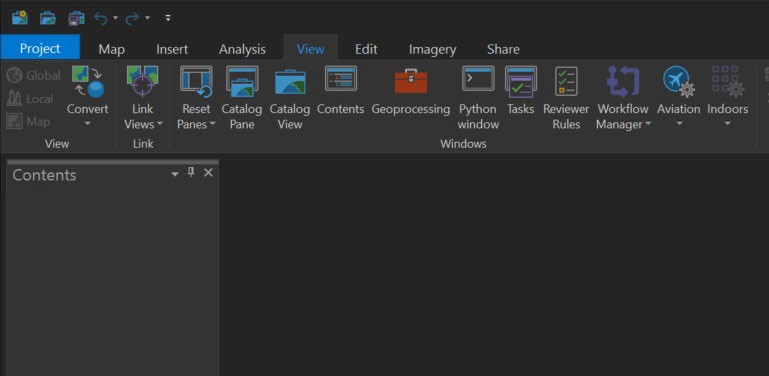
2. From the View tab, select *Catalog View*.

<figure><img src="/files/Cht6Cl8n0D2gxlyjoxHh" alt="ArcGIS Pro UI showing View > Catalog View option" width="563"><figcaption><p>ArcGIS Pro UI showing <em>View > Catalog View</em> option</p></figcaption></figure>

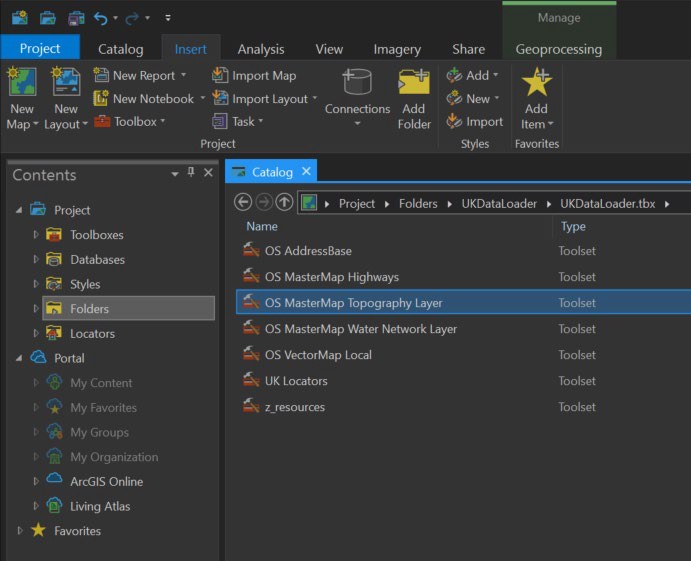
3. In the Catalog view, navigate to the location in which your UK Data Loader toolbox is saved.

*You may need to connect to the relevant folder using the Add Folder option in the Insert tab.*

<figure><img src="/files/HBbJLK8iyox1s2HWWEqX" alt="ArcGIS Pro UI showing saved UK Data Loader toolbox in Catalog View" width="518"><figcaption><p>ArcGIS Pro UI showing saved UK Data Loader toolbox in Catalog View</p></figcaption></figure>

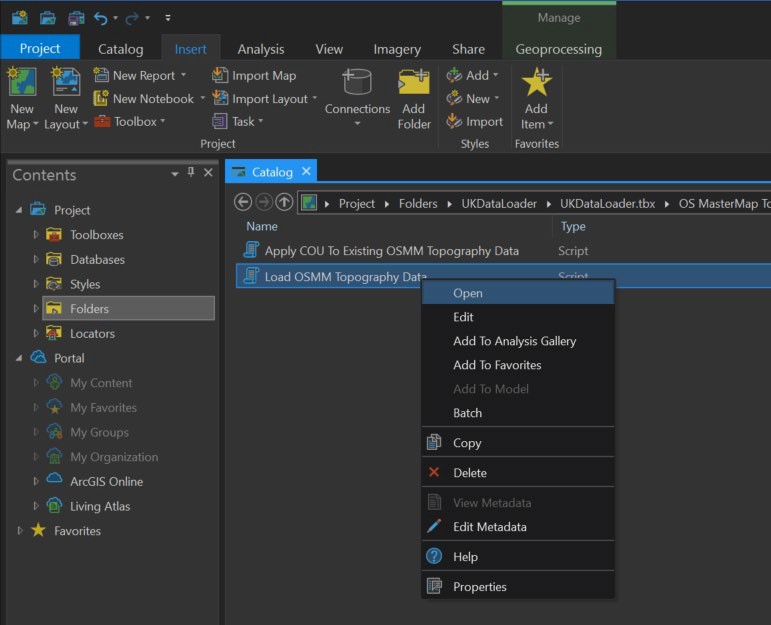
4. Open the toolbox, navigate to *OS MasterMap Topography Layer > Load OSMM Topography Data*, right- click on the script, and click *Open* in the context menu.

<figure><img src="/files/TQP2Cfad4jtvn8aATy6D" alt="ArcGIS Pro UI showing saved UK Data Loader toolbox in Catalog View" width="563"><figcaption><p>ArcGIS Pro UI showing the <em>Open</em> action in Catalog view</p></figcaption></figure>

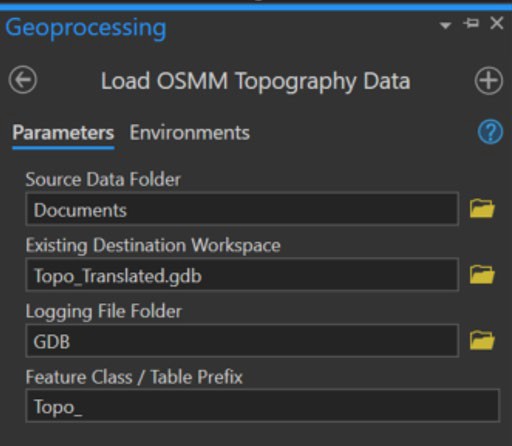
5. This will open the Geoprocessing panel in which you can set the parameters for running the script:
   * Source Data Folder: Navigate to and select the GML file(s) required.
   * Existing Destination Workspace: Navigate to and select the pre-existing file geodatabase (.gdb) folder to load the data into.
   * Logging File Folder: Navigate to and select a folder into which to save the log that will be created during data processing. *This is important because any error messages will be captured here. These may help identify issues.*
   * Feature Class / Table Prefix: Enter a prefix for your tables (for example, *Topo\_*).
   * Create Annotation Line Features: Check this option if it is available and required. *This checkbox option is only available in older versions of ArcGIS Pro/UK Data Loader.*

<figure><img src="/files/iCBCNxlXdUx9GWnLA8pf" alt="ArcGIS Pro Geoprocessing panel showing Parameters tab options" width="384"><figcaption><p>ArcGIS Pro Geoprocessing panel showing Parameters tab options</p></figcaption></figure>

6. Click ![ArcGIS Pro Geoprocessing Run buttonArcGIS Pro Geoprocessing Run button](/files/JmyInlVAWVUd1ucRVn8K) (Run button) at the bottom of the panel to process the data.

*This may take some time, depending on the number of 5km OSMM Topography Layer tiles being processed.*

On completion, the OSMM Topography Layer data will be saved to the destination file geodatabase, which can then be loaded into the workspace by following the instructions in the next section.

### Loading and displaying data from the file geodatabase <a href="#id-3.1.2-loading-and-displaying-data-from-t" id="id-3.1.2-loading-and-displaying-data-from-t"></a>

Having converted your GML data to file geodatabase using the UK Data Loader (or other tools listed in this guide), you can now load the OSMM Topography Layer GDB into your ArcGIS Pro workspace.

To load and display the file geodatabase in an ArcGIS Pro workspace:

1. Open an existing project or create a new one.

*You may want to select a basemap for backdrop context.*

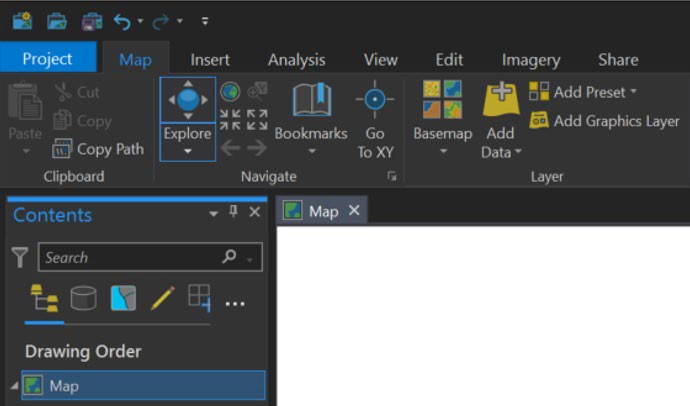
2. From the Map tab, select *Add Data*.

<figure><img src="/files/nzApUZGBKrj9fS9yeo1e" alt="ArcGIS Pro UI showing Map > Add Data option" width="518"><figcaption><p>ArcGIS Pro UI showing <em>Map > Add Data</em> option</p></figcaption></figure>

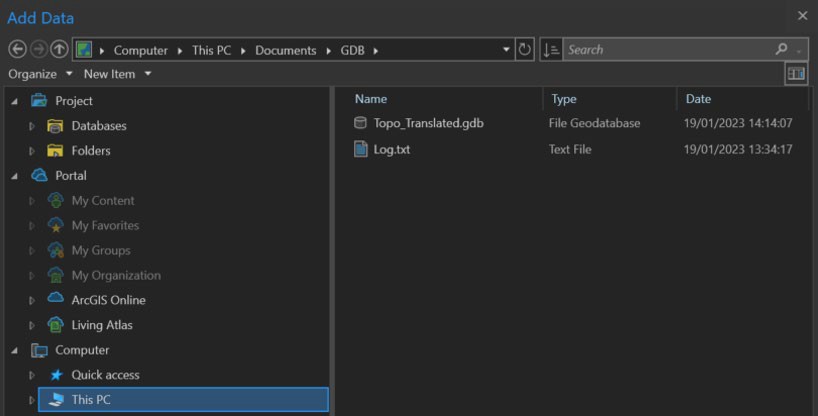
3. In the Add Data dialog, navigate to and select the file geodatabase (.gdb) containing the OSMM Topography Layer data, and then click *OK*.

<figure><img src="/files/EvS5CQXjn6VQdPyJMKcu" alt="ArcGIS Pro Add Data dialog showing selection of the file geodatabase" width="563"><figcaption><p>ArcGIS Pro Add Data dialog showing selection of the file geodatabase</p></figcaption></figure>

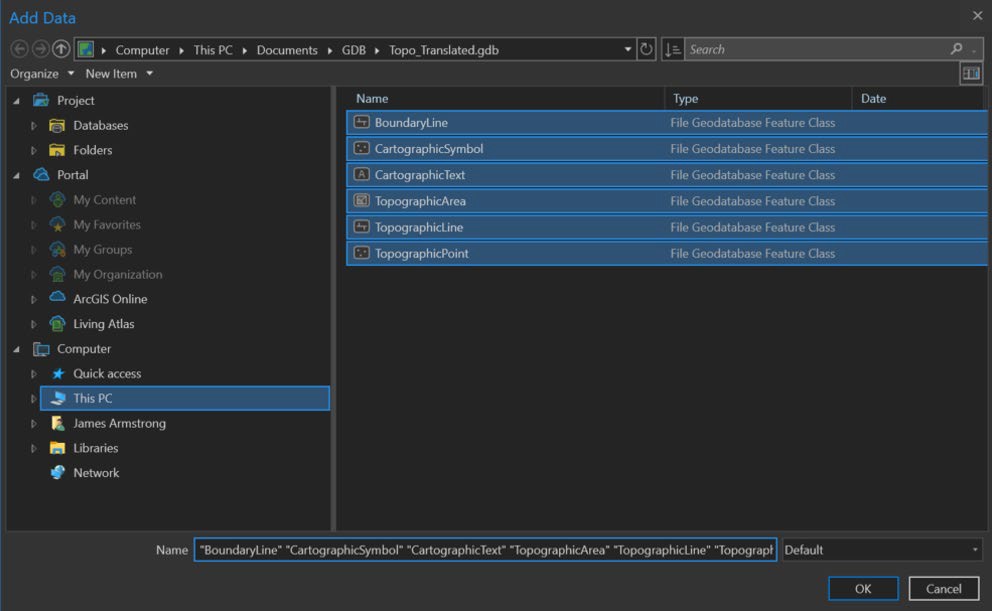
4. In the selected file geodatabase (.gdb) select the feature classes that you want to load and then click *OK*.

*You can select multiple feature classes at once to save repeating these steps for all the OSMM Topographic Layer features.*

<figure><img src="/files/RULaSFmYRypzFD11EMxF" alt="ArcGIS Pro Add Data dialog showing selection of the OSMM Topography Layer layers / feature classes" width="563"><figcaption><p>ArcGIS Pro Add Data dialog showing selection of the OSMM Topography Layer feature classes</p></figcaption></figure>

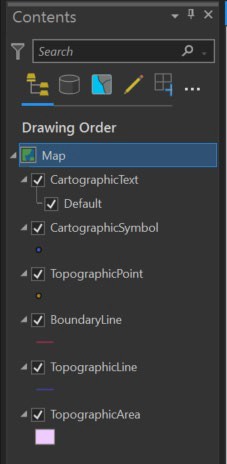
Your OSMM Topography Layer feature classes will now appear in both the Contents panel and map area.

You may need to reorder the layers to see the data correctly. You can reorder layers using drag and drop. We recommend the following layer order: *CartographicText*, *CartographicSymbol*, *TopographicPoint*, *BoundaryLine*, *TopographicLine* and *TopographicArea*.

<figure><img src="/files/JgJQv5c9GsZkjjAy2VqA" alt="ArcGIS Pro UI showing OSMM Topography Layer layers in the Contents panel" width="170"><figcaption><p>ArcGIS Pro UI showing OSMM Topography Layer layers in the Contents panel</p></figcaption></figure>

### Loading and displaying shapefiles <a href="#id-3.2-loading-and-displaying-shapefiles" id="id-3.2-loading-and-displaying-shapefiles"></a>

As an alternative to using the UK Data Loader, you can load OSMM Topography Layer shapefiles directly into your ArcGIS Pro workspace. You need to first convert your GML data to shapefile.

*Translation tools available in FME and QGIS to convert the GML data to shapefiles.*

To load and display shapefiles in an ArcGIS Pro workspace:

1. Open an existing project or create a new one.

*You may want to select a basemap for backdrop context.*

2. From the Map tab, select *Add Data*.

<figure><img src="/files/OAfgjdHaFGXkh8rMj1dz" alt="ArcGIS Pro UI showing Map > Add Data option" width="518"><figcaption><p>ArcGIS Pro UI showing <em>Map > Add Data</em> option</p></figcaption></figure>

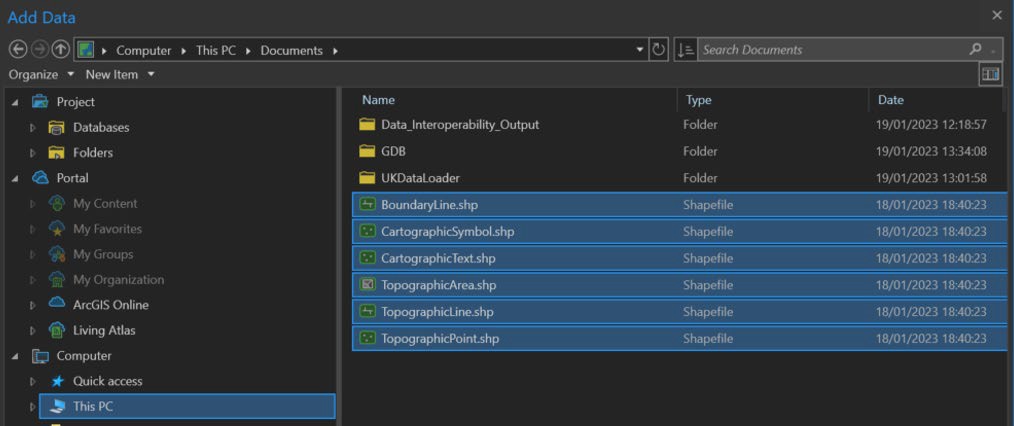
3. In the Add Data window, navigate to and select the shapefiles (.shp) containing the OSMM Topography Layer data, and then click *OK*.

*You can select multiple shapefiles at once to save repeating these steps for all the OSMM Topographic Layer features.*

<figure><img src="/files/bB3kTqvSJytwC0kanSgI" alt="ArcGIS Pro Add Data dialog showing selection of the OSMM Topography Layer shapefiles"><figcaption><p>ArcGIS Pro Add Data dialog showing selection of the OSMM Topography Layer shapefiles</p></figcaption></figure>

Your OSMM Topography Layer shapefiles will now display in both the Contents panel and map area.

You may need to reorder the layers to see the data correctly. You can reorder layers using drag and drop. We recommend the following layer order: *CartographicText*, *CartographicSymbol*, *TopographicPoint*, *BoundaryLine*, *TopographicLine* and *TopographicArea*.

<figure><img src="/files/UgGhyqX96mO1nUNo7H5i" alt="ArcGIS Pro UI showing OSMM Topography Layer layers in the Contents panel" width="224"><figcaption><p>ArcGIS Pro UI showing OSMM Topography Layer layers in the Contents panel</p></figcaption></figure>


---

# Agent Instructions: Querying This Documentation

If you need additional information that is not directly available in this page, you can query the documentation dynamically by asking a question.

Perform an HTTP GET request on the current page URL with the `ask` query parameter:

```
GET https://docs.os.uk/os-downloads/products/maps-and-imagery-portfolio/os-mastermap-topography-layer/os-mastermap-topography-layer-getting-started-guide/arcgis-pro.md?ask=<question>
```

The question should be specific, self-contained, and written in natural language.
The response will contain a direct answer to the question and relevant excerpts and sources from the documentation.

Use this mechanism when the answer is not explicitly present in the current page, you need clarification or additional context, or you want to retrieve related documentation sections.