# FME Desktop

These instructions are based on FME Desktop 2022.1.1.

## Loading and displaying the GML supply <a href="#id-7.1-loading-and-displaying-the-gml-suppl" id="id-7.1-loading-and-displaying-the-gml-suppl"></a>

To load and display the GML supply in FME Desktop 2022.1.1.

1. Open an existing workspace or create a new one.
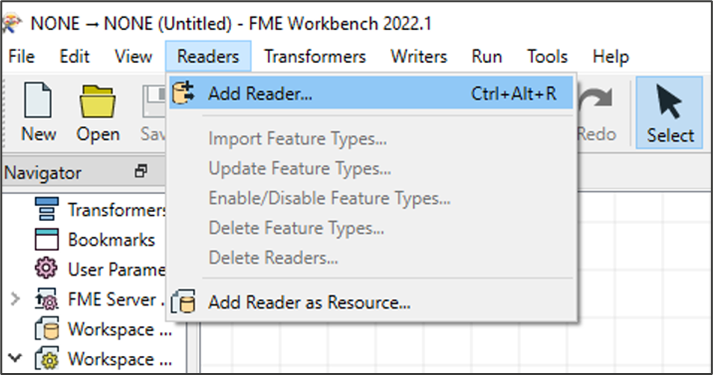
2. From the Reader tab click *Add Reader…*

<figure><img src="https://1897589978-files.gitbook.io/~/files/v0/b/gitbook-x-prod.appspot.com/o/spaces%2FcNpJpLP8RROUaWVQo5ea%2Fuploads%2FupuDaDHteYVYKqreEt8n%2Fimage.png?alt=media&#x26;token=288144a6-b77a-4e74-9702-99bce082cb41" alt="FME Desktop UI showing Readers > Add Reader action" width="535"><figcaption><p>FME Desktop UI showing <em>Readers > Add Reader</em> action</p></figcaption></figure>

3. In the Add Reader dialog:
   * Format: *Select OGC GML (Geography Markup Language)*.
   * Dataset: Click …, and navigate to and select the GML file (.gz) in the file browser.
   * Coord. System: Select *ESPG: 27700 (British National Grid)*.
   * Click *OK*.<br>

     <figure><img src="https://1897589978-files.gitbook.io/~/files/v0/b/gitbook-x-prod.appspot.com/o/spaces%2FcNpJpLP8RROUaWVQo5ea%2Fuploads%2FACw791t23RNkPWX1ZkI7%2Fimage.png?alt=media&#x26;token=27108419-0b6b-4f2b-bf21-6af2f0757940" alt="FME Desktop Add Reader dialog " width="535"><figcaption><p>FME Desktop Add Reader dialog</p></figcaption></figure>
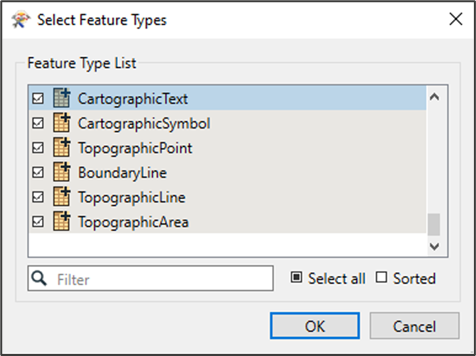
4. In the Select Feature Types dialog select the required layers and click *OK*.

*This dialog may take a while to load. You can watch the progress in the green bar at the bottom left of the FME window.*

<figure><img src="https://1897589978-files.gitbook.io/~/files/v0/b/gitbook-x-prod.appspot.com/o/spaces%2FcNpJpLP8RROUaWVQo5ea%2Fuploads%2FXU9NFzTAgFTWul20YD89%2Fimage.png?alt=media&#x26;token=2b5ff73b-2c64-4006-ab9f-cb95d7447171" alt="FME Desktop Select Feature Types dialog" width="357"><figcaption><p>FME Desktop Select Feature Types dialog</p></figcaption></figure>

Figure 53:FME Desktop Select Feature Types dialog

*When processing is complete, your features will appear as readers in the FME workspace.*

5. Right-click one of the feature readers and click *Connect Inspector* in the context menu.

*The Inspector will automatically connect to the reader.*

<figure><img src="https://1897589978-files.gitbook.io/~/files/v0/b/gitbook-x-prod.appspot.com/o/spaces%2FcNpJpLP8RROUaWVQo5ea%2Fuploads%2FJodsv5fIyyJuRcArN8ew%2Fimage.png?alt=media&#x26;token=b743c780-4960-4f6b-a740-92d9c891e353" alt="FME Desktop UI showing selected feature type reader and Connect Inspector action in the context menu"><figcaption><p>FME Desktop UI showing a selected feature type reader and the <em>Connect Inspector</em> action in the context menu</p></figcaption></figure>

*The Inspector will automatically connect to the reader.*

6. Click the Inspector and then click the *Run to this icon* (green triangle above the inspector).
7. In the Translation Parameter Values dialog click *Run*.

<figure><img src="https://1897589978-files.gitbook.io/~/files/v0/b/gitbook-x-prod.appspot.com/o/spaces%2FcNpJpLP8RROUaWVQo5ea%2Fuploads%2Ff9OxP4ySWmo9WMbGK6rF%2Fimage.png?alt=media&#x26;token=3ae8e35e-1d7e-4120-a667-ea401530cac0" alt="FME Desktop UI showing selected feature type inspector and Translation Parameter Values dialog" width="535"><figcaption><p>FME Desktop UI showing selected feature type inspector and Translation Parameter Values dialog</p></figcaption></figure>

You can watch the loading progress in the Translation Log below the main workspace.

*When the run command has completed, the GML table and features will display in the Visual Preview area below the main workspace.*

<figure><img src="https://1897589978-files.gitbook.io/~/files/v0/b/gitbook-x-prod.appspot.com/o/spaces%2FcNpJpLP8RROUaWVQo5ea%2Fuploads%2Ft3PXHyu6vmvMUDBt7dl5%2Fimage.png?alt=media&#x26;token=cec6019f-b34c-41bb-a494-d991d82484c5" alt="FME Desktop UI showing GML table and visual graphic in the Visual Preview area "><figcaption><p>FME Desktop UI showing GML table and visual graphic in the Visual Preview area</p></figcaption></figure>
8. Repeat steps 5 to 7 above for each layer (feature type) you want to view.

## Converting GML to shapefile <a href="#id-7.2-converting-gml-to-shapefile" id="id-7.2-converting-gml-to-shapefile"></a>

You can use FME to convert GML data to other geospatial and non-spatial formats. The instructions below demonstrate how to convert GML data to shapefile, but you can adapt them for different formats.

To convert GML to shapefile in FME Desktop:

1. Repeat Steps 1 to 4 of the previous section (Loading and displaying the GML supply).
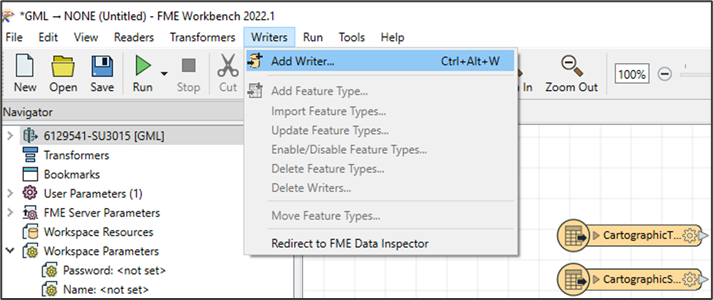
2. From the Writers tab click *Add Writer…*

<figure><img src="https://1897589978-files.gitbook.io/~/files/v0/b/gitbook-x-prod.appspot.com/o/spaces%2FcNpJpLP8RROUaWVQo5ea%2Fuploads%2FqrxOWsrohEu6Y6MYsfvx%2Fimage.png?alt=media&#x26;token=f9cb1f1d-e678-410f-a312-53b193cd518a" alt="FME Desktop UI showing Writers > Add Writer action" width="535"><figcaption><p>FME Desktop UI showing <em>Writers > Add Writer</em> action</p></figcaption></figure>

3. In the Add Writer dialog:
   * Format: Select *ESRI Shapefile*.
   * Dataset: Click …, and navigate to and select the folder in which to save your translated data.
   * Coord. System: Select ESPG: 27700 (British National Grid).
   * Click *OK*.

<figure><img src="https://1897589978-files.gitbook.io/~/files/v0/b/gitbook-x-prod.appspot.com/o/spaces%2FcNpJpLP8RROUaWVQo5ea%2Fuploads%2FvMSa4ZC3tOKSfWWzgmnv%2Fimage.png?alt=media&#x26;token=b979dcfc-8295-447a-9b5d-7b50037dbad3" alt="FME Desktop Add Writer dialog" width="535"><figcaption><p>FME Desktop Add Writer dialog</p></figcaption></figure>

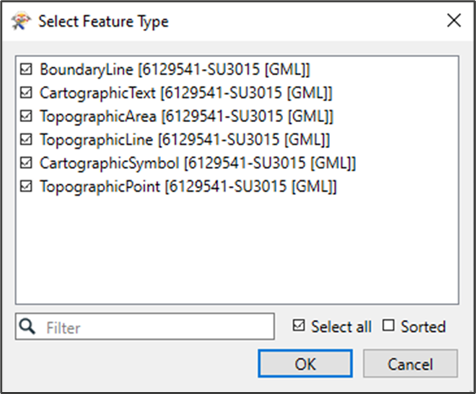
4. In the Select Feature Type dialog select the layers you want to convert and click *OK*.

<figure><img src="https://1897589978-files.gitbook.io/~/files/v0/b/gitbook-x-prod.appspot.com/o/spaces%2FcNpJpLP8RROUaWVQo5ea%2Fuploads%2FG7Ih68S20iVohWdY8Pdt%2Fimage.png?alt=media&#x26;token=7b9b6594-d87b-4699-8e81-997210b237b9" alt="FME Desktop Select Feature Type dialog" width="357"><figcaption><p>FME Desktop Select Feature Type dialog</p></figcaption></figure>

*This dialog may take a while to load. You can watch the progress in the green bar at the bottom left of the FME UI.*

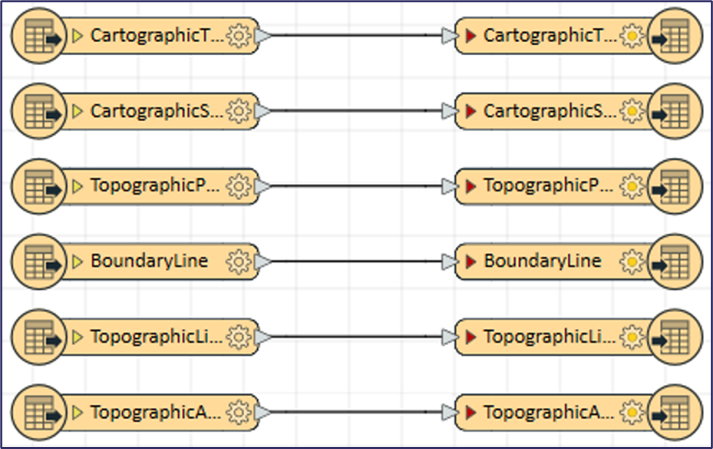
5. Connect each reader to its matching writer by dragging the grey triangle on the reader to the red triangle on the writer.

<figure><img src="https://1897589978-files.gitbook.io/~/files/v0/b/gitbook-x-prod.appspot.com/o/spaces%2FcNpJpLP8RROUaWVQo5ea%2Fuploads%2Fjh1Q0hbUyUtuIxtiW6kK%2Fimage.png?alt=media&#x26;token=3a4ea646-419b-423a-a149-e7d83558f01e" alt="FME Desktop UI showing OSMM Topography Layer feature types connected to writers " width="535"><figcaption><p>FME Desktop UI showing OSMM Topography Layer feature types connected to writers</p></figcaption></figure>

6. In the main toolbar click (Run icon) to start the translation.

<figure><img src="https://1897589978-files.gitbook.io/~/files/v0/b/gitbook-x-prod.appspot.com/o/spaces%2FcNpJpLP8RROUaWVQo5ea%2Fuploads%2F4Gg7U0GeGvkRiax4yZL5%2Fimage.png?alt=media&#x26;token=90d0aa99-5208-456d-bac4-73b4d40ac739" alt="FME Desktop UI showing connected feature types and writers ready to be run" width="535"><figcaption><p>FME Desktop UI showing connected feature types and writers ready to be run</p></figcaption></figure>

7. In the Translation Parameter Values dialog, check that the source and destination file locations are correct and click *Run*.

<figure><img src="https://1897589978-files.gitbook.io/~/files/v0/b/gitbook-x-prod.appspot.com/o/spaces%2FcNpJpLP8RROUaWVQo5ea%2Fuploads%2FjhadWILKGHZ6xtIfSf7n%2Fimage.png?alt=media&#x26;token=2dbf9de2-b171-4165-976f-89904463f88e" alt="FME Desktop Translation Parameter Values dialog" width="535"><figcaption><p>FME Desktop Translation Parameter Values dialog</p></figcaption></figure>

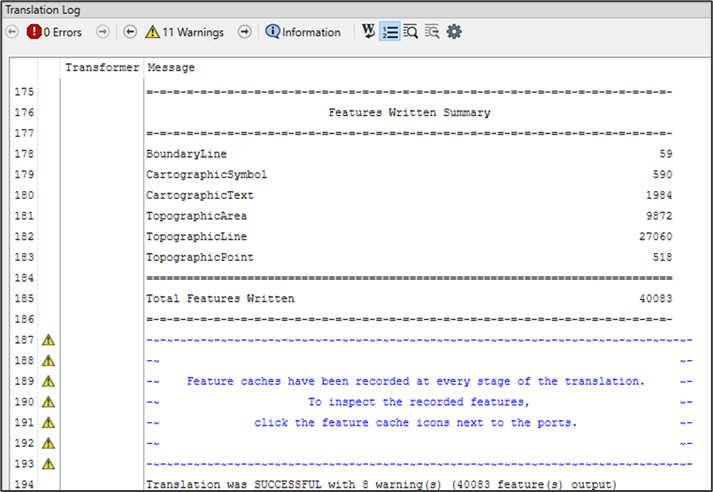
You can watch the conversion progress in the Translation Log below the main work area. When the conversion is complete (indicated by a message similar to the one below), both the GML files and Shapefiles will be available in your chosen folders and in the navigator.

<figure><img src="https://1897589978-files.gitbook.io/~/files/v0/b/gitbook-x-prod.appspot.com/o/spaces%2FcNpJpLP8RROUaWVQo5ea%2Fuploads%2FQHNvnZVAN0ndEYIl3g9t%2Fimage.png?alt=media&#x26;token=b9b18836-aa84-450e-bf93-270c5a6090ff" alt="FME Desktop UI showing Translation Log" width="535"><figcaption><p>FME Desktop UI showing Translation Log</p></figcaption></figure>


---

# Agent Instructions: Querying This Documentation

If you need additional information that is not directly available in this page, you can query the documentation dynamically by asking a question.

Perform an HTTP GET request on the current page URL with the `ask` query parameter:

```
GET https://docs.os.uk/os-downloads/products/maps-and-imagery-portfolio/os-mastermap-topography-layer/os-mastermap-topography-layer-getting-started-guide/fme-desktop.md?ask=<question>
```

The question should be specific, self-contained, and written in natural language.
The response will contain a direct answer to the question and relevant excerpts and sources from the documentation.

Use this mechanism when the answer is not explicitly present in the current page, you need clarification or additional context, or you want to retrieve related documentation sections.