# How to use the stylesheets

{% hint style="info" %}
*The stylesheets are available in the* [*Stylesheets*](https://github.com/OrdnanceSurvey/OSMM-Topography-Layer-stylesheets/tree/master/Schema%20version%209/Stylesheets) *directory of the* [*Ordnance Survey OSMM-Topography-Layer-*](https://github.com/OrdnanceSurvey/OSMM-Topography-Layer-stylesheets) [*stylesheets*](https://github.com/OrdnanceSurvey/OSMM-Topography-Layer-stylesheets) *GitHub repository.*
{% endhint %}

You can either fork the stylesheets from the GitHub repository or download the repository and extract the files.

Four different types of stylesheets are provided (SLD, LYR, LYRX and QML) to help users apply the styles in as many applications as possible. Each stylesheet type is discussed in a separate section below.

<details>

<summary>Styled Layer Descriptors (SLD) stylesheets</summary>

Styled Layer Descriptor (SLD) stylesheets are used by a number of desktop applications and geographic servers for styling both vector and raster data. SLDs are an OGC standard.

*Note: The SLDs released by OS were written and tested in GeoServer; you may need to adapt them to work with your software.*

The following steps guide you through the process of loading the SLDs in GeoServer and associating them with OS MasterMap Topography Layer.

*The instructions assume that you have already setup a workspace and store, and added the OS MasterMap Topography Layer data.*

To use the SLD stylesheets:

1. Login to the GeoServer admin panel.<br>
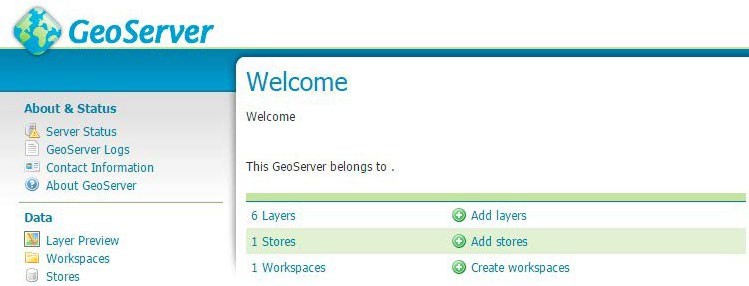
   <figure><img src="https://1897589978-files.gitbook.io/~/files/v0/b/gitbook-x-prod.appspot.com/o/spaces%2FcNpJpLP8RROUaWVQo5ea%2Fuploads%2FKYLWSDtbSUCqgF1d8lXK%2F11.jpeg?alt=media" alt="Geoserver UI displaying the Welcome screen"><figcaption><p>Geoserver UI displaying the Welcome screen</p></figcaption></figure>
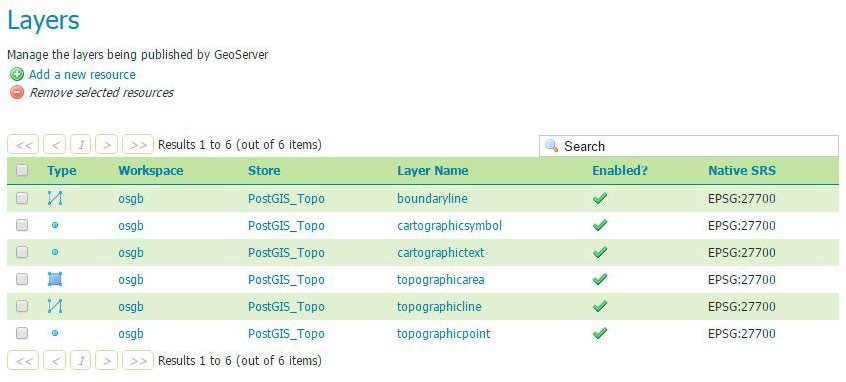
2. Click *Open Layers* in the Data menu in the left panel to view the OSMM topography layers: “boundaryline”, “cartographicsymbol”, “cartographictext”, “topographicarea”, “topgraphicline” and “topographicpoint”.<br>

   <figure><img src="https://1897589978-files.gitbook.io/~/files/v0/b/gitbook-x-prod.appspot.com/o/spaces%2FcNpJpLP8RROUaWVQo5ea%2Fuploads%2FlWTotiarbnwtwpOVvrcB%2F12.jpeg?alt=media" alt="Geoserver Layers UI showing OSMM data layers"><figcaption><p>Geoserver Layers UI showing OSMM data layers</p></figcaption></figure>
3. To upload the new SLD style files:
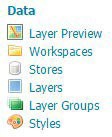
   * Click *Styles* in the Data menu in the left panel.<br>

     <figure><img src="https://1897589978-files.gitbook.io/~/files/v0/b/gitbook-x-prod.appspot.com/o/spaces%2FcNpJpLP8RROUaWVQo5ea%2Fuploads%2FjJMDm1AWDLVvFghh7zuh%2F13.jpeg?alt=media" alt="Geoserver Data menu options"><figcaption><p>Geoserver Data menu options</p></figcaption></figure>

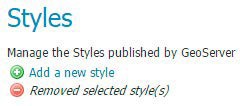
* &#x20;Click *Add a new style*.<br>

  <figure><img src="https://1897589978-files.gitbook.io/~/files/v0/b/gitbook-x-prod.appspot.com/o/spaces%2FcNpJpLP8RROUaWVQo5ea%2Fuploads%2F83uXQriHQ9kKtbu6w2Il%2F14.jpeg?alt=media" alt="Geoserver Styles UI showing style management options"><figcaption><p>Geoserver Styles UI showing style management options</p></figcaption></figure>
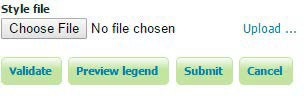
* Click *Choose File* in the Style file field at the bottom of the page, select one of the SLD files on your computer, and click *Upload*.<br>

  <figure><img src="https://1897589978-files.gitbook.io/~/files/v0/b/gitbook-x-prod.appspot.com/o/spaces%2FcNpJpLP8RROUaWVQo5ea%2Fuploads%2Fvkf4GaI4XmgzMBKImXjn%2F15.jpeg?alt=media" alt="Geoserver Style file field in the Styles UI"><figcaption><p>Geoserver Style file field in the Styles UI</p></figcaption></figure>
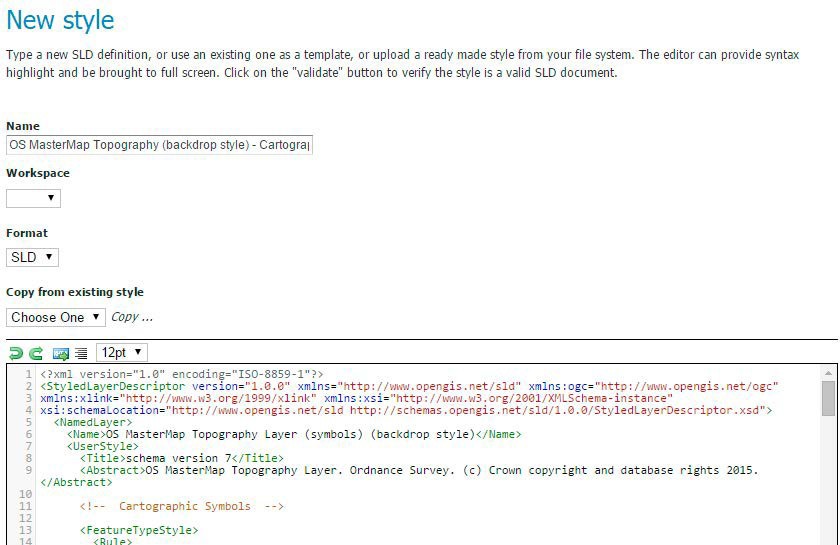
* The page will refresh to display the uploaded SLD file.<br>

  <figure><img src="https://1897589978-files.gitbook.io/~/files/v0/b/gitbook-x-prod.appspot.com/o/spaces%2FcNpJpLP8RROUaWVQo5ea%2Fuploads%2FXJhW5UtIiux5z14y1fRC%2F16.jpeg?alt=media" alt="Geoserver New style UI showing uploaded SLD stylesheet" width="563"><figcaption><p>Geoserver New style UI showing uploaded SLD stylesheet</p></figcaption></figure>
* Click *Submit*.
* Repeat this procedure (steps b. to e. above) for the other SLD files.

4. To associate the uploaded SLD files with their respective data layers:
   * Click *Layers* in the Data menu in the left panel.<br>

     <figure><img src="https://1897589978-files.gitbook.io/~/files/v0/b/gitbook-x-prod.appspot.com/o/spaces%2FcNpJpLP8RROUaWVQo5ea%2Fuploads%2FjJMDm1AWDLVvFghh7zuh%2F13.jpeg?alt=media" alt="Geoserver Data menu options"><figcaption><p>Geoserver Data menu options</p></figcaption></figure>

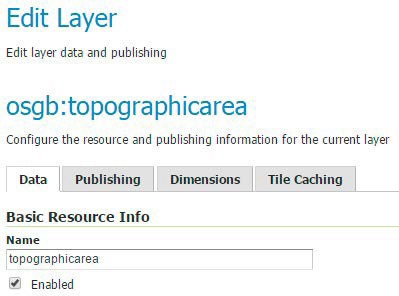
* Click a layer (for example, “topographicarea”) to open the Edit Layer view.<br>

  <figure><img src="https://1897589978-files.gitbook.io/~/files/v0/b/gitbook-x-prod.appspot.com/o/spaces%2FcNpJpLP8RROUaWVQo5ea%2Fuploads%2FZDfgIkd5wqMAD9gZVYBA%2F18.jpeg?alt=media" alt="Geoserver Edit Layer UI"><figcaption><p>Geoserver Edit Layer UI</p></figcaption></figure>

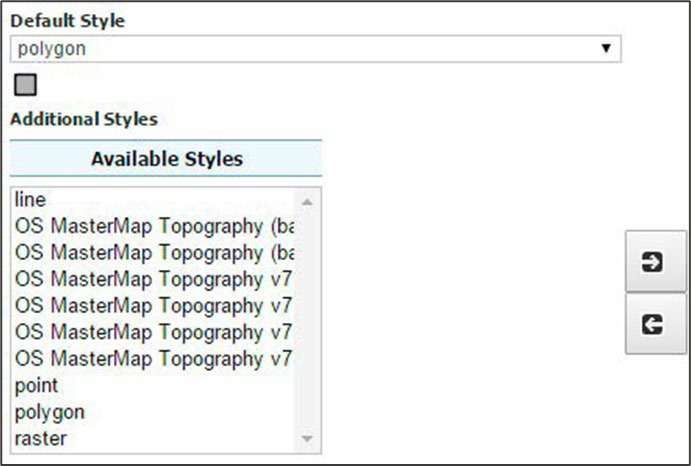
* Select the *Publishing* tab, scroll to the Default Style field, and select the SLD (uploaded in the previous step) that matches the selected data layer in drop-down menu.<br>

  <figure><img src="https://1897589978-files.gitbook.io/~/files/v0/b/gitbook-x-prod.appspot.com/o/spaces%2FcNpJpLP8RROUaWVQo5ea%2Fuploads%2F804esvUYFCn81PTsgUj6%2F19.png?alt=media" alt="Geoserver Default Style Style field showing polygon selected amongst available additional styles"><figcaption><p>Geoserver Default Style Style field</p></figcaption></figure>

* Repeat this procedure (steps a. to c. above) for the other layers.

5. Once all the SLDs have been associated with layers you can view the data.

* *The SLDs have a minimum viewing scale of 1:4000.*
* *We recommend adding a background colour layer of RGB (228, 244, 247)*.

</details>

<details>

<summary>LYR (Esri Layer) stylesheets</summary>

The following steps guide you through the process of loading the LYR (Esri Layer) stylesheets in ArcMap and associating them with OS MasterMap Topography Layer.

To use the LYR (Esri Layer) stylesheets:

1. Install the OSMasterMap font on your computer:

*This gives you the OS MasterMap symbology*.

* Navigate to the “OSMM-Topography-Layer-stylesheets/Schema version 9/Stylesheets/ESRI stylesheets (LYR)” folder and double-click “OSMasterMap.ttf”.
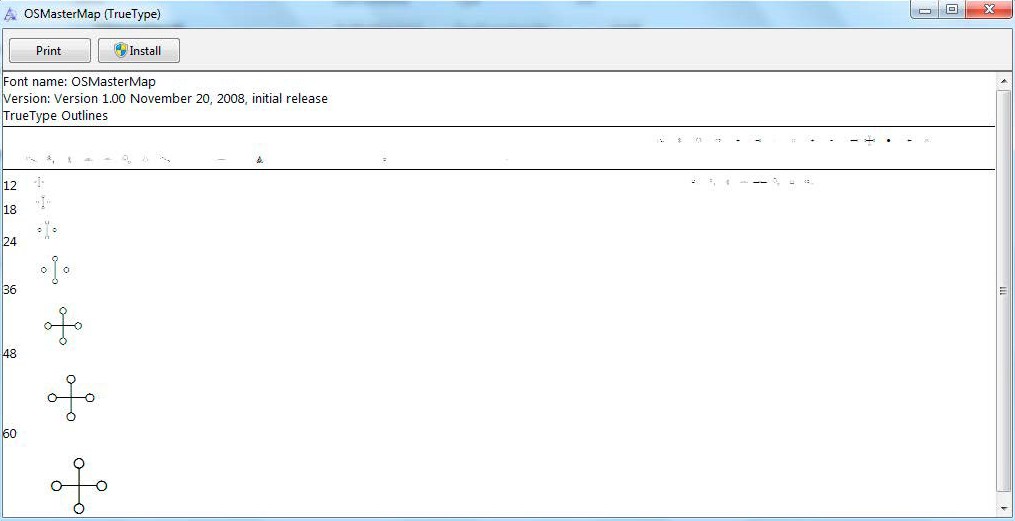
* Click *Install* in the OSMasterMap (True Type) dialog.
* *You may need Administrator privileges to install a new font.*

  <figure><img src="https://1897589978-files.gitbook.io/~/files/v0/b/gitbook-x-prod.appspot.com/o/spaces%2FcNpJpLP8RROUaWVQo5ea%2Fuploads%2F8RTY2N8H4SK4GpWRW21a%2F20.jpeg?alt=media" alt="OSMAsterMap font installation screen"><figcaption><p>OSMAsterMap font installation</p></figcaption></figure>

2. In ArcMap, open a new blank map.
3. Use the Catalog to navigate to “OSMM-Topography-Layer-v9.lyr” and load it into your project.<br>

   <figure><img src="https://1897589978-files.gitbook.io/~/files/v0/b/gitbook-x-prod.appspot.com/o/spaces%2FcNpJpLP8RROUaWVQo5ea%2Fuploads%2FLmhhed8AhgmFVN27unVI%2Fimage.png?alt=media&#x26;token=8048c2fe-6d69-4d58-873d-56283e50109c" alt="ArcMap UI showing OSMM Topography Layer (with all data layers) loaded in the Layers panel"><figcaption><p>ArcMap UI showing OSMM Topography Layer (with all data layers) loaded in the Layers panel</p></figcaption></figure>

*The red exclamation marks next to the layer names means you need to repair the data source.*

4. Connect the LYR stylesheets to the OS MasterMap Topography Layer data layers:
   * Double-click a layer, for example “TopographicArea”.
   * In the Layer Properties dialog, select the *Source* tab and click *Set Data Source*.
   * In the Data Source dialog, navigate to the database containing OS MasterMap Topography Layer, select the matching layer, and click *Add*.<br>

     <figure><img src="https://1897589978-files.gitbook.io/~/files/v0/b/gitbook-x-prod.appspot.com/o/spaces%2FcNpJpLP8RROUaWVQo5ea%2Fuploads%2FnL92PxzMcx0RhtA4BulD%2Fimage.png?alt=media&#x26;token=12db1b65-dc5b-412c-a4d2-16be6e1f918e" alt="ArcMap Layer Properties dialog showing Source tab and Data Source dialog in which you can select the matching OSMM Topography data layer."><figcaption><p>ArcMap Data Source dialog showing OSMM Topography data layers.</p></figcaption></figure>
   * Repeat this procedure (the three steps above) for the other data layers.

* *We recommend setting a reference scale of 1:2000 and viewing the map between 1:500 and 1:4000 for maximum legibility. The minimum viewing scale is set at 1:4000.*
* *We also recommend adding a background colour layer of RGB (228, 244, 247).*
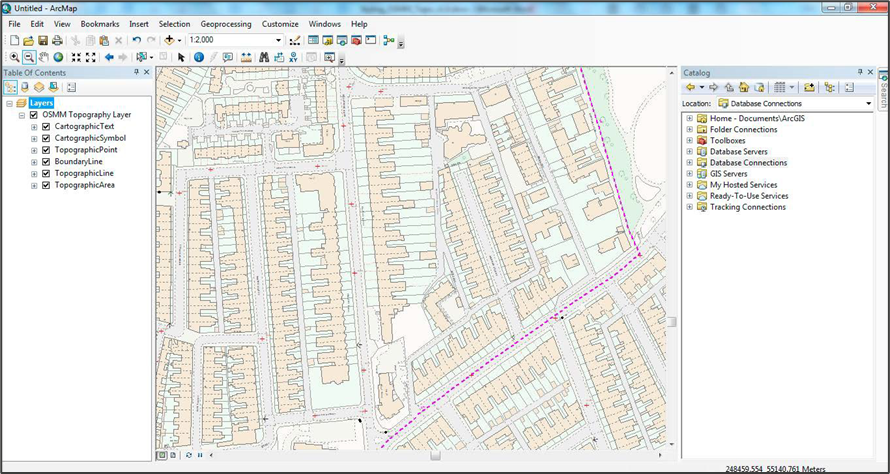
* Your map should now look similar to this:<br>

  <figure><img src="https://1897589978-files.gitbook.io/~/files/v0/b/gitbook-x-prod.appspot.com/o/spaces%2FcNpJpLP8RROUaWVQo5ea%2Fuploads%2FdjmNK9mXSMsjktphpkVn%2Fimage.png?alt=media&#x26;token=93d1c82a-f91a-4d88-9ec5-674c19952689" alt="ArcMap window showing OSMM Topography data layers loaded into the main data window"><figcaption><p>ArcMap window showing OSMM Topography data layers loaded into the main data window</p></figcaption></figure>

</details>

<details>

<summary>LYRX (ArcGIS Pro) stylesheets</summary>

The following steps guide you through the process of loading the LYRX stylesheets into ArcGIS Pro and associating them with OS MasterMap Topography Layer.

To use the LYRX stylesheets:

1. Install the OSMasterMap font on your computer: *This gives you the OS MasterMap symbology.*
   * Navigate to the “OSMM-Topography-Layer-stylesheets/Schema version 9/Stylesheets/ArcGIS Pro stylesheets (LYRX)” folder and double-click “OSMasterMap.ttf”.
   * Click *Install* in the OSMasterMap (True Type) dialog.<br>

     <figure><img src="https://1897589978-files.gitbook.io/~/files/v0/b/gitbook-x-prod.appspot.com/o/spaces%2FcNpJpLP8RROUaWVQo5ea%2Fuploads%2FVIp9NsEbo2UfMdBhjLxD%2Fimage.png?alt=media&#x26;token=d2386bf5-e16b-4a1f-b461-6856cd6c44c1" alt="OSMasterMap (TrueType) dialog showing the print and install buttons on the top bar"><figcaption><p>OSMasterMap (TrueType) dialog</p></figcaption></figure>

*You may need Administrator privileges to install a new font.*<br>

2. In ArcGIS Pro, open a new blank map.
3. Use the Catalog to navigate to “OSMM Topography Layer (Preferred style).lyrx” and load it into your project.<br>

   <figure><img src="https://1897589978-files.gitbook.io/~/files/v0/b/gitbook-x-prod.appspot.com/o/spaces%2FcNpJpLP8RROUaWVQo5ea%2Fuploads%2FeW8VKhp2ec4Xu8VUxOxo%2Fimage.png?alt=media&#x26;token=199acca7-f26a-457f-a749-6d58013cd83e" alt="ArcGIS Pro UI showing OSMM Topography Layer (with all data layers) loaded in the Contents panel"><figcaption><p>ArcGIS Pro UI showing OSMM Topography Layer (with all data layers) loaded in the Contents panel</p></figcaption></figure>

*The red exclamation marks next to the layer names means you need to repair the data source.*

* To fix the broken data links, connect the LYRX stylesheets to the OS MasterMap Topography Layer data layers:
  * Double-click a layer, for example “TopographicArea”.
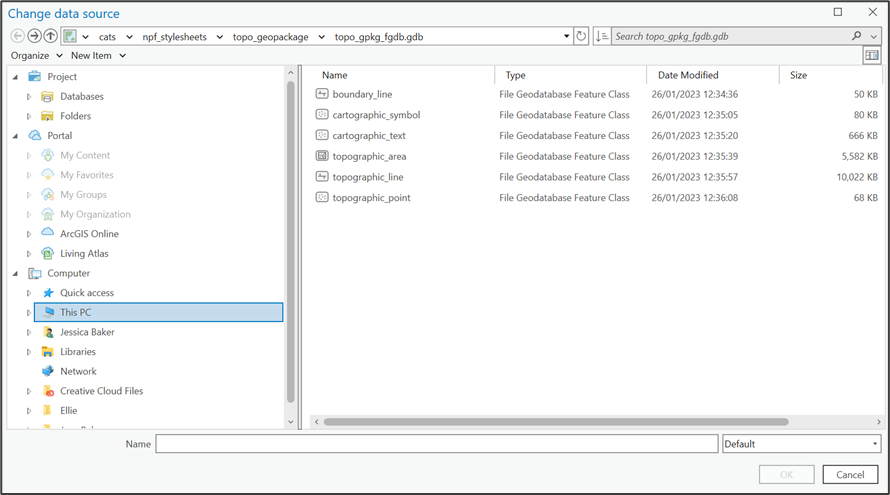
  * In the Change data source dialog, navigate to the database containing OS MasterMap Topography Layer, select the matching layer, and click *Add*.<br>

    <figure><img src="https://1897589978-files.gitbook.io/~/files/v0/b/gitbook-x-prod.appspot.com/o/spaces%2FcNpJpLP8RROUaWVQo5ea%2Fuploads%2FsPVleW5eZoHDb2IJb0f9%2Fimage.png?alt=media&#x26;token=9a5d8dca-3eb3-40ee-974e-6ea67329713b" alt="ArcMap Data Source dialog showing OSMM Topography data layers"><figcaption><p>ArcGIS Pro Data Source dialog showing OSMM Topography data layers</p></figcaption></figure>
* Repeat this procedure (steps a. and b. above) for the other data layers.
* *We recommend setting a reference scale of 1:2000 and viewing the map between 1:500 and 1:4000 for maximum legibility. The minimum viewing scale is set at 1:4000.*
* *We also recommend adding a background colour layer of RGB (228, 244, 247).*
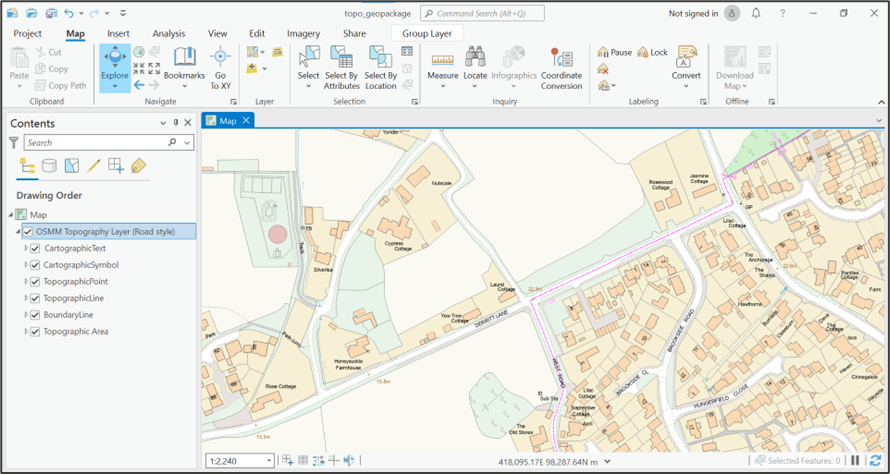
* Your map should now look similar to this:<br>

  <figure><img src="https://1897589978-files.gitbook.io/~/files/v0/b/gitbook-x-prod.appspot.com/o/spaces%2FcNpJpLP8RROUaWVQo5ea%2Fuploads%2FSEonKX9zOXoFcgZc6prt%2Fimage.png?alt=media&#x26;token=a6afa1b2-bde4-4292-93f6-b755bc5a1eb5" alt=""><figcaption><p>ArgGis main map window with OSMM Topography data layers shown</p></figcaption></figure>

</details>

<details>

<summary>QML (QGIS) stylesheets</summary>

The following steps guide you through the process of loading the QML stylesheets in QGIS and associating them with OS MasterMap Topography Layer.

To use QML (QGIS) stylesheets:

1. Navigate to the “OSMM-Topography-Layer-stylesheets/Schema version 9/Stylesheets/QGIS stylesheets (OML)” folder and double-click “OSMasterMap.ttf”.
2. Click Install in the OSMasterMap (True Type) dialog.<br>

   <figure><img src="https://1897589978-files.gitbook.io/~/files/v0/b/gitbook-x-prod.appspot.com/o/spaces%2FcNpJpLP8RROUaWVQo5ea%2Fuploads%2F7S1VFolLpaS92MEcXcgB%2Fimage.png?alt=media&#x26;token=69394b9a-1b6a-458f-81a4-b46e7c97e505" alt="OSMasterMap (TrueType) dialog"><figcaption><p>OSMasterMap (TrueType) dialog</p></figcaption></figure>

*You may need Administrator privileges to install a new font.*

3. Copy the “osmmsymbols” folder into the QGIS “svg” folder on your computer.

*The “osmmsymbols” folder is in “OSMM-Topography-Layer-stylesheets/Schema version 9/Stylesheets/QGIS stylesheets (QML)” folder of the extracted GitHub files.*

*The “svg” folder is typically in “C:\\\<program folder>\QGIS \<version>\apps\qgis-ltr\svg”, for example, “C:\Program Files\QGIS 3.22.4\apps\qgis-ltr\svg”.*

*You may need to re-open QGIS if you had it open during this step.*

4. Load in the OS MasterMap Topography Layer data from your database.
5. To load the stylesheets:
   * Double-click a layer to open the Layer Properties dialog:
   * In the Layer Rendering section (bottom left), click *Style > Load Style.*
   * In the Database Styles Manager dialog, click “…” next to the File field, select the QML file (.qml) that matches the selected layer, and then click *Load Style*.

*The QML files are in the “*/OSMM-Topography-Layer-stylesheets-master/Schema version 9/Stylesheets/QGIS stylesheets (QML)” *folder of the extracted GitHub files*.

<img src="https://1897589978-files.gitbook.io/~/files/v0/b/gitbook-x-prod.appspot.com/o/spaces%2FcNpJpLP8RROUaWVQo5ea%2Fuploads%2FZpJoMGQKhFHpOwfmQ60m%2Fimage.png?alt=media&#x26;token=06cfc48a-0c28-4692-8870-593e8eb3e7ef" alt="QGIS Layers panel showing OSMM Topography data layers" data-size="original">

Click *OK* to close the Layer Properties dialog.

6. Repeat this procedure (steps a. to d. above) for the other OS MasterMap Topography Layer layers<br>
<img src="https://1897589978-files.gitbook.io/~/files/v0/b/gitbook-x-prod.appspot.com/o/spaces%2FcNpJpLP8RROUaWVQo5ea%2Fuploads%2FZpJoMGQKhFHpOwfmQ60m%2Fimage.png?alt=media&#x26;token=06cfc48a-0c28-4692-8870-593e8eb3e7ef" alt="QGIS Layers panel showing OSMM Topography data layers" data-size="original">

For the best visibility, we recommend you order the layers as follows: “cartographictext”, “cartographicsymbol”, “topographicpoint”, “boundaryline”, “topographicline”, “topographicarea”. You can use drag and drop to reorder the layers.

* *We recommend viewing the map at a scale of between 1:500 and 1:4000. For maximum legibility we have set the minimum viewing scale at 1:4000.*
* *We recommend adding a background colour of R:228,G:244,B:247*
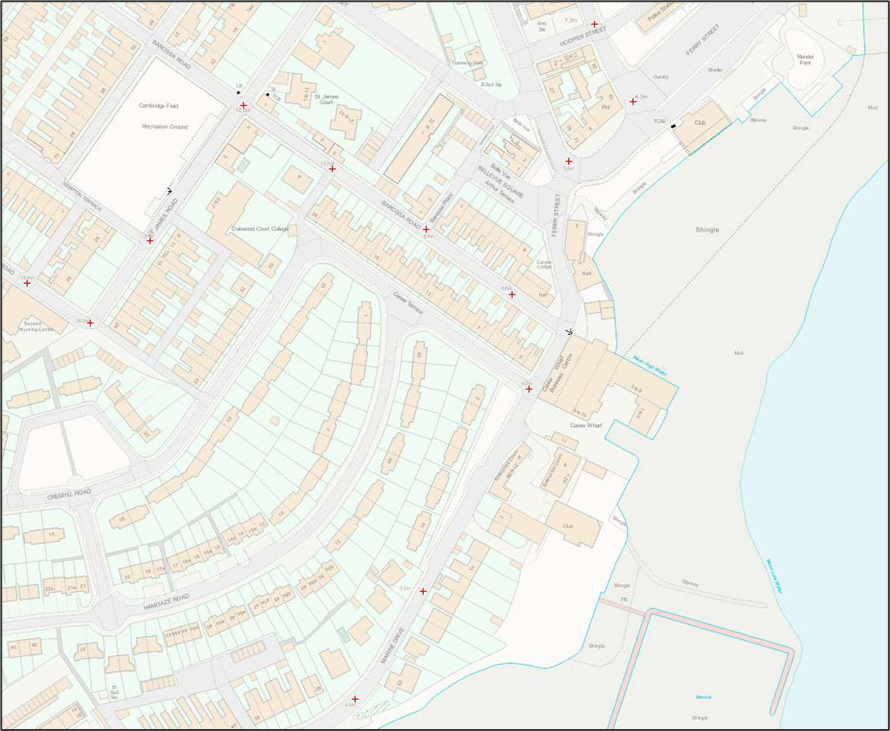
* Your map should now look similar to this:<br>

  <figure><img src="https://1897589978-files.gitbook.io/~/files/v0/b/gitbook-x-prod.appspot.com/o/spaces%2FcNpJpLP8RROUaWVQo5ea%2Fuploads%2FQR9zRIiIuU4JJRUDwEig%2Fimage.png?alt=media&#x26;token=343406e2-975f-4ae3-b5ba-dd73fc5a00c0" alt=""><figcaption></figcaption></figure>

</details>

## Mapbox GL styles <a href="#id-4.5-mapbox-gl-styles" id="id-4.5-mapbox-gl-styles"></a>

A Mapbox style is a document that defines the visual appearance of a map: what data to draw, the order to draw it in, and how to style the data when drawing it. A style document is a JSON object with specific root level and nested properties. This specification defines and describes these properties.

The Mapbox GL styles (.json) for OS MasterMap Topography Layer Vector Tiles are for use in Mapbox Studio, Maputnik and other compatible software.

They have been designed to work with the data as it is supplied.

The fonts and sprites required for each style are supplied for if you want to use the styles offline/locally. You will need to host these locally and input the host locations into the .json file where prompted.