# Zoomstack GeoPackage format

<figure><img src="https://1897589978-files.gitbook.io/~/files/v0/b/gitbook-x-prod.appspot.com/o/spaces%2FcNpJpLP8RROUaWVQo5ea%2Fuploads%2FnvBY4YukWnM0GBRXAFpr%2Fimage.png?alt=media&#x26;token=1873123b-c31a-4b4a-a895-4d882eefab4b" alt="Geopackage data showing mapping data "><figcaption><p>Map data shown in GeoPackage format</p></figcaption></figure>

GeoPackage is an open, standards-based, portable, platform-independent, compact format for transferring geospatial information. This allows Zoomstack to store geospatial data in a single file that is easy to distribute. It can hold large amounts of data and can support the different geometry types and indexes which make the data much easier to use. Quite simply it is a great Plug n Play format which works with a wide range of software implementations.

## What are the benefits of GeoPackage? <a href="#id-3.2-what-are-the-benefits-of-geopackage" id="id-3.2-what-are-the-benefits-of-geopackage"></a>

GeoPackage offers users the following benefits:

* The single file is easy to transfer and offers the end-user a rich experience.
* Attribute names are not limited in length making it user friendly.
* No file size limit so lots of data can be easily accommodated.
* Supports both raster and vector making it versatile for any type of data.
* OGC Standard.

## Installing Zoomstack

The instructions that follow are for installing Zoomstack GeoPackage in various GIS software applications. Please refer to the relevant section based on the GIS software you’re using:

<details>

<summary>QGIS</summary>

These instructions are based on QGIS 3.4 – a Long Term Release.

1. Download and unzip the [GeoPackage.](https://www.ordnancesurvey.co.uk/opendatadownload/products.html#ZMSTCK)
2. Open QGIS and start a new project.
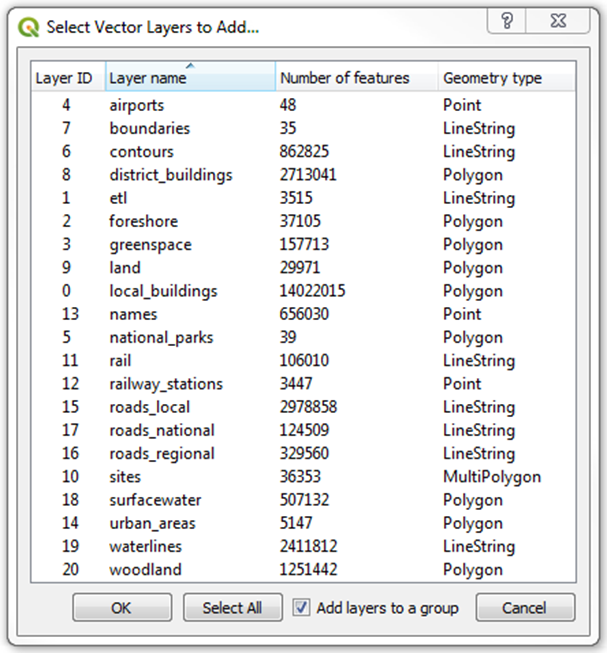
3. The easiest way to load the data is to simply drag and drop the unzipped GeoPackage (*OS\_Open\_Zoomstack.gpkg*) into QGIS, click *Select All* and *Add layers to a group*, then click *OK*.<br>

   <figure><img src="https://1897589978-files.gitbook.io/~/files/v0/b/gitbook-x-prod.appspot.com/o/spaces%2FcNpJpLP8RROUaWVQo5ea%2Fuploads%2FBXrQswvluqALbXGvAKIr%2Fimage.png?alt=media&#x26;token=0346a72f-2a80-44f0-9dd2-3cb5dff72567" alt="" width="455"><figcaption><p>Add Vector Layers window</p></figcaption></figure>
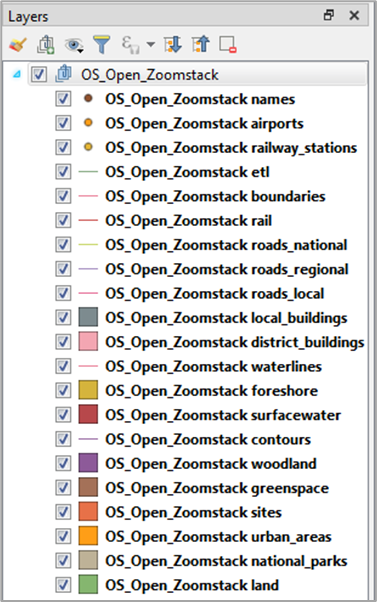
4. In the Layers Panel, drag and drop the layers into the following order as this is the order in which QGIS will draw them:<br>

   <figure><img src="https://1897589978-files.gitbook.io/~/files/v0/b/gitbook-x-prod.appspot.com/o/spaces%2FcNpJpLP8RROUaWVQo5ea%2Fuploads%2FUs8LsDEBgD6h7akaEpqd%2Fimage.png?alt=media&#x26;token=0c3775c1-7fd1-4775-93d0-f48432946be3" alt="" width="283"><figcaption><p>Layers added in the QGIS panel</p></figcaption></figure>

It may take a little while for the data to render as this is a large file. You may find it quicker if you zoom in to street level as this will limit the number of features in your map window.

We would highly recommend using the stylesheets OS provides as this adds feature filters and styling. The following instructions show you how to use our QML stylesheets.

### Using OS stylesheets to get started in QGIS <a href="#id-3.3.1-using-os-stylesheets-to-get-starte" id="id-3.3.1-using-os-stylesheets-to-get-starte"></a>

OS has supplied QML stylesheets for use in QGIS. The QML stylesheets allow you to add colours to features contained in the Vector Tiles to produce a far more vivid and visually appealing map.

The steps that follow will guide you through setting up QML stylesheets in QGIS.

1. Before continuing, you will need to [download the folder of stylesheets.](https://github.com/OrdnanceSurvey/OS-Open-Zoomstack-Stylesheets/archive/master.zip) You can also [view the stylesheets](https://github.com/OrdnanceSurvey/OS-Open-Zoomstack-Stylesheets) on GitHub.
2. Once downloaded and unzipped, navigate in the folder to *GeoPackage → QGIS Stylesheets (QML)*.
3. Next, copy the folder of SVGs called *os-open-zoomstack-symbols* into your QGIS SVG directory (a typical Windows file path is *C:\Program Files\QGIS xxxx\apps\qgis\svg*, where xxxx represents the version of QGIS you are running). QGIS may require a restart in order to pick these up.
4. To add a sea tint to your map, go to the top menu and select *Project → Properties.*.. → *General* and change the background colour depending on your chosen style:
   * Outdoor: R169 G221 B239
   * Road: R213 G239 B248
   * Light: R197 G205 B208
   * Night: R4 G19 B38
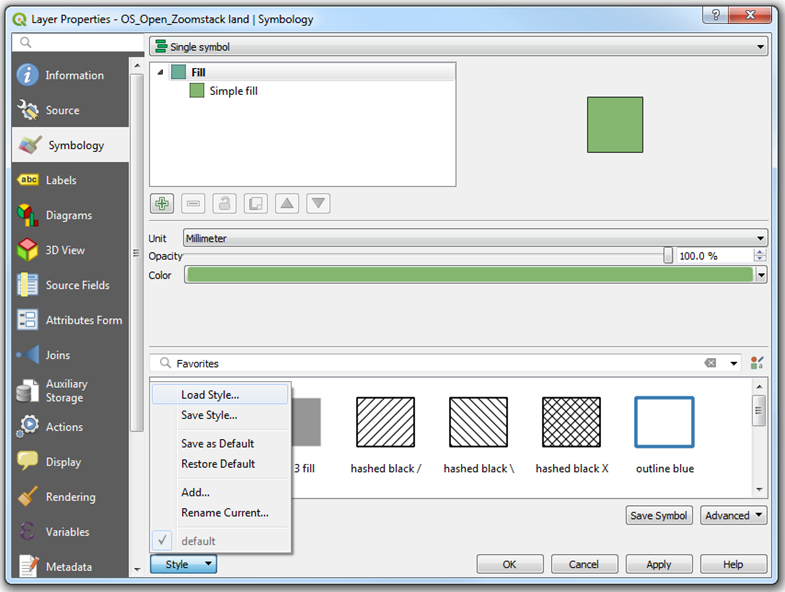
5. To apply the QML, double-click on a layer to open up the Layer Properties window. Then, from the left-hand panel, select the *Symbology* tab, click *Style → Load Style*…<br>

   <figure><img src="https://1897589978-files.gitbook.io/~/files/v0/b/gitbook-x-prod.appspot.com/o/spaces%2FcNpJpLP8RROUaWVQo5ea%2Fuploads%2FXEVsgVCL3Ug731Ht6Qks%2Fimage.png?alt=media&#x26;token=3aeeec08-fe3b-433d-ac8f-c1715f96f2d0" alt="Layer properties window for QGIS"><figcaption><p>Layer properties window showing the Favorites context meny</p></figcaption></figure>
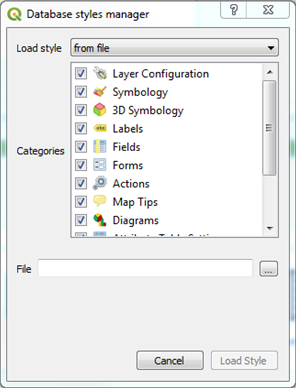
6. Next, click the 3 dots along from *File*.<br>

   <figure><img src="https://1897589978-files.gitbook.io/~/files/v0/b/gitbook-x-prod.appspot.com/o/spaces%2FcNpJpLP8RROUaWVQo5ea%2Fuploads%2F5aMaKQBlWCyNVQ908IXO%2Fimage.png?alt=media&#x26;token=0406da0b-ad51-4987-9acf-6c9ddcc90666" alt=""><figcaption><p>Database styles manager menu</p></figcaption></figure>
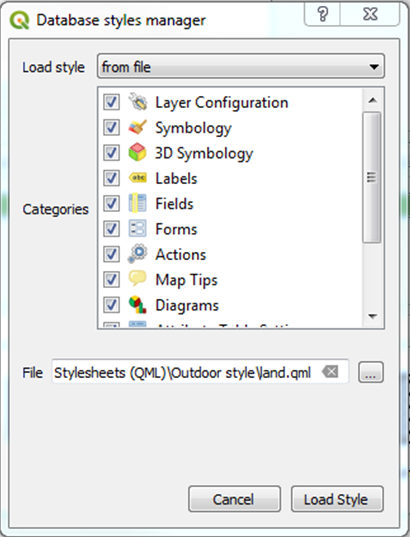
7. Then browse to your folder of stylesheets, navigate to *GeoPackage → QGIS Stylesheets (QML)* and select the corresponding QML file (e.g. *land.qml* for the land layer), then click *OK* and *Load Style*.<br>

   <figure><img src="https://1897589978-files.gitbook.io/~/files/v0/b/gitbook-x-prod.appspot.com/o/spaces%2FcNpJpLP8RROUaWVQo5ea%2Fuploads%2Fa4ftRkJvJf9S32u78EI0%2Fimage.png?alt=media&#x26;token=58099723-858d-4931-ae2f-8555d33a45b9" alt="Database styles manager dialog"><figcaption><p>Database styles manager dialog</p></figcaption></figure>
8. You will need to repeat this process for every layer until they are all styled, and you have a gorgeous map.

</details>

<details>

<summary>ESRI ArcMap</summary>

### Installing Zoomstack GeoPackage in ESRI ArcMap <a href="#id-3.4-installing-zoomstack-geopackage-in-e" id="id-3.4-installing-zoomstack-geopackage-in-e"></a>

These instructions are based on ESRI ArcMap 10.6.1. ArcMap versions 10.2 and above will support GeoPackage and versions 10.3 and above also support the editing of GeoPackage.

1. Download and unzip the [GeoPackage.](https://www.ordnancesurvey.co.uk/opendatadownload/products.html#ZMSTCK)
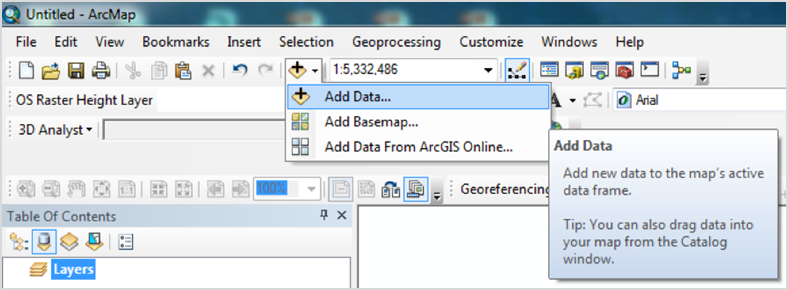
2. Open ArcMap and click on the *Add Data* button.<br>

   <figure><img src="https://1897589978-files.gitbook.io/~/files/v0/b/gitbook-x-prod.appspot.com/o/spaces%2FcNpJpLP8RROUaWVQo5ea%2Fuploads%2FIkxCFaYXjXUqbrk3zITq%2Fimage.png?alt=media&#x26;token=2205524c-4b73-4f21-8c78-88c011819a26" alt=""><figcaption><p>ArcMap Add data button shown in the toolbar</p></figcaption></figure>
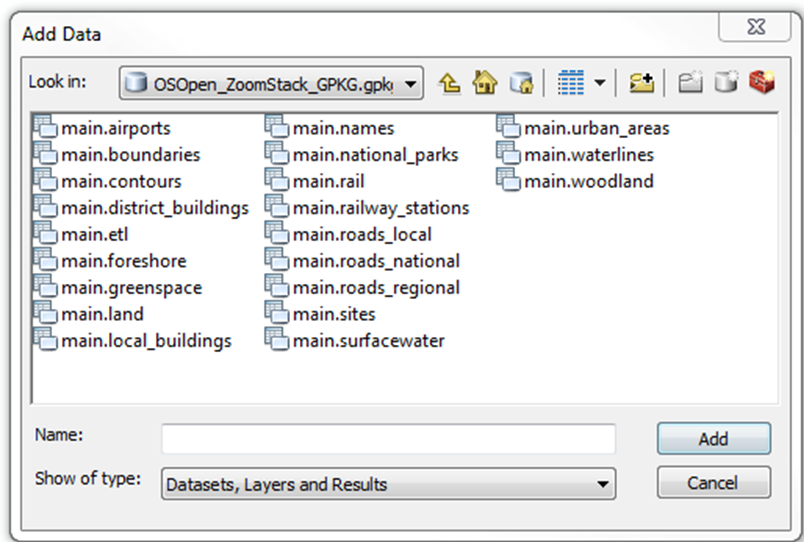
3. Browse to the location of your unzipped GeoPackage.<br>

   <figure><img src="https://1897589978-files.gitbook.io/~/files/v0/b/gitbook-x-prod.appspot.com/o/spaces%2FcNpJpLP8RROUaWVQo5ea%2Fuploads%2FqakE5ZEp1u3aZUUflqJE%2Fimage.png?alt=media&#x26;token=5472d625-fbd1-4121-8f73-d7771abec4c4" alt="" width="563"><figcaption><p>OS Open Zoomstack data shown in the Windows file explorer</p></figcaption></figure>
4. Double click on the .gpkg file then either select one layer, or hold CTRL and select all layers and then click *Add*.<br>

   <figure><img src="https://1897589978-files.gitbook.io/~/files/v0/b/gitbook-x-prod.appspot.com/o/spaces%2FcNpJpLP8RROUaWVQo5ea%2Fuploads%2Fo0EWDxEWHd6Oiu1iRjND%2Fimage.png?alt=media&#x26;token=506018fc-80bc-4ff7-8bb8-c2556f0ea850" alt=""><figcaption><p>Layer files shown in the Windows file explorer in the Add Data menu</p></figcaption></figure>

* The data will now load into ArcMap. This may take a while as this is a large file, but once it is loaded you will see the data rendered with default styles.
* Render speeds can be quite slow when all the layers are visible. If you are only interested in a few layers, then you can turn the others off – OS Open Zoomstack is fully customisable in that sense.

It is highly recommended you use the OS stylesheet provided as this adds the relevant layer ordering and feature filters. The following instructions show you how to use the LYR File.

### Using OS stylesheets to get started in ESRI ArcMap <a href="#id-3.4.1-using-os-stylesheets-to-get-starte" id="id-3.4.1-using-os-stylesheets-to-get-starte"></a>

1. Before continuing, you will need to [download the folder of stylesheets.](https://github.com/OrdnanceSurvey/OS-Open-Zoomstack-Stylesheets/archive/master.zip) You can also [view the stylesheets](https://github.com/OrdnanceSurvey/OS-Open-Zoomstack-Stylesheets) on GitHub.
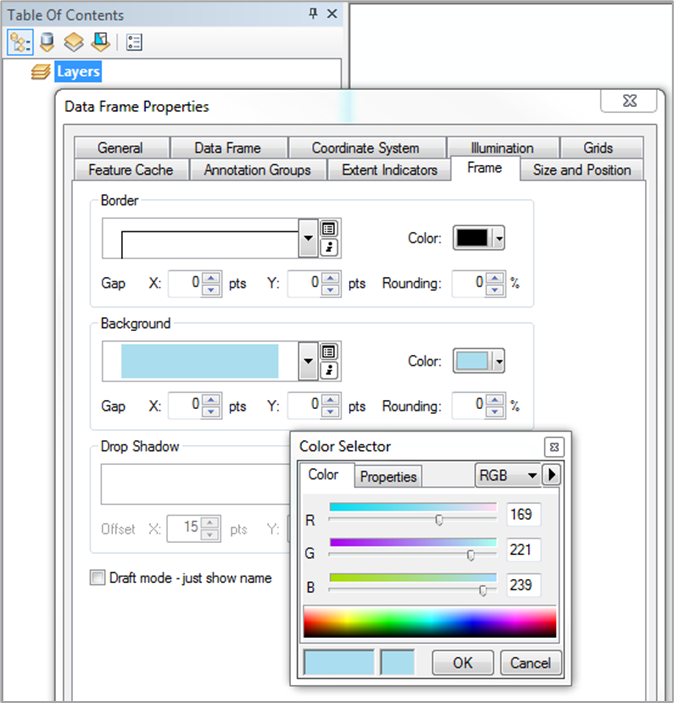
2. Firstly, we’ll add a sea tint to your map. To do this, right click on *Layers* and then *Properties*…. In the *Data Frame Properties*, select *Frame* and change the Background colour depending on your chosen style:
   * Outdoor: R169 G221 B239
   * Road: R213 G239 B248
   * Light: R197 G205 B208
   * Night: R4 G19 B38\ <br>

     <figure><img src="https://1897589978-files.gitbook.io/~/files/v0/b/gitbook-x-prod.appspot.com/o/spaces%2FcNpJpLP8RROUaWVQo5ea%2Fuploads%2Fb50MAgDbzzEj2xvJ5zIS%2Fimage.png?alt=media&#x26;token=32ff59a9-3416-4510-87a7-610f25b17408" alt="" width="506"><figcaption><p>Data frame properties window</p></figcaption></figure>
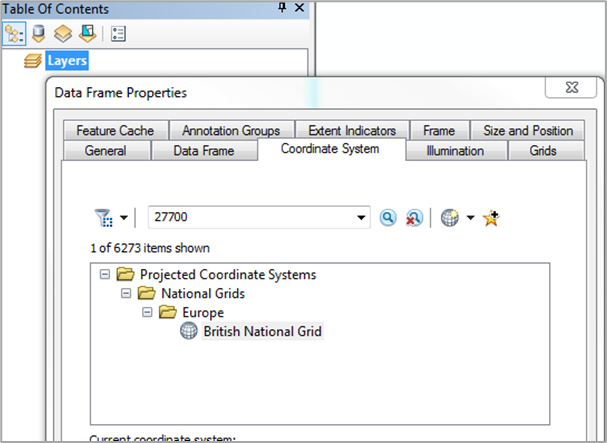
3. Next, set the Coordinate System to British National Grid. Select the *Coordinate System* tab and search for *27700*, select *British National Grid* and click *OK*.<br>

   <figure><img src="https://1897589978-files.gitbook.io/~/files/v0/b/gitbook-x-prod.appspot.com/o/spaces%2FcNpJpLP8RROUaWVQo5ea%2Fuploads%2FgiKn8mYVmlL3AkMcYcLx%2Fimage.png?alt=media&#x26;token=071202ee-35f8-41de-8fc2-013fa813fd0f" alt=""><figcaption><p>Coordinate System settings tab in the data frame properties window</p></figcaption></figure>
4. Click the *Add Data* button&#x20;
5. Then browse to your folder of stylesheets, navigate to *GeoPackage → ESRI Stylesheets (LYR)* and select the style of your choice, then click *Add.*<br>

   <figure><img src="https://1897589978-files.gitbook.io/~/files/v0/b/gitbook-x-prod.appspot.com/o/spaces%2FcNpJpLP8RROUaWVQo5ea%2Fuploads%2FOcEln3ysGgEEVFEg30A1%2Fimage.png?alt=media&#x26;token=94987fd4-da0c-4cb6-b90b-2b2cc00babda" alt="Add data dialog window"><figcaption><p>ESRI stylesheets files shown in the file explorer window</p></figcaption></figure>
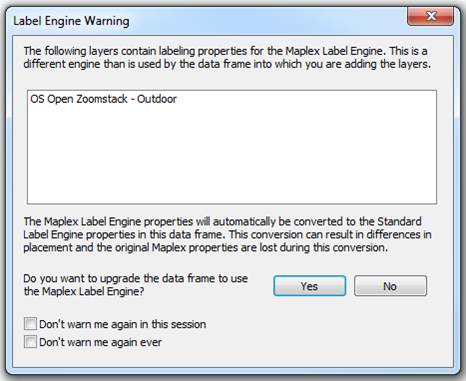
6. If you see the following *Label Engine Warning*, click *Yes*.<br>

   <figure><img src="https://1897589978-files.gitbook.io/~/files/v0/b/gitbook-x-prod.appspot.com/o/spaces%2FcNpJpLP8RROUaWVQo5ea%2Fuploads%2Fs5rDCudnssoeSyOSU352%2Fimage.png?alt=media&#x26;token=c5c053d0-23d9-4dfc-9a43-358f483ab30c" alt="Screenshot of the label engine warning dialog"><figcaption><p>Label engine waring dialog</p></figcaption></figure>

* The LYR File will then load into your Table of Contents but there will be a red exclamation mark against each layer and initially no data will render.<br>

  <figure><img src="https://1897589978-files.gitbook.io/~/files/v0/b/gitbook-x-prod.appspot.com/o/spaces%2FcNpJpLP8RROUaWVQo5ea%2Fuploads%2Fir0Lshz936brqzKBT3dJ%2Fimage.png?alt=media&#x26;token=4186375b-38a9-442d-a0a7-bd54adcfc94e" alt="Table of contents showing open layers"><figcaption><p>Table of contents showing open layers</p></figcaption></figure>

7. Click on one of the red exclamation marks to open the *Set Data Source* dialogue box then navigate to your *OS\_Open\_ZoomStack.gpkg*, select the corresponding layer and click *Add*.<br>

   <figure><img src="https://1897589978-files.gitbook.io/~/files/v0/b/gitbook-x-prod.appspot.com/o/spaces%2FcNpJpLP8RROUaWVQo5ea%2Fuploads%2FHHUw8bgY0ooH7jj6eOtt%2Fimage.png?alt=media&#x26;token=6d13790c-db0f-4dfb-b701-104ae80e9e6d" alt=""><figcaption><p>Set data source window showing available data sources in the main filesystem</p></figcaption></figure>
8. You will need to repeat this process for every layer until they are all styled.

Note that Roads are in a group which you will need to expand before setting the data sources.

Although designed in ArcMap, the LYR Files will also work in ArcGIS Pro in the same way as described above. Due to a difference in rendering engine, your map may appear slightly different.

</details>

<details>

<summary>Cadcorp SIS Desktop 9</summary>

These instructions are based on Cadcorp SIS Desktop 9, released in November 2018.

1. Download and unzip the [GeoPackage.](https://www.ordnancesurvey.co.uk/opendatadownload/products.html#ZMSTCK)
2. Open Cadcorp SIS Desktop.
3. The easiest way to load the data is to simply drag-and-drop the unzipped GeoPackage (OS\_Open\_Zoomstack.gpkg) into Cadcorp SIS Desktop.
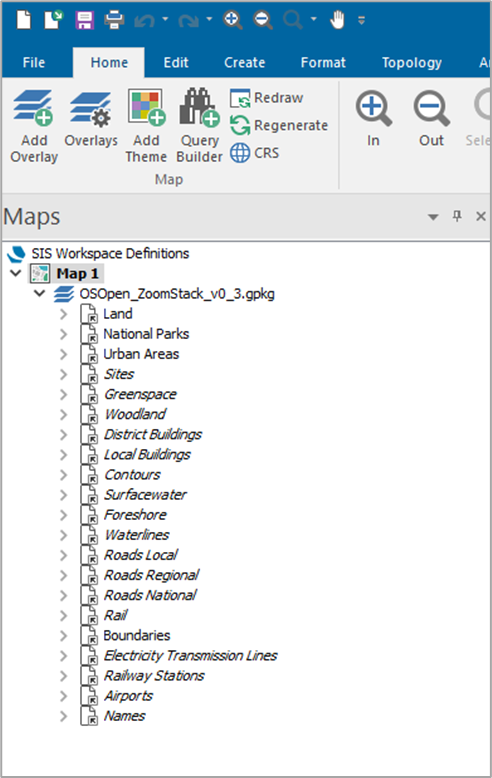
4. Cadcorp SIS Desktop will automatically recognise the GeoPackage as OS Open Zoomstack, will load the Zoomstack layers (known as *Overlays* in Cadcorp SIS Desktop) in the correct order for drawing, will apply suitable scale thresholds to those Overlays, and will also apply default styling to the Overlays, using the Outdoor style.

* Expanding the tree in the Maps control bar will show the loaded Overlays (those marked in *italics* are not visible in the current map view due to their scale-threshold):<br>

  <figure><img src="https://1897589978-files.gitbook.io/~/files/v0/b/gitbook-x-prod.appspot.com/o/spaces%2FcNpJpLP8RROUaWVQo5ea%2Fuploads%2FX4qBJpSGxt4ov7sgXsrJ%2Fimage.png?alt=media&#x26;token=af1b4157-6076-4d59-89e0-0db85537f94d" alt="Loaded overlays shown on the Map interface in the left hand side menu"><figcaption><p>Loaded overlays</p></figcaption></figure>
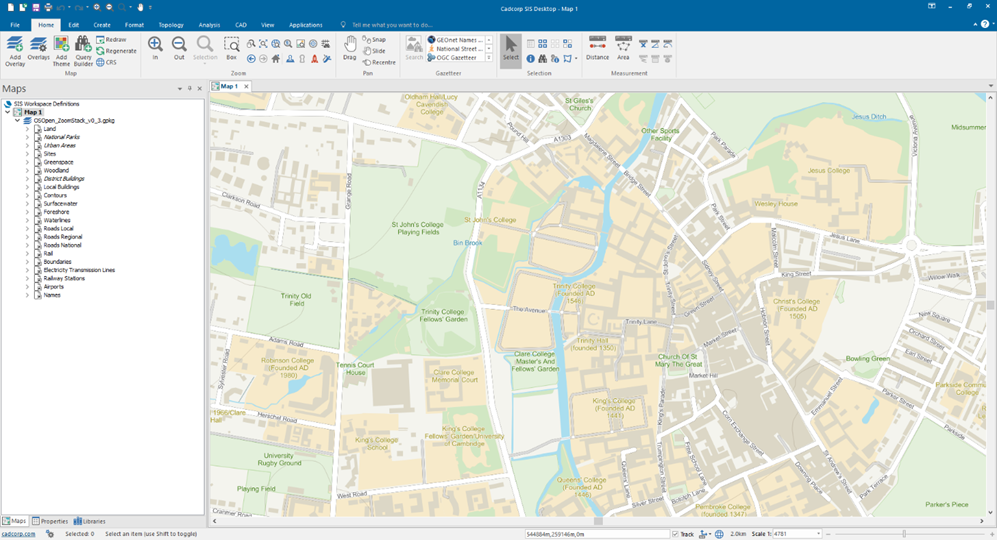
* Example view of Cambridge, using the Outdoor style:<br>

  <figure><img src="https://1897589978-files.gitbook.io/~/files/v0/b/gitbook-x-prod.appspot.com/o/spaces%2FcNpJpLP8RROUaWVQo5ea%2Fuploads%2FWGgHWHnI7jUoP7sxEjOA%2Fimage.png?alt=media&#x26;token=c48c9330-c82e-48a7-9240-0bf198c06a6c" alt="Example view of Cambridge loaded in the Cadcorp main window"><figcaption><p>Cadcorp main map window showing Cambridge data loaded</p></figcaption></figure>

</details>

<details>

<summary>MapInfo</summary>

[MapInfo Pro](http://www.pitneybowes.com/us/location-intelligence/geographic-information-systems/mapinfo-pro.html) version 15.2.2 and above supports reading, editing and creating GeoPackage Feature Tables.

1. Download and unzip the [GeoPackage.](https://www.ordnancesurvey.co.uk/opendatadownload/products.html#ZMSTCK)
2. Open MapInfo.
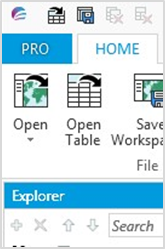
3. Click on the Open button.<br>

   <figure><img src="https://1897589978-files.gitbook.io/~/files/v0/b/gitbook-x-prod.appspot.com/o/spaces%2FcNpJpLP8RROUaWVQo5ea%2Fuploads%2F3Rgwnb8DcPSctUpAQDT0%2Fimage.png?alt=media&#x26;token=85f3e088-7068-494f-9e2d-753df8de6661" alt="Cadcorp open button shown in the toolbar"><figcaption><p>Cadcorp open file button</p></figcaption></figure>
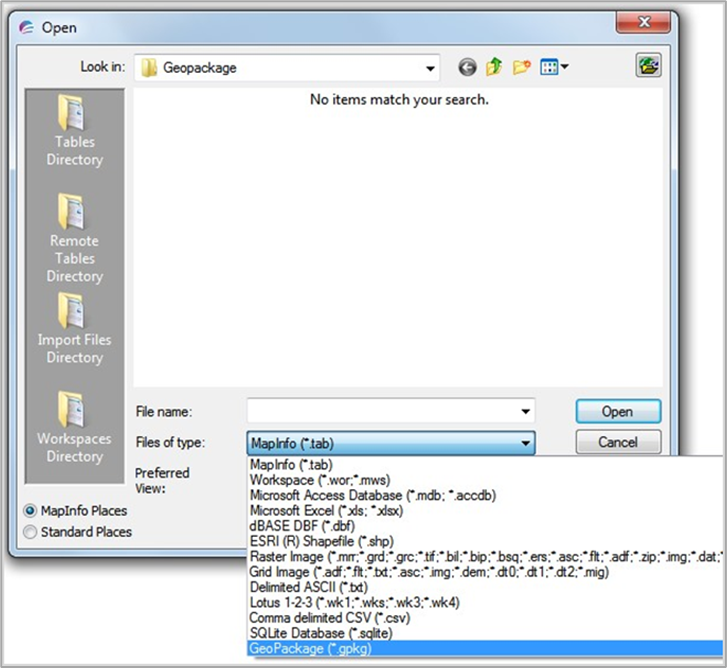
4. In the following window, browse to the location of your GeoPackage and, using the dropdown, select *GeoPackage* as the file type.<br>

   <figure><img src="https://1897589978-files.gitbook.io/~/files/v0/b/gitbook-x-prod.appspot.com/o/spaces%2FcNpJpLP8RROUaWVQo5ea%2Fuploads%2Fq016JXjI91DHDq4imzU2%2Fimage.png?alt=media&#x26;token=046df9c6-8225-43e7-a706-bce0487aaefc" alt="" width="545"><figcaption><p>MapInfo file explorer</p></figcaption></figure>
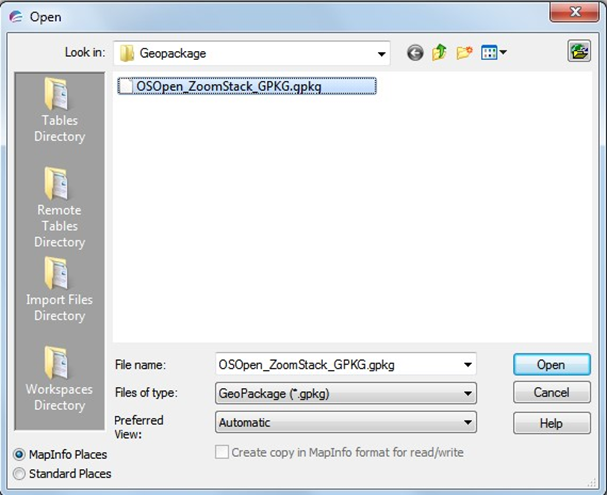
5. Select *OS\_Open\_ZoomStack.gpkg* and click Open.<br>

   <figure><img src="https://1897589978-files.gitbook.io/~/files/v0/b/gitbook-x-prod.appspot.com/o/spaces%2FcNpJpLP8RROUaWVQo5ea%2Fuploads%2FENH5N783YhJcNojtIfXl%2Fimage.png?alt=media&#x26;token=a4a8edea-376a-418d-b85e-c78abbabf591" alt="OS Open Zoomstack Geopackage file shown in the file explorer"><figcaption><p>Geopackage file shown in the file explorer</p></figcaption></figure>
6. Select all the tables and click *OK*.<br>

   <figure><img src="https://1897589978-files.gitbook.io/~/files/v0/b/gitbook-x-prod.appspot.com/o/spaces%2FcNpJpLP8RROUaWVQo5ea%2Fuploads%2FBzJkGQhqyo2jMzL2r5RD%2Fimage.png?alt=media&#x26;token=094d7524-92e6-45f1-b621-00c90e6ac4b9" alt="Geopackage tiles loaded into the software" width="461"><figcaption><p>Geopackage tiles loaded into the software</p></figcaption></figure>

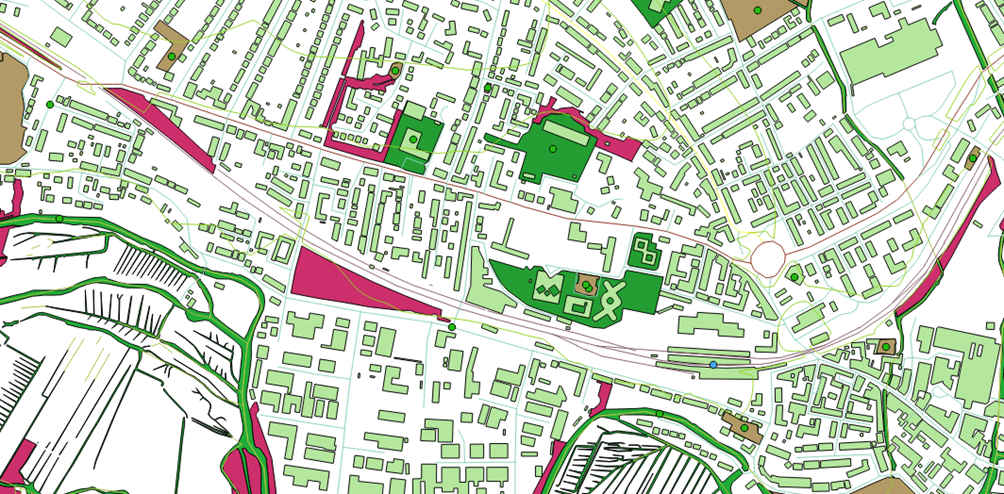
* Your data will then render in your map view with default styles.<br>

  <figure><img src="https://1897589978-files.gitbook.io/~/files/v0/b/gitbook-x-prod.appspot.com/o/spaces%2FcNpJpLP8RROUaWVQo5ea%2Fuploads%2FyH7V3PmQDW96fHYoIzUk%2Fimage.png?alt=media&#x26;token=550f25d9-6a8b-4f0e-84a9-68fe6e439f2e" alt="Map shown with default styles applied"><figcaption><p>Map shown with default styles applied</p></figcaption></figure>
* In your data folder, you will notice that TAB files have been created for each table.<br>

  <figure><img src="https://1897589978-files.gitbook.io/~/files/v0/b/gitbook-x-prod.appspot.com/o/spaces%2FcNpJpLP8RROUaWVQo5ea%2Fuploads%2F8K7DIWIECx1Vux8aZFG3%2Fimage.png?alt=media&#x26;token=1b3f0fc9-fdc7-4552-97e8-a6494f94f3c4" alt=""><figcaption><p>Tables shown in the data folder</p></figcaption></figure>

</details>

Note that the GIS software packages above were used for demonstrative purposes in this guide and that many other GIS software applications can be used with the Zoomstack product.