Zoomstack vector tiles
What are vector tiles?

A vector tile represents a specific area of the earth’s surface and contains geographic information about the coverage area. Each tile can contain many layers of features such as buildings, roads, rivers, greenspaces, etc. They are packets of geographic data, packaged into tiles for transfer over the web. The information they contain can be used to deliver styled web maps to the end-user.
OS supplies data in the Mapbox Vector Tile Specification, packed in a single MBTiles file (which is based on the SQLite database).
What are the benefits of vector tiles?
Vector tiles offer users the following benefits:
Styling - customise your map with full and dynamic design control.
File size - lightweight tiles that are efficient and super-fast to render in the client.
Pixel perfect - high resolution, beautiful mapping for all devices.
Open standard - created under a Creative Commons Attribution 3.0 US License.
Smooth - an improved, seamless user experience when zooming in and out of maps.
Advanced features - Vector Tiles contain actual geographic data (not just images) which can be interrogated and analysed.
Offline maps - store the tiles locally to take your maps offline.
With Zoomstack vector tiles you get one single MBTiles file that is around 3GB in size. It is light enough to be fast on the web and suitable for offline use. OS has pre-selected the right content for each zoom level and supply stylesheets to give you a great starting point. This can save a considerable amount of time and effort.
The instructions that follow are for installing Zoomstack Vector Tiles in Mapbox Studio, Cadcorp SIS Desktop, and QGIS. Please refer to the relevant section based on the GIS software you’re using. Note that the GIS software packages above were used for demonstrative purposes in this guide and that many other GIS software applications can be used with the Zoomstack product.
Mapbox Studio
Mapbox Studio is a web application for creating custom maps. It allows you to manage and create datasets, tilesets, and map styles to produce maps with the features and the look and feel you want.
We recommend using Google Chrome for the best results.
The following instructions demonstrate how to install Zoomstack Vector Tiles using Mapbox Studio:
Download the Vector Tiles (MBTiles).
Go to Mapbox.com and sign in.

Mapbox sign in page
If you don’t have a Mapbox Account, then create one by clicking on ‘Sign up for Mapbox’.
A Pay-As-You-Go account will be fine for this purpose – it is free to get started and doesn’t require any payment details.
Once signed in, click on Studio in the top right corner.

Mapbox menu Click on the Tilesets tab in the top right corner.
![]()
Click on the New Tileset button.

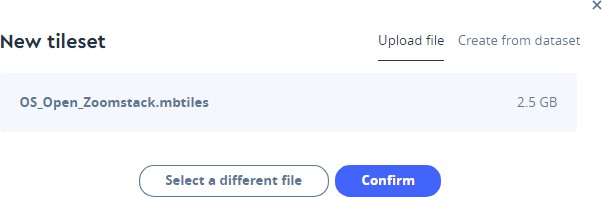
Click on Select a file.

Navigate to the OS_Open_Zoomstack.mbtiles file and click Open and then click Confirm.

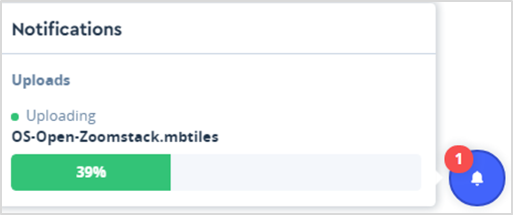
Mapbox Studio will then begin to upload and process your data and you will see a progress notification in the bottom right corner.
This will take a while, but you must stay on the page while it's processing.
You will see a notification in the bottom right. First it will say Uploading and then move on to Processing.

You may need to refresh the page eventually for it to complete the processing. We would recommend waiting 30 minutes before refreshing.
Once uploaded, it will appear in your list of Tilesets.
Using OS styles to get started in Mapbox Studio
OS has supplied Mapbox GL Styles created by our cartographic designers for use in Mapbox Studio. These stylesheets allow you to add colours to features contained in the Vector Tiles to produce a far more vivid and visually appealing map.
The steps that follow guide you through setting up Mapbox GL Styles in Mapbox Studio.
Download and unzip the OS Open Zoomstack Stylesheets folder. You can also view the stylesheets on GitHub.
Copy the Map ID for your new Tileset by doing the following:
In Mapbox Studio, click on the Tilesets tab in the top right corner.

Mapbox studio toolbar
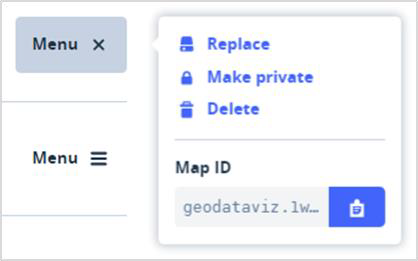
Scroll down until you see your new Tileset and click on the Menu button.

Uploaded Open zoomstack data Click on the clipboard icon to copy the Map ID.

Map ID data shown in the dropdown menu Open the folder of stylesheets that you downloaded in step 1 and navigate to Vector Tiles → Mapbox GL
Styles where you'll find four styles (Road, Outdoor, Light and Night).
Choose the style that you want to use and open the .json file (e.g. Outdoor.json) in a text editor.
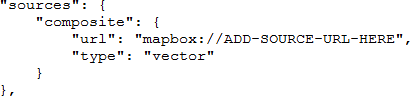
Find this block of code near the top of the file (line 46) and paste your Map ID where it says ADD-SOURCE- URL-HERE:

Vector .json file Save the .json file.
Go back to Mapbox Studio and click on the Styles tab.
![]()
Click on the New style button.
![]()
Click on the Upload button.Navigate to your newly saved style.json file (e.g. OS Outdoor.json) and click Open. The style will then load up in the Mapbox Studio style editor.
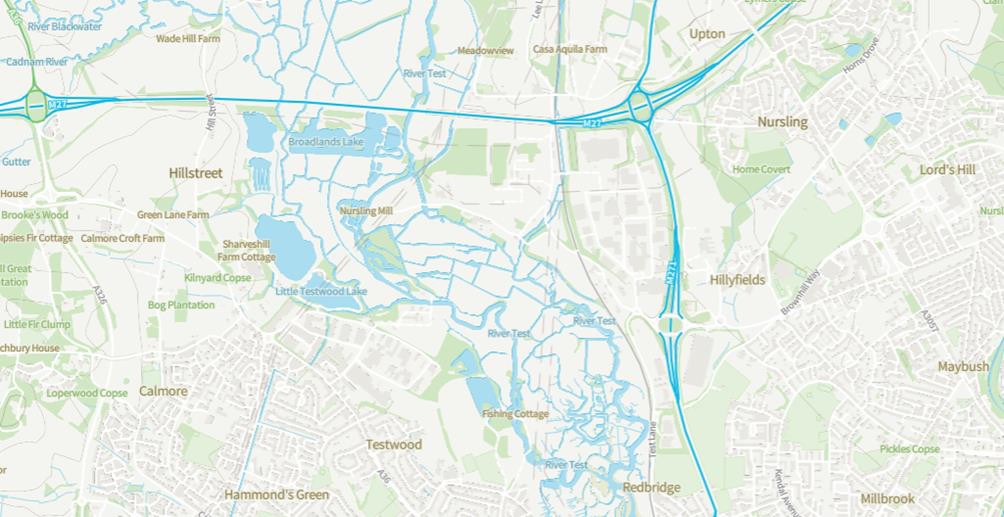
This is an example of what your map will look like if you chose the Outdoor style.

Outdoor map style
You may notice at this point that the symbols for Airports and Railway Stations aren’t appearing, so now we need to add them to our new map.
Open the folder of stylesheets that you downloaded in step 1 and navigate to Vector Tiles → Mapbox GL Styles where you'll find a folder called os-open-zoomstack-symbols.
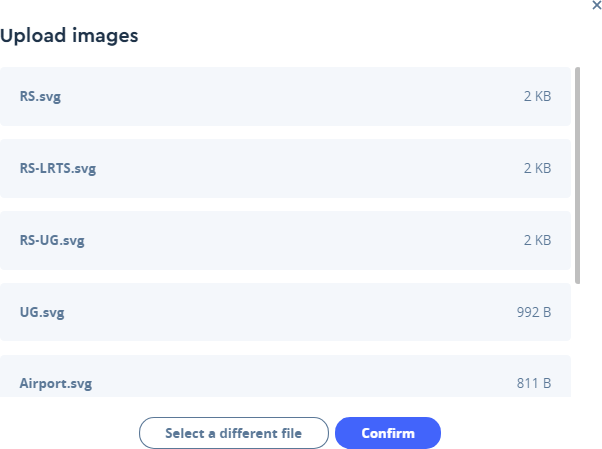
Open this folder, then drag and drop the 7 SVG files into Mapbox Studio (directly into your browser window).
Click Confirm on the Upload images dialogue box.

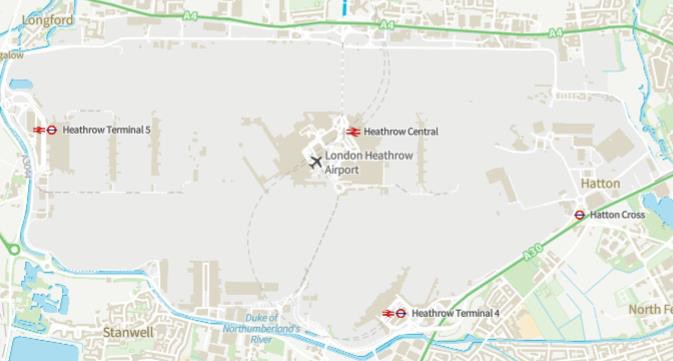
Upload images dialog box Mapbox Studio will recognise the images and you should now see Airport and Railway Station symbols.

Map image showing airport and railway symbols for London Heathrow Airport
From this point on you can customise the content and style of your map (for example, you can turn layers on/off, delete them from your map, add new ones and change any of the style elements). You can learn more about how to use the Mapbox Studio style editor in this manual.
Once you are happy with your map, click Publish in the top right corner and your map is ready to use. For more detailed information, take a look at Mapbox Studio tutorials.
Cadcorp SIS Desktop 9
These instructions are based on Cadcorp SIS Desktop 9, released in November 2018.
Download the Vector Tiles (MBTiles), and the accompanying Mapbox GL Styles. You will need the style files from the Mapbox GL Styles folder and the sprites.json and sprites.png files, from the sprites sub-folder.
Rename one of the downloaded Mapbox GL Style files to style.json and place it, and the sprites.json and sprites.png files, alongside the downloaded MBTiles file (OS_Open_Zoomstack.mbtiles).
Open Cadcorp SIS Desktop.
The easiest way to load the data is to simply drag-and-drop the MBTiles file into Cadcorp SIS Desktop.
Because the tiles use the WGS 84 Pseudo-Mercator coordinate reference system the default extents are much bigger than GB, so you'll have to zoom in.
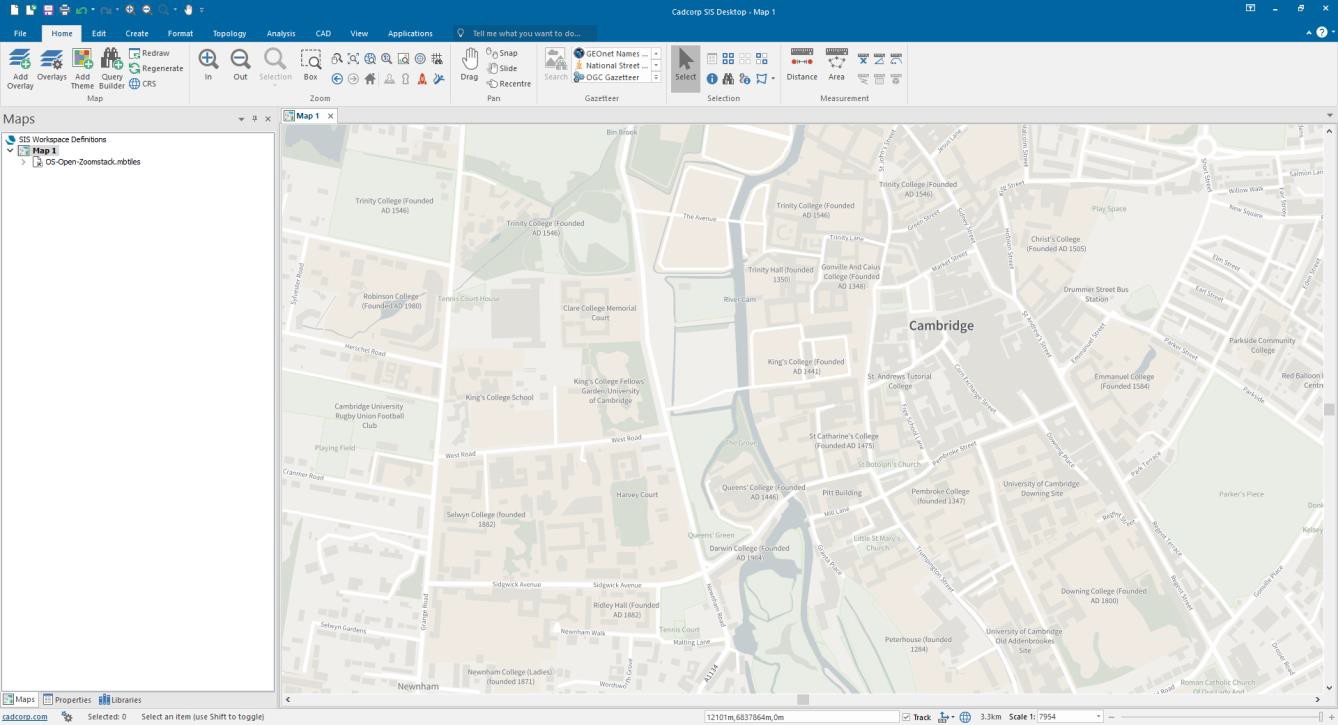
Example view of Cambridge, using the Light style:

Cadcorp SIS Dektop 9 with a map of Cambridge in the main view
QGIS
These instructions are based on QGIS 3.4 – a Long Term Release version.
Download the Vector Tiles (MBTiles).
In QGIS, install the Vector Tile Reader Plugin.
Some versions of QGIS has a Vector Tiles Reader plugin that allows you to read Vector Tiles from a server, directory or local MBTiles file. Install the plugin as follows:
Load QGIS desktop.
From the top menu, click Plugins and then

Manage and Install Plugins…
In the dialogue box, search for Vector Tiles Reader, select it and click Install plugin.

Vector Tiles reader plugin shown in the plugin dialog
This section shows you how to load Vector Tiles in QGIS.
After you’ve installed the Vector Tiles Reader plugin, go to the top menu, click Vector → Vector Tiles Reader → Add Vector Tiles Layer…

Add Vectror Tiles Layer in the Vector Tiles Reader menu In the dialogue box, select the MBTiles tab and then click Browse.
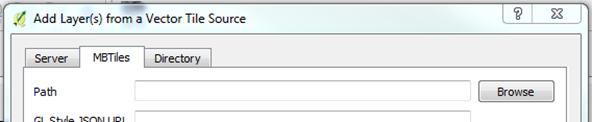
Add MBTiles file tab in the Add Layer dialog Navigate to your data, OS_Open_Zoomstack.mbtiles, and click Open.
Then hold the CTRL key and select all the layers, select Base map defaults and click Add.

Add Layer(s) from a Vector Tile Source window 
Add layer button
The data will then appear in your Layers Panel and render in your map window. This plugin is new, and you may find it a little slow - it helps the performance if you zoom in to street level as this will limit the number of features in your map window.
In the Layers Panel, drag and drop the layers into the following order as this is the order in which QGIS will draw them:

Layers panel showing the available layers for OS Open Zoomstack data
You'll find more information and help with the plugin, on GitHub.
Host your own Vector Tiles
There are many choices of tools and resources for hosting and serving your own Vector Tiles. An updated list of resources for working with Vector Tiles is available on the mapbox GitHub repository. A list of resources for working with MBTiles specifically is available under the mapbox mbtiles-spec repository.
Here is a list of the available options for Vector Tiles and some more here relating specifically to MBTiles.
If you want to export the MBTiles file to a directory of files, then you can use Tippecanoe or MBUtil.
Using OS Styles on Vector Tiles You Created
It is possible to use OS styles on Vector Tiles you’ve created. Follow the steps below to do this.
You will need to download the folder of stylesheets. You can also view the stylesheets on GitHub.
Once you’ve downloaded and unzipped the folder of stylesheets, navigate to Vector Tiles → Mapbox GL Styles where you will find four styles.
Choose the style that you want to use and open the .json file (e.g. OS Outdoor.json) in a text editor.
Find this chunk of code near the top of the file and paste your data source where it says ADD-SOURCE- URL-HERE:

Vector source .json file
You can find more information on the different source types here.
Save the .json file.
This style is now ready to use. If you want to customise the style, then Maputnik is a good open source map editor for this job.
Last updated
Was this helpful?