# Loading GML data into a GIS

Geography Markup Language (GML) is an XML dialect, which can be used to model geographic features. It was designed by the Open Geospatial Consortium (OGC) as a means for people to share information regardless of the particular applications or technology that they use. In the first instance, GML was used to overcome the differences between different geographic information system (GIS) applications by providing a neutral file format as an alternative to proprietary formats.

The data can be loaded into several GIS. This page describes how to translate the GML and load it into some commonly used GIS. For more information about other GIS that OS MasterMap Water Network Layer is compatible with, please speak to your Relationship Manager.

The common software covered in this section are as follows:

* QGIS
* FME
* ERSI ArcMap
* MapInfo Professional
* Cadcorp Map Modeller

<details>

<summary>QGIS</summary>

The following step-by-step instructions outline how to load OS MasterMap Water Network Layer into QGIS using the GML file(s) you have received. They have been prepared using version 3.16.7 of QGIS Desktop – an open-source GIS in which you can create, edit and visualise and publish geographic information. You can download QGIS for free from the ['Download QGIS for your platform' page of the](https://www.qgis.org/en/site/forusers/download.html) [QGIS website](https://www.qgis.org/en/site/forusers/download.html).

### Loading OS MasterMap Water Network Layer GML into QGIS <a href="#bookmark13" id="bookmark13"></a>

1. Launch QGIS.
2. OS MasterMap Water Network Layer data can be loaded into QGIS either zipped or unzipped. To load the data, click on *Add Vector Layer button* from the left-hand toolbar.
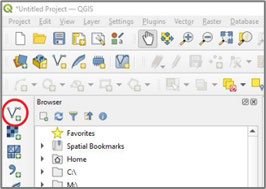
   <figure><img src="/files/eQTpozH5timZEjJeOwRz" alt="QGIS  Add Vector Layer button shown as the first icon in the left-hand toolbar"><figcaption><p>QGIS  <em>Add Vector Layer button</em></p></figcaption></figure>
3. The Data Source Manager dialog box will open. In the Source section, click on the *\[…] button* to the right of the Vector Dataset(s) field and navigate to the GZ or GML file you wish to import.<br>

   <figure><img src="/files/9p0BBO3r6YSr1E2LzmJ4" alt="" width="465"><figcaption><p>The Data Source Manager dialog box</p></figcaption></figure>
4. When you've selected the file you wish to import, click *Add*.

   <figure><img src="/files/LiJcvHmgvtVKZD86eGVX" alt="Data source manager dialog box showing the source file added" width="471"><figcaption><p>Data source manager dialog box showing the source file added</p></figcaption></figure>

*Alternatively, you can load the file by dragging and dropping the GZ or GML file into a blank canvas.*

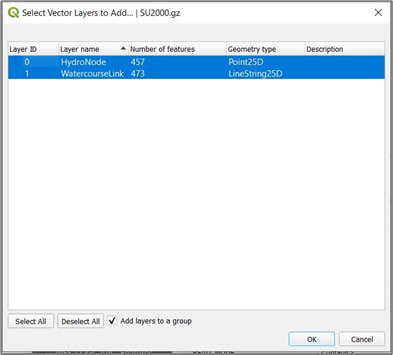
5. This will open a Select Vector Layers to Add… dialog box in which you can select the layer(s) you wish to add to the GIS. If you wish to add both water layers (i.e. HydroNode and WatercourseLink), click *Select All*. Confirm your choice by clicking *OK*:

   <figure><img src="/files/m1aiBicxGDHdMGoDTQLG" alt=""><figcaption><p>Select Vector Layers to add dialog</p></figcaption></figure>
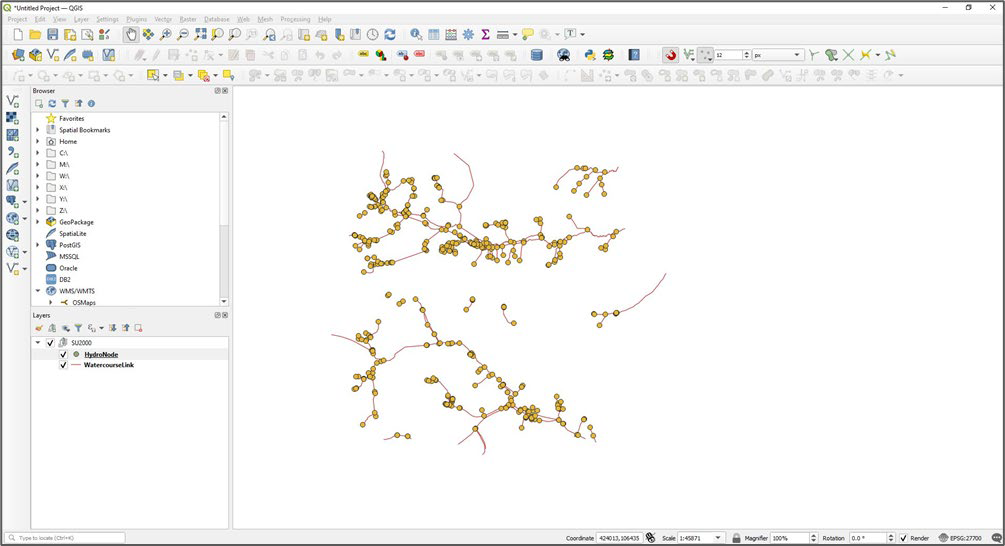
6. The HydroNode and WatercourseLink layers will be added to the canvas in the main map window.<br>

   <figure><img src="/files/awUZ1tKM8nn0L3Jvz3M7" alt="HydroNode and WatercourseLink layers shown on the canvas map"><figcaption><p>HydroNode and WatercourseLink layers shown in the main map window</p></figcaption></figure>
7. You can add additional layers of OS MasterMap (for example, OS MasterMap Topography Layer) to give context to OS MasterMap Water Network Layer data.

### Exporting OS MasterMap Water Network Layer to different GIS formats using QGIS <a href="#bookmark14" id="bookmark14"></a>

You can also use QGIS to export OS MasterMap Water Network Layer data into many different common GIS formats. This will allow you to open the files in many other GIS applications.

1. Right-click on the layer you want to translate, then select *Export* and *Save Feature As…*

Note: *If you are trying to save layers for more tiles or a national dataset, you will have to save them separately as there is no option for grouping layers.*

2. In the Save Vector Layer as… dialog box that opens, use the *dropdown arrow* in the Format field to select your chosen format for further analysis, for example, MapInfo TAB or ESRI Shapefile.
3. Click on the *Browse button* to save your file to a location of your choice.
4. Click *OK* to save the data in your chosen format.

   <figure><img src="/files/pUZPns76owKJyPgcdaDC" alt="" width="311"><figcaption><p>Save Vector Layer as dialog box</p></figcaption></figure>

</details>

<details>

<summary>FME</summary>

The following section details how to load OS MasterMap Water Network Layer into FME using the GML file you have received. Doing so will allow you to view the data and then translate it into the most appropriate format for your software. The step-by-step instructions have been prepared using FME 2019.1.

### Viewing and translating data in FME <a href="#bookmark16" id="bookmark16"></a>

1. Open FME Workbench and select *New* in the Getting Started box.
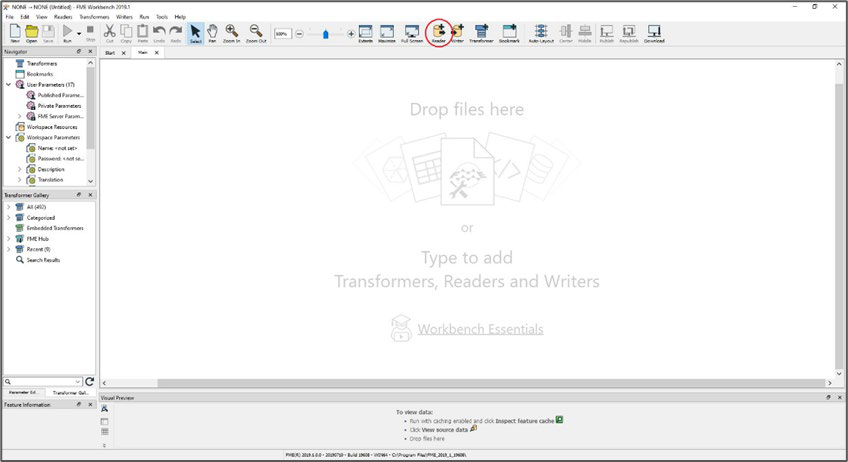
2. Click the *Add Reader button* from the main toolbar to add a Reader.

   <figure><img src="/files/B7MquTZWO7A24qz14XC1" alt=""><figcaption><p>Screenshot of the FME window showing the main toolbar. </p></figcaption></figure>
3. In the Add Reader dialog box that opens, select *GML (Geography Markup Language)* from the dropdown list for Format.
4. Use the *Browse \[…] button* next to the Dataset field to navigate to your files and select them.
5. Leave the Parameters… as *default* and the Workflow Options as *Individual Feature Types*.
6. Select *OK* to add the Reader.<br>

   <figure><img src="/files/9oVx1ZtGx5mu6PguQ46d" alt="Add reader dialog box showing a GML file added as an Individual Feature Type" width="563"><figcaption><p>Add reader dialog box</p></figcaption></figure>
7. Once the Reader has been added successfully, the log window will display the text '*Mapping File Generation was SUCCESSFUL'* and the Select Feature Types dialog box will open.

*Note:*&#x20;

*If FME cannot find the appropriate schema file for use in translation, the* [*OS MasterMap Water Network*](https://www.ordnancesurvey.co.uk/xml/schema/waternetwork/v1/index.html) [*Layer XML schema v1 file*](https://www.ordnancesurvey.co.uk/xml/schema/waternetwork/v1/index.html) *can be downloaded from the schema repository on the OS website.*

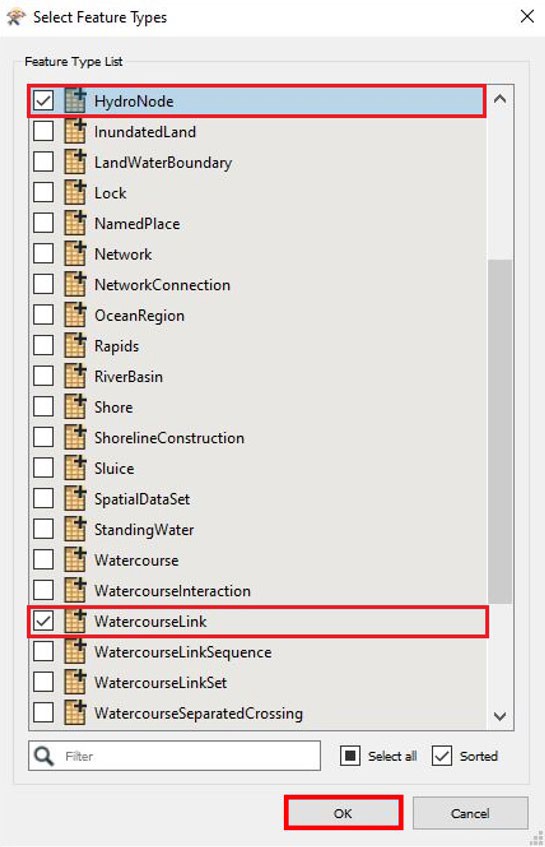
8. In the Select Feature Types dialog box, select the feature types that you wish to translate from the list or use the *Select All* option to add all objects.

Note: *OS MasterMap Water Network Layer currently only contains the feature types of WatercourseLink and HydroNode. FME will give you additional feature type options inherited from INSPIRE.*

9. Click *OK*.<br>

   <figure><img src="/files/rPnbqcs6k7Siu4b1BJOd" alt="Select feature node dialog box showing Hydronode and WatercourseLink layer" width="273"><figcaption><p>Select feature node dialog box</p></figcaption></figure>
10. OS MasterMap Water Network Layer objects will have been added to the canvas.

    <figure><img src="/files/UzGX1QdV8LXrwABv00DH" alt="OS MasterMap Water Network Layer objects shown on the canvas" width="499"><figcaption><p>OS MasterMap Water Network Layer objects shown on the canvas</p></figcaption></figure>

#### Viewing the data using FME Data Inspector before translation <a href="#bookmark17" id="bookmark17"></a>

Before translating the data, FME allows you to view the data. The viewing process is faster than translation and allows you to quickly interrogate the data before you start translating it.

1. Highlight all of the feature types you wish to view by either selecting them individually or drawing a box around them.
2. Right-click on one of the feature types and select *Connect Inspectors*.

   <figure><img src="/files/0G9Gycrli5M0mThuOgnt" alt="Feature types context menu showing Connect Inspectors selected" width="563"><figcaption><p>Feature types context menu</p></figcaption></figure>
3. Run the workspace (click the *Run button* on the main toolbar) with the Inspectors connected in order to view the data in FME Data Inspector.

   <figure><img src="/files/0GB0Qp0Yt490VpkAFoVl" alt="" width="563"><figcaption><p>Screenshot of the main FME window showing the HydroNode and WatercourseLink feature types added to the mainn canvas.</p></figcaption></figure>
4. When finished, the two layers of OS MasterMap Water Network Layer will be viewable in the Visual Preview window. You can open this window in a separate FME Data Inspector window by clicking the *FME Data Inspector button*.

   <figure><img src="/files/tZNe1ClMTKNZ0xhej2Bu" alt=""><figcaption><p>Screenshot of the main FME windo</p></figcaption></figure>

### Translating GML in FME <a href="#bookmark18" id="bookmark18"></a>

You can use FME to translate the files from GML to any other format supported by FME (for example, TAB, SHP, GPKG or a spatial database).

1. In the main FME window, remove the Inspectors you have connected if you have chosen to use FME Data Inspector to view and interrogate the data. You can do this by clicking and deleting each Inspector separately or by selecting all of them and deleting them together.
2. Click on the *Add Writer button* from the main toolbar.

   <figure><img src="/files/h7o8EHkIaRWff7mAko8d" alt="Add writer button in the centre of the top toolbar highlighted with a red circle"><figcaption><p>Add writer button highlighted in the toolbar</p></figcaption></figure>
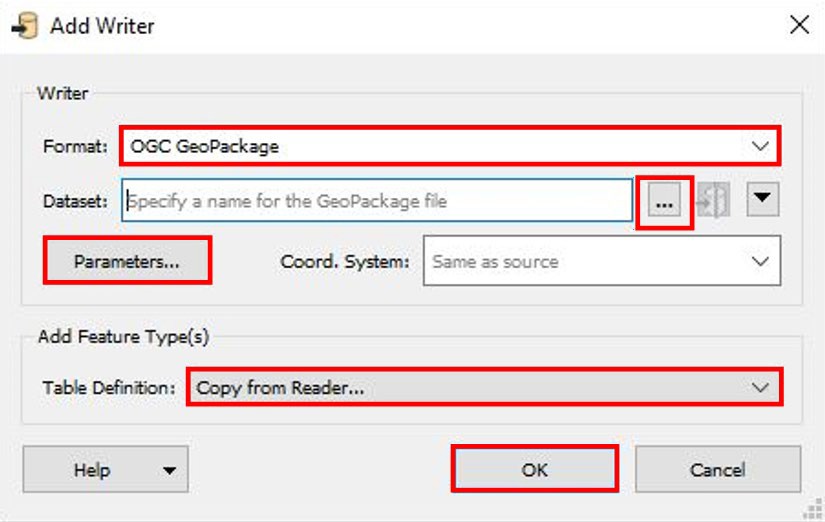
3. In the Add Writer dialog box that opens, select the format you are translating into from the dropdown list for Format, for example, OGC GeoPackage or File GeoDatabase.
4. Use the *Browse \[…] button* next to the Dataset field to navigate to the folder where you want to save the translated data.
5. Leave the Parameters… set to *default*.
6. Under the Add Feature Type(s) section, set Table Definition to *Copy from Reader*. This will enable the new Writer to inherit the schema of the Reader feature types.
7. Click *OK* to add the Writer.<br>

   <figure><img src="/files/NpMZtk5fMeYpgRLS8ylB" alt=""><figcaption><p>Add Writer dialog</p></figcaption></figure>
8. A Select Feature Type dialog box will appear prompting you to select which existing feature type(s) to copy. Select both the *WatercourseLink* and *HydroNode* feature types, then click *OK*.<br>

   <figure><img src="/files/ud7zY6LrUfJ8W5Bla3c0" alt="Select feature type dialog box with WatercourseLink and HydroNode feature types checked " width="528"><figcaption><p>Select feature type dialog box</p></figcaption></figure>
9. The Writer feature types will now be added to the canvas. The new Writer feature types will have inherited the schema of the Reader feature types.

   <figure><img src="/files/dEa7UD0UmAObXzbEeLF6" alt="" width="563"><figcaption><p>Screenshot of the main FME window showing the main toolbar and the Writer and Reader HydroNode and WatercourseLink feature added</p></figcaption></figure>
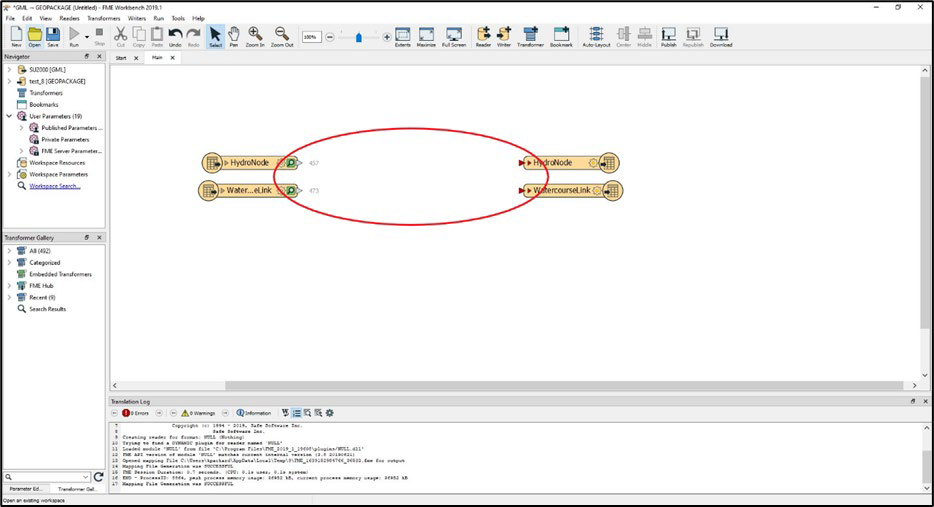
10. Connect the Readers to the Writers by dragging the triangle on the Reader and connecting it to the red triangle on the corresponding Writer.

    <figure><img src="/files/8wL8Ov6ZbRLC0NHgOTmF" alt="Screenshot of the main FME window showing the main toolbar and the unconnected Writer and Reader feature types for HydroNode and WatercourseLink. There is a red circular shape over the Run Translation button on the main toolbar. The Run Translation button is represented by a green triangle with a black outline."><figcaption><p>Connection nodes available on their corresponding Links and Nodes</p></figcaption></figure>
11. Once the workspace has been set up, run the translation by clicking the *Run Translation button*.

* Note: *This is a basic translation of the data, and within FME workbench you could manipulate the data further if needed. However, you can use the software just as a translator and open the data in other GIS software for analysis.*

  <figure><img src="/files/CSDGGkSIVvEWtfeKekRH" alt="Screenshot of the main FME window showing the main toolbar and the now connected Writer and Reader feature types for HydroNode and WatercourseLink. There is a red circular shape over the Run Translation button on the main toolbar. The Run Translation button is represented by a green triangle with a black outline."><figcaption><p>Screenshot of the main FME window showing the main toolbar and the now connected Writer and Reader feature types for HydroNode and WatercourseLink.</p></figcaption></figure>

</details>

<details>

<summary>ESRI ArcMap</summary>

The following step-by-step instructions outline how to load OS MasterMap Water Network Layer GML data into ESRI ArcMap. The instructions were prepared using ESRI ArcMap version 10.6.1.

GML data can be now imported as zipped GML (GZ) directly into ESRI ArcMap using the Data Interoperability extension called Quick Import. The Data Interoperability extension is now available at no cost as a part of ArcMap from version 10.2. You will require Internet access when using the Quick Import tool so that the data can access the schema attached to the file.

Note:

*If your version of ArcMap is older than 10.2 and you do not have a licence for Data Interoperability, you will have to use translation tools available in QGIS or FME  to first translate the GML data into ESRI shapefiles, before you can load them in ArcMap.*

You can find more information about Quick Import on the [ArcGIS Data Interoperability page of the ESRI website](https://www.esri.com/en-us/arcgis/products/arcgis-data-interoperability/overview).

### Loading OS MasterMap Water Network Layer GML into ESRI ArcMap <a href="#bookmark20" id="bookmark20"></a>

1. Launch ArcMap.
2. Click on the *ArcToolbox window button* in the main toolbar.

   <figure><img src="/files/ig161GXgutC6Qm8qsbkK" alt="ArcToolbox window button shown in the toolbar with a red circle around an icon for a window with a red box in front of it."><figcaption><p>ArcToolbox window button shown in the toolbar</p></figcaption></figure>
3. In the ArcToolbox window that opens, click on the *plus sign* next to Data Interoperability Tools, then double-click on *Quick Import*.<br>

   <figure><img src="/files/AuiAxYnyLFsR6ya8u3sH" alt="ArcToolbox window showing the Quick Import tool under the Data Interoperability Tools menu highlighted in two red rectangles"><figcaption><p>ArcToolbox window showing the Quick Import tool under the Data Interoperability Tools menu</p></figcaption></figure>
4. In the Quick Import dialog box that opens, click on the *\[…] button* next to the Input Dataset field.<br>

   <figure><img src="/files/Y2MxsCh8GCYFHIFOyNfP" alt="Quick import dialog showing the [...] button next to the Input Dataset field"><figcaption><p>Quick import dialog showing the [...] button next to the Input Dataset field</p></figcaption></figure>
5. In the Specify Data Source dialog box that opens, click on the *dropdown arrow* in the Format field and select *More Formats*.<br>

   <figure><img src="/files/1M4d9XaLdyYo8YzEpTzs" alt="" width="420"><figcaption><p>The Specify Data Source dialog box in ESRI ArcMap.</p></figcaption></figure>
6. In the FME Reader Gallery dialog box that opens, select *GML SF-0 (Geography Markup Language Simple Features Level SF-0 Profile)* from the list of options, then click *OK*.

   <figure><img src="/files/4MroN0oYffVv98LGAW5A" alt="FME Reader Gallery dialog box shown GML SF-0 selected in the list of options" width="563"><figcaption><p>FME Reader Gallery dialog box shown GML SF-0 selected in the list of options</p></figcaption></figure>
7. Back in the Specify Data Source dialog box, use the *\[…] button* next to the Dataset field to navigate to the folder where you saved your GZ file; select the folder and click *Open*. Make sure that extensions available to load are \*.gz / \*.gml.
8. Leave the rest of the settings as default and click *OK*.

   <figure><img src="/files/nPUjvna9mpcc1ZO1fNDI" alt="Specify Data Source dialog showing GLM SF-0 format and SU2000.gz dataset loaded" width="421"><figcaption><p>Specify Data Source dialog showing GLM SF-0 format and SU2000.gz dataset loaded</p></figcaption></figure>
9. Back in the Quick Import dialog box, click on the folder button to the right of the Output Staging Geodatabase field.<br>

   <figure><img src="/files/wfxU2Ox7tv6WF5EhKPNC" alt="Quick Import dialog showing the folder button to the right of the Output Staging Geodatabase field"><figcaption><p>Quick Import dialog</p></figcaption></figure>
10. In the Output Staging Geodatabase dialog box that opens, navigate to the correct folder and select the output geodatabase for the feature classes to be stored in.
11. Select *Geodatabase*s from the dropdown options for Save as type.
12. Click *Save*.<br>

    <figure><img src="/files/Y1z5rxjoAtWYqnhz3yNn" alt="Output Staging Geodatabase save dialog and file explorer showing file type set to Geodatabases"><figcaption><p>Output Staging Geodatabase save file dialog</p></figcaption></figure>
13. Once you have made your selections for the Input Dataset and Output Staging Geodatabase fields, you can click *OK* at the bottom of the Quick Import dialog box.

    <figure><img src="/files/yPZlqq0c0tnPu3lfTiuu" alt=""><figcaption><p>The Quick Import dialog box in ESRI ArcMap</p></figcaption></figure>
14. As soon as the import process has started, you will see a process running notification at the bottom of your screen. When the import process has successfully completed, the following popup window should appear in the bottom right-hand corner of your screen:

    <figure><img src="/files/Q3t1s3VTWdcJ1jf6D28F" alt="Quick Import success notification showing a green tick to the left of a tool icon"><figcaption><p>Quick Import success notification</p></figcaption></figure>

### Loading translated GML into ESRI ArcMap <a href="#bookmark21" id="bookmark21"></a>

If your version of ArcMap is older than version 10 or if you do not have access to the Quick Import (Data Interoperability) extension, you will have to use the translation tools available in QGIS or FME to translate the GML data into ESRI shapefiles first, before you can load them into ArcMap.

*Note: The following instructions were prepared using ESRI ArcMap version 10.6.1.*

1. Launch ArcMap.
2. To load a shapefile into ArcMap, click on the *Add Data* button in the main toolbar.

   <figure><img src="/files/ZYipkdkcZRuplBKhekDB" alt="Add Data button highlighted in the main toolbar in a red circle " width="563"><figcaption><p><em>Add Data</em> button in the main toolbar</p></figcaption></figure>
3. In the Add Data dialog box that opens, click the *Connect To Folder* button.

   <figure><img src="/files/qBG8EMbV5dno45pg69db" alt="Add Data dialog box showing the Connect To Folder button highlighted to the right in a red circle" width="423"><figcaption><p>Add Data dialog box showing the Connect To Folder button highlighted to the right</p></figcaption></figure>
4. In the Connect To Folder dialog box, navigate to the folder where you saved your translated OS MasterMap Water Network Layer data, then click *OK*.

   <figure><img src="/files/9TVsUuP2UgiRxcmAPPM3" alt="Connect to folder dialog and file explorer" width="322"><figcaption><p>Connect to folder dialog</p></figcaption></figure>
5. Back in the Add Data dialog box, select the *WatercourseLink and HydroNode shapefiles* that will now be in the list of options, then click *Add*.

   <figure><img src="/files/FWWsJVqfyuP5GTUVWruH" alt="Add Data dialog box showing WatercourseLink and HydroNode shapefiles highlighted in the file explorer" width="421"><figcaption><p>Add Data dialog box showing WatercourseLink and HydroNode shapefiles</p></figcaption></figure>
6. AThe two OS MasterMap Water Network Layer features should now have loaded into the map window of ArcMap.

</details>

<details>

<summary>MapInfo Professional</summary>

The following instructions outline how to load OS MasterMap Water Network Layer GML into MapInfo Professional. They have been prepared using version 12.5 of MapInfo. This new version of MapInfo allows you to convert GML data using a tool called Universal Translator.

*Note: These instructions refer to the 64-bit version. The Universal Translator window is the same in the 32-bit version; however, the MapInfo menus are slightly different.*

If your version of MapInfo is 12.0.2 or older, you will have to use translation tools available in FME or QGIS to translate the GML data into MapInfo TAB before you can load the data into MapInfo.

### Translating GML into MapInfo Professional <a href="#bookmark23" id="bookmark23"></a>

1. Open MapInfo Professional.
2. On the main toolbar, select *Tools* > *Universal Translator* > *Universal Translator*.

   <figure><img src="/files/lSDQ6kV4kb5o1UweWi9a" alt="Universal Translator tools shown in the MapInfo toolbar" width="365"><figcaption><p>Universal Translator tools shown in the MapInfo toolbar</p></figcaption></figure>
3. In the FME Quick Translator dialog box that opens, select *File* > *Translate* or click on the *Translate data button*.<br>

   <figure><img src="/files/PS4KzcWjAjPMIiYtfOmc" alt=" FME Quick Translator dialog box showing the Translate button under the Get Started subsection"><figcaption><p> FME Quick Translator dialog box showing the Translate button under the Get Started subsection</p></figcaption></figure>
4. The Set Translation Parameters dialog box will open. In the Reader section, click on the *dropdown button* next to Format.<br>

   <figure><img src="/files/P338ug4TuhuREcdnmWpr" alt="Set Translation Parameters dialog box showing OGC GML Format " width="398"><figcaption><p>Set Translation Parameters dialog box</p></figcaption></figure>
5. The Reader Gallery dialog box will open. Select *GML (Geography Markup Language)* from the list of options, then click *OK*.<br>

   <figure><img src="/files/AqD9kIvCGeKXm8zzqXgq" alt="Reader Gallery dialog box "><figcaption><p>Reader Gallery dialog box </p></figcaption></figure>
6. In the Reader section within the Set Translation Parameters dialog box, navigate to the folder where you saved your GML files under the Dataset option. A Select 'File' dialog box will appear. Once you've located the folder and selected it, click *OK*.

   <figure><img src="/files/p5C9BELeuaAj5ZzWMSFI" alt=""><figcaption><p>Screenshot of the Select 'File' dialog box in MapInfo Professional.</p></figcaption></figure>
7. In the Writer section within the Set Translation Parameters dialog box, click on the *dropdown button* next to Format and select *MapInfo TAB*.
8. Again in the Writer section, within the Dataset option, navigate to the folder where you want your TAB file to be saved.
9. You can leave the rest of the settings as default.
10. Click *OK*.<br>

    <figure><img src="/files/AAaHw5NIr8VT8Pfh3885" alt="Set Translation Parameters dialog box"><figcaption><p>Set Translation Parameters dialog box</p></figcaption></figure>
11. The translation will start. You will notice commands appearing in the FME Quick Translator dialog box.
12. When the translation has completed, you will see a line of text saying: ‘Translation was SUCCESSFUL’. Close the FME Quick Translator dialog box.

    <figure><img src="/files/L5sreCekgo71dcdRJXsZ" alt="" width="563"><figcaption><p>The FME Quick Translator dialog box in MapInfo Professional</p></figcaption></figure>
13. The GML files will have been successfully translated into MapInfo TAB files.

### Loading translated GML files into MapInfo Professional <a href="#bookmark24" id="bookmark24"></a>

1. Open MapInfo Professional.
2. To load translated files, select *Home* > *Open* on the main toolbar.

   <figure><img src="/files/zN4tMVXTMij4Csgu2Ksw" alt="" width="563"><figcaption><p>Screenshot of the main map window in MapInfo Professional. There is a red rectangular box around the Open button.</p></figcaption></figure>
3. The Open dialog box will open. In the Look in option, navigate to the folder where you saved your TAB files.
4. If you don’t see your files, select *MapInfo (\*.tab)* from the Files of type dropdown menu.
5. Select WatercourseLink and HydroNode, then click *Open*.

   <figure><img src="/files/0LpsadTEKEvmIVIZKMdG" alt="Open file dialog box"><figcaption><p>Open file dialog box</p></figcaption></figure>
6. The data will now load into MapInfo.<br>

   <figure><img src="/files/bjSMeMsGa4ksYze2rUnC" alt="Data loaded successfully into MapInfo" width="420"><figcaption><p>Data loaded successfully into MapInfo</p></figcaption></figure>
7. To add the Layers window, right-click in the main window and select *Layer Control*. This will display the two OS MasterMap Water Network Layer objects that you have loaded: WatercourseLink and HydroNode.<br>

   <figure><img src="/files/2vJKqrX4JldH81JjX6Aa" alt="Layer control menu in the main window showing the relevant OS MasterMap Water Network Layer objects for WatercourseLink and HydroNode" width="419"><figcaption><p>Layer control menu in the main window</p></figcaption></figure>

</details>

<details>

<summary>Cadcorp SIS Map Modeller</summary>

The following instructions outline how to load OS MasterMap Water Network Layer GML into Cadcorp SIS Map Modeller. They have been prepared using Cadcorp SIS Map Modeller version 8.0 (x64).

### Translating GML using Cadcorp SIS Map Modeller <a href="#bookmark26" id="bookmark26"></a>

1. Launch Cadcorp SIS Map Modeller.
2. Select the *Home tab* on main menu toolbar, then click the *Add Overlay* button.

   <figure><img src="/files/KjXoHGmsehPGmpmdqjLE" alt="Add overlay button in the main menu toolbar"><figcaption><p>Add overlay button in the main menu toolbar</p></figcaption></figure>
3. In the Overlay Types dialog box that opens, select *Files* > *File* > *Next*.                                                                                                                                                                                                                                                                         &#x20;

<img src="/files/nEpayhq0iRgQMOBPhf2Z" alt="Screenshot of the main map window of Cadcorp SIS Map Modeller, with the Overlay Types dialog box at the forefront." data-size="original">

4. This will open the File Browser dialog box. Navigate to the folder you have saved the GML data in.<br>

   <figure><img src="/files/HAObkHPVnNBOoVChVIFO" alt="File Browser dialog showing sample File folder"><figcaption><p>File Browser dialog showing sample File folder in the browser</p></figcaption></figure>
5. In the bottom right-hand corner of the File Browser dialog box, change the files from *All files (\*.\*)* to *Ordnance Survey (GB) MasterMap layer (\*.gml, \*.gz)*.

   <figure><img src="/files/QZbhWtxN05rYAILjXB37" alt="File browser dialog showing the OS MasterMap layer filter applied to files" width="563"><figcaption><p>File browser dialog showing the OS MasterMap layer filter applied to files</p></figcaption></figure>
6. Back in the File Browser dialog box, select the file(s) and click *Finish*.

   <figure><img src="/files/sxv4kFEQeGWtyQTlkDHV" alt="Filebrowser dialog showing .gz files loaded" width="422"><figcaption><p>Filebrowser dialog showing .gz files loaded</p></figcaption></figure>
7. OS MasterMap Water Network Layer features will have been added to the main map window.<br>

   <figure><img src="/files/OkE4acffkFf95Sqmk7xW" alt="OS MasterMap Water Network Layer features added to the main map window"><figcaption></figcaption></figure>

</details>


---

# Agent Instructions: Querying This Documentation

If you need additional information that is not directly available in this page, you can query the documentation dynamically by asking a question.

Perform an HTTP GET request on the current page URL with the `ask` query parameter:

```
GET https://docs.os.uk/os-downloads/resources/product-resources/end-of-life-product-documentation/os-mastermap-water-network-layer/os-mastermap-water-network-layer-getting-started-guide/loading-gml-data-into-a-gis.md?ask=<question>
```

The question should be specific, self-contained, and written in natural language.
The response will contain a direct answer to the question and relevant excerpts and sources from the documentation.

Use this mechanism when the answer is not explicitly present in the current page, you need clarification or additional context, or you want to retrieve related documentation sections.