# Reading GeoPackage data via FME

Requirements:

* An FME license
* A GeoPackage dataset

GeoPackages can also be read into and used in FME workbenches.

1. Start up FME. In the top ribbon, click the *Add Reader* button, which will look similar to the following image:\
   ![The Add Reader button in FME.](https://1897589978-files.gitbook.io/~/files/v0/b/gitbook-x-prod.appspot.com/o/spaces%2FcNpJpLP8RROUaWVQo5ea%2Fuploads%2FuFF4n0YgQNRSf322K0JY%2Fimage.png?alt=media\&token=6740c61a-1d1b-4a43-a783-c3405d6f359e)
2. A dialog box will appear. Here, the format (GeoPackage in this instance) can be specified using the drop-down list. Select the *three dots* button next to Dataset to specify which GeoPackage you want to read. The Coordinate System should also be set appropriately.<br>

   <figure><img src="https://1897589978-files.gitbook.io/~/files/v0/b/gitbook-x-prod.appspot.com/o/spaces%2FcNpJpLP8RROUaWVQo5ea%2Fuploads%2F3hwkzWoWBEp5rQTdfdOL%2Fimage.png?alt=media&#x26;token=abb768a2-eb0c-4d44-b1c6-520451df16e0" alt="OGC GeoPackage Parameters dialog box with the three dots button highlighted by a red square shape." width="552"><figcaption><p>OGC GeoPackage Parameters dialog box with the three dots button highlighted</p></figcaption></figure>
3. Click *Parameters…*
4. Another dialog box will appear. Here, specific layers within the GeoPackage can be selected, rather than importing the entire file. Additionally, the Search Envelope can be used to clip the GeoPackage to an extent.<br>

   <figure><img src="https://1897589978-files.gitbook.io/~/files/v0/b/gitbook-x-prod.appspot.com/o/spaces%2FcNpJpLP8RROUaWVQo5ea%2Fuploads%2FQL11kKIRxEOl7NrmOt3k%2Fimage.png?alt=media&#x26;token=da59c460-1346-4d44-97b1-657b8289c87e" alt="OGC GeoPackage Parameters dialog box with the three dots button highlighted by a red square shape." width="563"><figcaption><p>OGC GeoPackage Parameters dialog box with the three dots button highlighted</p></figcaption></figure>
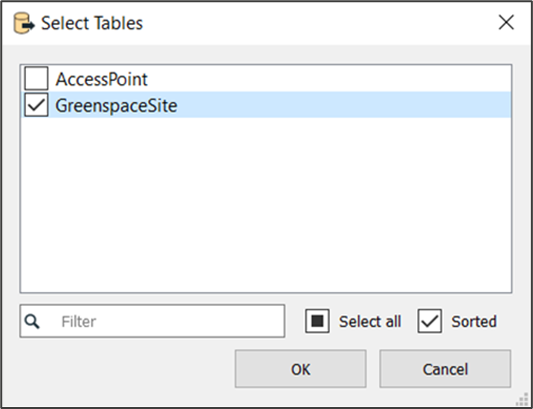
5. Click the *three dots* button next to the Tables drop-down menu.
6. The next dialog box to appear allows for the selection of specific layers. Here, it is possible to select which themes / layers should be added into the workbench.<br>

   <figure><img src="https://1897589978-files.gitbook.io/~/files/v0/b/gitbook-x-prod.appspot.com/o/spaces%2FcNpJpLP8RROUaWVQo5ea%2Fuploads%2Fk7EVkN3pgQryFR4XhCWr%2Fimage.png?alt=media&#x26;token=d45cc475-0205-4560-b859-f36be9386385" alt="Select Tables dialog box showing an example of layers which can be added into a workbench." width="400"><figcaption><p>Select Tables dialog box showing an example of layers which can be added into a workbench.</p></figcaption></figure>
7. Click *OK*.
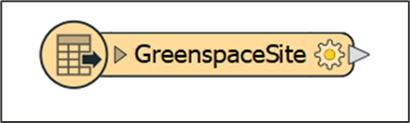
8. An orange reader will appear which will display the name of the GeoPackage table that has been ‘read in’.<br>

   <figure><img src="https://1897589978-files.gitbook.io/~/files/v0/b/gitbook-x-prod.appspot.com/o/spaces%2FcNpJpLP8RROUaWVQo5ea%2Fuploads%2FOz5AYHDIAlDsWQ741CWW%2Fimage.png?alt=media&#x26;token=94f2f9f7-b4d0-42cc-b03c-4efb218d1cc6" alt="Orange-coloured reader &#x27;button&#x27;." width="308"><figcaption><p>Orange-coloured reader 'button'.</p></figcaption></figure>


---

# Agent Instructions: Querying This Documentation

If you need additional information that is not directly available in this page, you can query the documentation dynamically by asking a question.

Perform an HTTP GET request on the current page URL with the `ask` query parameter:

```
GET https://docs.os.uk/os-downloads/resources/product-resources/getting-started-with-geopackage-and-vector-tiles-guides/getting-started-with-geopackage/reading-geopackage-data-via-fme.md?ask=<question>
```

The question should be specific, self-contained, and written in natural language.
The response will contain a direct answer to the question and relevant excerpts and sources from the documentation.

Use this mechanism when the answer is not explicitly present in the current page, you need clarification or additional context, or you want to retrieve related documentation sections.