> For the complete documentation index, see [llms.txt](https://docs.os.uk/os-downloads/llms.txt). Markdown versions of documentation pages are available by appending `.md` to page URLs; this page is available as [Markdown](https://docs.os.uk/os-downloads/resources/product-resources/getting-started-with-geopackage-and-vector-tiles-guides/getting-started-with-vector-tiles/installing-vector-tiles-in-gis-software.md).

# Installing vector tiles in GIS software

The following page provides step-by-step instructions on how to install vector tiles data in QGIS and Cadcorp.

<details>

<summary>QGIS</summary>

#### Requirements:

* QGIS (version 3.14 or later)
* Vector tiles

*These instructions were created using QGIS version 3.14 – a Long Term Release version.*

1. Download your vector tiles (MBTiles) and save them in a preferred location.
2. Load QGIS Desktop and open a new or an existing project.
3. From the top ribbon of the workspace, click *Layer* > *Add Layer* > *Add Vector Tiles Layer..*.<br>
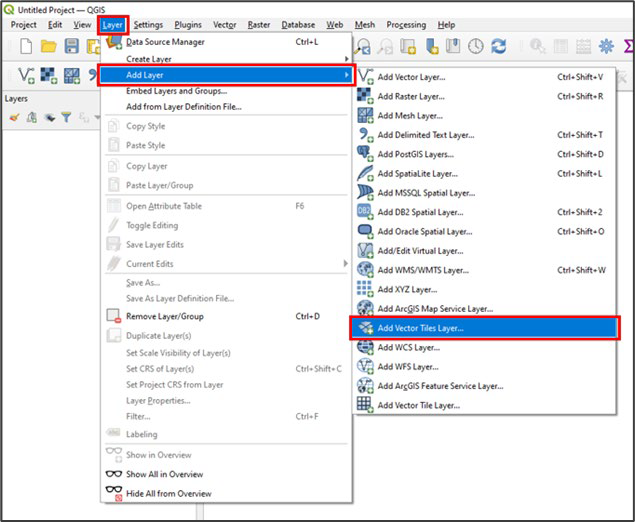
   <figure><img src="/files/Y37ilfuRrgYflOjNrAdl" alt="Screenshot showing how to locate the Add Vector Tiles Layer option from the top ribbon of the QGIS workspace." width="476"><figcaption><p>Screenshot showing how to locate the Add Vector Tiles Layer option from the top ribbon of the QGIS workspace</p></figcaption></figure>
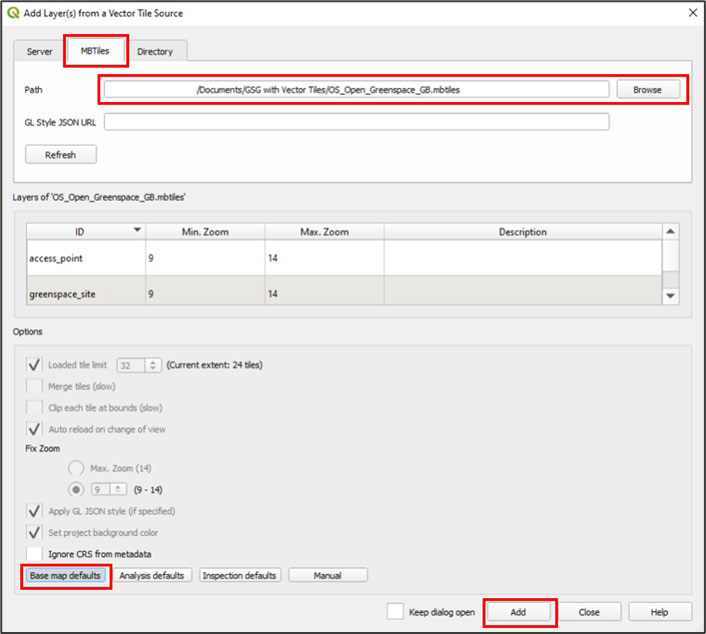
4. In the Add Layer(s) from a Vector Tile Source dialog box, select the *MBTiles* tab and then click *Browse*.<br>

   <figure><img src="/files/9EmEtsaOmf05Wi36OJOZ" alt="Screenshot of the Add Layer(s) from a Vector Tile Source dialog showing a file path entered with Base map defaults selected" width="530"><figcaption><p>Screenshot of the Add Layer(s) from a Vector Tile Source dialog MB Tiles showing a file path entered with Base map defaults selected</p></figcaption></figure>
5. In the Add Layer(s) from a Vector Tile Source dialog box, select the *MBTiles* tab and then click *Browse*
6. In the file explorer, navigate to your saved vector tiles and click *Open*.
7. In the Options section, select the *Base map defaults* option.
   * Note that the Base map defaults option sets the maximum number of loaded tiles as 32. You can decrease or increase this limit as preferred if you select the *Manual* option instead.
   * Note that the greater the number of tiles loaded, the greater the resulting impact on performance and the longer the loading times for the data.
8. Click *Add*.

The data will now appear in your Layers Panel and will render in your map window.

7. Click *Close* to return to the map window.

### Adding stylesheets to OS vector tiles products in QGIS <a href="#id-2.1.1-adding-stylesheets-to-os-vector-ti" id="id-2.1.1-adding-stylesheets-to-os-vector-ti"></a>

Vector tiles can be styled in any way desired. However, if you want to style them with OS styling, stylesheets for vector tiles can be found on [GitHub](https://github.com/OrdnanceSurvey) on a product-by-product basis.

To add stylesheets to OS vector tiles products in QGIS, please use the following instructions:

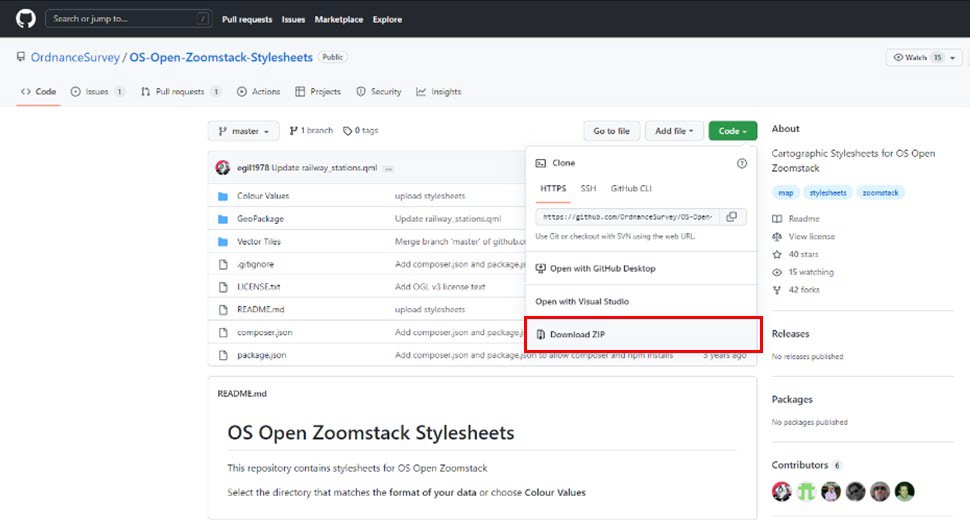
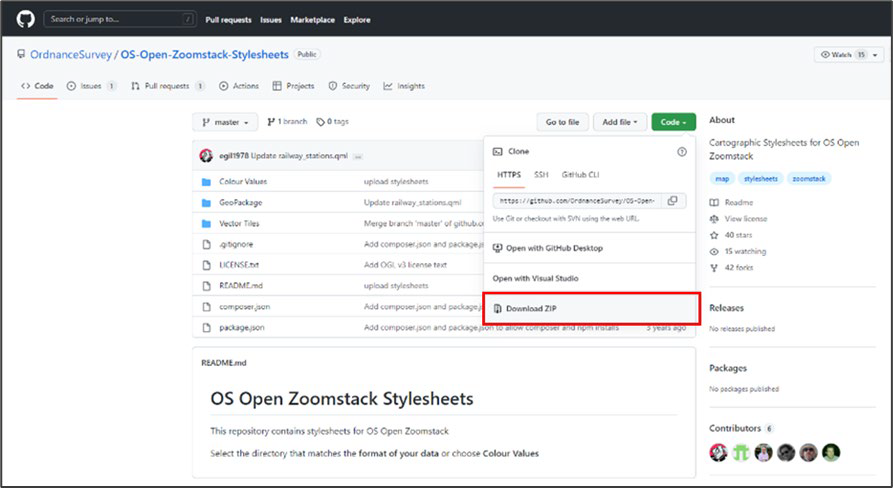
1. Download the appropriate repositories from [GitHub](https://github.com/OrdnanceSurvey). The example below shows a screenshot of the GitHub repository containing OS Open Zoomstack stylesheets:<br>

   <figure><img src="/files/BqPYrMVnBNprKo4OPzyN" alt="Screenshot of the download ZIP menu option on the OS Open Zoomstack Stylesheets repository" width="563"><figcaption><p>Screenshot of the download ZIP menu option on the OS Open Zoomstack Stylesheets repository</p></figcaption></figure>
2. Store the downloaded repository in a sensible folder location.
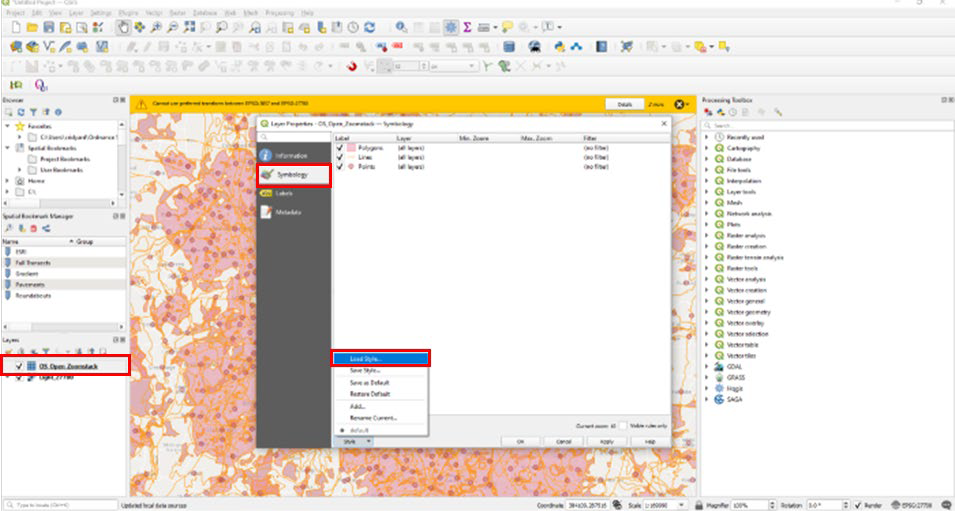
3. Navigate to your QGIS project with the vector tile data loaded. Double-click on your vector tile layer and navigate to the *Symbology* tab on the left-hand ribbon of the Layer Properties dialog box.
4. In the bottom left of the Layer Properties dialog box, select *Style* > *Load Style...*<br>

   <figure><img src="/files/obOGKSCfwVFFUMvRdb6w" alt="Screenshot of the load style menu option in the context menu of the layer properties window" width="563"><figcaption><p>Screenshot of the load style menu option in the context menu of the layer properties window</p></figcaption></figure>
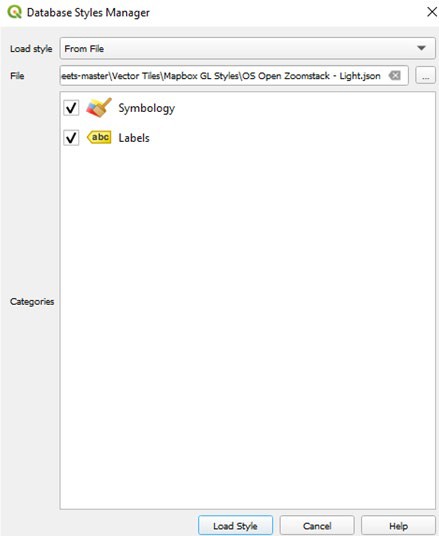
5. In the Database Styles Manager dialog box, select *From File* as your Load style option.
6. For the File option, you will need to navigate to the folder where you stored the downloaded stylesheet repository. The vector tiles stylesheet will be found in *Vector Tiles* > *Mapbox GL Styles*, and the file type will be .json.<br>

   <figure><img src="/files/cARq9YanJD1MkOdfsoFN" alt="Database Styles manager dialog showing Symbology and Labels categories selected" width="329"><figcaption><p>Database Styles manager dialog showing Symbology and Labels categories selected</p></figcaption></figure>
7. Click *Load Style* to load the style.

A styled vector tile dataset will now be visible in the project.

</details>

<details>

<summary>Cadcorp</summary>

#### Requirements:

* Cadcorp SIS Desktop (version 9)
* Vector tiles

*As OS vector tiles are only available in Web Mercator projection, you will need to undertake a few extra steps to be able to use them within Cadcorp. Additionally, the tiles will not be reprojected into British National Grid (BNG), so the tiles may create some gaps within the data.*

The following instructions outline how to change the projection of your basemap from British National Grid (EPSG:27700) to WGS 84 (EPSG:4326) in Cadcorp:

1. Open Cadcorp SIS Desktop (version 9) and navigate to *Add Overlay* in the upper ribbon.
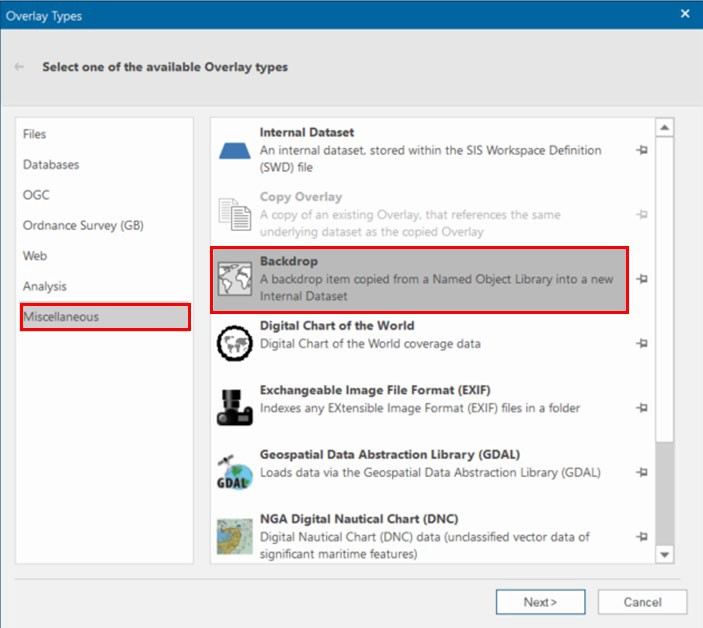
2. In the Overlay Types dialog box, select *Miscellaneous* > *Backdrop*, then click *Next*.<br>

   <figure><img src="/files/uq2n0BevQSnGGApAyCfI" alt="Screenshot of the backdrop overlay type in the miscellaneous category"><figcaption><p>Screenshot of the backdrop overlay type in the miscellaneous category</p></figcaption></figure>
3. Expand *WGS 84* and select *WGS 84 Lat/Long*.
4. Click *Finish*.

A basemap projected in WGS 84 will appear in the map screen. It is now possible to follow either method 1 or method 2 on the following pages to add vector tiles to a Cadcorp project.

The following sub-sections outline two methods for installing vector tiles in Cadcorp.

### Method 1: Drag-and-drop <a href="#id-2.2.1-method-1-drag-and-drop" id="id-2.2.1-method-1-drag-and-drop"></a>

1. Download the vector tiles (MBTiles) and save them in a preferred location.
2. Start Cadcorp SIS Desktop and open a new or an existing map window.
3. Navigate to your saved vector tiles in file explorer and drag-and-drop the file into the map window.

The data will appear in your Maps Control Bar and render in your map window.

### Method 2: Add Overlay <a href="#id-2.2.2-method-2-add-overlay" id="id-2.2.2-method-2-add-overlay"></a>

1. Download the vector tiles (MBTiles) and save them in a preferred location.
2. Start Cadcorp SIS Desktop and open a new or an existing map window.
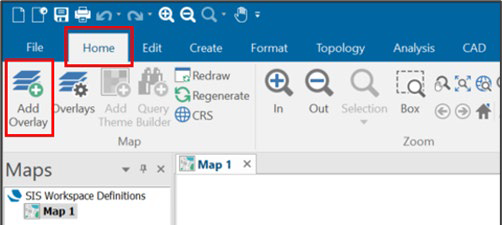
3. In the upper ribbon, navigate to the *Home* tab and click *Add Overlay*.<br>

   <figure><img src="/files/Kp22JwINfh4S9bCidPI4" alt="Screenshot showing the upper ribbon in Cadcorp SIS Desktop. The Home tab and Add Overlay button are highlighted by red rectangle shapes."><figcaption><p>Screenshot showing the upper ribbon in Cadcorp SIS Desktop</p></figcaption></figure>
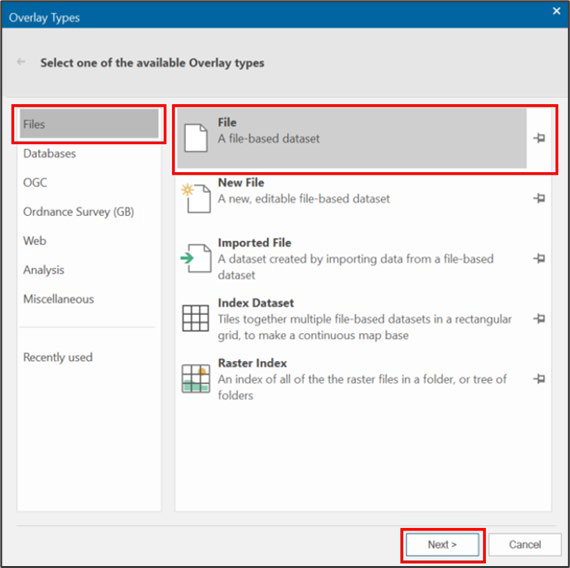
4. In the Overlay Types dialog box, select *Files* > *File* as the Overlay type, then click *Next*.<br>

   <figure><img src="/files/Cx9EWFw6tNarDimdQyjo" alt="Overlay Types dialog box with the Files and File overlay type options highlighted by red rectangle shapes. The Next button is also highlighted by a red rectangle shape." width="428"><figcaption><p>Overlay Types dialog box with the Files and File overlay type options highlighted by red rectangle shapes.</p></figcaption></figure>
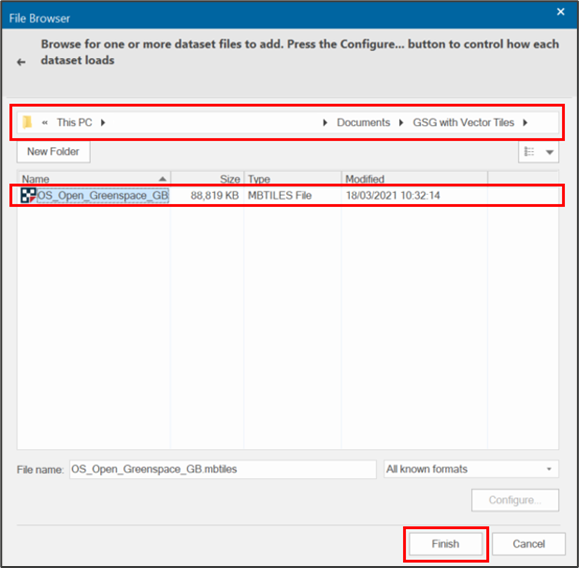
5. In the File Browser dialog box, navigate to and select your saved vector tiles, then click *Finish*.<br>

   <figure><img src="/files/6lCCi3a0C440CzAiA9E5" alt="File Browser dialog box with the file path, saved MBTiles and Finish button highlighted by red rectangle shapes." width="434"><figcaption><p>File Browser dialog box with the file path, saved MBTiles and Finish button highlighted</p></figcaption></figure>

The data will now appear in your Maps Control Bar and render in your map window.

### Adding stylesheets to OS vector tiles products in Cadcorp SIS Desktop <a href="#id-2.2.3-adding-stylesheets-to-os-vector-ti" id="id-2.2.3-adding-stylesheets-to-os-vector-ti"></a>

Vector tiles can be styled in any way desired. However, if you want to style them with OS styling, stylesheets for vector tiles can be found on [GitHub](https://github.com/OrdnanceSurvey) on a product-by-product basis.

*OS Open Zoomstack stylesheets can be automatically applied when adding this product into CadCorp SIS Desktop. While vector tile stylesheets do exist for OS VectorMap Local, they cannot currently be applied in Cadcorp SIS Desktop.*

To add stylesheets to OS vector tiles products in Cadcorp SIS Desktop, please use the following instructions:

1. Download the appropriate repositories from [GitHub](https://github.com/OrdnanceSurvey). The example screenshot below shows a screenshot of the GitHub repository containing OS Open Zoomstack stylesheets.<br>

   <figure><img src="/files/yhAPtOnmIZmwqidBvWlR" alt="Screenshot showing an OS GitHub repository containing OS Open Zoomstack stylesheets. There is a red rectangular box around the Download ZIP option under the Code drop-down menu." width="563"><figcaption><p>Screenshot showing an OS GitHub repository containing OS Open Zoomstack stylesheets</p></figcaption></figure>
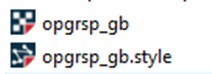
2. Add the stylesheets file to the folder where the MBTiles are also stored and rename the stylesheets file so that it has the same name as the MBTiles file.
3. Add the following file extension to the end of the newly named stylesheets file: .style.json<br>

   <figure><img src="/files/Y7jHy6H3pLHx2wCAfwCE" alt="opgrsp_gb and opgrsp_gb.style files shown in the explorer"><figcaption><p>opgrsp_gb and opgrsp_gb.style files shown in the explorer</p></figcaption></figure>
4. Drag and drop the style.json file into your Cadcorp SIS Desktop project.

The styling will now be applied to your layer.

</details>

<details>

<summary>Mapbox</summary>

Requirements:

* A Mapbox account
* Vector tiles

1. Download your vector tiles (MBTiles) and save them in a preferred location.
2. Navigate to [Mapbox Studio](https://www.mapbox.com/mapbox-studio/) and login to your account.
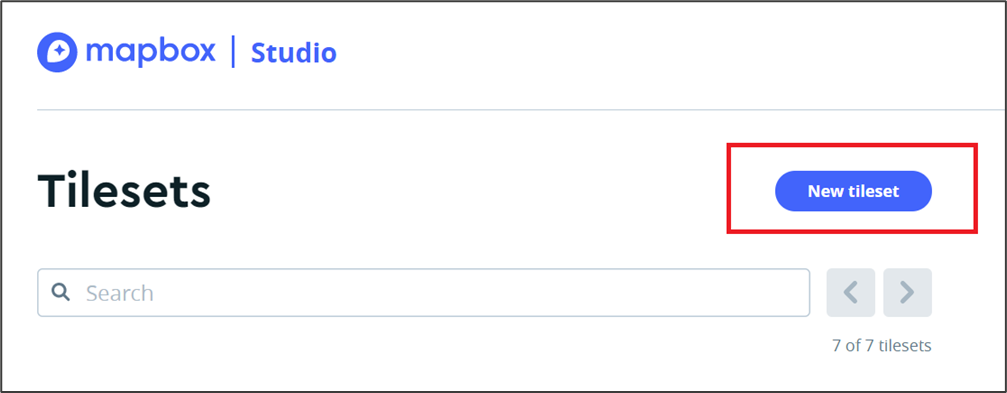
3. The vector tiles can be uploaded in the [Tilesets section of Studio](https://studio.mapbox.com/tilesets/). In the Tilesets page, click *New tileset*.<br>

   <figure><img src="/files/52XlBw2bykiaHhkZpj3L" alt="" width="563"><figcaption><p>Screenshot of the Tilesets page of Mapbox Studio, with the New tileset button highlighted</p></figcaption></figure>
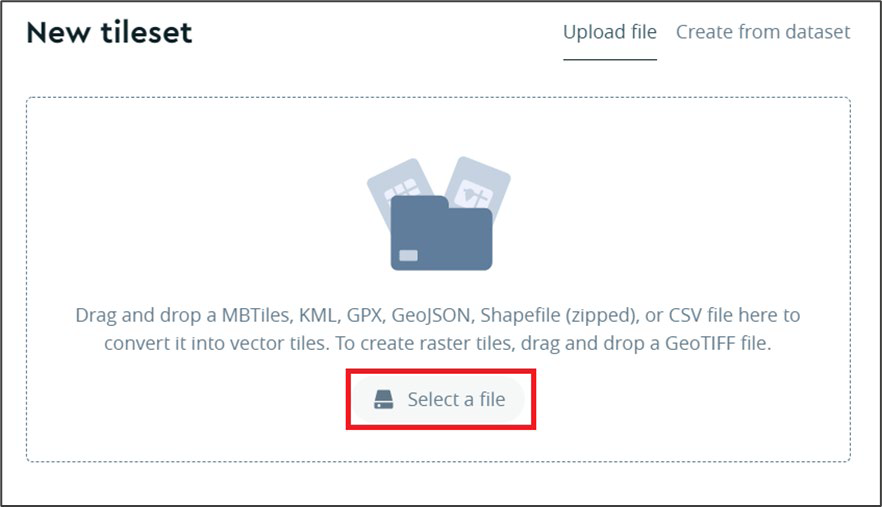
4. In the New tileset pop-up, click *Select a file* and navigate to the saved location of your MBTiles.<br>

   <figure><img src="/files/b7mSAEof9xazKNR25Mb2" alt="Screenshot of the New tileset pop-up in Mapbox Studio, with the Select a file button highlighted by a red rectangle shape." width="563"><figcaption><p>Screenshot of the New tileset pop-up in Mapbox Studio, with the Select a file button highlighted</p></figcaption></figure>

The upload will begin, and a notification will appear once it is complete.

*There is an upload limit within Mapbox Studio of 300 mb per upload and 20 uploads per month.*

</details>


---

# Agent Instructions
This documentation is published with GitBook. GitBook is the documentation platform designed so that both humans and AI agents can read, navigate, and reason over technical content effectively. Learn more at gitbook.com.

## Querying This Documentation
If you need additional information that is not directly available in this page, you can query the documentation dynamically by asking a question.

Perform an HTTP GET request on the current page URL with the `ask` query parameter, and the optional `goal` query parameter:

```
GET https://docs.os.uk/os-downloads/resources/product-resources/getting-started-with-geopackage-and-vector-tiles-guides/getting-started-with-vector-tiles/installing-vector-tiles-in-gis-software.md?ask=<question>&goal=<endgoal>
```

`ask` is the immediate question: it should be specific, self-contained, and written in natural language.
`goal` is optional and describes the broader end goal you are ultimately trying to accomplish on behalf of the user. GitBook uses it to tailor the answer towards what is most useful for that goal.

The response will contain a direct answer to the question and relevant excerpts and sources from the documentation.

Use this mechanism when the answer is not explicitly present in the current page, you need clarification or additional context, or you want to retrieve related documentation sections.