> For the complete documentation index, see [llms.txt](https://docs.os.uk/os-downloads/llms.txt). Markdown versions of documentation pages are available by appending `.md` to page URLs; this page is available as [Markdown](https://docs.os.uk/os-downloads/resources/product-resources/getting-started-with-geopackage-and-vector-tiles-guides/getting-started-with-vector-tiles/using-os-styles-to-get-started-in-mapbox-studio.md).

# Using OS styles to get started in Mapbox Studio

OS has supplied Mapbox GL Styles created by our cartographic designers for use in Mapbox Studio on [GitHub](https://github.com/OrdnanceSurvey). These stylesheets allow you to add colours to features contained in the vector tiles to produce a far more vivid and visually appealing map.

The following step-by-step instructions will guide you through setting up Mapbox GL Styles in Mapbox Studio:

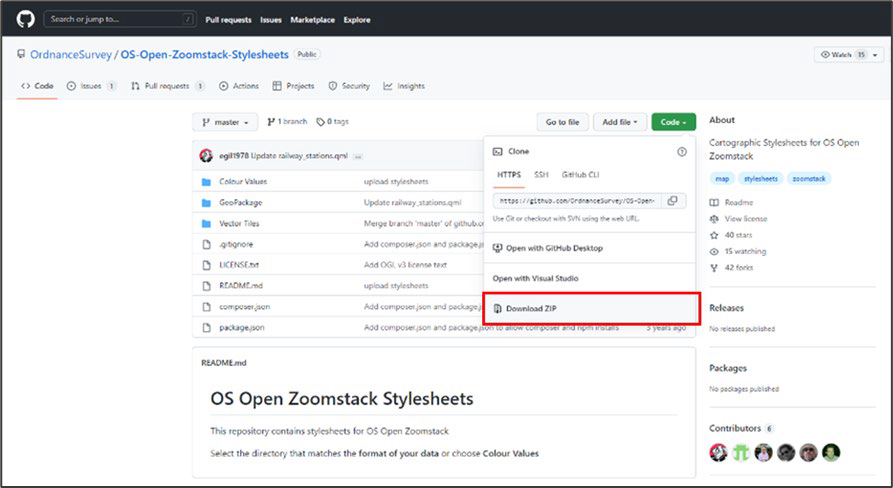
1. Download the appropriate repositories from [GitHub](https://github.com/OrdnanceSurvey). The example screenshot below shows a screenshot of the GitHub repository containing OS Open Zoomstack stylesheets. This downloaded repository should be stored in an appropriate location.

<figure><img src="/files/0DKlMtSaEpBDS05XaDjk" alt="Screenshot showing an OS GitHub repository containing OS Open Zoomstack stylesheets. There is a red rectangular box around the Download ZIP option under the Code drop-down menu." width="563"><figcaption><p>Screenshot showing an OS GitHub repository containing OS Open Zoomstack stylesheets. There is a red rectangular box around the Download ZIP option under the Code drop-down menu.</p></figcaption></figure>

1. Navigate to Mapbox Studio to complete the next set of instructions.
2. Copy the Map ID for your new tileset by doing the following:
   * In Mapbox Studio, click on the *Tilesets* tab in the top right corner.

<figure><img src="/files/bYBsi4ZA1QQV6jmbVrsG" alt="Screenshot showing the tilesets tab show in the top right corner of Mapbox Studio" width="422"><figcaption><p>Screenshot showing the tilesets tab show in the top right corner of Mapbox Studio</p></figcaption></figure>

3. Scroll down until you see your new tileset and click the *Menu* button.

<figure><img src="/files/dCKQ6NV6lNdqWfxzE4H0" alt="Screenshot showing OS-Open-Zoomstack tileset shown in the explorer" width="454"><figcaption><p>Screenshot showing OS-Open-Zoomstack tileset shown in the explorer</p></figcaption></figure>

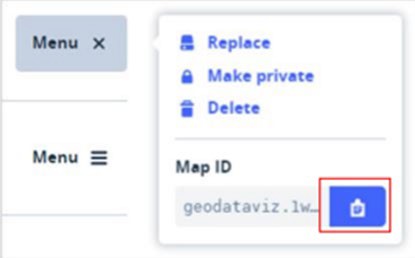
4. Click on the *clipboard icon* to copy the Map ID.

<figure><img src="/files/9qqvhCfQG5KdiDB9Lc6a" alt="Screenshot showing MapID shown in the context menu with the clipboard button highlighted" width="311"><figcaption><p>Screenshot showing MapID shown in the context menu with the clipboard button highlighted</p></figcaption></figure>

5. Open the folder of stylesheets that you downloaded in step 1 and navigate to *Vector Tiles* > *Mapbox GL Styles*, where you will find four styles (Road, Outdoor, Light, and Night).
6. Choose the style that you want to use, then open the .json file (for example, Outdoor.json) in a text editor.
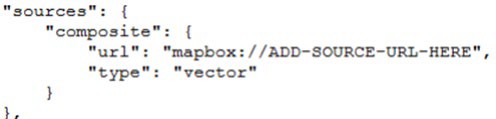
7. Find the following block of code near the top of the file (line 46) and paste your Map ID where it says ADD-SOURCEURL-HERE:

<figure><img src="/files/0k1Rc2lkHZ1CNvjuUjce" alt="Screenshot showing the sources code on line 46 where Map ID can be added to the .json file" width="372"><figcaption><p>Screenshot showing the sources code on line 46 where Map ID can be added to the .json file</p></figcaption></figure>

8. Save the .json file.
9. Go back to Mapbox Studio and click the *Styles* tab.

<figure><img src="/files/MnB8HRRNr3A158IbCG1P" alt="Screenshot showing the top ribbon of Mapbox Studio with a red rectangle shape around the Styles tab." width="468"><figcaption><p>Screenshot showing the top ribbon of Mapbox Studio with a red rectangle shape around the Styles tab.</p></figcaption></figure>

10. Click the *Upload* button.
11. Navigate to your newly saved *style.json* file and click *Open*.

The style will then load up in the Mapbox Studio style editor.

From this point on, you can customise the content and style of your map (for example, you can turn layers on or off, delete layers from your map, add new layers, and change any of the style elements).

12. Once you are happy with your map, click *Publish* in the top right corner and your map is ready to use.


---

# Agent Instructions
This documentation is published with GitBook. GitBook is the documentation platform designed so that both humans and AI agents can read, navigate, and reason over technical content effectively. Learn more at gitbook.com.

## Querying This Documentation
If you need additional information that is not directly available in this page, you can query the documentation dynamically by asking a question.

Perform an HTTP GET request on the current page URL with the `ask` query parameter, and the optional `goal` query parameter:

```
GET https://docs.os.uk/os-downloads/resources/product-resources/getting-started-with-geopackage-and-vector-tiles-guides/getting-started-with-vector-tiles/using-os-styles-to-get-started-in-mapbox-studio.md?ask=<question>&goal=<endgoal>
```

`ask` is the immediate question: it should be specific, self-contained, and written in natural language.
`goal` is optional and describes the broader end goal you are ultimately trying to accomplish on behalf of the user. GitBook uses it to tailor the answer towards what is most useful for that goal.

The response will contain a direct answer to the question and relevant excerpts and sources from the documentation.

Use this mechanism when the answer is not explicitly present in the current page, you need clarification or additional context, or you want to retrieve related documentation sections.