> For the complete documentation index, see [llms.txt](https://docs.os.uk/os-downloads/llms.txt). Markdown versions of documentation pages are available by appending `.md` to page URLs; this page is available as [Markdown](https://docs.os.uk/os-downloads/upcoming-products/beta-products-information/os-3d-mesh-beta-product/getting-started-guide/importing-an-os-integrated-mesh-model-into-arcgis-pro/adding-point-datasets.md).

# Adding point datasets

## Draping point data

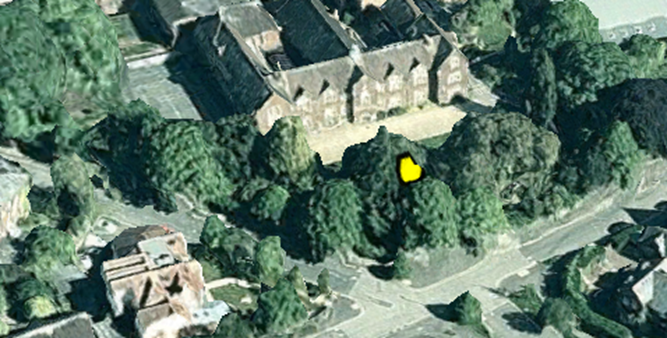
As was the case with polygon and line data, stylised vector point features can be draped on an integrated mesh. An example of this is shown in the image below:<br>

<figure><img src="/files/CkfYcNYmOsV8Z0XaptYz" alt="a 2D point feature, from OS  OpenMap Local, draped upon an integrated mesh. A yellow point placed over a protruding tree mesh."><figcaption><p>A 2D point feature, from OS OpenMap Local, draped upon an integrated mesh.</p></figcaption></figure>
The result of this may or may not be what you intended. As such, it’s often better to use the ‘3D Layers’ section when working with 3D symbols.

## 3D point data

If you wish to render 3D point data in 3D space, you’re typically going to want to avoid just depicting it as a small dot. Instead, you’ll likely wish to represent it either as a ‘3D symbol’, or as a 2D ‘billboard’ symbol that will automatically rotate to face the scene camera.

### 3D symbols

A ‘3D symbol’ is a small, usually simple, 3D model that can be rendered at the position of a 3D point. Within its Symbology toolset, ArcGIS Pro has a separate section dedicated to supporting such symbols. However, this is only available when using layers present in the ‘3D Layers’ section of the Contents pane.

By default, ESRI provide a selection of basic 3D symbol primitives that includes cubes, spheres and diamonds, along with some more map-centric objects like push-pins and flags. However, if you can use a 3D modelling tool, such as Blender, it’s possible to design and use your own custom models for this purpose (for further details, see our [tutorial on creating 3D symbols for GIS applications on More than Maps](https://docs.os.uk/more-than-maps/geodataviz-tutorials/creating-3d-symbols-for-gis-applications#using-the-3d-symbol-in-your-gis-application). Alternatively, you may be able to source pre-made 3D models (with a suitable level of detail…) from an online library.

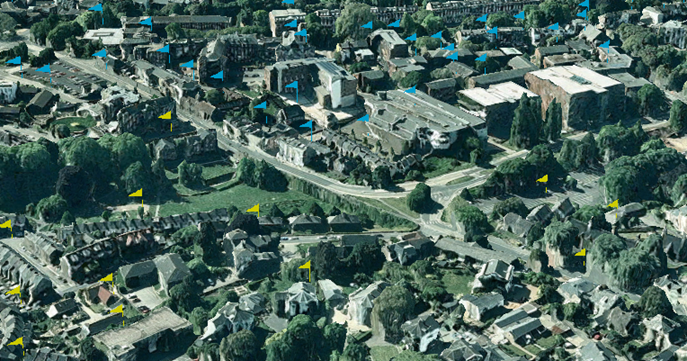
<figure><img src="/files/8qZKo93wWoqPQUmN51It" alt="Point features from the OS Code-Point product, visualised as 3D flag models. Blue and yellow flags are depicted on the mesh in distinct areas of the model."><figcaption><p>Point features from the OS Code-Point product, visualised as 3D flag models.</p></figcaption></figure>

As mentioned previously, it’s not currently possible to use the integrated mesh as a source of heights. In the example above, the points were heighted from the ArcGIS Pro default surface, which was far from ideal, as this placed the points below the integrated mesh. To get around this, points were moved upward by 20meters, using the Cartographic Offset property.

### 2D symbols/billboards

Regular 2D images can still be used as symbols within a 3D scene. The typical way to achieve this is via the ‘billboard’ function, which, when enabled, will ensure that the symbols rotate to always face the scene camera. ArcGIS Pro offers two modes for this – ‘full’ and ‘signpost’ rotation, with the latter locking the rotation to just the Z (upward) axis. Alternatively, ‘billboard’ mode can be turned off entirely, leaving the symbols facing in just one constant direction.

<figure><img src="/files/KcIAYBYk8RyGlvXS2iiw" alt="2D symbols, rendered as billboards in &#x27;Signpost&#x27; mode. A number of red markers are visible on top of the 3D mesh."><figcaption><p>2D symbols, rendered as billboards in 'Signpost' mode.</p></figcaption></figure>

### Text labels

You may wish to include text labels within a scene that also contains an integrated mesh. This behaves as just another form of billboard. The challenge, when setting this up, is to choose a label symbology that sufficiently stands out against the background. In this example, the ‘halo’ option, which adds a white rim to the text, greatly helps in keeping the text legible.

<figure><img src="/files/9FfYZmB9XIQoE2WdqejH" alt="Codepoint-based text labels, rendered over an integrated mesh."><figcaption><p>Codepoint-based text labels, rendered over an integrated mesh.</p></figcaption></figure>


---

# Agent Instructions
This documentation is published with GitBook. GitBook is the documentation platform designed so that both humans and AI agents can read, navigate, and reason over technical content effectively. Learn more at gitbook.com.

## Querying This Documentation
If you need additional information that is not directly available in this page, you can query the documentation dynamically by asking a question.

Perform an HTTP GET request on the current page URL with the `ask` query parameter:

```
GET https://docs.os.uk/os-downloads/upcoming-products/beta-products-information/os-3d-mesh-beta-product/getting-started-guide/importing-an-os-integrated-mesh-model-into-arcgis-pro/adding-point-datasets.md?ask=<question>
```

The question should be specific, self-contained, and written in natural language.
The response will contain a direct answer to the question and relevant excerpts and sources from the documentation.

Use this mechanism when the answer is not explicitly present in the current page, you need clarification or additional context, or you want to retrieve related documentation sections.
