# Greenspace recipe guide

## What is greenspace?

The term 'greenspace' is used in urban planning, environmental management and public health policy, and refers to land covered by vegetation or areas of water (also known as bluespace). It's now well recognised that green spaces deliver social, economic and environmental benefits. Consequently, greenspace is a concept used to frame discussion and deliver progress for improving quality of life, mitigating climate change and enhancing biodiversity.

### Use cases

The use cases for greenspace are many and varied, but include:

* Evaluating access to nature and recreational areas
* Improving air quality
* Creating green corridors
* Improving public health
* Managing flood risk
* Evaluating climate change resilience
* Modelling urban heat islands
* Infrastructure planning
* Managing assets
* Improving public safety
* Calculating deprivation indexes
* Property development

## What is the greenspace recipe?

The guide below provides a geospatial toolkit for helping you understand green spaces across Great Britain; its step-by-step instructions outline how to select relevant pieces of topographic data from the OS NGD and weave them into a greenspace recipe. The suggested recipe will help support research, management, planning, auditing and policy for the greenspace use cases outlined above.

Applying filters (see step 8) in OS Select+Build to the four OS NGD feature types at the recipe creation (or recipe editing) stage lets you exclude features that are not relevant to greenspace use cases (for example, manmade surface).

You can adapt the suggested greenspace recipe at the recipe creation or editing stage so that it fully meets your needs.&#x20;

## Migration from OS MasterMap Greenspace Layer

You might currently be using the [OS MasterMap Greenspace Layer product](https://docs.os.uk/os-downloads/products/land-and-terrain-portfolio/os-mastermap-greenspace-layer) to get a detailed dataset of the green spaces present within urban areas in Great Britain. This product will reach its End of Life and be withdrawn on 31 March 2027. More information about the product's withdrawal is available from the [End of Life Notice – OS MasterMap Greenspace Layer](https://docs.os.uk/os-downloads/resources/product-resources/end-of-life-product-notices/end-of-life-notice-os-mastermap-greenspace-layer) page.

While there's no like-for-like replacement download product for OS MasterMap Greenspace Layer, you can create a recipe in OS Select+Build to download the equivalent greenspace data from the OS NGD. This guide provides step-by-step instructions on how to create this recipe.

A detailed comparison of these products, including improvements offered by OS NGD data, is available on the [Comparison of OS MasterMap Greenspace Layer and OS NGD](https://docs.os.uk/more-than-maps/os-ngd-migration/comparison-of-os-mastermap-greenspace-layer-and-os-ngd) page.

The information supplied in the single feature type in OS MasterMap Greenspace Layer is provided by four corresponding feature types across three collections within the OS NGD:

<table><thead><tr><th valign="top">Theme</th><th valign="top">Collection</th><th valign="top">Feature Type</th></tr></thead><tbody><tr><td valign="top">OS NGD Land</td><td valign="top">OS Land Features</td><td valign="top"><a href="../../../data-structure/land/land-features/land">Land</a></td></tr><tr><td valign="top">OS NGD Transport</td><td valign="top">OS Transport Features</td><td valign="top"><a href="../../../data-structure/transport/transport-features/rail">Rail</a></td></tr><tr><td valign="top">OS NGD Transport</td><td valign="top">OS Transport Features</td><td valign="top"><a href="../../../data-structure/transport/transport-features/road-track-or-path">Road Track Or Path</a></td></tr><tr><td valign="top">OS NGD Water</td><td valign="top">OS Water Features</td><td valign="top"><a href="../../../data-structure/water/water-features/water">Water</a></td></tr></tbody></table>

## Creating the recipe

To create the greenspace recipe in OS Select+Build:

{% stepper %}
{% step %}

### Log into your [OS Data Hub](https://osdatahub.os.uk/) account

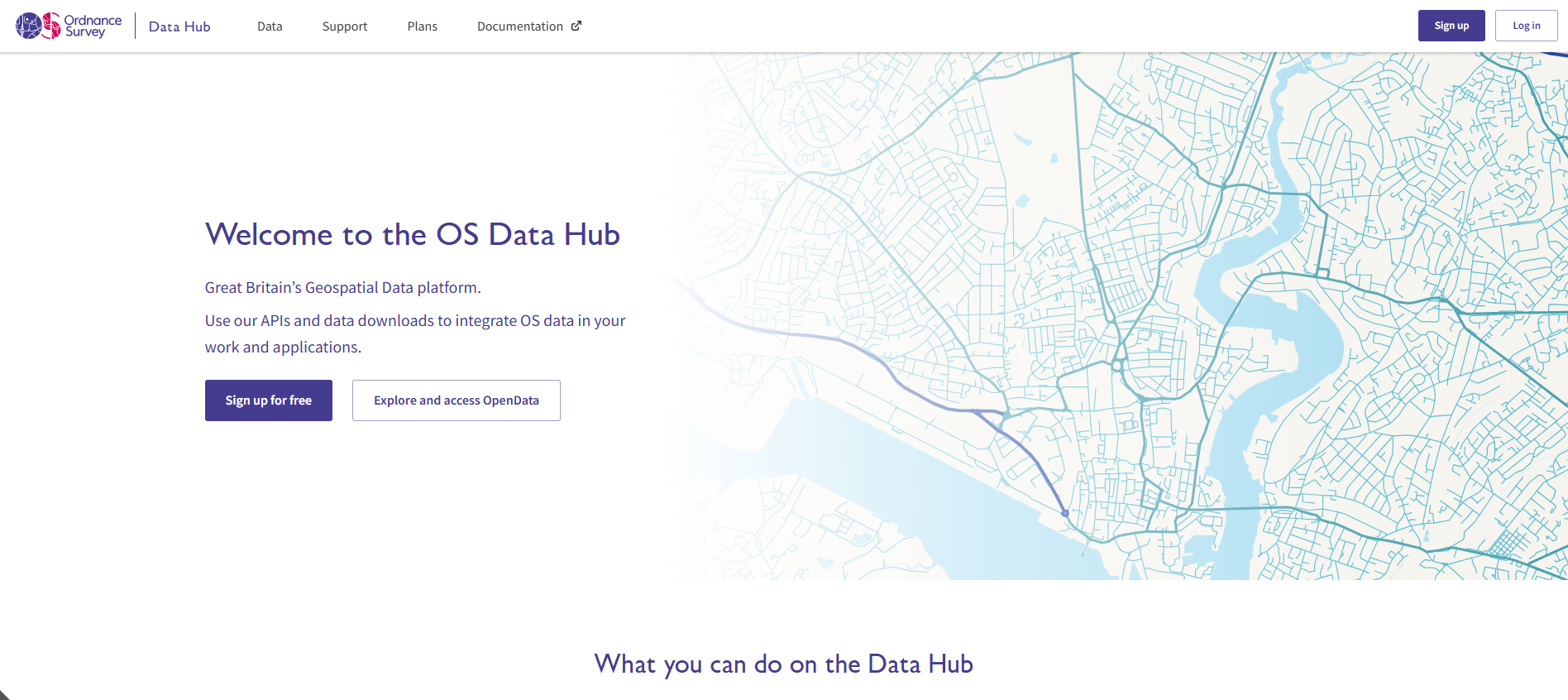
Click *Login* on the OS Data Hub menu bar to log into your account.

<figure><img src="https://170091638-files.gitbook.io/~/files/v0/b/gitbook-x-prod.appspot.com/o/spaces%2F0pZjHxkAvY7Mn6TqFBMD%2Fuploads%2F1Gd3vBvSOqXLYTPpZsO9%2Fimage.png?alt=media&#x26;token=afd47dd4-6005-4d33-a8ef-ec6540a138fb" alt="A screenshot of the OS Data Hub home page showing the sign up and log in buttons in the top right hand corner" width="563"><figcaption><p>Screenshot showing the OS Data Hub homepage.</p></figcaption></figure>
{% endstep %}

{% step %}

### Navigate to the OS Data Hub workspace

Select *Data* from the menu bar to view your workspace.
{% endstep %}

{% step %}

### Navigate to the OS Select+Build Recipe Library

Choose *Downloads* > *OS Select+Build Recipe Library* from the left-hand-side secondary navigation menu.

<figure><img src="https://170091638-files.gitbook.io/~/files/v0/b/gitbook-x-prod.appspot.com/o/spaces%2F0pZjHxkAvY7Mn6TqFBMD%2Fuploads%2FamiHxVEA8ivdYWmhdcR0%2FScreenshot%20Recipe%20Library.png?alt=media&#x26;token=1bd9e5df-cb7d-45c5-8f08-3c1ab13b25f1" alt="Screenshot of the OS Select+Build Recipe Library screen in the OS Data Hub."><figcaption><p>Screenshot of the OS Select+Build Recipe Library screen in the OS Data Hub.</p></figcaption></figure>
{% endstep %}

{% step %}

### Choose Create a new recipe

Click the *Create a new recipe* button at the top right-hand-side of the screen.
{% endstep %}

{% step %}

### Give the recipe a name and description

* Give your recipe a descriptive name in the *Recipe name* dialog box on the left-hand-side of the screen.
* Add a detailed description for your recipe (this is optional, but it's useful if other team members will be accessing the recipe).
  {% endstep %}

{% step %}

### Select the feature types

Select your OS NGD data by choosing the themes, collections and feature types you want to include in your recipe. You'll need to select the following four feature types from the *Themes* panel on the left-hand-side of the screen:&#x20;

* Land (found within *Land* > *Land Features* > *Land*)
* Rail (found within *Transport* > *Transport Features* > *Rail*)
* Road Track Or Path (found within *Transport* > *Transport Features* > *Road Track Or Path*)
* Water (found within *Water* > *Water Features* > *Water*)

{% hint style="info" %}
**Note:** Only these four individual feature types are needed for this recipe – do not select all feature types from the OS Land Features, OS Transport Features and OS Water Features Collections.
{% endhint %}

<figure><img src="https://170091638-files.gitbook.io/~/files/v0/b/gitbook-x-prod.appspot.com/o/spaces%2F0pZjHxkAvY7Mn6TqFBMD%2Fuploads%2FdU35EHSrGVzSEVyx0634%2FOS%20NGD%20Greenspace%20recipe%20selecting%20feature%20types%20screenshot.png?alt=media&#x26;token=c58d6f37-1e0b-4a7a-87d6-e3b3acd68ea8" alt="Screenshot showing the tree view in the secondary navigation menu that opens when you create a recipe in OS Select+Build in the OS Data Hub. Three of the four feature types needed for the OS NGD greenspace recommended recipe are shown to have been selected in this screenshot: Rail, Road Track Or Path, and Water; Land has also been selected, but isn&#x27;t visible in the screenshot."><figcaption><p>Screenshot showing the tree view in the secondary navigation menu that opens when you create a recipe in OS Select+Build in the OS Data Hub. Three of the four feature types needed for the greenspace recipe are shown to have been selected in this screenshot: Rail, Road Track Or Path, and Water; Land has also been selected, but isn't visible in the screenshot.</p></figcaption></figure>
{% endstep %}

{% step %}

### (Optional) Choose a data schema version

Selecting a data schema version for a feature type is an optional step; if you don't choose a particular data schema version for a feature type, OS Select+Build will always select the latest available data schema version for you for each feature type by default. We recommend using the pre-selected latest data schema version for feature types unless you have a specific need to use an earlier one. (See the [Data schema versioning page](https://docs.os.uk/osngd/getting-started/os-ngd-fundamentals/data-schema-versioning) for more information on data schema versioning in the OS NGD.)

If you wish to choose which schema version (where applicable) you'd like to receive the data in for a feature type, click on the feature type name within the tree view in the secondary navigation menu, then choose a data schema version from the *Choose Data Schema* drop-down box in the right-hand side panel.

<figure><img src="https://170091638-files.gitbook.io/~/files/v0/b/gitbook-x-prod.appspot.com/o/spaces%2F0pZjHxkAvY7Mn6TqFBMD%2Fuploads%2FqVNPK3uq91xi9f7ujcEc%2FOS%20NGD%20Greenspace%20recipe%20selecting%20data%20schema%20version%20screenshot.png?alt=media&#x26;token=efd88057-4551-4b29-ad61-15c64aa66c54" alt="Screenshot showing the tree view in the secondary navigation menu that opens when you create a recipe in OS Select+Build in the OS Data Hub. The Land Feature Type has been selected in this screenshot and the Choose Schema Version drop-down menu is visible in the right-hand-side panel, which lets you select the data schema version you want for the feature type."><figcaption><p>Screenshot showing the tree view in the secondary navigation menu that opens when you create a recipe in OS Select+Build in the OS Data Hub. The Land Feature Type has been selected in this screenshot and the <em>Choose Schema Version</em> drop-down menu is visible in the right-hand-side panel, which lets you select the data schema version you want for the feature type.</p></figcaption></figure>
{% endstep %}

{% step %}

### Add a filter to each feature type in your recipe

{% hint style="info" %}

#### Why are filters needed in this recipe?

* The Land, Rail, and Road Track Or Path Feature Types include both manmade and natural features. OS Select+Build provides the option to apply filters on certain attributes when creating a recipe so that only the features and attribution that are needed are included in the data. In this case, you can filter on the OS Land Cover Tier A attribute to select just the feature types used in this recipe, so that only features that have one of the natural land cover values will be included in the data. More information on the OS Land Cover Tier A attribute values is available from the [Land Cover Tier A Value Code List](https://docs.os.uk/osngd/code-lists/code-lists-overview/landcovertieravalue).
* A filter is also required on the Water Feature Type on the Description attribute to filter out areas of tidal water that are considered part of the sea; thus leaving inland water features (for example, rivers, ponds, lakes or reservoirs) plus tidal water in river estuaries and sea lochs that can be considered as an amenity in the recipe.
  {% endhint %}

To select only the required natural features, click on the *filter icon* <img src="https://170091638-files.gitbook.io/~/files/v0/b/gitbook-x-prod.appspot.com/o/spaces%2F0pZjHxkAvY7Mn6TqFBMD%2Fuploads%2FbC0JmdAy2Dlo2apT7h8C%2Ffilter-icon.PNG?alt=media&#x26;token=3185963a-f54c-45a3-93e3-67260cd4bb22" alt="Filter icon in OS Select+Build" data-size="line"> next to the name of the feature type you want to add a filter to in the theme selection tree.

The *Advanced Filter Options* panel will then slide into view from the right-hand side of the screen and you can begin to build your filters. To add a filter, click on *+Add rule*, then choose the appropriate options from the drop-down menus.&#x20;

Please refer to the table below to apply the correct the filter settings to the four feature types, taking care to select the correct operator:

<table><thead><tr><th valign="top">Feature Type</th><th valign="top">Filter</th><th valign="top">Operator</th><th valign="top">Values</th></tr></thead><tbody><tr><td valign="top">Land</td><td valign="top"><code>OSLandCoverTierA</code></td><td valign="top">In</td><td valign="top">Mineral, Multiple, Open Vegetation, Open Vegetation And Mineral, Trees</td></tr><tr><td valign="top">Rail</td><td valign="top"><code>OSLandCoverTierA</code></td><td valign="top">In</td><td valign="top">Mineral, Open Vegetation, Trees</td></tr><tr><td valign="top">Road Track Or Path</td><td valign="top"><code>OSLandCoverTierA</code></td><td valign="top">In</td><td valign="top">Mineral, Open Vegetation, Trees, Water</td></tr><tr><td valign="top">Water</td><td valign="top"><code>description</code></td><td valign="top">Not Equal</td><td valign="top">Sea</td></tr></tbody></table>

<figure><img src="https://170091638-files.gitbook.io/~/files/v0/b/gitbook-x-prod.appspot.com/o/spaces%2F0pZjHxkAvY7Mn6TqFBMD%2Fuploads%2FwpvQwBttMrhMY2SiFvxT%2FOS%20NGD%20Greenspace%20Recipe%20setting%20filters%20Land%20FT%20screenshot.png?alt=media&#x26;token=df28ad7e-948b-486e-947a-30648f393b3d" alt="Screenshot of the OS Select+Build Recipe Edit recipe screen with the Advanced Filter Options panel showing, where you can add a filter to a recipe. The filter options selected for the Land Feature Type are shown in this screenshot."><figcaption><p>Screenshot of the OS Select+Build Recipe Edit recipe screen with the Advanced Filter Options panel showing, where you can add a filter to a recipe. The filter options selected for the Land Feature Type are shown in this screenshot.</p></figcaption></figure>

Once you have added the necessary filter settings for a feature type, click the *Apply filter* button to lock them in.&#x20;

**Filters need to be set one at a time, with one filter per feature type for the greenspace recipe.**

<figure><img src="https://170091638-files.gitbook.io/~/files/v0/b/gitbook-x-prod.appspot.com/o/spaces%2F0pZjHxkAvY7Mn6TqFBMD%2Fuploads%2FuCoCT7THLjEl7eTTEOWG%2FOS%20NGD%20Greenspace%20Recipe%20setting%20filters%20Water%20FT%20screenshot.png?alt=media&#x26;token=831c835c-aac4-436c-9a30-1370748b41ee" alt=""><figcaption><p>Screenshot of the OS Select+Build Recipe Edit recipe screen with the Advanced Filter Options panel showing, where you can add a filter to a recipe. The filter options selected for the Water Feature Type are shown in this screenshot.</p></figcaption></figure>
{% endstep %}

{% step %}

### Finish creating the recipe

Once you have applied filters to the four feature types, click the *Create recipe* button to complete the recipe creation process. Your new recipe will now instantly be available in your OS Select+Build Recipe Library.

You can view a summary of the completed greenspace recipe, including the required feature types and filters, if you click *Data* > *Downloads* > *OS Select+Build Recipe Library* > \**your recipe's name*\* > *View all filters*.

The recipe summary should look match the screenshot below:

<figure><img src="https://170091638-files.gitbook.io/~/files/v0/b/gitbook-x-prod.appspot.com/o/spaces%2F0pZjHxkAvY7Mn6TqFBMD%2Fuploads%2FnCgW584FcoqOGTNAesv3%2FOS%20NGD%20Greenspace%20Recipe%20summary%20screenshot.png?alt=media&#x26;token=2176ec74-a494-4937-a0ff-9c17cc9ae3ed" alt="Screenshot of the OS Select+Build Recipe details screen showing a summary of the greenspace recipe, including selected feature types and their data schema versions, plus all filters applied."><figcaption><p>Screenshot of the OS Select+Build Recipe details screen showing a summary of the greenspace recipe, including selected feature types and their data schema versions, plus all filters applied.</p></figcaption></figure>
{% endstep %}
{% endstepper %}

***

## What's next?

More information on creating, editing and deleting recipes in OS Select+Build and on adding attribute filters to recipes can be found in the following guides:

<table data-view="cards"><thead><tr><th></th><th data-hidden data-card-target data-type="content-ref"></th></tr></thead><tbody><tr><td><h4><span data-gb-custom-inline data-tag="emoji" data-code="1f4d6">📖</span> Getting started with recipes guides</h4></td><td><a href="../getting-started-with-recipes">getting-started-with-recipes</a></td></tr><tr><td><h4><span data-gb-custom-inline data-tag="emoji" data-code="1f3af">🎯</span> Getting started with attribute filtering guide</h4></td><td><a href="../getting-started-with-recipes/getting-started-with-attribute-filtering">getting-started-with-attribute-filtering</a></td></tr></tbody></table>

Once you've created your recipe, you'll need to add a data package to receive the data. Data packages allow you to select the format, update frequency and area of interest for the required data. The following guide will help you to create a data package from your new recipe:

<table data-view="cards"><thead><tr><th></th><th data-hidden data-card-target data-type="content-ref"></th></tr></thead><tbody><tr><td><h4><span data-gb-custom-inline data-tag="emoji" data-code="1f4da">📚</span> Getting started with data packages guide</h4></td><td><a href="../getting-started-with-data-packages">getting-started-with-data-packages</a></td></tr></tbody></table>


---

# Agent Instructions: Querying This Documentation

If you need additional information that is not directly available in this page, you can query the documentation dynamically by asking a question.

Perform an HTTP GET request on the current page URL with the `ask` query parameter:

```
GET https://docs.os.uk/osngd/getting-started/downloading-with-os-select+build/getting-started-with-os-recommended-recipes/greenspace-recipe-guide.md?ask=<question>
```

The question should be specific, self-contained, and written in natural language.
The response will contain a direct answer to the question and relevant excerpts and sources from the documentation.

Use this mechanism when the answer is not explicitly present in the current page, you need clarification or additional context, or you want to retrieve related documentation sections.