Screenshot showing the OS Data Hub homepage.

Screenshot of the OS Select+Build Recipe Library screen in the OS Data Hub.
 next to the feature type(s) you want to add a filter to in the theme selection tree.
The Advanced Filter Options panel will then slide into view from the right and you can begin to build your filter(s):
* For a [simple filter](#worked-example-of-creating-a-simple-filter), select *+Add rule.*
* For a more complex [nested filter](#worked-example-of-creating-a-nested-filter), select *+Add group.*
* Once you have added all of your relevant filters, click *Apply Filter*.
{% endstep %}
{% step %}
#### Finish creating the recipe
Click the *Create recipe* button. Your new recipe with filters will now instantly be available in your OS Select+Build Recipe Library.
{% endstep %}
{% endstepper %}
## How do I add attribute filters to an existing recipe?
To add attribute filters to an existing recipe:
{% stepper %}
{% step %}
#### Log into your [OS Data Hub](https://osdatahub.os.uk/) account
Click *Login* on the OS Data Hub menu bar to log into your account.
next to the feature type(s) you want to add a filter to in the theme selection tree.
The Advanced Filter Options panel will then slide into view from the right and you can begin to build your filter(s):
* For a [simple filter](#worked-example-of-creating-a-simple-filter), select *+Add rule.*
* For a more complex [nested filter](#worked-example-of-creating-a-nested-filter), select *+Add group.*
* Once you have added all of your relevant filters, click *Apply Filter*.
{% endstep %}
{% step %}
#### Finish creating the recipe
Click the *Create recipe* button. Your new recipe with filters will now instantly be available in your OS Select+Build Recipe Library.
{% endstep %}
{% endstepper %}
## How do I add attribute filters to an existing recipe?
To add attribute filters to an existing recipe:
{% stepper %}
{% step %}
#### Log into your [OS Data Hub](https://osdatahub.os.uk/) account
Click *Login* on the OS Data Hub menu bar to log into your account.
Screenshot showing the OS Data Hub homepage.
Screenshot of the OS Select+Build Recipe Library screen in the OS Data Hub.
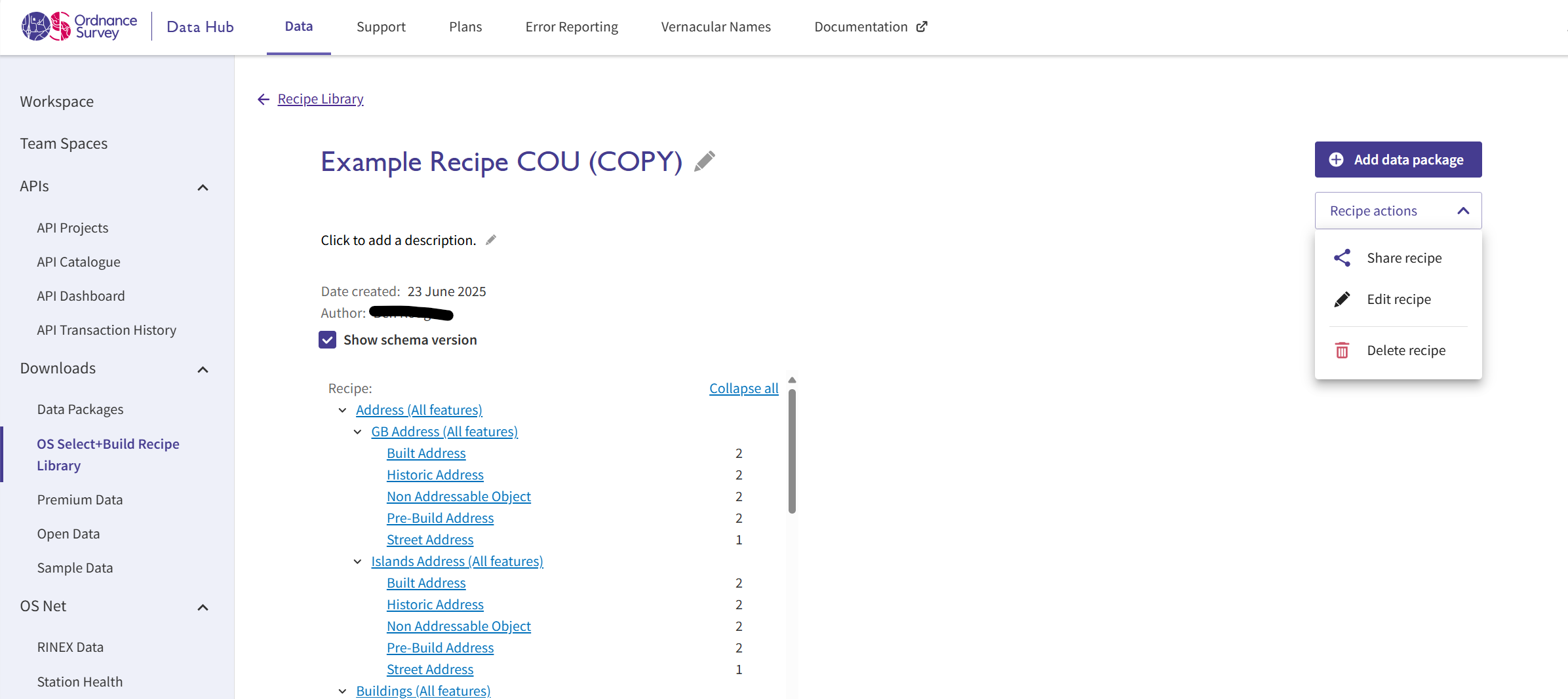
Screenshot of the OS Select+Build Recipe details screen with the Recipe actions dropdown open, showing where you can share, edit or delete a recipe.
next to the feature type you want to add a filter to in the selection tree for the recipe.
The Advanced Filter Options panel will then slide into view from the right and you can begin to build your filter(s):
* For a [simple filter](#worked-example-of-creating-a-simple-filter), select *+Add rule.*
* For a more complex [nested filter](#worked-example-of-creating-a-nested-filter), select *+Add group.*
* Once you have added all of your relevant filters, click *Apply Filter*.

Screenshot of the OS Select+Build Recipe Edit recipe screen with the Advanced Filter Options panel showing, where you can add a filter to a recipe.
 next to the feature type you want to remove a filter from in the selection tree for the recipe.
* When the Advanced Filter Options panel slides into view from the right, select *Clear all filters*.
next to the feature type you want to remove a filter from in the selection tree for the recipe.
* When the Advanced Filter Options panel slides into view from the right, select *Clear all filters*.

Screenshot of the OS Select+Build Recipe Edit recipe screen with the Advanced Filter Options panel showing. There is one filter applied to the Building Part Feature Type.
Screenshot showing the OS Data Hub homepage.
Screenshot of the OS Select+Build Recipe Library screen in the OS Data Hub.

Screenshot showing a filter icon against the selected feature type in the theme selection tree in OS Select+Build
to the right of Building Part.
The Advanced Filter Options panel will slide into view from the right, where you can begin to build your filter(s):
* In the Advanced Filter Options panel, click *+ Add rule*, then select *OSLandUseTierA* from the first drop-down.

Screenshot of adding a rule in the Advanced Filter Options panel in OS Select+Build.

Screenshot of adding a rule in the Advanced Filter Options panel in OS Select+Build.

Screenshot of creating a nested filer in the Advanced Filter Options panel in OS Select+Build.

Screenshot of creating a nested filter in the Advanced Filter Options panel in OS Select+Build.

Screenshot of creating a nested filter with And and Or conditions in the Advanced Filter Options panel in OS Select+Build.
Screenshot showing the OS Data Hub homepage.
Screenshot of the OS Select+Build Recipe Library screen in the OS Data Hub.
(i.e. a black funnel symbol) will appear under the recipe name alongside text stating: 'Filters have been applied to this recipe'.
* Click *View all filters* to view all of the filters that have been applied to feature types in the recipe.
In the example recipe below, you can see that there is a filter icon(i.e. the black funnel symbol) against the Building Part Feature Type; therefore, this feature type has filters applied to it.

Screenshot of the OS Select+Build Recipe details screen, which shows in-depth information about the contents of an example recipe.