> For the complete documentation index, see [llms.txt](https://docs.os.uk/osngd/llms.txt). Markdown versions of documentation pages are available by appending `.md` to page URLs; this page is available as [Markdown](https://docs.os.uk/osngd/getting-started/downloading-with-os-select+build/getting-started-with-os-recommended-recipes/safer-routes-to-schools-recipe-guide.md).

# Safer routes to schools recipe guide

## What is the safer routes to schools recipe? <a href="#what-is-the-greenspace-recipe" id="what-is-the-greenspace-recipe"></a>

The guide below provides a geospatial toolkit for helping you calculate safer routes to schools across Great Britain; its step-by-step instructions outline how to select relevant pieces of addressing, routing and transport network data from the OS NGD and weave them into a recipe.

Various powerful OS NGD attribution can be considered when assessing safer routes to school. The feature types included in this recipe guide contain useful attribution on:

* **Street light presence** – More well-lit routes are likely to be safer to walk along.
* **Presence of pavement** – It will be safer if a child can spend a significant portion of their journey walking along a pavement, rather than on a roadside.
* **20mph zones** – It will be safer for a child to walk along roads with lower speed limits, and these roads are more likely to have traffic calming measures in place which will also make walking along pavements safer for pedestrians.

Applying filters (see steps 8 and 9 below) in OS Select+Build to two of the feature types at the recipe creation (or recipe editing) stage lets you focus on residential and education addresses and exclude motorways and dual carriageways from the data.

You can adapt the suggested safer routes to schools recipe at the recipe creation or editing stage so that it fully meets your needs. The filters chosen for this recipe are a suggestion and you can amend them depending on your requirements for safe routes.

### Feature types required

The following five feature types are included in the safer routes to schools recipe:

| Theme            | Collection                                         | Feature Type                                                                                                                  |
| ---------------- | -------------------------------------------------- | ----------------------------------------------------------------------------------------------------------------------------- |
| OS NGD Address   | OS GB Address                                      | [Built Address](/osngd/data-structure/address/gb-address/built-address.md#primaryclassificationdescription)                   |
| OS NGD Transport | OS Routing And Asset Management Information (RAMI) | [Average And Indicative Speed](/osngd/data-structure/transport/rami/average-and-indicative-speed.md#indicativespeedlimit_mph) |
| OS NGD Transport | OS Transport Network                               | [Connecting Link](/osngd/data-structure/transport/transport-network/connecting-link.md)                                       |
| OS NGD Transport | OS Transport Network                               | [Path Link](/osngd/data-structure/transport/transport-network/path-link.md#presenceofstreetlight_coverage)                    |
| OS NGD Transport | OS Transport Network                               | [Road Link](/osngd/data-structure/transport/transport-network/road-link.md#presenceofpavement_overallpercentage)              |

## Creating the recipe

To create the safer routes to schools recipe in OS Select+Build:

{% stepper %}
{% step %}

### Log into your [OS Data Hub](https://osdatahub.os.uk/) account

Click *Log in* on the OS Data Hub menu bar to log into your account.

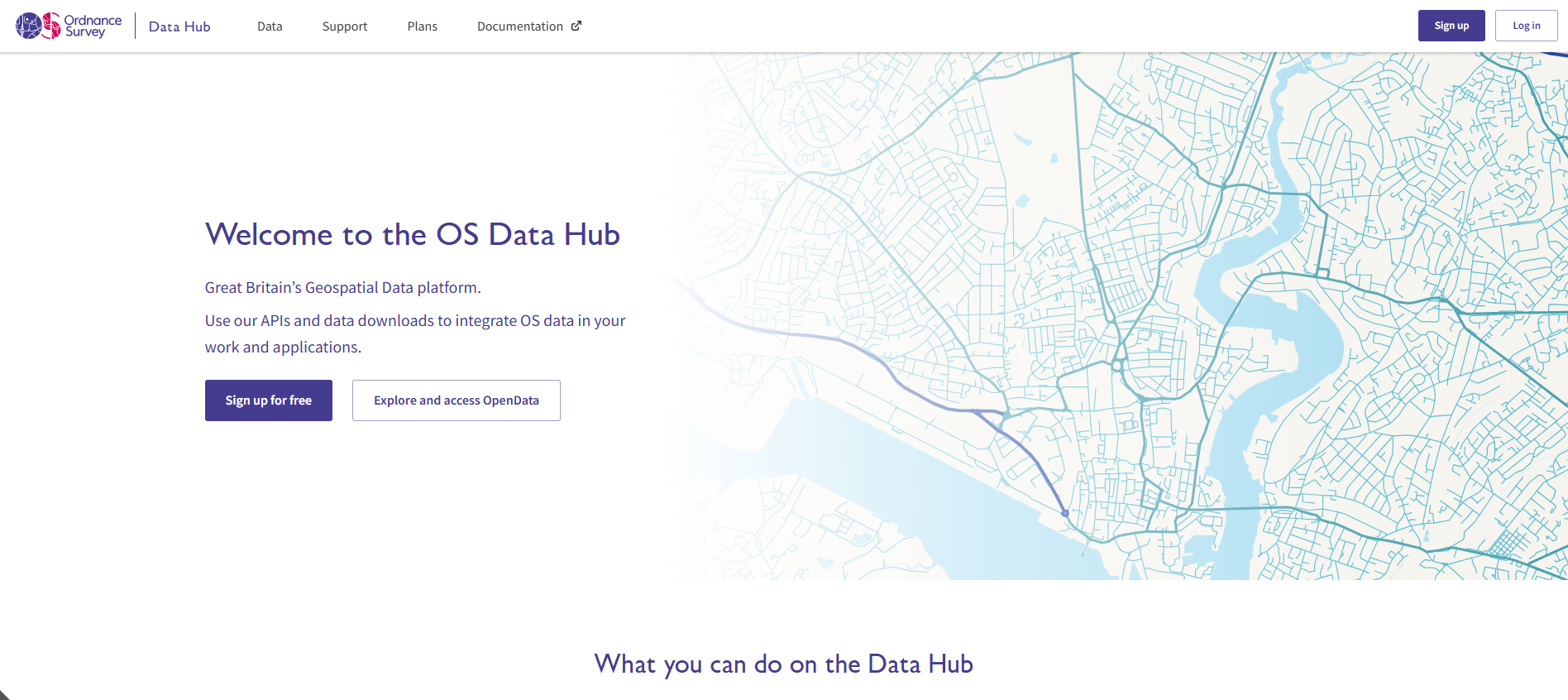
<figure><img src="/files/3Sc8dpyyNulwMK7oHF60" alt="A screenshot of the OS Data Hub home page showing the sign up and log in buttons in the top right hand corner" width="563"><figcaption><p>Screenshot showing the OS Data Hub homepage.</p></figcaption></figure>
{% endstep %}

{% step %}

### Navigate to the OS Data Hub workspace

Select *Data* from the menu bar to view your workspace.
{% endstep %}

{% step %}

### Navigate to the OS Select+Build Recipe Library

Choose *Downloads* > *OS Select+Build Recipe Library* from the left-hand-side secondary navigation menu.

<figure><img src="/files/82g7GmJIrcJdN4rgCo6M" alt="Screenshot of the OS Select+Build Recipe Library screen in the OS Data Hub."><figcaption><p>Screenshot of the OS Select+Build Recipe Library screen in the OS Data Hub.</p></figcaption></figure>
{% endstep %}

{% step %}

### Choose Create a new recipe

Click the *Create a new recipe* button at the top right-hand-side of the screen.
{% endstep %}

{% step %}

### Give the recipe a name and description

* Give your recipe a descriptive name in the *Recipe name* dialog box on the left-hand-side of the screen.
* Add a detailed description for your recipe (this is optional, but it's useful if other team members will be accessing the recipe).
  {% endstep %}

{% step %}

### Select the feature types

Select your OS NGD data by choosing the themes, collections and feature types you want to include in your recipe. You'll need to select the following five feature types from the *Themes* panel on the left-hand-side of the screen:&#x20;

* Built Address (found within *Address* > *GB Address* > *Built Address*)
* Average And Indicative Speed (found within *Transport* > *RAMI* > *Average And Indicative Speed*)
* Connecting Link (found within *Transport* > *Transport Network* > *Connecting Link*)
* Path Link (found within *Transport* > *Transport Network* > *Path Link*)
* Road Link (found within *Transport* > *Transport Network* > *Road Link*)

{% hint style="info" %}
**Note:** Only these five individual feature types are needed for this recipe – do not select all feature types from the OS GB Address, OS RAMI and OS Transport Network Collections.
{% endhint %}

<figure><img src="/files/t1Tp5mNhHkZ879F9ROkL" alt="Screenshot showing the tree view in the secondary navigation menu that opens when you create a recipe in OS Select+Build in the OS Data Hub. Three of the five feature types needed for the safer routes to schools recipe are shown to have been selected in this screenshot: Connecting Link, Path Link and Road Link; Average And Indicative Speed, and Built Address have also been selected, but aren&#x27;t visible in the screenshot."><figcaption><p>Screenshot showing the tree view in the secondary navigation menu that opens when you create a recipe in OS Select+Build in the OS Data Hub. Three of the five feature types needed for the safer routes to schools recipe are shown to have been selected in this screenshot: Connecting Link, Path Link and Road Link; Average And Indicative Speed, and Built Address have also been selected, but aren't visible in the screenshot.</p></figcaption></figure>
{% endstep %}

{% step %}

### (Optional) Choose a data schema version

Selecting a data schema version for a feature type is an optional step; if you don't choose a particular data schema version for a feature type, OS Select+Build will always select the latest available data schema version for you for each feature type by default. We recommend using the pre-selected latest data schema version for feature types unless you have a specific need to use an earlier one. (See the [Data schema versioning page](/osngd/getting-started/os-ngd-fundamentals/data-schema-versioning.md) for more information on data schema versioning in the OS NGD.)

If you wish to choose which schema version (where applicable) you'd like to receive the data in for a feature type, click on the feature type name within the tree view in the secondary navigation menu, then choose a data schema version from the *Choose Data Schema* drop-down box in the right-hand side panel.

<figure><img src="/files/yVh53qgSfPHNvx4JZRIP" alt="Screenshot showing the tree view in the secondary navigation menu that opens when you create a recipe in OS Select+Build in the OS Data Hub. The Path Link Feature Type has been selected in this screenshot and the Choose Schema Version drop-down menu is visible in the right-hand-side panel, which lets you select the data schema version you want for the feature type."><figcaption><p>Screenshot showing the tree view in the secondary navigation menu that opens when you create a recipe in OS Select+Build in the OS Data Hub. The Path Link Feature Type has been selected in this screenshot and the <em>Choose Schema Version</em> drop-down menu is visible in the right-hand-side panel, which lets you select the data schema version you want to use for the feature type.</p></figcaption></figure>
{% endstep %}

{% step %}

### Add a filter to the Built Address Feature Type

{% hint style="info" %}

#### Why are filters needed in this recipe?

OS Select+Build provides the option to apply filters on certain attributes when creating a recipe so that only the features and attribution that are needed are included in the data.

* A filter is required on the Built Address Feature Type so that only residential and education addresses appear in the data.
* A filter is also required on the Road Link Feature Type on the Description and Road Classification attributes to filter out dual carriageways and motorways from the data.

Filters need to be set one at a time for the feature types that need to use them.
{% endhint %}

To add a filter to the Built Address Feature Type:

* Click on the *filter icon* <img src="/files/DAnRQnNlQi1GZ1GjiYXW" alt="Filter icon in OS Select+Build" data-size="line"> to the right of Built Address in the theme selection tree.

<figure><img src="/files/rfMh2BLuKW2UffCCgu0A" alt="Screenshot of the theme selection tree in OS Select+Build. The Address, GB Address and Built Address boxes have been selected. A filter option is visible to the right of the Built Address name." width="375"><figcaption><p>Screenshot of the theme selection tree in OS Select+Build.</p></figcaption></figure>

*The Advanced Filter Options panel will then slide into view from the right-hand side of the screen and you can begin to build your filter.*&#x20;

In the Advanced Filter Options panel:

* Click the *+ Add rule* button, then select *primaryClassificationDescription* from the first drop-down.
* Leave the operator in the second drop-down as: = (i.e. the equal sign), then select *Residential* from the third drop-down.

<figure><img src="/files/Blj8S7dqebGXNfDAqJ95" alt="Screenshot of creating a filter in the Advanced Filter Options panel in OS Select+Build. The first rule of the filter options needed for the Built Address Feature Type is shown in this screenshot."><figcaption><p>Screenshot of creating a filter in the Advanced Filter Options panel in OS Select+Build. The first rule of the filter options needed for the Built Address Feature Type is shown in this screenshot.</p></figcaption></figure>

* Click the *+ Add rule* button to add a second rule below the primaryClassificationDescription rule.
* In the second rule, select *secondaryClassificationDescription* from the first drop-down, set the operator in the second drop-down as  = (i.e. the equal sign), then select *Education* from the third drop-down.
* Before continuing, select whether you would like the rules within the group to have an And or an Or condition. In this case, you should select *Or* from the And / Or selector.

<figure><img src="/files/839sn9yrYwacOw5LJ9FC" alt="Screenshot of creating a nested filter in the Advanced Filter Options panel in OS Select+Build. The two rules filter options selected for the Built Address Feature Type are shown in this screenshot."><figcaption><p>Screenshot of creating a filter in the Advanced Filter Options panel in OS Select+Build. The two rules filter options selected for the Built Address Feature Type are shown in this screenshot.</p></figcaption></figure>

* Click the *Apply filter* button.
* Close the Advanced Filter Options panel.
  {% endstep %}

{% step %}

### Add a filter to the Road Link Feature Type

To add a filter to the Road Link Feature Type:

* Click on the *filter icon* <img src="/files/DAnRQnNlQi1GZ1GjiYXW" alt="Filter icon in OS Select+Build" data-size="line"> to the right of Road Link in the theme selection tree.

<figure><img src="/files/CcEVwzw133yMtCxa2vNm" alt="Screenshot of the theme selection tree in OS Select+Build. The Transport, Transport Network, Connecting Link, Path Link and Road Link boxes have been selected. A filter option is visible to the right of the Connecting Link and Road Link names." width="333"><figcaption><p>Screenshot of the theme selection tree in OS Select+Build.</p></figcaption></figure>

*The Advanced Filter Options panel will then slide into view from the right-hand side of the screen and you can begin to build your filter.*&#x20;

In the Advanced Filter Options panel:

* &#x20;Click the *+ Add rule* button, then select *description* from the first drop-down.
* Change the operator in the second drop-down to *Not Equal*, then select *Dual Carriageway* from the third drop-down.

<figure><img src="/files/LHR7Qu5RougFfg76m8jg" alt="Screenshot of creating a filter in the Advanced Filter Options panel in OS Select+Build. The first rule of the filter options needed for the Road Link Feature Type is shown in this screenshot."><figcaption><p>Screenshot of creating a filter in the Advanced Filter Options panel in OS Select+Build. The first rule of the filter options needed for the Road Link Feature Type is shown in this screenshot.</p></figcaption></figure>

* Click the *+ Add rule* button to add a second rule below the description rule.
* In the second rule, select *roadClassification* from the first drop-down, set the operator in the second drop-down as *Not Equal*, then select *Motorway* from the third drop-down.
* Before continuing, select whether you would like the rules within the group to have an And or an Or condition. In this case, you should select *And* from the And / Or selector.

<figure><img src="/files/hUuXlBHrMOTqw2EIUbsv" alt="Screenshot of creating a filter in the Advanced Filter Options panel in OS Select+Build. The two rules filter options selected for the Built Address Feature Type are shown in this screenshot."><figcaption><p>Screenshot of creating a filter in the Advanced Filter Options panel in OS Select+Build. The two rules filter options selected for the Road Link Feature Type are shown in this screenshot.</p></figcaption></figure>

* Click the *Apply filter* button.
* Close the Advanced Filter Options panel.
  {% endstep %}

{% step %}

### Finish creating the recipe

Once you have applied filters to the Built Address and Road Link Feature Types, click the *Create recipe* button to complete the recipe creation process. Your new recipe will now instantly be available in your OS Select+Build Recipe Library.

You can view a summary of the completed safer routes to schools recipe, including the required feature types and filters, if you click *Data* > *Downloads* > *OS Select+Build Recipe Library* > \**your recipe's name*\* > *View all filters*.

The recipe summary should look like the screenshot below:

<figure><img src="/files/2DWQ5fCehal98r8RCJpj" alt="Screenshot of the OS Select+Build Recipe details screen showing a summary of the safer routes to schools recipe, including selected feature types and their data schema versions, plus all filters applied."><figcaption><p>Screenshot of the OS Select+Build Recipe details screen showing a summary of the safer routes to schools recipe, including selected feature types and their data schema versions, plus all filters applied.</p></figcaption></figure>
{% endstep %}
{% endstepper %}

***

## What's next?

### Further guidance on creating, editing and deleting recipes

More information on creating, editing and deleting recipes in OS Select+Build and on adding attribute filters to recipes can be found in the following guides:

<table data-view="cards"><thead><tr><th></th><th data-hidden data-card-target data-type="content-ref"></th></tr></thead><tbody><tr><td><h4><span data-gb-custom-inline data-tag="emoji" data-code="1f4d6">📖</span> Getting started with recipes guides</h4></td><td><a href="/pages/FFLCsUJ8bw4ivKkAAw6A">/pages/FFLCsUJ8bw4ivKkAAw6A</a></td></tr><tr><td><h4><span data-gb-custom-inline data-tag="emoji" data-code="1f3af">🎯</span> Getting started with attribute filtering guide</h4></td><td><a href="/pages/18KWipcZ6JfvfOyQ5BLE">/pages/18KWipcZ6JfvfOyQ5BLE</a></td></tr></tbody></table>

### Add a data package to your recipe

Once you've created your recipe, you'll need to add a data package to receive the data. Data packages allow you to select the format, update frequency and area of interest for the required data.&#x20;

The following guide will help you to create a data package from your new recipe:

<table data-view="cards"><thead><tr><th></th><th data-hidden data-card-target data-type="content-ref"></th></tr></thead><tbody><tr><td><h4><span data-gb-custom-inline data-tag="emoji" data-code="1f4da">📚</span> Getting started with data packages guide</h4></td><td><a href="/pages/tYEcT0HESurW948j2rj7">/pages/tYEcT0HESurW948j2rj7</a></td></tr></tbody></table>

### Create a safer routes to schools map from your recipe using QGIS

Once you've created your recipe and added a data package to it to receive the data, you can import the data into your chosen GIS (geographic information system) to analyse it or create maps.

The following guide will help you to create a map in QGIS:

<table data-view="cards"><thead><tr><th></th><th data-hidden data-card-target data-type="content-ref"></th></tr></thead><tbody><tr><td><h4><span data-gb-custom-inline data-tag="emoji" data-code="1f5fa">🗺️</span> Guide for using QGIS to create a safer route to school map</h4></td><td><a href="https://docs.os.uk/more-than-maps/routing/safe-routes-to-schools/creating-a-safe-route-to-school-map-with-os-ngd-transport-network">https://docs.os.uk/more-than-maps/routing/safe-routes-to-schools/creating-a-safe-route-to-school-map-with-os-ngd-transport-network</a></td></tr></tbody></table>


---

# Agent Instructions
This documentation is published with GitBook. GitBook is the documentation platform designed so that both humans and AI agents can read, navigate, and reason over technical content effectively. Learn more at gitbook.com.

## Querying This Documentation
If you need additional information that is not directly available in this page, you can query the documentation dynamically by asking a question.

Perform an HTTP GET request on the current page URL with the `ask` query parameter, and the optional `goal` query parameter:

```
GET https://docs.os.uk/osngd/getting-started/downloading-with-os-select+build/getting-started-with-os-recommended-recipes/safer-routes-to-schools-recipe-guide.md?ask=<question>&goal=<endgoal>
```

`ask` is the immediate question: it should be specific, self-contained, and written in natural language.
`goal` is optional and describes the broader end goal you are ultimately trying to accomplish on behalf of the user. GitBook uses it to tailor the answer towards what is most useful for that goal.

The response will contain a direct answer to the question and relevant excerpts and sources from the documentation.

Use this mechanism when the answer is not explicitly present in the current page, you need clarification or additional context, or you want to retrieve related documentation sections.
