> For the complete documentation index, see [llms.txt](https://docs.os.uk/more-than-maps/llms.txt). Markdown versions of documentation pages are available by appending `.md` to page URLs; this page is available as [Markdown](https://docs.os.uk/more-than-maps/advanced-applications/os-ngd-data-in-dashboards.md).
# OS NGD Data in Dashboards
## Introduction
Dashboards provide a simple yet effective way of visualising spatial data without the need for specialist geospatial software. The visuals included in this page all have the advantage of a drag-and-drop interface, meaning that there is minimal set-up needed to visualise spatial data and associated attributes – geospatial software is not needed to experience the benefits of OS data!
Using dashboards also has the advantage of easily integrating with other non-spatial data, meaning that you can compare your own internal statistics with OS data to create a clearer picture of the project of interest.
## Example use cases
Healthcare
* Dashboards are already used for examples such as real-time and historic spatial analysis to improve service responsiveness and manage hospital environments, creating heatmaps of Emergency Department and Ambulance arrival to manage staffing and congestion, and infection-prevention Hotspot Tracking.
* Can link health data to OS National Geographic Database (OS NGD) Address using Unique Property Reference Number (UPRN), which can then be visualised in Power BI to identify vulnerable areas and provide support.
* Can link OS NGD Buildings to population health Key Performance Indicators (KPIs) to evaluate ease of access to GP surgeries, pharmacies, A\&E wards, green spaces, etc., and can link this to OS NGD Transport features and travel time data to identify less accessible communities that may need more support.
Retail
* Joining OS NGD data such as Buildings/Boundaries with customer data to visualise sales performances at a store to region level (for example, using choropleth or heat maps).
* Identifying locations for new retail outlets based on customer data and suitable properties from OS NGD Buildings or OS NGD Address (for example, showing footfall using bubble maps or heat maps).
* Can use map visuals alongside other Power BI visuals, such as treemaps, to show product sales by categories.
Urban Planning and Address Mapping
* Linking addressing information to population statistics to better understand demographics and plan future service development accordingly – for example, can join customer-owned statistical data to addresses using Unique Property Reference Number (UPRN) to then visualise in a Power BI visual, which can then be made more interactive with slicers.
* OS NGD Routing and Asset Management Information (RAMI) data can be used alongside collision data to create heatmaps of high-risk roads and can be combined with commute patterns to prioritise road management and improve travel safety.
* Combining OS NGD Buildings data (for example, solar panel presence, building height) with customer data on energy efficiency using UPRN to aid estate management and net-zero modelling.
Emergency Response and Planning
* Linking customer data on flood risk and vulnerability with OS NGD Building attributes, such as basement presence, to identify structures at high risk of flooding so that evacuation and emergency support can be prioritised accordingly.
* Using OS NGD Transport and OS NGD Routing and Asset Management Information (RAMI) data alongside hazard information to identify routing for emergency services and evacuation routes.
* Using OS NGD Transport and OS NGD Address data to validate addresses in emergencies and streamline blue light dispatches.
## Advantages of using OS NGD data with dashboards
* The ability to download OS National Geographic Database (OS NGD) data in .csv format makes it ideal for integrating in dashboards – dashboard software such as Microsoft Power BI and Qlik are able to ingest spatial data in .csv format, so OS NGD data provides the perfect structure to drag-and-drop data and easily produce effective visuals.
* All visuals support point data, such as OS NGD GB Address, and many visuals support both point and vector data, allowing for visualisation of a variety of OS NGD datasets from OS NGD Buildings to OS NGD Transport Networks.
* OS NGD GB Address data can be joined with other datasets using Unique Property Reference Number (UPRN) easily, which can then easily be visualised alongside other OS NGD datasets.
## How to load OS NGD data into Microsoft Power BI
1. To initially get OS NGD data into Microsoft Power BI, you'll first need to download your data of interest from the [OS Data Hub](https://osdatahub.os.uk/), ensuring that the data you download is in .csv format.
2. Add the data into Power BI through *Get data* > *Text/CSV* > *Load*.
3. Once you have done this, the dataset will be available in the Data panel to add to new visuals.
## How to use OS NGD data with Power BI Visuals
{% tabs %}
{% tab title="Azure Map" %}
#### **Azure Map Visual**
*Data Types Supported: Point Data, Line Data (as reference layer), Polygon Data (as reference layer)*
*Visualisations Supported: Bubble Map, Cluster Bubbles, Heat Map, 3D Column*
**How to add OS NGD Address data to visual**
* Add Latitude and Longitude to corresponding fields.
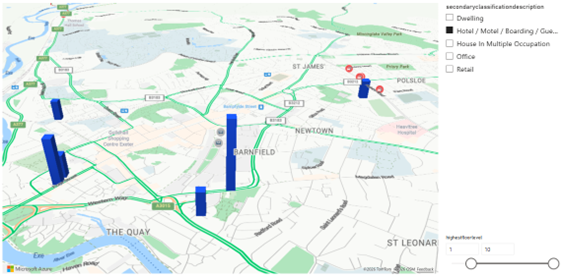
* Within the ‘Format your Visual’ menu, you can change symbology within Format Visual to produce Bubble maps, Cluster Bubbles, Heat Maps, or add a 3D aspect to the data – for example, viewing highestfloorlevel with OS NGD GB Address (in this case, you would add highestfloorlevel to the Size field when adding data to your visual).
* You can also use the Azure Map visual alongside Slicers to filter data, for example classification description.
Power BI Azure Map visual
* There are also additional features of this visual to explore, such as an in-built Traffic Layer with real-time incident mapping, data of which is obtained through Microsoft Azure Map Services.
* Point, Line and Polygon data can also be added to the visual by uploading it as a reference layer – this can be uploaded in all major spatial formations including shapefile, as well as .csv format.
{% endtab %}
{% tab title="Esri" %}
#### **Esri Visual**
*Data Types Supported: Point Data alongside ArcGIS Online Data*
*Visualisations Supported: Points, Time, Heat Map, Drive Time, ArcGIS Online Feature Layers*
**How to add OS NGD data to visual**
* Firstly, add the ArcGIS for Power BI visual to your page – the ArcGIS for Power BI should be pre-installed in the visualizations tab.
* When you add the Esri Visual, you can either choose to sign into your ArcGIS Online account or continue as guest (note that if you do not sign into an ArcGIS Online account, the features of this visual will be much more limited).
* Add northings to *Latitude (Y)* and eastings to *Longitude (X)*
* In the pop up, *Check the spatial reference,* click *Update Location Type*, and change the Spatial Reference to *British National Grid*.
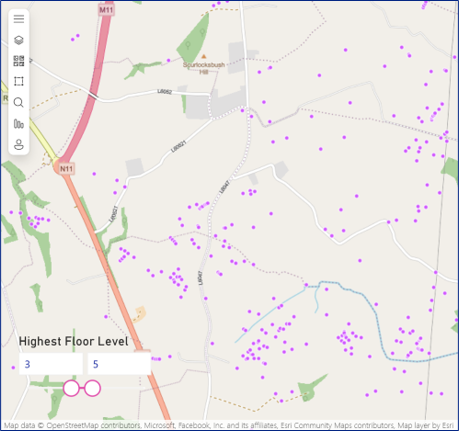
* You can change size or colour of points according to an attribute of interest by adding the corresponding attribute into the *Size or Colour field* in Build Visual.
* If looking at five or fewer features, you are able to do buffer or drive time analysis with these points, as long as you are logged into your ArcGIS Online account.
* If linked to your ArcGIS online account, you can also join data within your Power BI project to layers from your account – [more information can be found on the Join layers page on ArcGIS website](https://doc.arcgis.com/en/power-bi/latest/workflows/join-layers.htm) (note that your join layer must have a common attribute for the join to be successful, for example Unique Property Reference Number/Unique Street Reference Number (UPRN/USRN)).
Power BI Esri visual
Esri also have their own dashboard tool within ArcGIS Online – [more information about this can be found on the Create a dashboard page on Esri's website](https://doc.arcgis.com/en/dashboards/latest/get-started/create-a-dashboard.htm).
{% endtab %}
{% tab title="Icon Map Pro" %}
#### **Icon Map Pro Visual**
*Data Types Supported: Point and Vector Data*
*Visualisations Supported: Circles, Heatmap, H3, Images/Icons, Lines, WKT/GeoJSON, KML, Vector Tiles, ArcGIS Feature Layer*
**How to add OS NGD data to visual – Point datasets**
* To add Icon Map Pro to your list of visuals, click the *... icon* > *Get more visuals*, then click *Icon Map Pro* from the list of visuals, and *Add*.
* Once you’ve added the Icon Map Pro visual to your page, if trying to visualise OS NGD Address data, add *UPRN* to \**ID (required)* field.
* For other point data, add *eastings* to *Longitude (X)* and *northings* to *Latitude (Y),* and add field of interest to *Circle Size*. Then go to *Format Visual* > *Data Layers* and select *Circles* (for example, can also select Heatmap or H3 for point datasets if of interest).
* If you wish for all circles to be the same size, place a field such as *highestfloorlevel* under this category as this is needed to create the circle visual, and in *Format Visual* > *Data Layers* > *Circles – Configuration*, set the *Minimum* and *Maximum Size* to be equivalent.
* Ensure that under Cicles – Configuration, EPSG is set to *27700*.
* Click *Background Layer* and set Map Source to be *Ordnance Survey*, select your preferred Ordnance Survey Map Style under Ordnance Survey Configuration, then under API Keys & Authentication, enter your OS Maps API key to access the *OS Style Backdrop*.
**How to add OS NGD data to visual – Vector datasets**
* Add *OSID* to the \**ID (required)* field
* Add *Geometry* to Image/WKT/GeoJSON*,* and go to *Format Visual* > *Data Layers* and select *WKT/JSON (from file)*
* Under WKT/GeoJSON Configuration, ensure EPSG is set to *27700.*
* Click *Background Layer* and set Map Source to be *Ordnance Survey*, select your preferred Ordnance Survey Map Style under Ordnance Survey Configuration, then under API Keys & Authentication, enter your OS Maps API key to access the *OS Style Backdrop*.
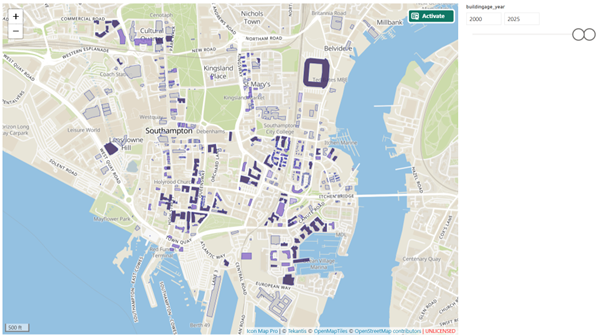
* To add further formatting, you can use *Functional Formatting* under *Colour* to change data according to attribute (for example, building height) and add additional slicers to filter data. Icon Map Pro does not come with an in-built ability to add a legend; however, this can be achieved using Slicers when looking at attributes with discrete values – [more information can be found on Icon Map’s website](https://www.icon-map.com/blog/legends).
Power BI Icon Map Pro visual
Icon Map Pro also has a complementary visual, Icon Map Slicer, that provides additional capabilities for selecting items on the map, and filtering the report based on location. It also has 3D capabilities such as 3D terrain and extruded polygons. [More information relating to this visual can be found on the Icon Map Slicer page of the Icon Map website](https://www.icon-map.com/products/slicer/).
{% endtab %}
{% tab title="OS Power BI Map Visual" %}
### OS Power BI Map Visual
*Data Types Supported: Point data (Unique Property Reference Numbers (UPRNs), Postcodes, Eastings & Northings, Latitude & Longitude), lines and polygons (WKT, GeoJSON, TopoJson, Shapefile), Government Statistical Service (GSS) polygons*
*Visualisations Supported: OS Maps backdrop mapping, feature colour (points, lines, polygons with continuous or categorical shading), point size*
**How to add data to the OS Power BI Map Visual**
The [OS Power BI Map Visual Getting Started Guide](/more-than-maps/advanced-applications/os-ngd-data-in-dashboards/os-power-bi-map-visual/os-power-bi-map-visual-getting-started-guide.md) provides comprehensive step-by-step instructions for using the open source OS Power BI Map Visual product.
An example of data mapped onto an OS background map using the OS Power BI Map Visual.
{% endtab %}
{% tab title="Qlik" %}
#### How to use OS NGD data with Qlik
*Data Types Supported: Point, Line, Polygon*
*Data Formats Supported: Shapefile, GeoJSON, CSV, GML*
*Visualisations Supported: Heatmap, Charts, WMS, TMS, Raster basemaps*
*GeoAnalytics Operations Available: Buffer, Dissolve, Intersects, Routing, Travel Areas, Nearest Neighbour*
**How to add OS NGD data to Qlik**
* Add a map visualisation to a sheet by navigating to *Charts > Visualization > Map.*
* To add vector data to the map, the data table must first be added to your sheet, and must include valid geometry (either in GeoJSON or WKT notation, or XY coordinate fields).
* Vector data can then be added by clicking on the map visualisation and navigating to *Add Layer > Area Layer / Point Layer / Line Layer.*
* OS Maps API integration into a map visualisation requires the [ZXY API Endpoint](https://docs.os.uk/os-apis/accessing-os-apis/os-maps-api/technical-specification/zxy).
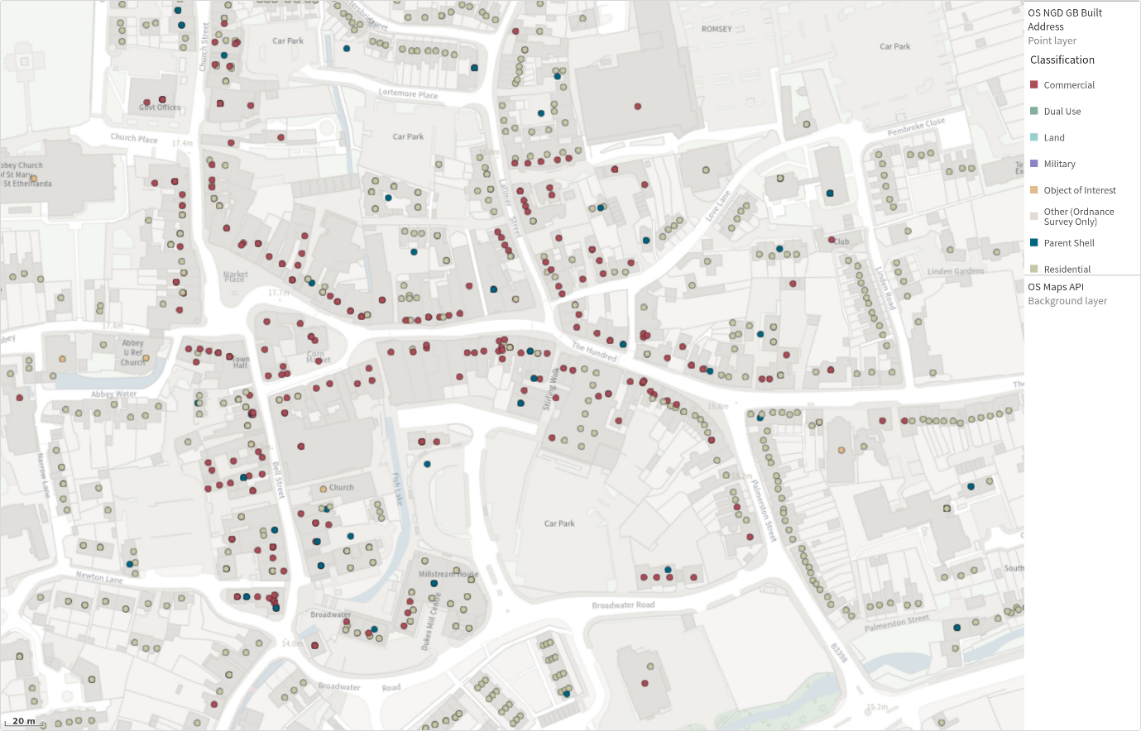
* To add OS Maps API as a backdrop map, click on the map visualisation and navigate to *Add Layer > Background Layer* > then select *Format > TMS* and enter the *API URL* when prompted.
Power BI Qlik visual
{% endtab %}
{% endtabs %}
## More information
* OS NGD data can be downloaded from the [OS Data Hub](https://osdatahub.os.uk/).
* More information on using the OS Power BI Map Visual can be found on the [OS Power BI Map Visual documentation page](/more-than-maps/advanced-applications/os-ngd-data-in-dashboards/os-power-bi-map-visual.md).
* [More information on how to install and use Icon Map Pro in Power BI](https://icon-map.com/documentation/pro/getting%20started/freetrial/) can be found on their website.
* [More information on how to add the Esri Power BI Visual](https://doc.arcgis.com/en/power-bi/latest/get-started/introduction-to-arcgis-for-power-bi.htm) can be found on their website.
* [More information on using Qlik](https://help.qlik.com/en-US/cloud-services/Subsystems/Hub/Content/Sense_Hub/Visualizations/Map/Map.htm) can be found on their website.
---
# Agent Instructions
This documentation is published with GitBook. GitBook is the documentation platform designed so that both humans and AI agents can read, navigate, and reason over technical content effectively. Learn more at gitbook.com.
## Querying This Documentation
If you need additional information that is not directly available in this page, you can query the documentation by asking a question.
Perform an HTTP GET request on the following URL with the `ask` and `goal` query parameters:
```
GET https://docs.os.uk/more-than-maps/advanced-applications/os-ngd-data-in-dashboards.md?ask=&goal=
```
`ask` is the immediate question: it should be specific, self-contained, and written in natural language.
`goal` is what the user is ultimately trying to achieve, the reason they need the answer. Sharing it helps GitBook give you a better, more relevant answer. A goal is most helpful when it describes the outcome the user wants rather than restating the question. For example, with `ask=how do I create an API token`, a goal like `automate deployments from our CI pipeline` lets GitBook tailor the answer to that use case.
The response will contain a direct answer to the question and relevant excerpts and sources from the documentation.
Use this mechanism when the answer is not explicitly present in the current page, you need clarification or additional context, or you want to retrieve related documentation sections.