# Opening OS OpenData in QGIS

* Open QGIS from **Start>All Programs>QGIS Brighton>QGIS Desktop 2.6.1**
* To open the OS VectorMap District (Raster) format Select **‘Add raster layer’** (see below)

![Add raster layer icon in the application toolbar](https://1897589978-files.gitbook.io/~/files/v0/b/gitbook-x-prod.appspot.com/o/spaces%2FcNpJpLP8RROUaWVQo5ea%2Fuploads%2FzHHxrGl5RXE1lRtZt17T%2F9.jpeg?alt=media)

* Click **‘Browse’** and navigate to the downloaded files that have been extracted. Select the required TIFF files. In this case **SU41** is the required image. Click **‘Open’**.

<figure><img src="https://1897589978-files.gitbook.io/~/files/v0/b/gitbook-x-prod.appspot.com/o/spaces%2FcNpJpLP8RROUaWVQo5ea%2Fuploads%2FEzAsTQDBPbwkUa3WNQsM%2F10.jpeg?alt=media" alt="Raster data  shown in the file explorer to be opened" width="563"><figcaption><p>Raster data shown in the file explorer to be opened</p></figcaption></figure>

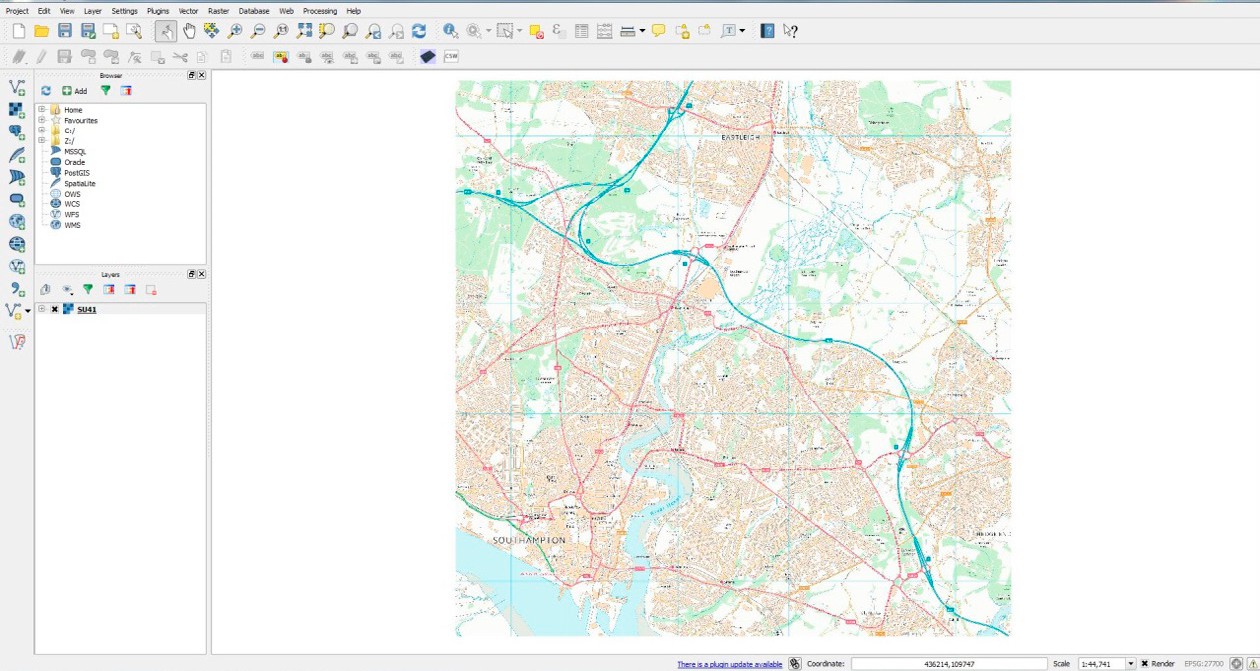
* The opened map will look similar to this:

<figure><img src="https://1897589978-files.gitbook.io/~/files/v0/b/gitbook-x-prod.appspot.com/o/spaces%2FcNpJpLP8RROUaWVQo5ea%2Fuploads%2F9gI0yqpKpyMrxzVg9FBo%2F11.jpeg?alt=media" alt="Raster data loaded into main map window QGIS" width="563"><figcaption><p>Raster data loaded into main map window QGIS</p></figcaption></figure>

* Once open you can move about and investigate the map using some of these tools:

<figure><img src="https://1897589978-files.gitbook.io/~/files/v0/b/gitbook-x-prod.appspot.com/o/spaces%2FcNpJpLP8RROUaWVQo5ea%2Fuploads%2FmTsQeGYPGb4BWur0CjDF%2F12.jpeg?alt=media" alt="Map navigation toolbar" width="259"><figcaption><p>Map navigation toolbar</p></figcaption></figure>

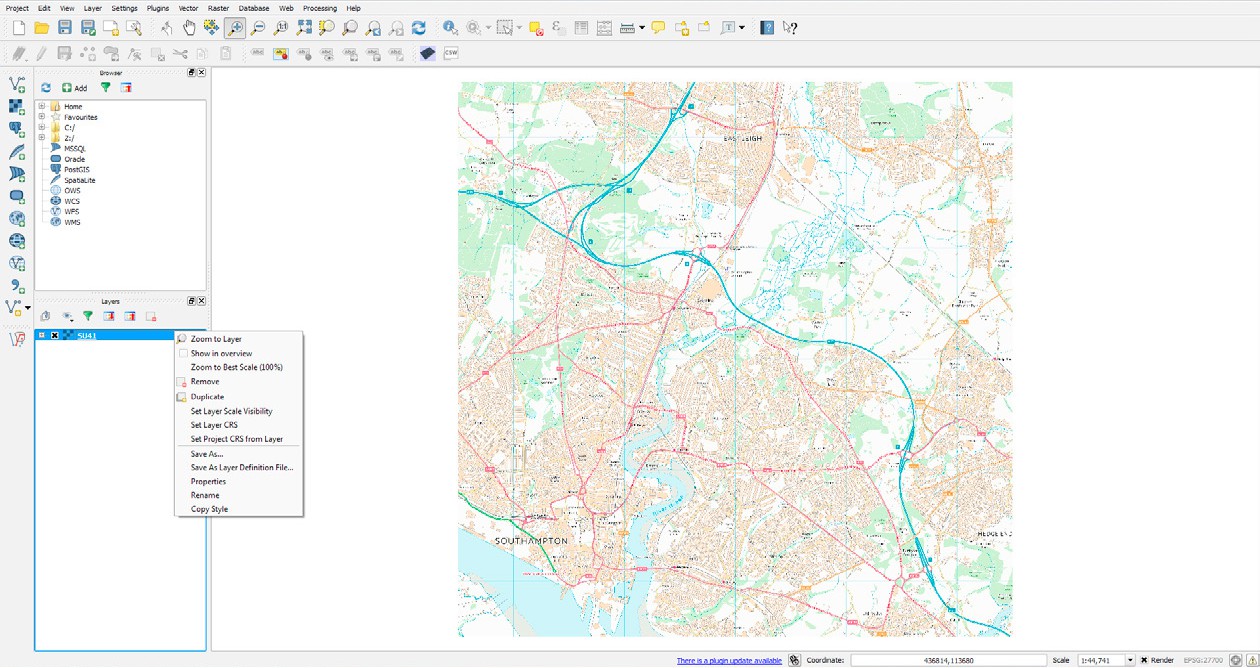
* To restore the image to its original view right click on the raster image layer and click **‘Zoom to layer’**.

<figure><img src="https://1897589978-files.gitbook.io/~/files/v0/b/gitbook-x-prod.appspot.com/o/spaces%2FcNpJpLP8RROUaWVQo5ea%2Fuploads%2FT45r1mKvA7olsw79RURW%2F15.jpeg?alt=media" alt="‘Zoom to layer’ shown in the context menu QGIS" width="563"><figcaption><p>‘Zoom to layer’ shown in the context menu QGIS</p></figcaption></figure>

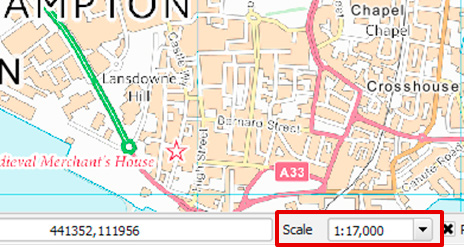
* The map is most functional for scales 1:15 000-1:30 000. For this tutorial we want a map of an area of Southampton at a scale of **1:17 000**. Use the **‘Pan tool’**, **‘Zoom in’** and **‘Zoom out’** to position the map over Southampton at an appropriate scale, or alternatively set the scale of the map by typing in the scale bar, which is at the bottom of the screen.

<figure><img src="https://1897589978-files.gitbook.io/~/files/v0/b/gitbook-x-prod.appspot.com/o/spaces%2FcNpJpLP8RROUaWVQo5ea%2Fuploads%2FCsF7KUljRfjJ4HGY4iYq%2F17.png?alt=media" alt="Map screen showing 1:17,000 scale selected in the bottom menu"><figcaption><p>Map shown at 1:17,000 in the main map window</p></figcaption></figure>